
IPTV stutters

IPTV stuttering, stopping, spinning circle — why, and what helps

A stream stops in one of three places: at the provider, on your line or in the player. Only the third one is yours to fix — and a reserve changes more than any other setting.

Apple TV · iPhone · iPad · Mac · Fire TV · Android soon

Now on the App Store for Apple TV, iPhone and iPad. The Mac app follows shortly under the same link. One purchase for all Apple devices (Universal Purchase).

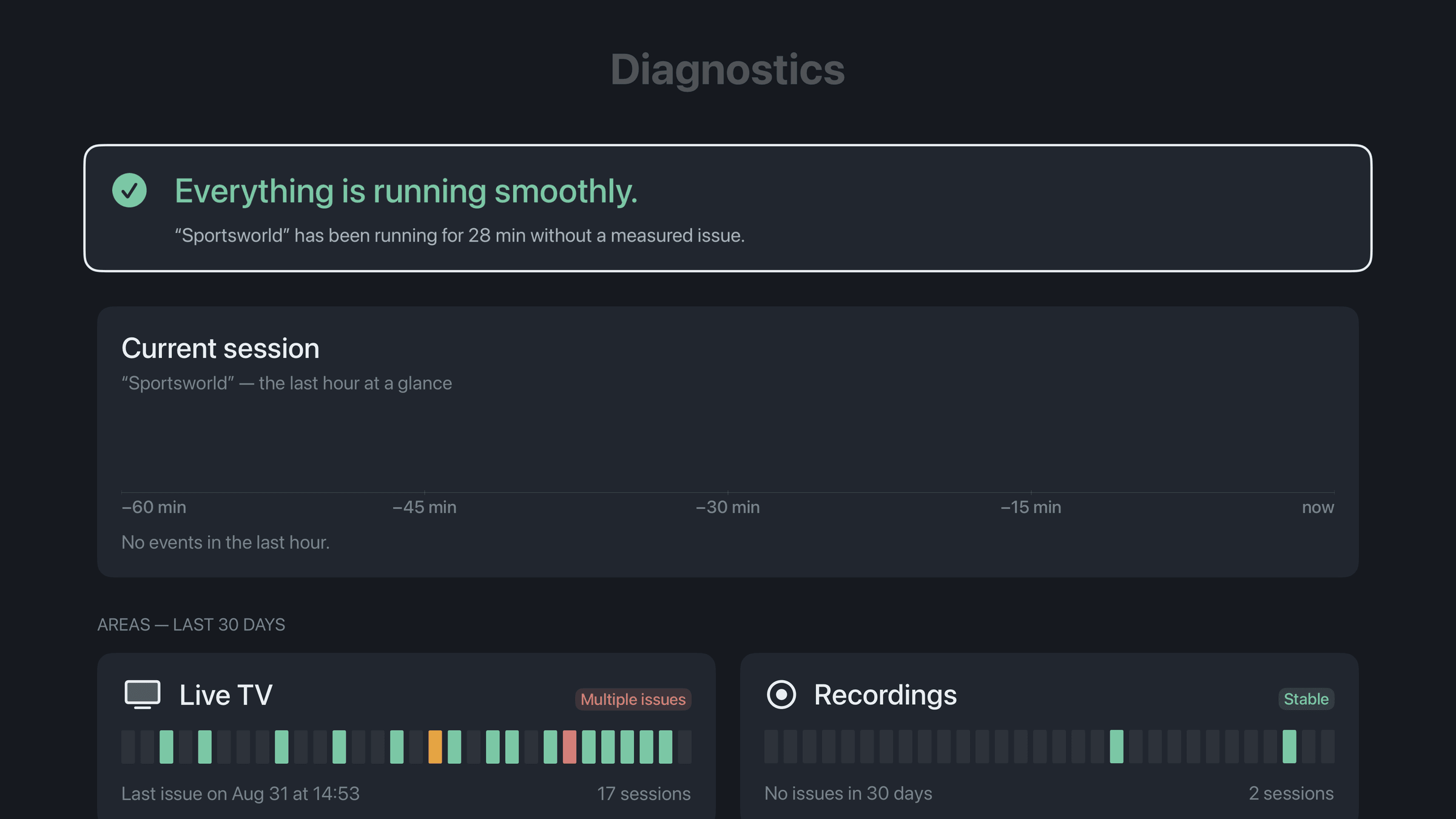
Neverlag on Apple TV: the diagnostics screen with the verdict in plain words

Stuttering IPTV is rarely one problem. Short pauses in delivery, a line that is slightly too slow, two devices on one account, a 4K channel on a small connection — each looks the same on screen: the picture stands, a circle spins, the stream starts over. This page sorts them out and says what you can do about each.

Neverlag is one player; the numbers below are ours. Other players we have not measured.

The causes, one by one

  1. Short delivery pauses — the most common case

    Providers send a few seconds of video, then nothing for a few seconds, then the next piece. A player that plays what has just arrived has nothing left during the pause: the circle spins. A player with a reserve plays on from the reserve and refills it when the next piece comes.

    What helps: a player with a reserve. In Neverlag it is on by default; “Reserve against dropouts” under Settings → Playback makes it larger.

    Measured in everyday use: 10 delivery pauses of 6.2 to 9.4 seconds, 10 of 10 bridged without a freeze.

  2. The line is slightly too slow

    If the line delivers 90 percent of what the channel needs, the reserve drains slowly and the picture stops every minute or two — and starts again, and stops again. The usual fix is a lower quality. The better one: play marginally slower, so the reserve does not drain. You do not notice seven percent; you notice a stop.

    What helps: “Adapt playback to the connection” in Neverlag, on by default. Or a lower startup quality on mobile data.

    Measured: 15 minutes on a throttled line — 42 freezes without the pace adjustment, 0 with it, on 1 connection.

  3. The connection breaks

    Wi-Fi to mobile data, a router reboot, a provider that drops the connection every few minutes. A player that reloads the stream shows the circle, starts over and loses the rewind buffer. A player that fetches the stream separately from playing it fetches a new connection in the background while the reserve carries the picture.

    What helps: a player that does not start over. And a provider that does not drop connections — the diagnostics show which one it is.

    Measured: connection cut for 20 seconds — no freeze. Cut for 60 seconds — the picture stood for 40.3 seconds, and the stream did not start over. New connection 1.1 to 2.1 seconds after the server was back.

  4. Two devices, one account

    Most providers allow one connection. When a second device starts, the provider ends the first — and the first player reloads, gets refused, reloads again. That looks like stuttering, but it is the connection limit.

    What helps: know your limit, and a player that waits instead of fighting. Neverlag waits and says so on screen; a recording and the live picture share one connection.

    Measured: with 2 providers the first connection was ended 3.2 to 8.4 seconds after the second started.

  5. 4K on a small connection, HDR on the Apple TV

    A 4K channel needs several times the data of an HD channel. If the line cannot carry it, the picture stops no matter how good the player is. A player that steps down to HD and comes back to 4K on its own keeps the picture running. On the Apple TV, 4K with HDR is a separate case: there the current picture path still loses images even when the stream arrives clean.

    What helps: “Preferred startup quality” on “Up to HD” on a small line; the 4K-HDR limit we publish in the Lab and are working on.

  6. The provider itself

    Overloaded servers at prime time, a channel that is simply down, maintenance. No player fixes that. What a player can do: say so clearly instead of spinning, and try a substitute from another list if you have one.

    What helps: Settings → Diagnostics → history per channel. If every channel of one provider stutters at 8 p.m., it is the provider.

What you see — and what it points to

What you seeMost likely causeWhat to try
Circle every few seconds, then it runs delivery pauses, no reservea player with a reserve
Stops every minute or two, then continues line slightly too slowpace adjustment or a lower startup quality
Picture stands, stream starts from the beginning connection dropped, player reloadeda player that fetches separately from playing
Runs for a while, then “connection refused” second device on the same accountcheck the connection limit
Only 4K channels stutter line too small for 4K, or HDR on the Apple TVstart “Up to HD”; see the Lab for HDR
Every channel of one provider stutters at the same time provider overloadedwait, or a substitute from another list

Neverlag is an IPTV player for Apple TV, iPhone, iPad, Mac and Fire TV for Xtream Codes and M3U providers. It separates fetching the stream from playing it, so that connection drops do not lead to reloads. Measured: 60 seconds without a connection, zero reloads.

Measured: Neverlag, in the Playback Lab, on our own devices. Other players: not yet measured. We name no providers and recommend none — you bring your own list or credentials.

Short answers

Why does IPTV stutter?

Because the stream stops at one of three places: the provider delivers in pieces or is overloaded, your line is slightly too slow or drops, or the player reloads at every hiccup. A reserve in the player bridges the first two; not starting over fixes the third.

Does a VPN help against stuttering?

Sometimes, if your internet provider slows down video traffic; often not, because the VPN adds a detour. Test it with the diagnostics: if the network test is fine and only one provider stutters, the VPN will not change that.

Wi-Fi or cable?

Cable, if the Apple TV or Mac is near the router. Wi-Fi drops are the most common cause of short connection breaks; a player with a reserve bridges them, but a cable avoids them.

How do I know whether it is my provider or me?

Settings → Diagnostics: the verdict says it in plain words, the history shows whether one provider or all of them stutter, the network test checks your line against a neutral host. All of it stays on the device.

Free to download.
Seven days to watch.
Then you decide.

Your list, your provider — try it free for 7 days, then you decide. Mac, iPhone, iPad, Apple TV. Family Sharing included. Cancel any time.

Now on the App Store for Apple TV, iPhone and iPad. The Mac app follows shortly under the same link. One purchase for all Apple devices (Universal Purchase).

Neverlag is a player. You need your own M3U playlist or credentials from an IPTV provider. Neverlag does not contain, deliver or broker any content.