IPTV without freezing —
how Neverlag works.
We didn’t guess why IPTV stutters. We measured — evening after evening, stream after stream. Here is what we built differently, in the IPTV player for Mac, iPhone, iPad and Apple TV. And where the limit is today.
Neverlag is an IPTV player for Apple TV, iPhone, iPad, Mac and Fire TV for Xtream Codes and M3U providers. It separates fetching the stream from playing it, so that connection drops do not lead to reloads. Measured: 60 seconds without a connection, zero reloads.
- 60 s without a connection — zero reloads
- 15 min on a throttled line — one connection, no freeze
- 1–2 s until the new connection is up once the server is back
The IPTV player, rethought.
Every player reloads when something goes wrong. Neverlag is the first that acts before that — and tells you what it did.
-
The connection drops.
Other players notice once the picture stands still, then reload.
Neverlag keeps playing from its reserve and fetches a new connection in the background — you hardly notice.
(20 seconds without a connection: nothing reloaded, the picture kept playing from the reserve — a half-second stutter at the join.)
-
The line is too slow.
Other players stutter or reload.
Neverlag tries everything that helps, one step at a time — a new connection, the other delivery route, another source of the same channel — and only drops to a smaller resolution as the very last step. And as soon as the line can carry it again, it brings 4K back on its own.
(Measured: no stutter before the switch, a brief freeze at the switch, 4K back two minutes later — without you noticing.)
-
The channel goes down at the provider.
Others show an error message, you zap away.
Neverlag takes the other route to the channel by itself.
(After 14 seconds the picture comes over the other route — a good second of freeze at the switch.)
-
A restart can’t be avoided.
Others show two seconds of black.
Neverlag holds the last picture — for half a second — and keeps playing.
(Two minutes of recording with a restart: not a single black frame, half a second of freeze.)
-
You see what it does.
One line for five seconds — “Switched to 1080p” — with a button in case you want it otherwise. The player remembers that for the evening.

To our knowledge, no other IPTV player does this. If one does, we’ll gladly measure it against ours — in the Playback Lab.
-
The core
Fetching and playing
are two different things.Other players fetch the stream and play it. When the connection drops, they only notice once the picture stands still — then they reload, and whatever you could rewind is gone.
Neverlag separates the two: one part of the app fetches the stream and keeps a reserve, another part plays it. When the connection drops, the first part fetches a new one in the background before the reserve runs out. You see nothing.
When the reserve runs low, Neverlag fetches fresh programme before it runs out — not once the picture stands still. We cut the connection for 60 seconds: zero reloads. What else happened is in the Lab.

-
Slow line
Line too slow?
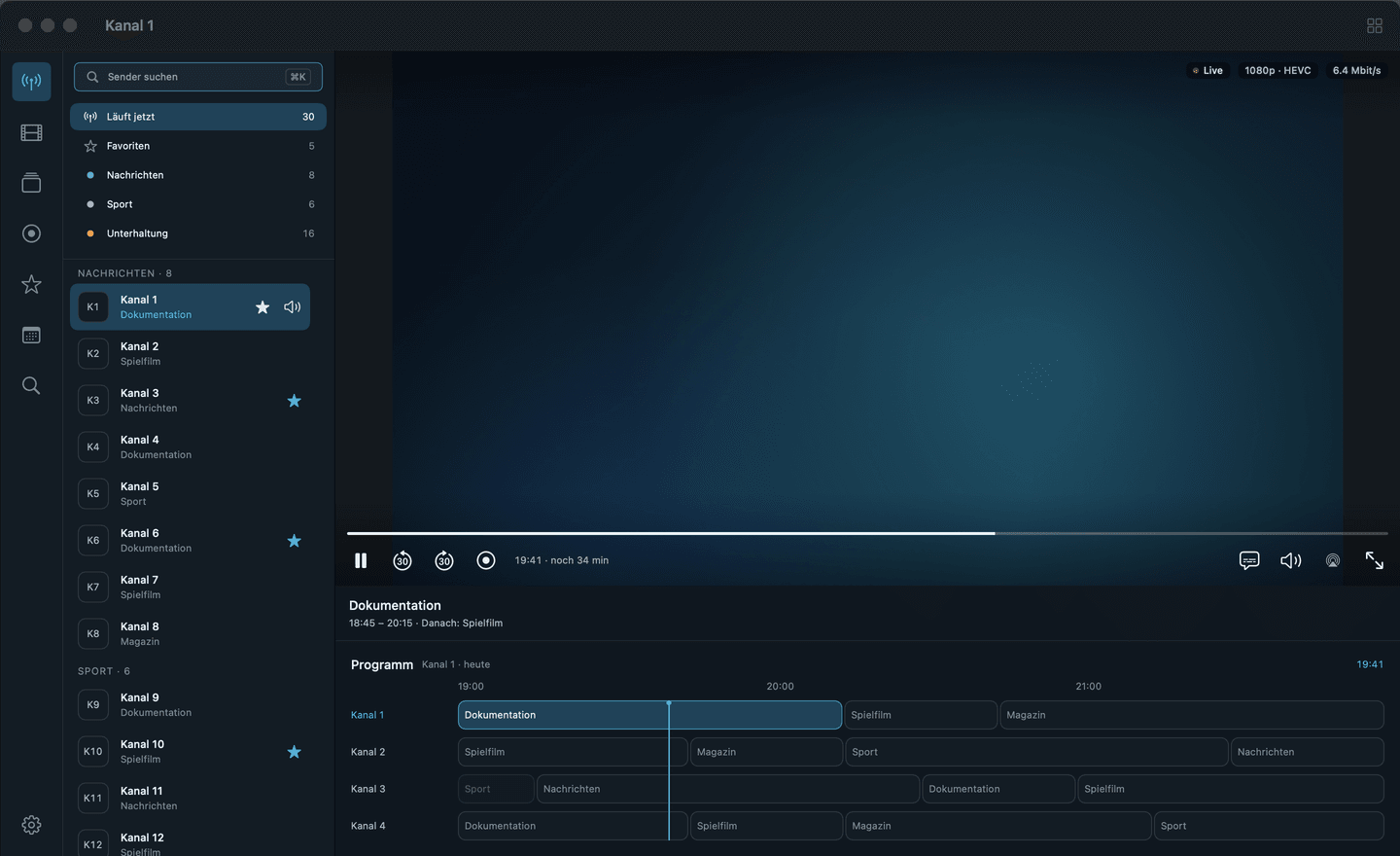
Neverlag slows down a touch.At prime time some providers deliver slightly less than the channel needs. A player that reloads every time turns a slow line into an evening of frozen pictures.
When the line delivers too slowly, Neverlag plays minimally slower instead of reloading again and again. You won’t notice; the diagnostics will tell you. Measured: 15 minutes on a throttled line, one connection, no reload — without this adjustment it was 42 freezes.
-
Two devices, one account
Neverlag waits
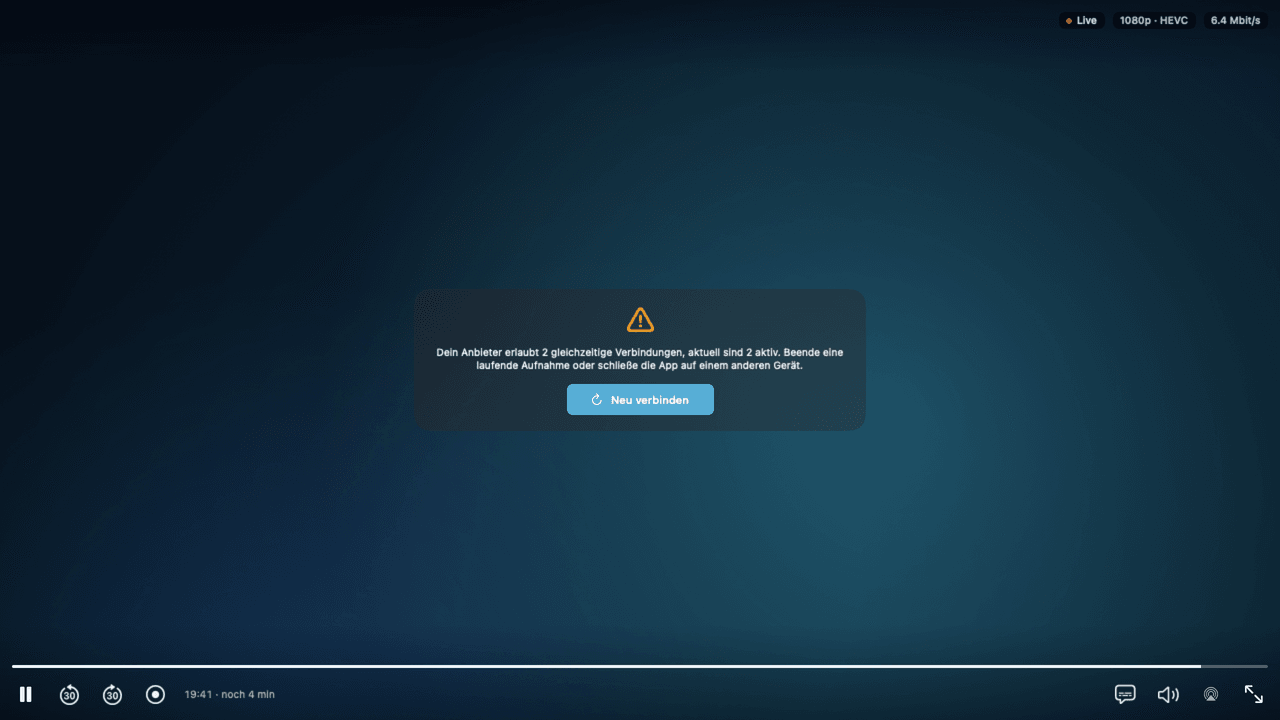
instead of kicking out.Providers often allow only one or two simultaneous connections. If someone watches on a second device, one of you gets thrown out — usually without learning why. And because both players reconnect immediately, they throw each other out every second.
When two devices share an account, Neverlag doesn’t push ahead — it waits instead of kicking the other device out, and tells you another device is watching right now. Playback, recording and diagnostics share the allowed connections. If the limit is taken, you see how many are allowed and how many are active.
-
The referee
One disturbance,
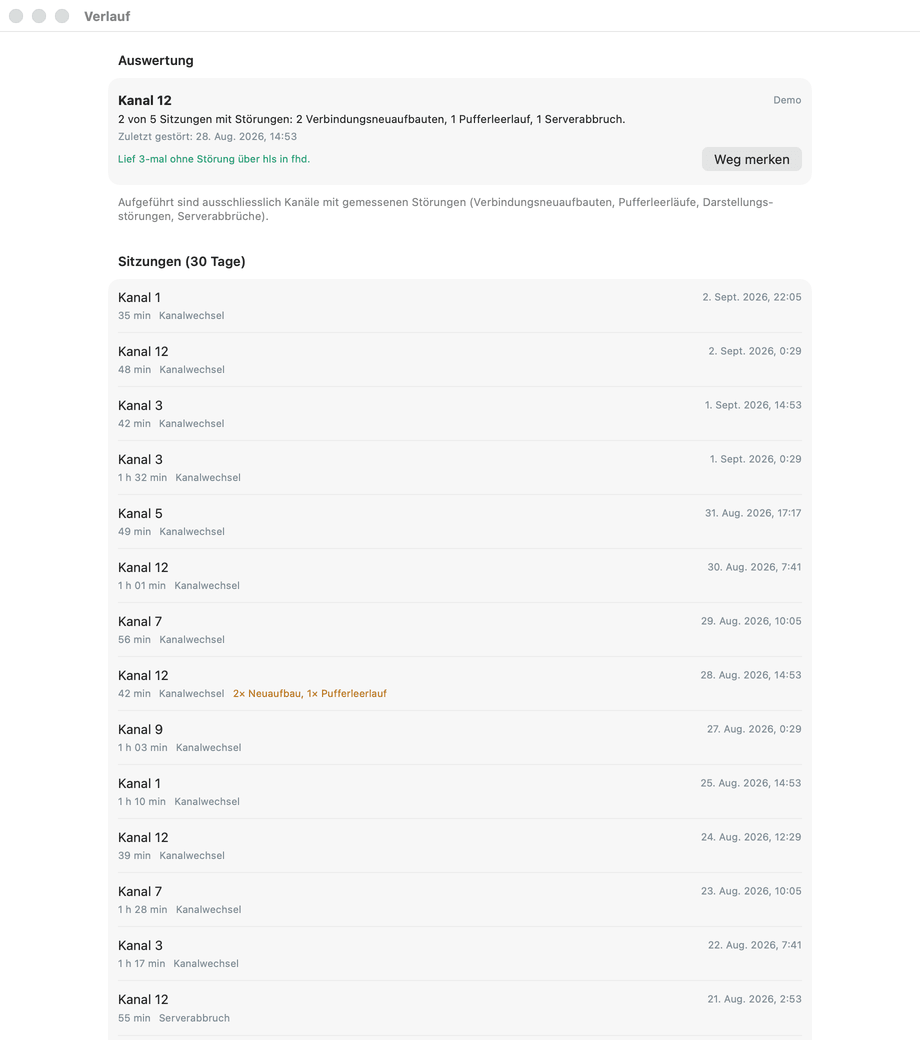
exactly one reaction.A player has several ways to react to a disturbance: reconnect, change quality, switch to another route. If three mechanisms do that at once, a short dropout becomes a long one.
A referee inside the player makes sure exactly one mechanism reacts to a disturbance, not three at the same time. Every decision is in the diagnostics — what happened, what Neverlag did and why.
-
4K
4K stutters,
HD would run cleanly.A 4K channel needs four times as much data as the same channel in HD. Some providers can’t deliver that at prime time — then 4K stutters while HD would run cleanly.
Neverlag shows you what actually arrives and steps down to the stable tier with a notice: a hint above the picture, a button back. After that it checks every few minutes whether 4K works again and brings it back on its own — without you noticing. Measured: two minutes after the trouble ended, 4K was back, with no break.
The honest limit: on Apple TV, 4K with HDR still loses pictures today; 1080p and 4K without HDR run cleanly. We’re working on it.
-
Network change
From Wi-Fi to mobile —
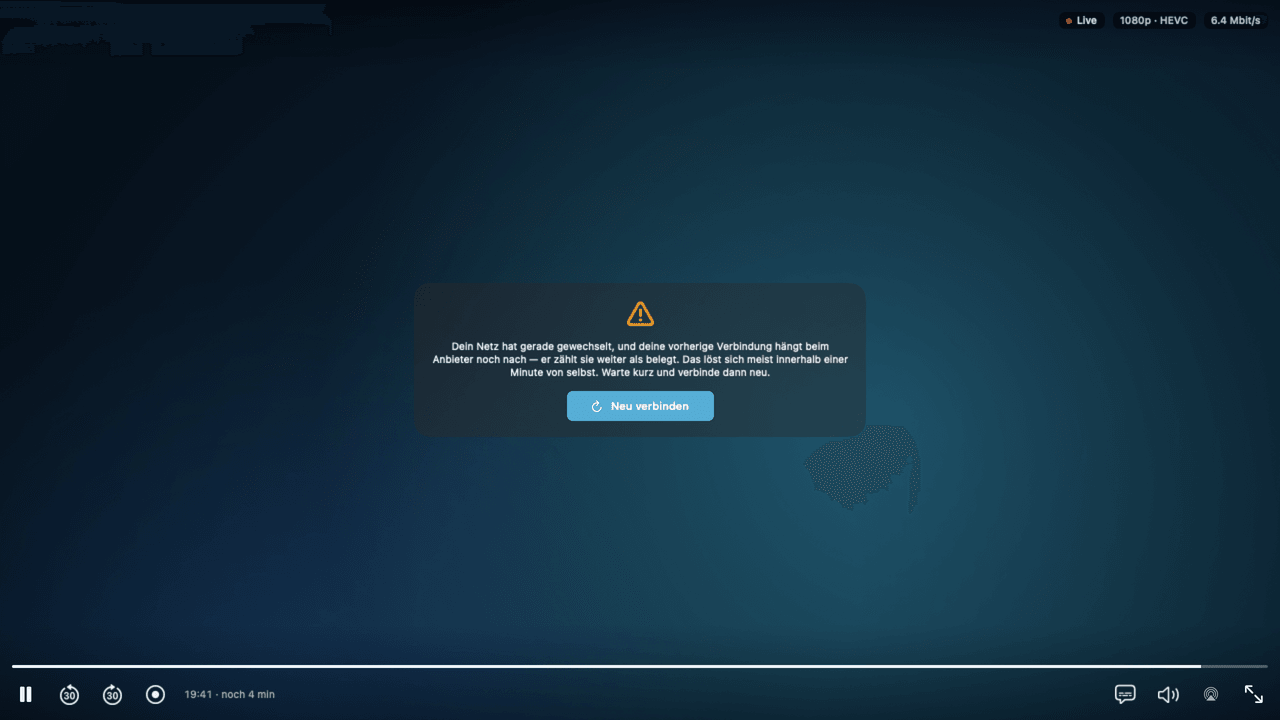
and back.You leave the house with your iPhone, the Wi-Fi drops, mobile data takes over. The stream hangs on a connection that no longer exists — and at the provider it often still counts as taken for a while.
Neverlag detects the change and records it in the history. If the stream breaks, it fetches a new connection in the background. And if the provider rejects the new one because it still counts the old one, Neverlag tells you exactly that — in plain language, instead of an error without a reason.
-
Several routes to the same channel
One channel,
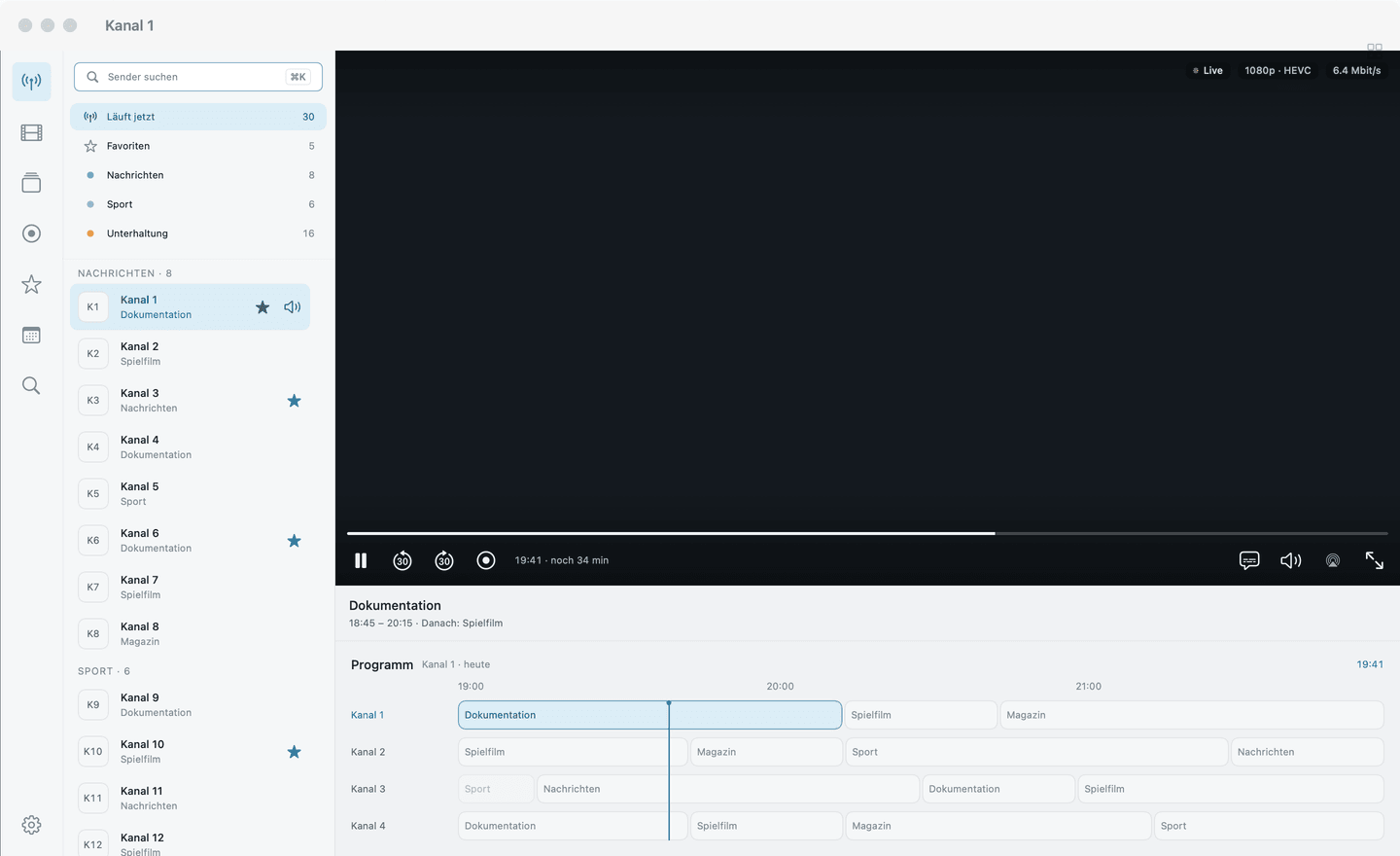
many routes.Providers often carry the same channel several times: in 4K, HD and SD, via different addresses, in different groups. In the channel list that’s five entries with the same name — and when in doubt you try them all until one works.
Neverlag groups them into one entry. If one route stutters, Neverlag switches to another — with a notice above the picture. Which route has proven itself is in the analysis: one click on “Remember route”, and the next playback starts with it.
-
Diagnostics and history
When it stutters,
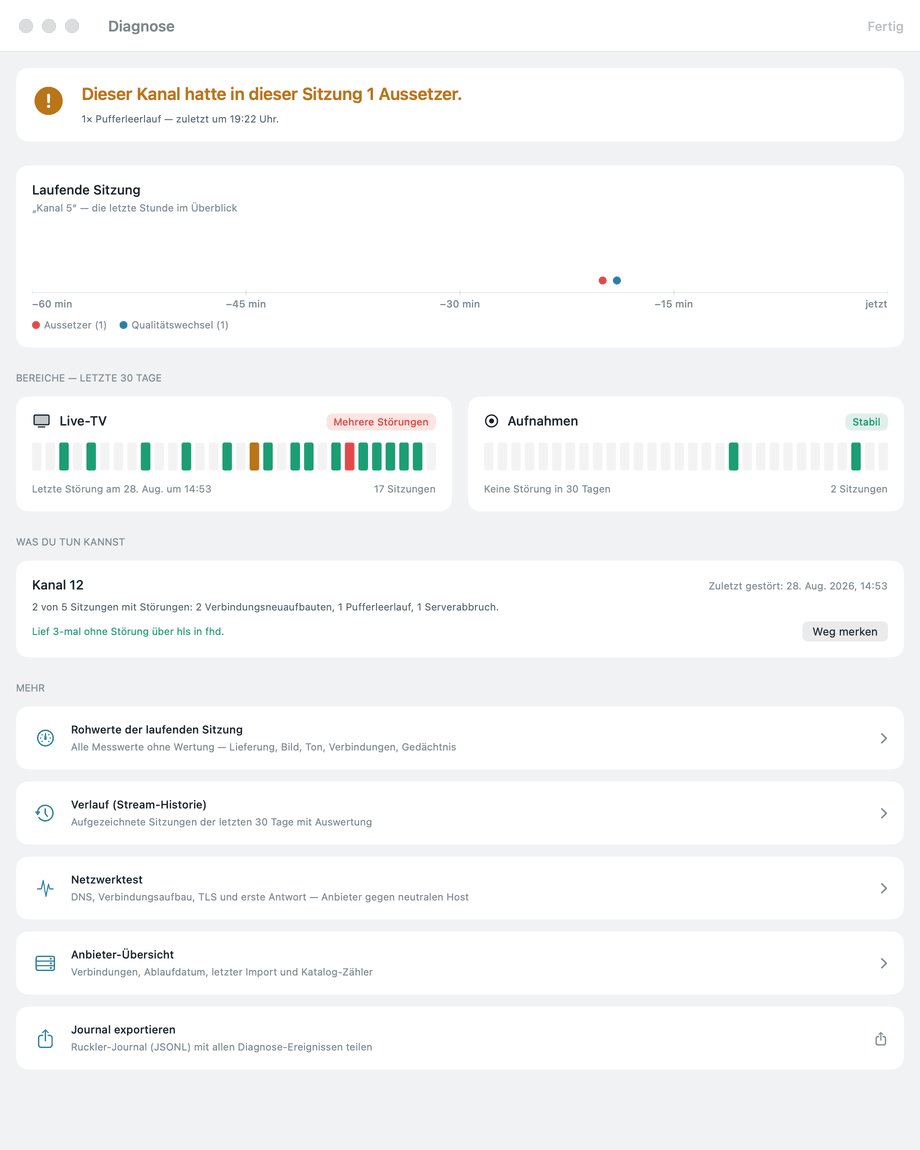
you know why.With most players a dropout ends in a black picture and a number that means nothing to anyone. Whether it was the provider, the network or the device remains guesswork.
Neverlag tells you: a plain-language verdict, the current session as a timeline, the last 30 days per provider and channel. A network test checks the provider against a neutral host, so you know whether it’s them or your network. No guessing.
Everything stays on the device. Nothing is sent, nobody evaluates along.
-
Recordings and rewind
Rewind. Record.
Watch later.Live TV knows no pause — unless the player holds the stream for you.
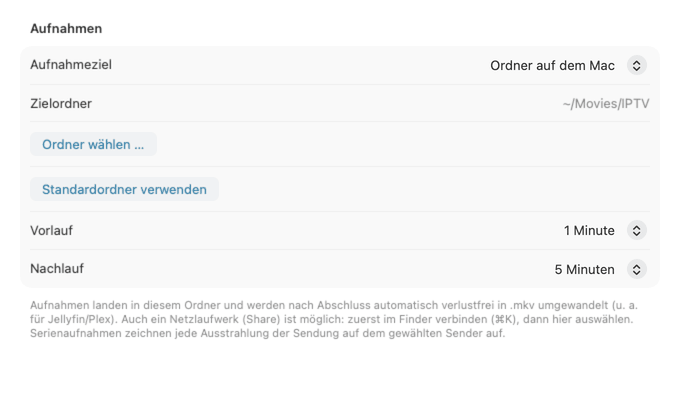
Neverlag buffers live channels onto the device: pause, skip back a bit, back to live. You schedule recordings from the programme guide, single or as a series rule, with lead-in and lead-out. Stored locally or on your network storage — on Apple TV, which has no storage of its own, directly there.
Recordings are lossless MKV files that common media servers read and scrub through directly.
-
Setup without typing
No password
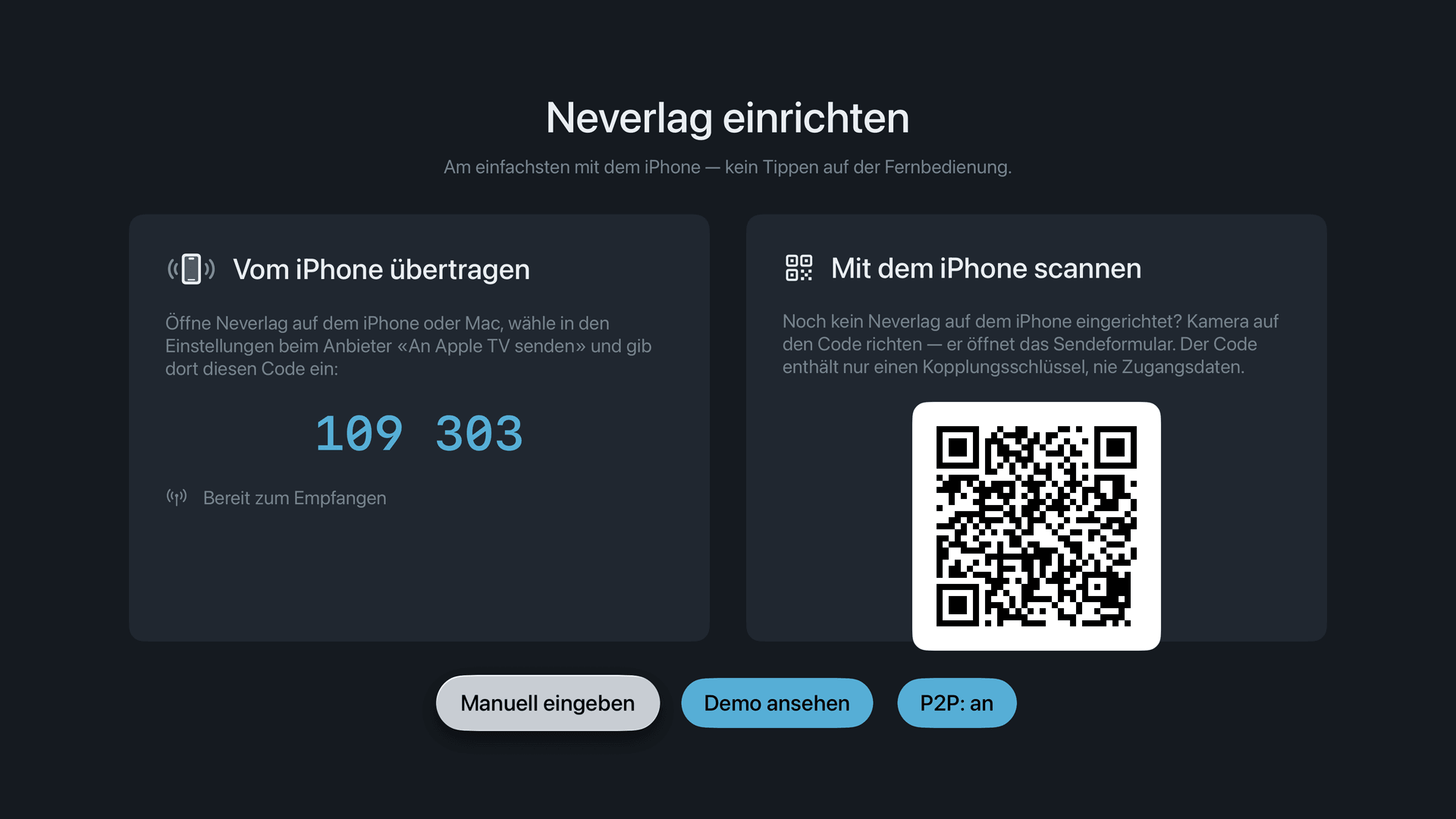
with the remote.Typing credentials on the TV — letter by letter with the remote, and from the top at the first typo. That is how IPTV starts on most devices.
With Neverlag it starts on your iPhone or Mac. Your credentials are already there; the Apple TV shows a code, the iPhone transfers them encrypted over your home network — done. Nothing is typed.
-
Privacy
Nobody’s watching you.
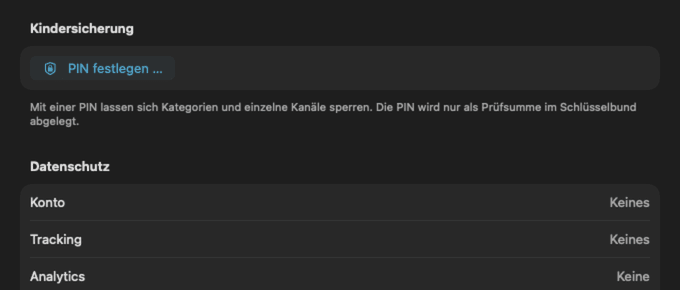
What you watch is nobody’s business. Many apps still come with an account, analytics running along, an advertising ID being set.
No account. No tracking. No ads. What you watch is none of our business. Credentials live in your device’s keychain; playlists, catalogues and history stay on the device. This website doesn’t measure you either: no cookies, no analytics.
As an M3U player or with Xtream Codes:
set up in three steps.
As an M3U player, Neverlag only needs your playlist; as an Xtream Codes player, your provider’s server, username and password. Enter it once — then watch.
iPhone
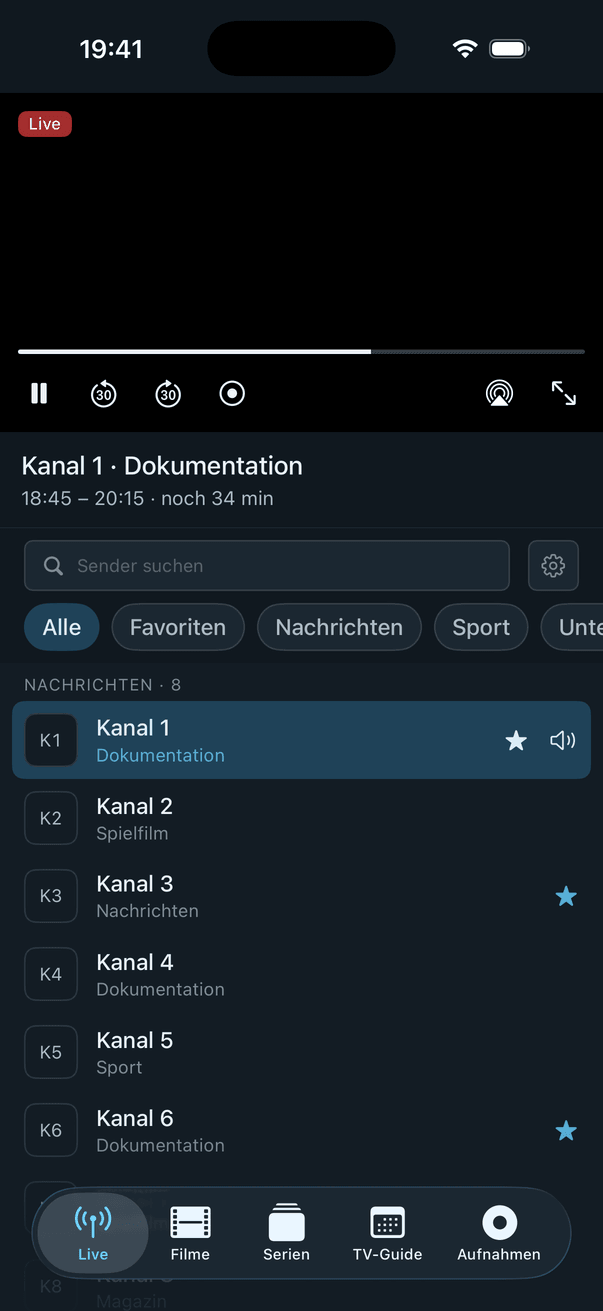
- Step 1 Enter your credentials or M3U playlist — via the gear next to the filter bar.
- Step 2 Pick the groups you want to import.
- Step 3 Watch. Favourites and filters sit right above the channel list.
Mac
- Step 1 Enter your credentials: Settings → Providers.
- Step 2 Pick groups — you can change the selection any time.
- Step 3 Watch. One subscription covers Mac, iPhone, iPad and Apple TV.
Apple TV
- Step 1 Take over the credentials from your iPhone or Mac — by code or QR, no typing.
- Step 2 Pick groups.
- Step 3 Watch — with the same channel list as on your other devices.
A programme guide
you actually use.
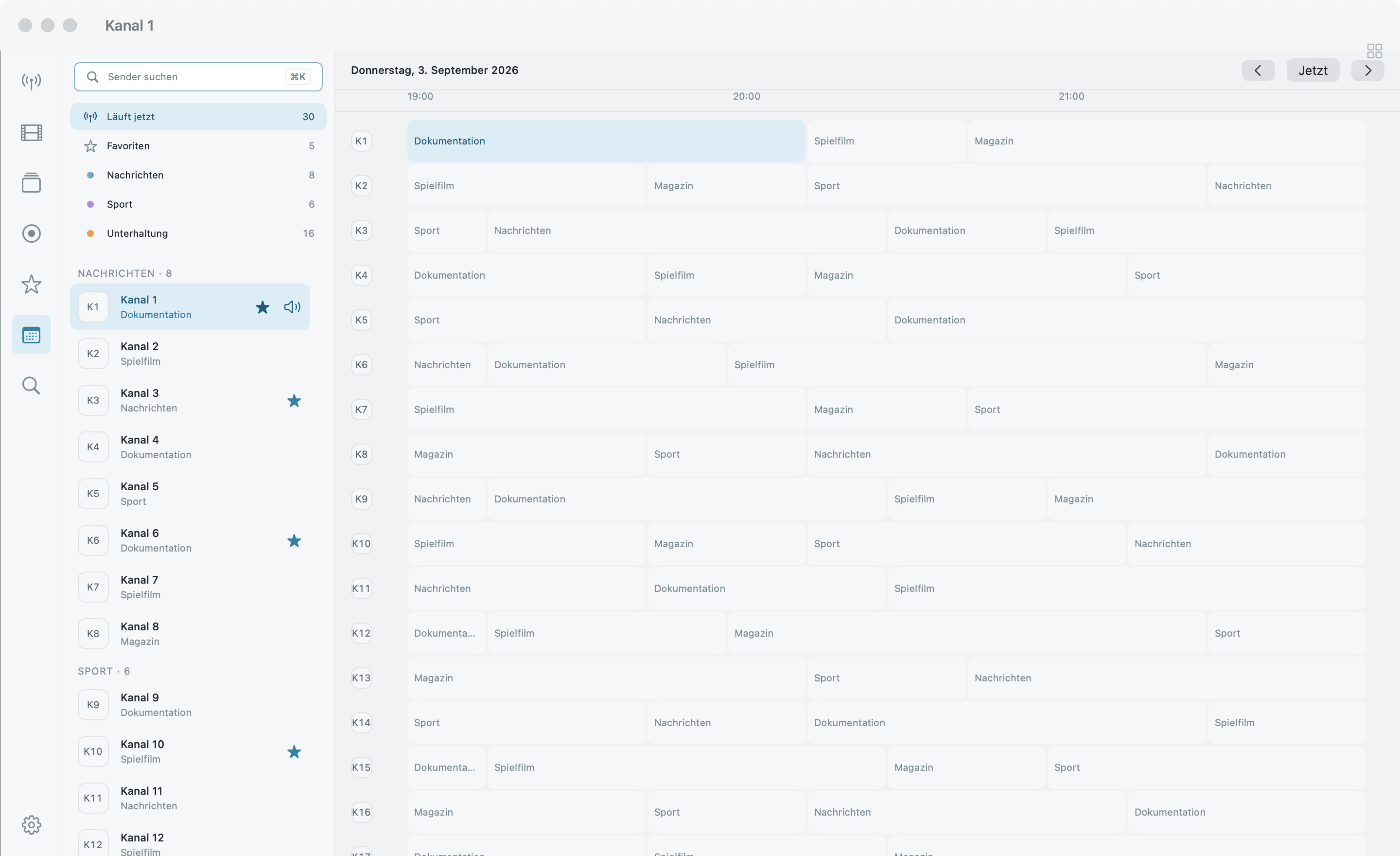
Seven days of programme, as far as your provider supplies programme data. The current programme is highlighted, one click opens recording or playback. On Apple TV in a time grid across all channels, on Mac and iPad next to the picture.
Fact sheet
Neverlag in facts and figures
| What it is | IPTV player for Xtream Codes and M3U providers. Not a provider, no content. |
|---|---|
| Platforms | Apple TV (tvOS 17+), iPhone (iOS 17+), iPad (iPadOS 17+), Mac (macOS 14+) — one subscription for all four, Family Sharing included. Fire TV Stick 4K and 4K Max. Android soon. |
| Sources and formats | Xtream Codes API, M3U/M3U8 playlists, XMLTV programme guides. Streams as MPEG-TS or HLS, SD to 4K. No DRM streams. |
| Languages | German, English, French, Italian. |
| Stability | Fetching and playing separated. Measured: 60 seconds without a connection, zero reloads; 15 minutes on a throttled line, one connection, no reload. |
| Recordings | From the programme guide, single or series rule, lossless MKV. Destination: a folder on the Mac, the app folder on iPhone and iPad, network storage (WebDAV) everywhere — the only option on Apple TV. |
| Timeshift | Pause and rewind on every channel. |
| Diagnostics | Plain-language verdict, session timeline, 30-day history, network test. All local, nothing is sent. |
| What Neverlag does not do | No account, no tracking, no analytics, no ads. No content, no provider recommendations. No recording while the device is off. |
| Trial | Your list, your provider — try it free for 7 days, then you decide. The store shows the price. |
| Age rating | 16+, because the app plays any playlist you supply. |