How Neverlag stays stable
This page explains in simple words what Neverlag does in the background to keep the picture running. You do not have to set any of it. The related settings are under Settings → Playback.
The principle: a tank
Imagine a water tank. The provider pours the programme in at the top; at the bottom it flows out as a picture. As long as there is something in the tank, the picture runs – even if nothing comes in at the top for a moment. In the app this tank is called reserve.
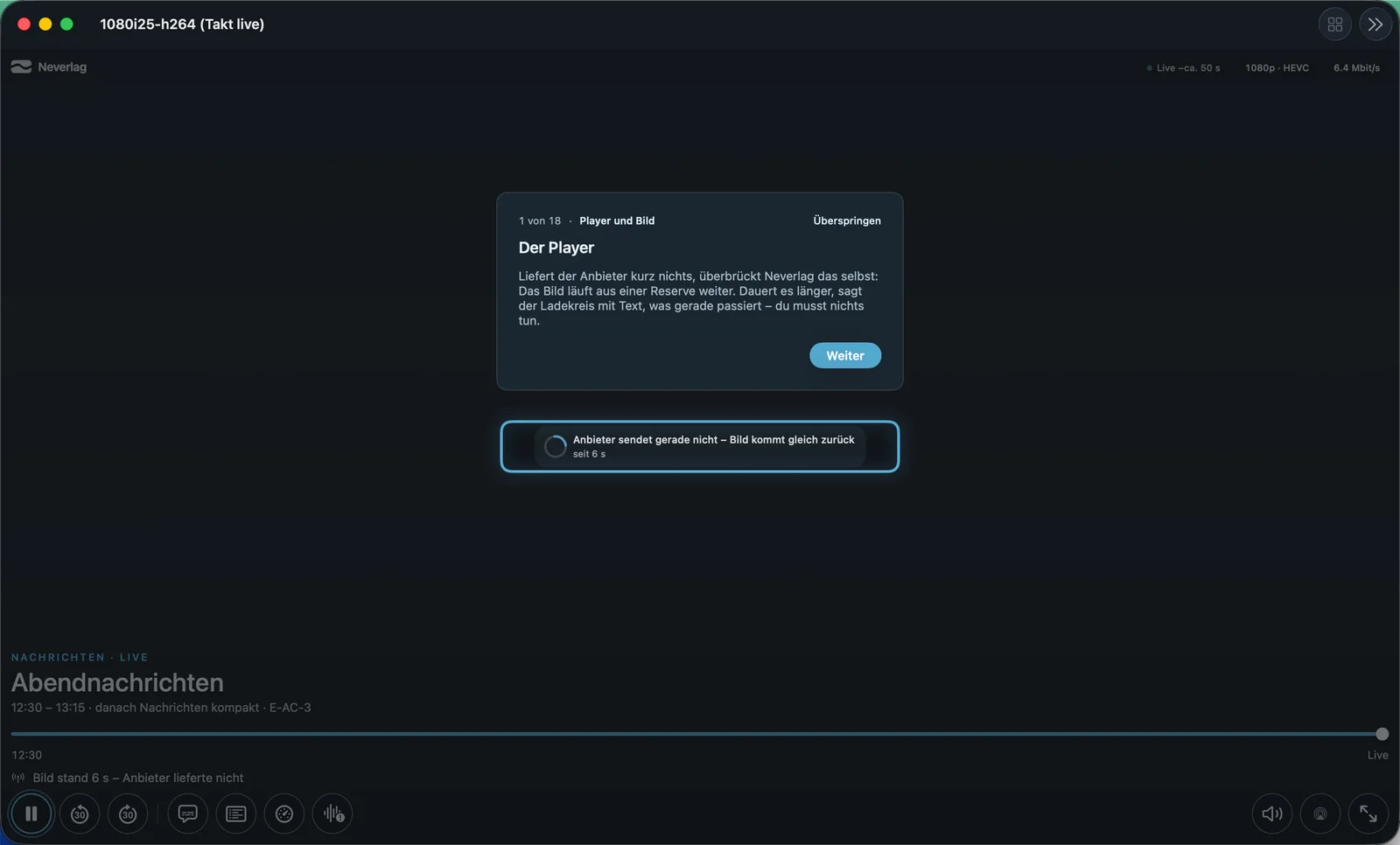
From the tour: “If the provider briefly delivers nothing, Neverlag bridges it itself: the picture continues from a reserve. If it takes longer, the loading ring with text tells you what is happening – you don’t have to do anything.”
Neverlag only intervenes when there is hard evidence: no more data, data too slow for a sustained period, a broken timeline, a device that cannot keep up. It does not guess and does not predict. And there is exactly one decision-maker in the app, the controller; everything else merely reports to it what it sees.
Reserve and 0.99×: why one per cent slower
How much reserve Neverlag aims for, you choose under Reserve against dropouts: Near live, 45, 60 or 90 seconds. The default is 45 seconds.
A live channel normally delivers exactly as much programme per second as you watch. So the tank would never get any fuller. That is why Neverlag plays the picture imperceptibly slower, at 0.99× speed – one per cent slower. In every minute, a good half second of reserve accumulates this way. Once the target is reached, it runs at 1.00× again.
You notice nothing of it: the sound stays at the same pitch (the app corrects the pitch), and picture and sound stay together. The quality window does show it, though: “0.99× · refilling reserve” or “1.00× · normal”.
There are moments when Neverlag pauses the refilling: when picture and sound are currently apart, with data errors in the stream, with Dolby bitstream (which cannot be stretched), or when the display runs in step with the programme (Mac in full screen with Match refresh rate). The quality window then shows “refill paused” with the reason.
The price of the reserve: you see the live action as many seconds later as there is reserve in the tank. With sport this can be annoying when the neighbour cheers before the goal is scored on your screen. That is what “Near live” is for.
Receiver and reconnecting without interruption
By default Neverlag fetches the channel through its own receiver (Playback through local receiver). The receiver is a small intermediary in the app: it accepts the data from the provider and passes it on to playback.
The advantage: if the connection to the provider breaks, the receiver reconnects while playback continues from the tank. Playback notices nothing of the break. The hint line then says “Connection refreshed — you missed nothing”.
Neverlag reconnects when:
- the connection is silent (no data for longer than is normal with this provider), or
- the provider falls clearly behind real time, or
- your device changes network (Wi‑Fi to mobile data or vice versa) – then immediately, instead of waiting for a timeout.
Neverlag does not reconnect as long as data is flowing and the reserve is sufficient. Earlier versions did this “on suspicion” and thereby caused dropouts themselves; that has been abolished in 1.0.2. There are never two connections to the same channel at the same time, and at most one retry every few minutes.
If the provider stops responding altogether, the receiver keeps listening: “Your provider is not responding right now — Neverlag keeps listening and reconnects as soon as it is back”.
Source switching and stand-ins from another list
Many providers list the same channel several times, for example “Sportwelt 4K”, “Sportwelt FHD” and “Sportwelt HD”. Neverlag combines these into one channel family. In the quality window under “Sources” you see all of them and can select one permanently. On “Automatic”, Neverlag takes the most stable one.
There are two ways a channel can be delivered: as a continuous stream (TS) or in chunks (HLS). Neverlag starts with the stream. It uses HLS only if it has already worked for this channel in this session; at the first error it goes back (“Back to TS — the HLS route did not deliver”).
Stand-ins: If you have set up several providers and one no longer delivers a channel or refuses, Neverlag looks for the same channel in your other lists and plays it from there. The hint line says, for example, “Playing via ‹List B› — ‹List A› is not delivering” with a button “Back to ‹List A›”. It always starts with the original source; the switch only happens on a hard finding and is remembered for at most 30 minutes.
If the picture is frozen, no data has arrived for several seconds and a retry has achieved nothing, Neverlag immediately switches to the same programme from another list, if there is one.
The ladder: only when the reserve is empty
If the provider lists a channel in several levels (4K, FHD, HD), Neverlag can go one level lower when the line cannot carry the high level. This is called the ladder.
In 1.0.2 the ladder is restrained. It only acts when all three points apply:
- The reserve falls over minutes even though it is being refilled.
- Two reconnections have not helped.
- Data is arriving, but too little (on a total outage it never acts).
Then it goes exactly one level lower, on the same channel, with the hint “Playing in FHD instead of 4K — quality lowered automatically” and the button “Back to 4K”. It never goes back up on its own; the lower level applies to this channel for at most 30 minutes, then it starts in the best one again. You can go up at any time with the button.
One exception: if the reserve is full but your device cannot manage the decoding (the decoder drops frames or falls back to software), it goes one level lower immediately – the problem is then the device, not the line.
With Preferred startup quality you define what a channel starts with.
Hardware decoder and healing
Unpacking the picture (decoding) is normally done by a dedicated chip in the device, the hardware decoder. That is fast and saves battery. If that does not work for a channel, software steps in. That costs power and can stutter at 4K. The hint line then says “Picture runs in software — back to hardware at the next channel change”.
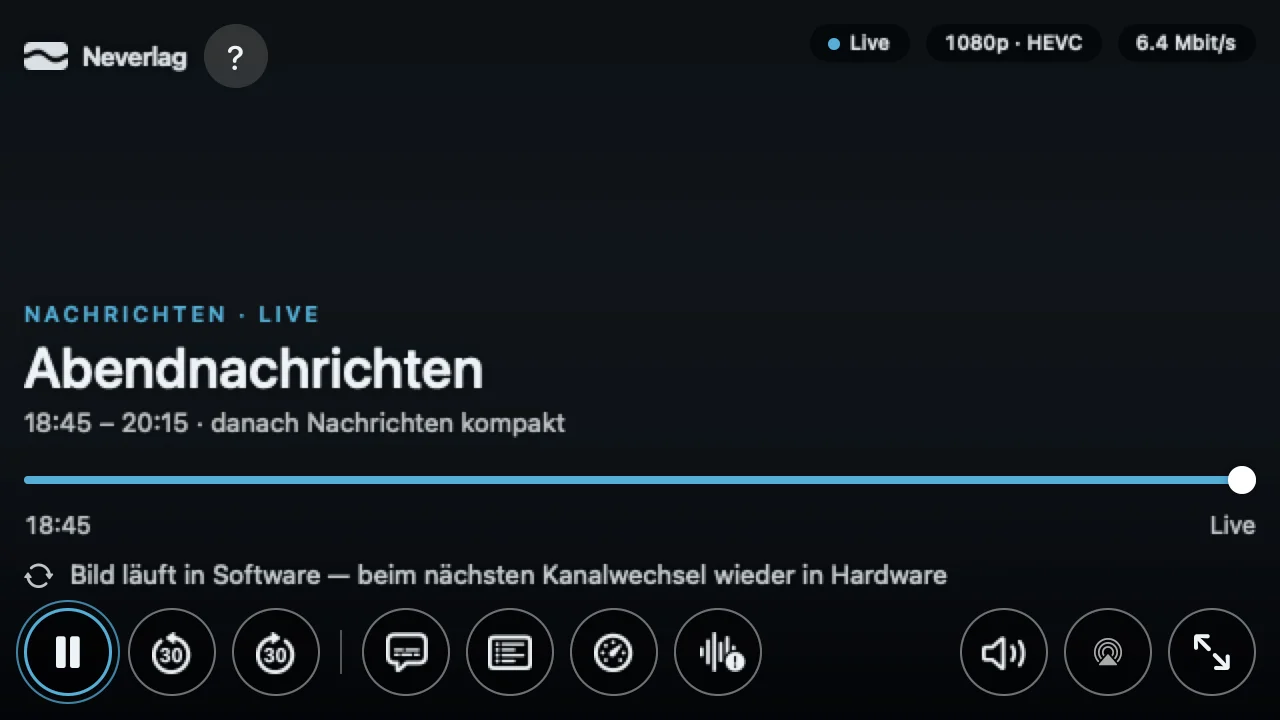
New in 1.0.2: Neverlag tries to get back into hardware in the middle of the session as soon as the stream is hardware-compatible again. This is called healing; the hint line reports “Hardware decoder back”.
Channels with interlaced fields (1080i, the old TV standard) run at 50 frames per second after deinterlacing.
Background behaviour
If you send the app to the background, activate the screen saver or lock the device, Neverlag pauses playback. When you return, it rebuilds playback once, without counting that as a disruption.
With Picture in Picture (PiP), playback continues; it is then not in the background.
If a recording is running, it continues independently, even if you watch another channel – as long as your provider allows enough connections (see Recordings and timeshift).
What never happens
- No intervention based on predictions or trends.
- No reconnecting on suspicion as long as data is flowing.
- No automatic switching up.
- Never two connections to the same channel at the same time.
- No learning beyond the session (one exception: the source type per channel, stream or chunks).
Further reading
- The quality window – where you can watch all of this live
- Troubleshooting – what you can do when something goes wrong
- Picture and sound – why it stutters even though the reserve is full