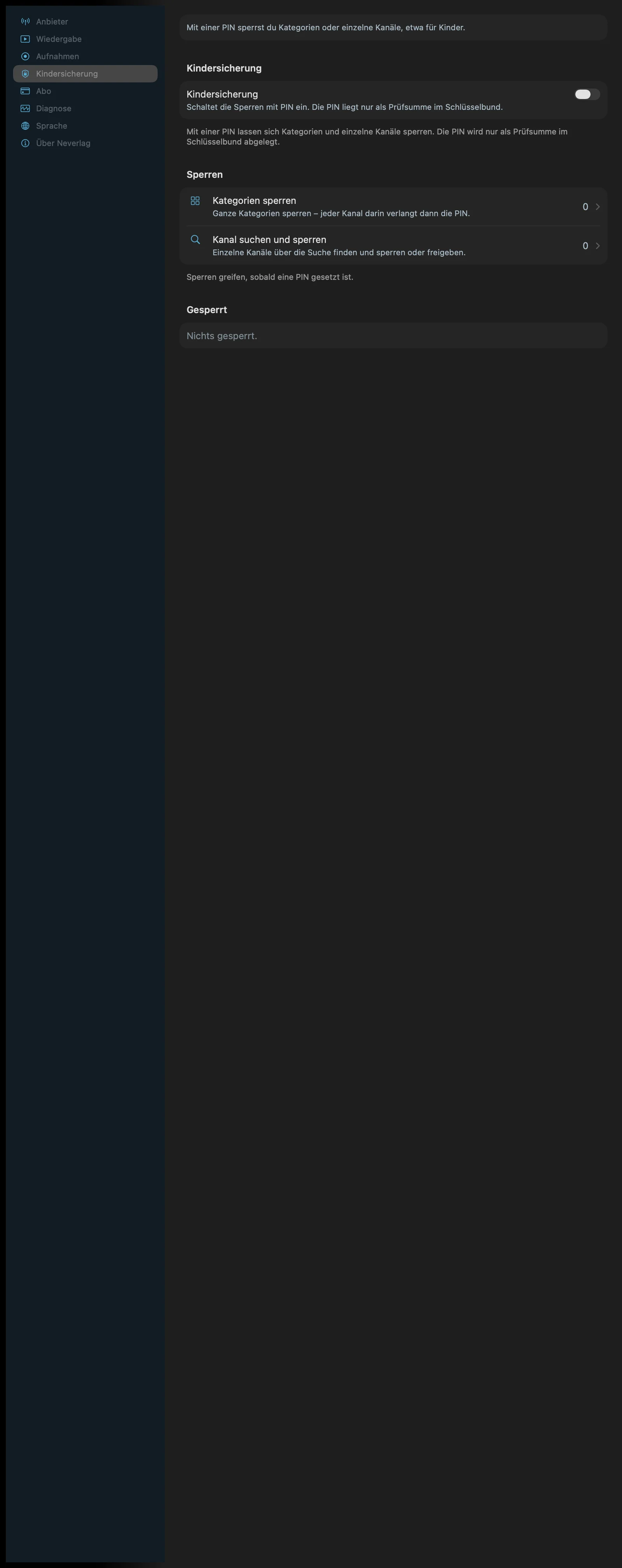
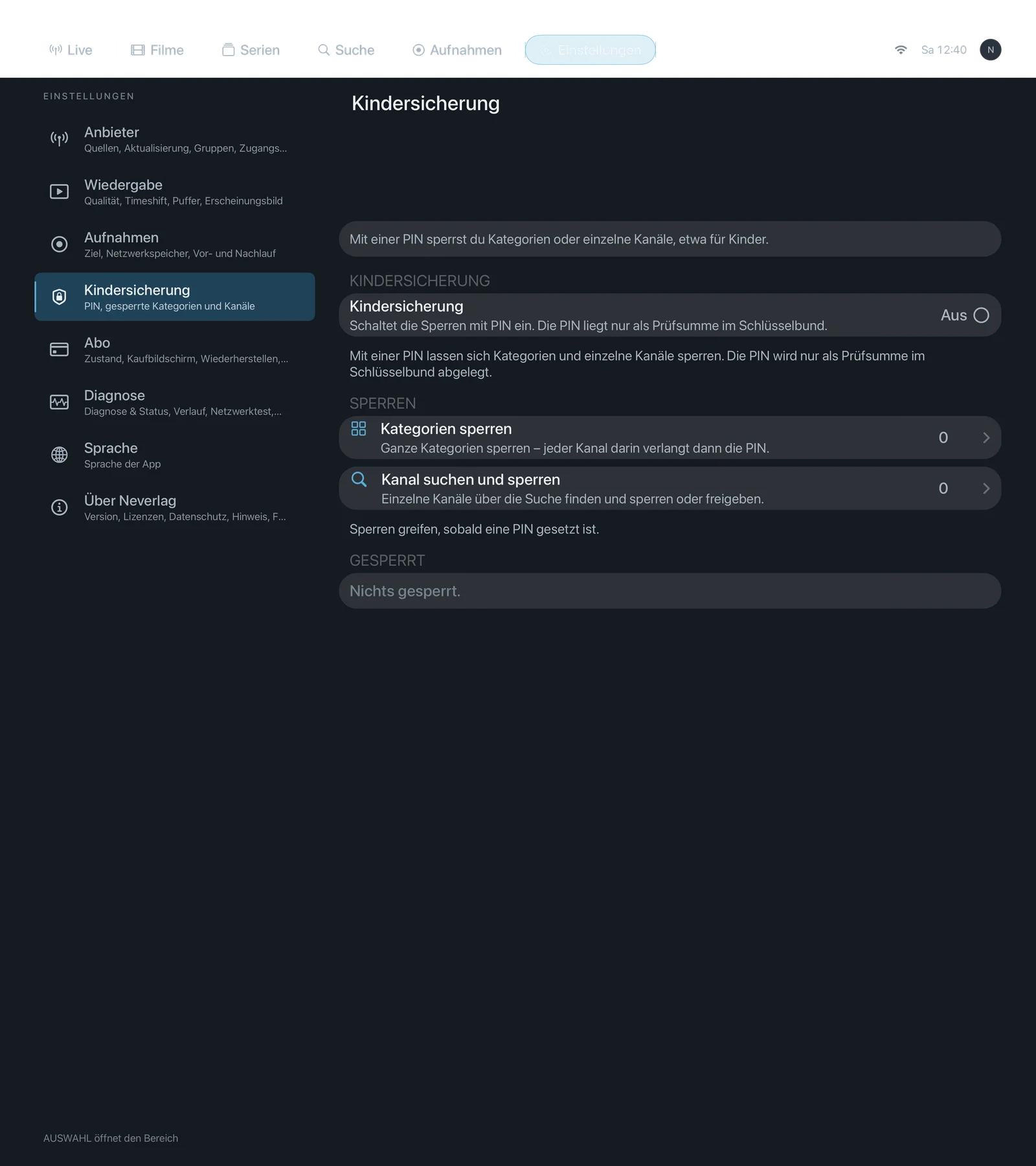
Settings → Parental controls
Sentence at the bottom of the area (without a PIN): “With a PIN, categories and individual channels can be locked. The PIN is stored in the keychain only as a checksum.”
With a PIN: “Locked categories and channels only start after the PIN is entered; the unlock lasts until the next app start. You lock individual channels from the channel list’s context menu.”
What this looks like in everyday use is explained under Parental controls. This page is only about the settings.
| iPhone | iPad | Apple TV |
|---|---|---|
 |  |  |
PIN
Parental controls
- Where: Settings → Parental controls · Mac, iPhone, iPad, Apple TV
- What it does: “Switches on the locks with a PIN. The PIN is kept in the keychain only as a checksum.” When switching on, you set a PIN (at least 4 characters, entered twice). To switch off, you need the PIN. Checksum means: the app does not store the PIN itself, but a value with which it can check whether an entry is correct.
- Default: Off
- Options:
- Off – Advantage: nothing asks for a PIN. Drawback: all channels are open to everyone.
- On (Set PIN …) – Advantage: locked categories and channels start only after the PIN. Drawback: you have to remember the PIN; “Forgot PIN?” deletes the PIN and removes all locks.
- When to change: If children or other people share the device.
- What it costs: Nothing.
- Works together with: Lock categories, Search and lock channel, Parental controls
Change PIN …
- Where: Settings → Parental controls · Mac, iPhone, iPad, Apple TV · only with parental controls switched on
- What it does: “Set a new PIN; you need the current one for that.” Form with current PIN, new PIN and repeat.
- Default: – (button)
- Options: none
- When to change: If the PIN has become known.
- What it costs: Nothing.
- Works together with: Parental controls
Lock again now
- Where: Settings → Parental controls · Mac, iPhone, iPad, Apple TV · visible only while something is currently unlocked
- What it does: “Locks unlocked channels again right away, not only at the next app start.” Otherwise an unlock by PIN lasts until the app restarts.
- Default: – (button)
- Options: none
- When to change: If you have watched a locked channel and are now handing the device on.
- What it costs: Nothing.
- Works together with: Parental controls → Unlocking
Locks
Lock categories
- Where: Settings → Parental controls · Mac, iPhone, iPad, Apple TV
- What it does: “Lock whole categories – every channel in them then asks for the PIN.” A page of its own with one switch per category from your catalogue. Sentence at the bottom: “A locked category requires the PIN for every channel in it.”
- Default: No category locked
- Options: one switch per category – Advantage: a whole group (“Adults”, “Sportwelt”) with one switch. Drawback: also affects channels in the category that you did not want to lock.
- When to change: First thing when you switch on parental controls; in demo mode this is all that is possible.
- What it costs: Nothing.
- Works together with: Search and lock channel, Providers → Manage categories
Search and lock channel
- Where: Settings → Parental controls · Mac, iPhone, iPad, Apple TV
- What it does: “Find single channels via search and lock or unlock them.” A page of its own with a search field; “Tap a result to lock or unlock the channel.” Also works directly in the channel list via the context menu (right-click, long press).
- Default: No channel locked
- Options: per result “Open” or “Locked” – Advantage: targeted, individual channels. Drawback: not possible in demo mode (“Channel locks apply to channels of a configured provider”).
- When to change: For individual channels that sit in an otherwise harmless category.
- What it costs: Nothing.
- Works together with: Remove all channel locks, Interface → Channel list
Remove all channel locks
- Where: Settings → Parental controls · Mac, iPhone, iPad, Apple TV · visible only while channel locks exist
- What it does: “Removes all channel locks. Locked categories stay locked.”
- Default: – (button)
- Options: none
- When to change: If you want to start over without touching the categories.
- What it costs: Nothing.
- Works together with: Search and lock channel
The “Locked” readout
Below the locks there is an overview: locked categories, locked channels, and if channels are no longer in the current catalogue, “… not in the current catalog”. If nothing is locked: “Nothing locked.” That is not a setting, just a readout.