Settings → Providers
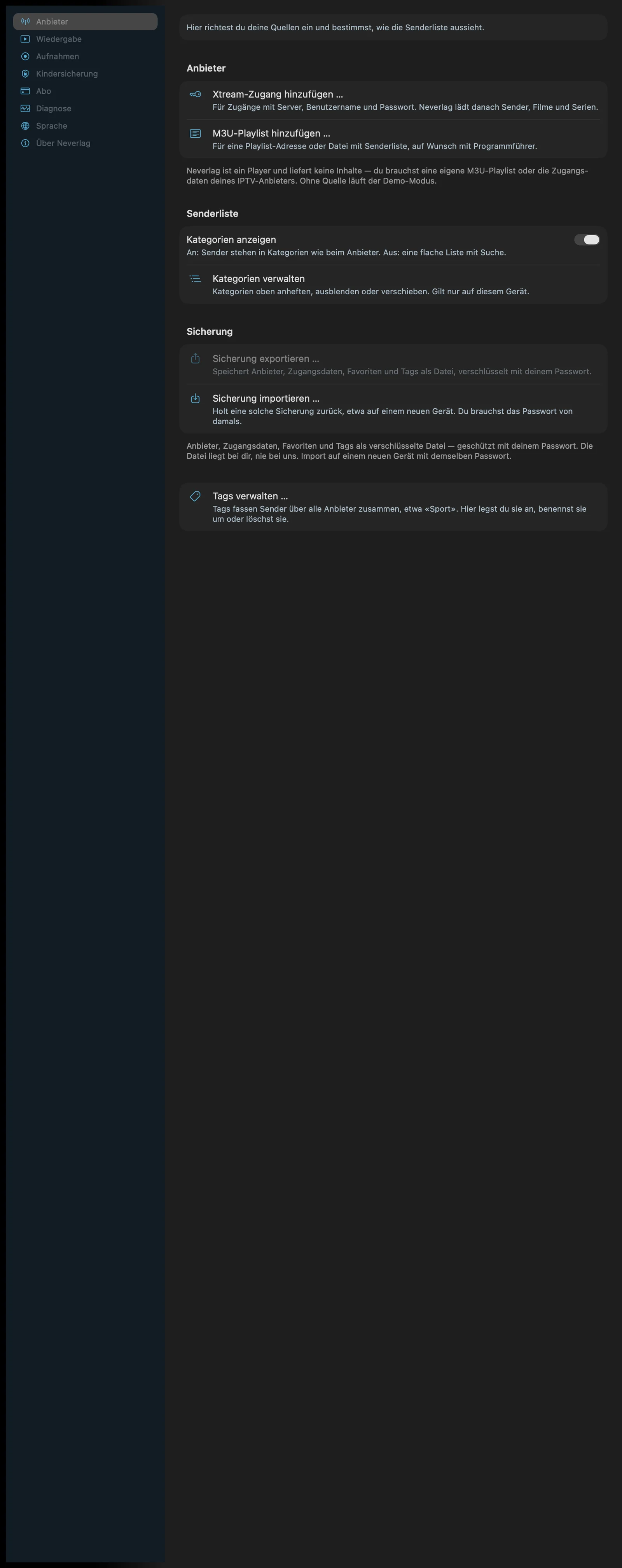
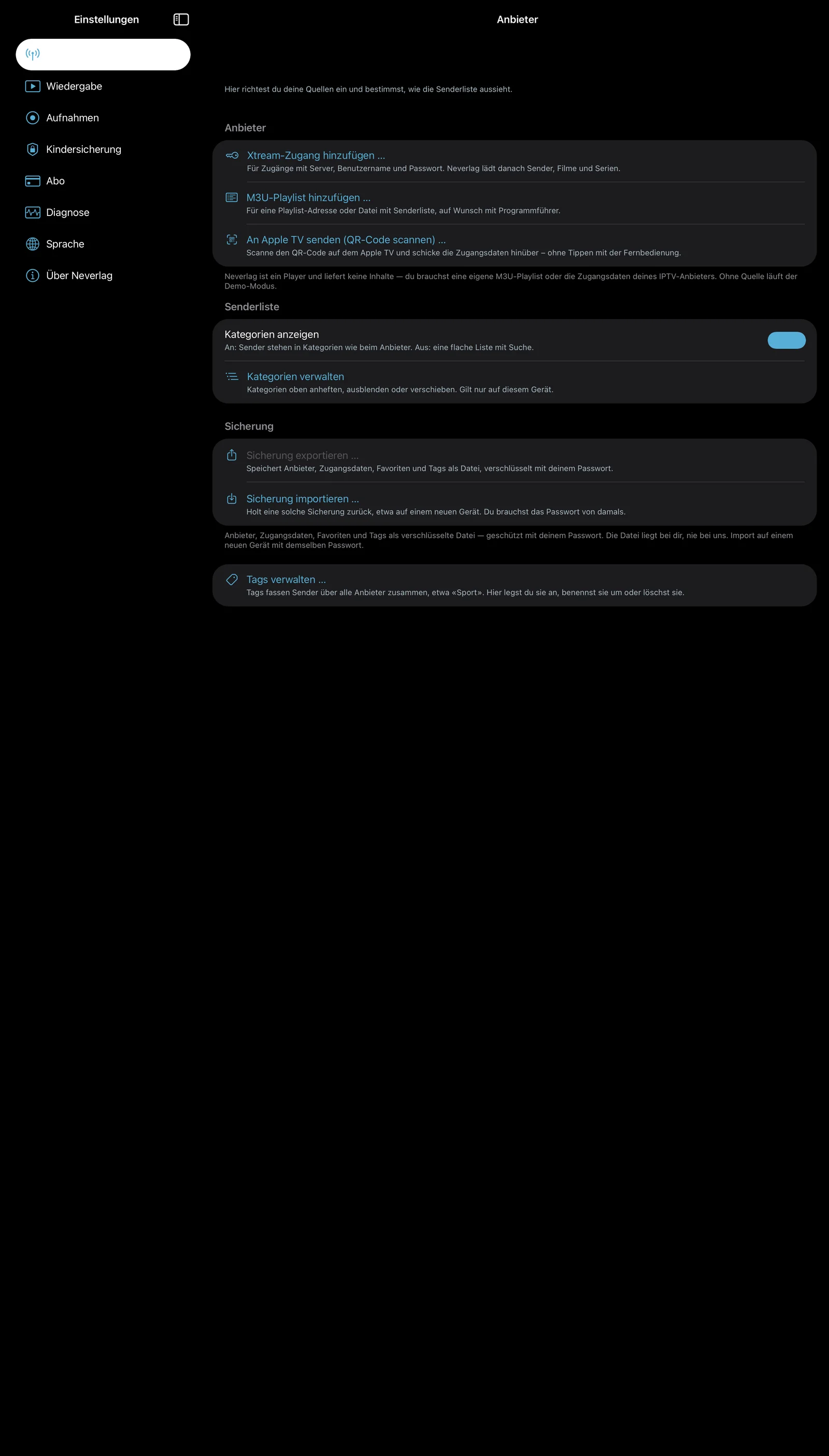
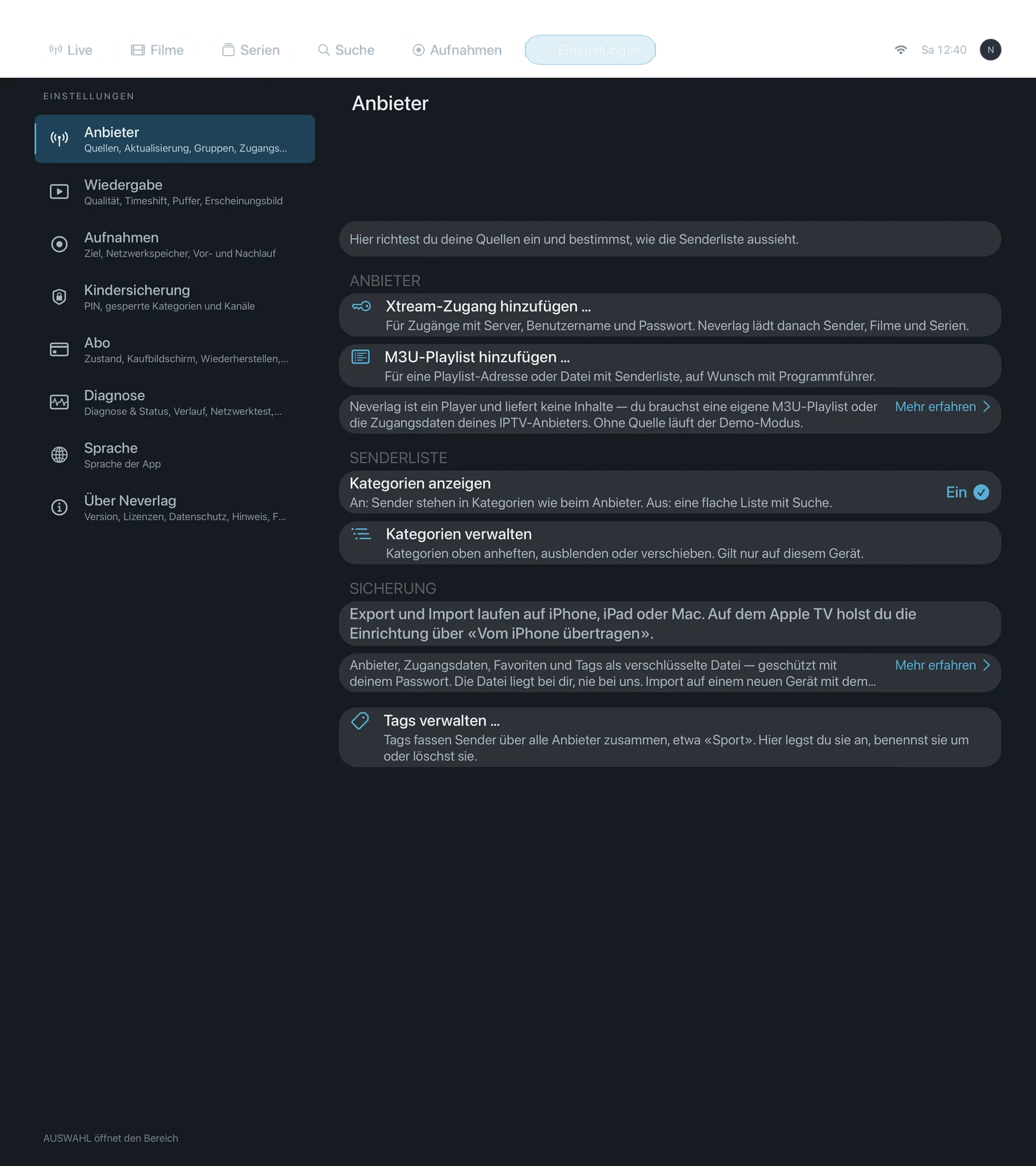
Sentence at the top of the section: “Set up your sources here and decide how the channel list looks.”
For each provider, the section shows: server, user, status, connections (allowed/active), counts (channels, movies, series), last import and EPG status. These rows are purely informational. Below them are the settings on this page.
| iPhone | iPad | Apple TV |
|---|---|---|
 |  |  |
Sources
Add Xtream account …
- Where: Settings → Providers · Mac, iPhone, iPad, Apple TV
- What it does: “For accounts with server, username and password. Neverlag then loads channels, movies and series.” Opens the form with server address, username and password. After “Connect” you choose the groups, then the import runs.
- Default: – (button)
- Options: none
- When to change: When your provider has given you a server, username and password (Xtream Codes interface). For several providers, repeat the step.
- What it costs: Data volume during import (channel list, movies, series, programme data); storage for the catalogue on the device. The password is stored in the keychain alone.
- Works together with: Getting started, Manage groups & reload, Subscription (a subscription is required to set up your own sources)
Add M3U playlist …
- Where: Settings → Providers · Mac, iPhone, iPad, Apple TV
- What it does: “For a playlist address or file with a channel list, with a programme guide if you wish.” Neverlag reads the playlist, counts the groups, adopts a detected EPG source (
url-tvg) and imports the chosen groups. - Default: – (button)
- Options: none
- When to change: When you have an M3U or M3U8 address instead of Xtream credentials.
- What it costs: Data volume for loading the playlist and the programme data; storage for the catalogue.
- Works together with: Getting started, EPG mapping, Refresh EPG now
Send to Apple TV (scan QR code) …
- Where: Settings → Providers · iPhone, iPad
- What it does: “Scan the QR code on the Apple TV and send the credentials across – no typing with the remote.” Opens the camera; the QR code is shown on the Apple TV under “Transfer from iPhone”.
- Default: – (button)
- Options: none
- When to change: When device discovery on the home network does not work (separate networks) or you prefer scanning to typing in a code.
- What it costs: Camera access (the app asks once). The credentials go encrypted directly to the Apple TV; the QR code contains just a pairing key.
- Works together with: Send to Apple TV …, Getting started → Pairing
Refreshing
Refresh automatically
- Where: Settings → Providers · Mac, iPhone, iPad, Apple TV · per provider
- What it does: “How often Neverlag fetches the channel list and movies from the provider again. Never while a channel is playing.” The automatic refresh waits a while after the app starts and after every input so that it does not slow you down.
- Default: Daily
- Options:
- Daily – “Once a day – new channels show up quickly.” Advantage: You are always up to date. Disadvantage: One request a day and some data volume.
- Weekly – “Once a week – fewer requests to the provider.” Advantage: Easier on providers with request limits. Disadvantage: New channels only show up after up to a week.
- Manually only – “Only when you choose ‘Update catalogue now’.” Advantage: Full control, no background requests. Disadvantage: You have to remember to do it yourself.
- When to change: To “Weekly” if your provider blocks you on frequent requests. To “Manually only” if your list practically never changes or you want to save data volume (mobile data).
- What it costs: Data volume per run (depending on the size of the catalogue); no effect on playback.
- Works together with: Refresh catalogue now, Troubleshooting → Catalogue refresh
Refresh catalogue now
- Where: Settings → Providers · Mac, iPhone, iPad, Apple TV
- What it does: “Fetches the channel list, movies and series again immediately. If a channel is playing, the refresh waits.” Your group, the top row and the active channel are kept.
- Default: – (button)
- Options: none
- When to change: When the provider has announced new channels or channels are missing from the list.
- What it costs: Data volume for the whole catalogue; a little more battery during the import.
- Works together with: Refresh automatically, Manage groups & reload
Refresh EPG now
- Where: Settings → Providers · Mac, iPhone, iPad, Apple TV
- What it does: “Reloads the TV guide, for example when programmes are missing.” Fetches your provider’s programme data (XMLTV) and rebuilds the TV Guide.
- Default: – (button)
- Options: none
- When to change: When the TV Guide is empty or shows old programmes.
- What it costs: Data volume for the programme data (often several megabytes, compressed).
- Works together with: EPG mapping, Interface → TV Guide
Load movie details
- Where: Settings → Providers · Mac, iPhone, iPad, Apple TV · only for Xtream providers with movies or series
- What it does: “Fetches genre and description for movies and series individually from the provider. Can take a long time with large catalogues.” Neverlag asks the provider individually for every title without a genre; the app shows the count, the progress and a “Cancel” button. This never runs by itself.
- Default: – (button)
- Options: none
- When to change: When the genre rows and genre filters are missing in the Movies or Series section because the provider does not include genres in the list.
- What it costs: One request per title – with ten thousand titles, ten thousand requests. Some providers temporarily block the home address after that many requests. So start it deliberately, ideally just once.
- Works together with: Movies and series
Manage groups & reload …
- Where: Settings → Providers · Mac, iPhone, iPad, Apple TV
- What it does: “Choose which of the provider’s groups appear in Neverlag, and reload them.” Opens the same group selection as during setup (Live, Movies, Series) and re-imports the selection.
- Default: – (button; the selection from setup is kept)
- Options: none
- When to change: When you want to add or drop groups, or when the app reports “New groups available”.
- What it costs: Data volume for the re-import; more groups means more storage and longer lists.
- Works together with: Manage categories (display instead of import), Movies and series
Send to Apple TV …
- Where: Settings → Providers · Mac, iPhone, iPad
- What it does: “Transfers this account to an Apple TV on the same network – no typing needed there.” Neverlag searches for the Apple TV on the home network, you enter the six-digit code from the TV, optionally “Include favorites and positions”. Without a local connection, iCloud takes over automatically, end-to-end encrypted.
- Default: – (button)
- Options: none
- When to change: With every new Apple TV and whenever credentials have changed.
- What it costs: One-off permission for the local network. Nothing is left behind on this device.
- Works together with: Send to Apple TV (scan QR code), Recordings → Send to Apple TV, Getting started → Pairing
Remove provider
- Where: Settings → Providers · Mac, iPhone, iPad, Apple TV
- What it does: “Deletes this provider together with its channel list, favourites and recording rules from this device.” With confirmation. Recording files that are already finished are kept.
- Default: – (button with confirmation)
- Options: none
- When to change: When you no longer use the provider or want to set it up again with different credentials.
- What it costs: Nothing – frees up storage. This provider’s favourites and tags are gone afterwards.
- Works together with: Export backup (back up first)
Channel list
Show categories
- Where: Settings → Providers → Channel list · Mac, iPhone, iPad, Apple TV
- What it does: “On: channels are listed in categories as at the provider. Off: a flat list with search.” Display only – the catalogue stays the same.
- Default: On
- Options:
- On – Advantage: Overview as at the provider, categories can be pinned and hidden. Disadvantage: With hundreds of categories, a lot of scrolling.
- Off – Advantage: One list “All channels”, with search and jump bar you get there right away. Disadvantage: No grouping; country prefixes come before the names.
- When to change: Off if you look for your channels by name and the categories get in your way.
- What it costs: Nothing.
- Works together with: Manage categories, Interface → Channel list
Manage categories
- Where: Settings → Providers → Channel list · Mac, iPhone, iPad, Apple TV · opens a page of its own
- What it does: “Pin categories to the top, hide or move them. Applies only on this device.” Per category: “Pin to top as favorite”, “Hide”, “Move up”, “Move down”. Hidden categories disappear from the channel list but remain in the catalogue.
- Default: – (button; nothing pinned, nothing hidden, provider’s order)
- Options: none
- When to change: When your provider delivers many categories you never need, or when your favourite categories should be right at the top.
- What it costs: Nothing. The setting is not synced via iCloud – each device has its own.
- Works together with: Sort alphabetically, Reset, Parental controls → Lock categories
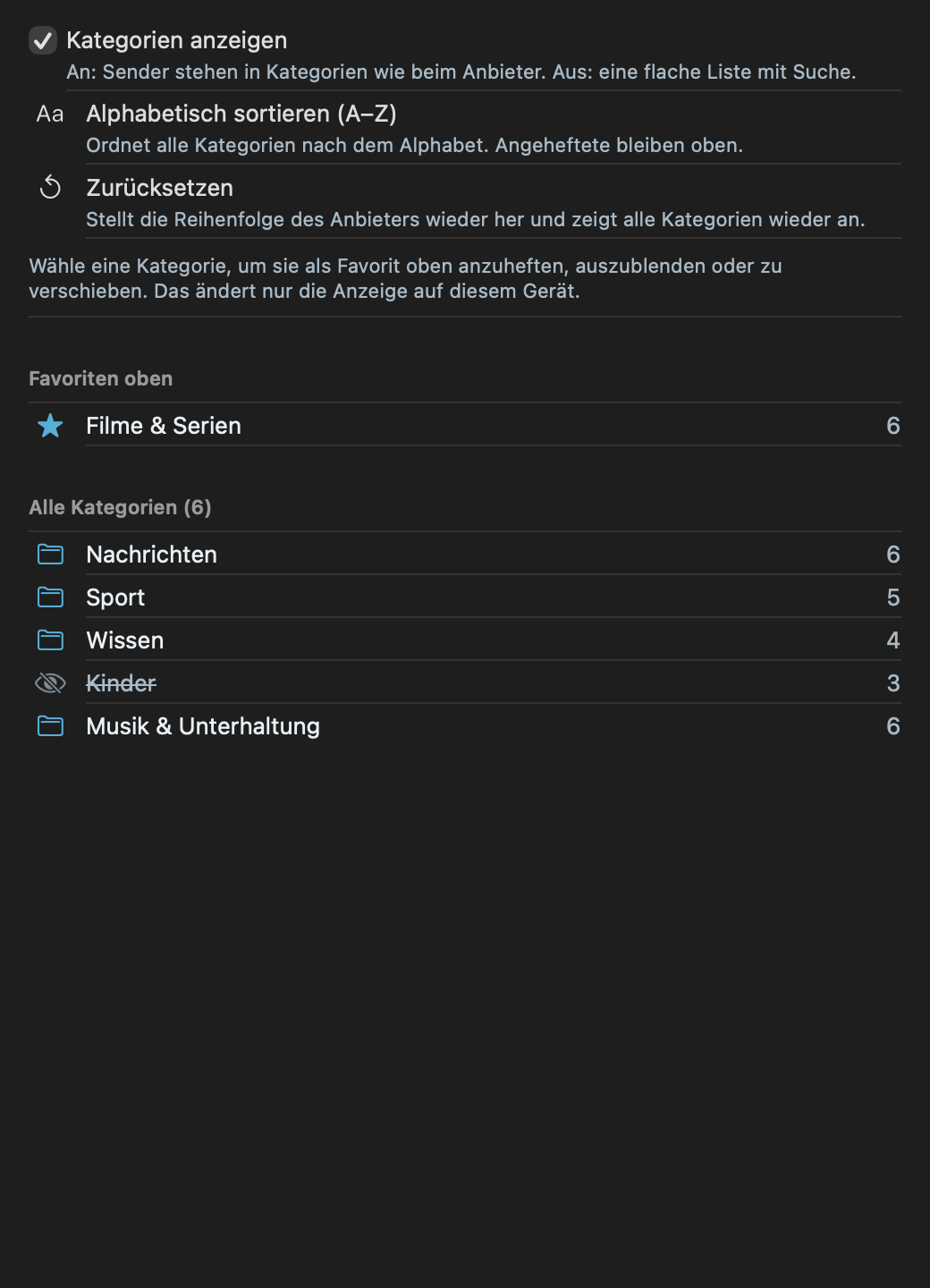
Sort alphabetically (A–Z)
- Where: Settings → Providers → Channel list → Manage categories · Mac, iPhone, iPad, Apple TV
- What it does: “Sorts all categories alphabetically. Pinned ones stay at the top.”
- Default: – (button; the default is the provider’s order)
- Options: none
- When to change: When the provider’s order makes no sense and you look for categories by name.
- What it costs: Nothing.
- Works together with: Manage categories, Reset
Reset
- Where: Settings → Providers → Channel list → Manage categories · Mac, iPhone, iPad, Apple TV
- What it does: “Restores the provider’s order and shows all categories again.” Confirmation: “Reset hidden categories, favorites on top and order?”
- Default: – (button with confirmation)
- Options: none
- When to change: When you have lost track of pinned and hidden categories.
- What it costs: Nothing – your adjustments to the display are gone afterwards.
- Works together with: Manage categories
Backup
Export backup…
- Where: Settings → Providers · Mac, iPhone, iPad
- What it does: “Saves providers, credentials, favourites and tags as a file, encrypted with your password.” You choose a password, then a location for the file.
- Default: – (button)
- Options: none
- When to change: Before switching devices, before “Remove provider” or simply as a safeguard.
- What it costs: A small file. Without the password, the backup can no longer be opened – remember it.
- Works together with: Import backup, Subscription and backup
Import backup…
- Where: Settings → Providers · Mac, iPhone, iPad
- What it does: “Restores such a backup, for example on a new device. You need the password from back then.” Afterwards, Neverlag reloads the catalogues of the restored providers.
- Default: – (button)
- Options: none
- When to change: On a new device or after a reinstall.
- What it costs: Data volume for re-importing the catalogues. Importing new sources requires a subscription.
- Works together with: Export backup, Subscription
Tags and EPG
Manage tags …
- Where: Settings → Providers · Mac, iPhone, iPad, Apple TV · opens a page of its own
- What it does: “Tags group channels across all providers, for example ‘Sports’. Here you create, rename or delete them.” Deleting also removes all assignments; the channels themselves are untouched. A rename applies everywhere.
- Default: – (button; built-in tags: Documentaries, Kids, Movies, Music, News, Radio, Local, Series, Sports)
- Options: none
- When to change: When you want your own collections across several providers.
- What it costs: Nothing. Your private iCloud syncs tags between your devices.
- Works together with: Interface → Groups and tags
EPG mapping …
- Where: Settings → Providers · Mac, iPhone, iPad, Apple TV · only with a provider set up · opens a page of its own
- What it does: “If a channel shows no programme or the wrong one, you assign it the right entry here.” Normally the mapping works via the playlist’s
tvg-id; if that is missing, Neverlag tries a name match. Here you override that per channel: “Automatic”, “Manual: …” or “Manual: no EPG”. - Default: – (button; the default per channel is “Automatic (tvg-id / name match)”)
- Options: none
- When to change: When the TV Guide stays empty for a channel or shows another channel’s programme.
- What it costs: Nothing.
- Works together with: Refresh EPG now, Interface → TV Guide