Interface
The interface is built the same way on all devices: on the left or at the bottom the sections (Live TV, Movies, Series, TV Guide, Search, Recordings, Settings), in the middle the channel list, plus the player. Only the operation differs from device to device.
Channel list
The channel list shows the channels of your providers. Each row: logo, name, current programme (if programme data is available), progress and, where needed, a provider badge.
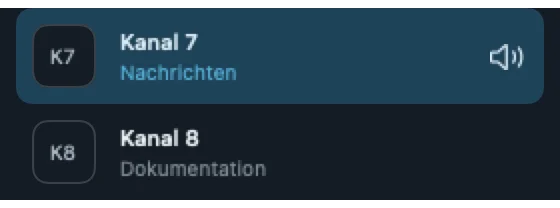
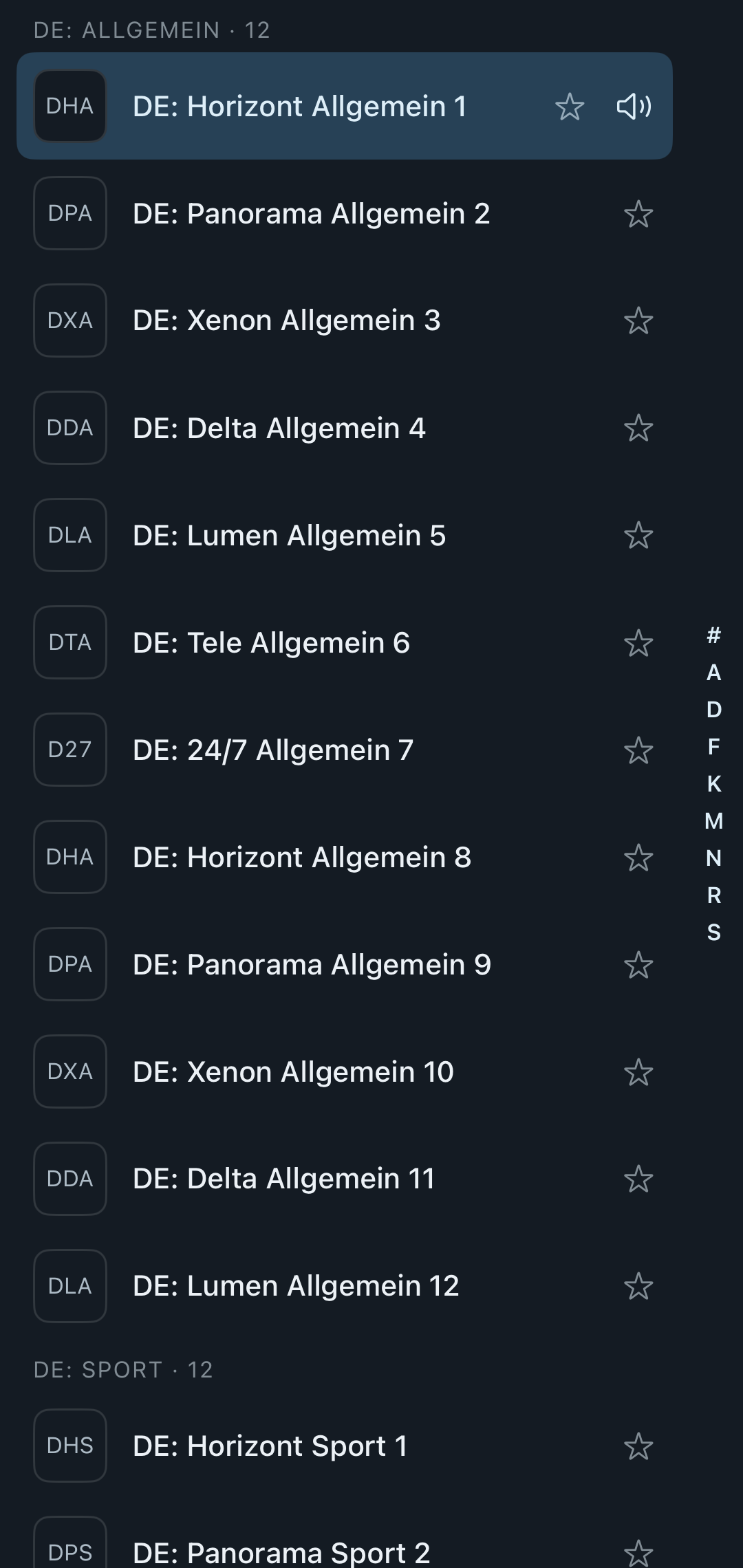
- Categories: By default the channels are arranged in categories, just as your provider groups them. Under Settings → Provider → “Show categories” you switch to a flat “All channels” list with search. With “Manage categories” you pin categories to the top, hide them or move them – on this device only.
- Jump bar (A–Z): From 40 rows on, a letter bar appears on the right. iPhone/iPad: as in the Contacts app, always visible, with a large letter over the list while dragging. Mac: bar with start/end, or simply type the letter on the keyboard. Apple TV: “A–Z” above the channel list and “Jump to …” above the channel groups; from deep in the list via long SELECT → “Jump to …”. Country prefixes such as “DE: ” do not count when jumping.
- Channel families: If a provider lists the same channel several times (for example “Nordkanal”, “Nordkanal HD”, “Nordkanal 4K”), Neverlag bundles them into one row. The individual sources remain selectable in the quality window. If the automatic detection has not recognised two channels, “Same channel as …” in the context menu helps; “Detach from channel group” and “Restore automatic grouping” undo it.
- Unavailable: A channel marked grey is “Currently unreachable at the provider — only the next manual selection tries again”.
Smart lists (Mac and iPad)
In the sidebar: On now, Favorites, Recently watched, plus tag chips and the groups with colour dot and channel count. “All categories” opens the full group list with search.
Search
- Mac: The search field in the sidebar (⌘K) filters the channel list instantly by name.
- iPhone: The search field above the list filters the channels; the “Search” tab at the bottom additionally finds programmes, movies, series and tags.
- iPad, Apple TV: Search across channels, TV Guide, movies, series and tags – “start typing” or a few letters with the remote.
Programme matches carry the suffix “· soon” if the programme is still to come.
Groups and tags
- Groups come from the provider. You decide which ones you see under Settings → Provider → “Manage groups & reload …”. If new groups appear at the provider, the app shows “New groups available”.
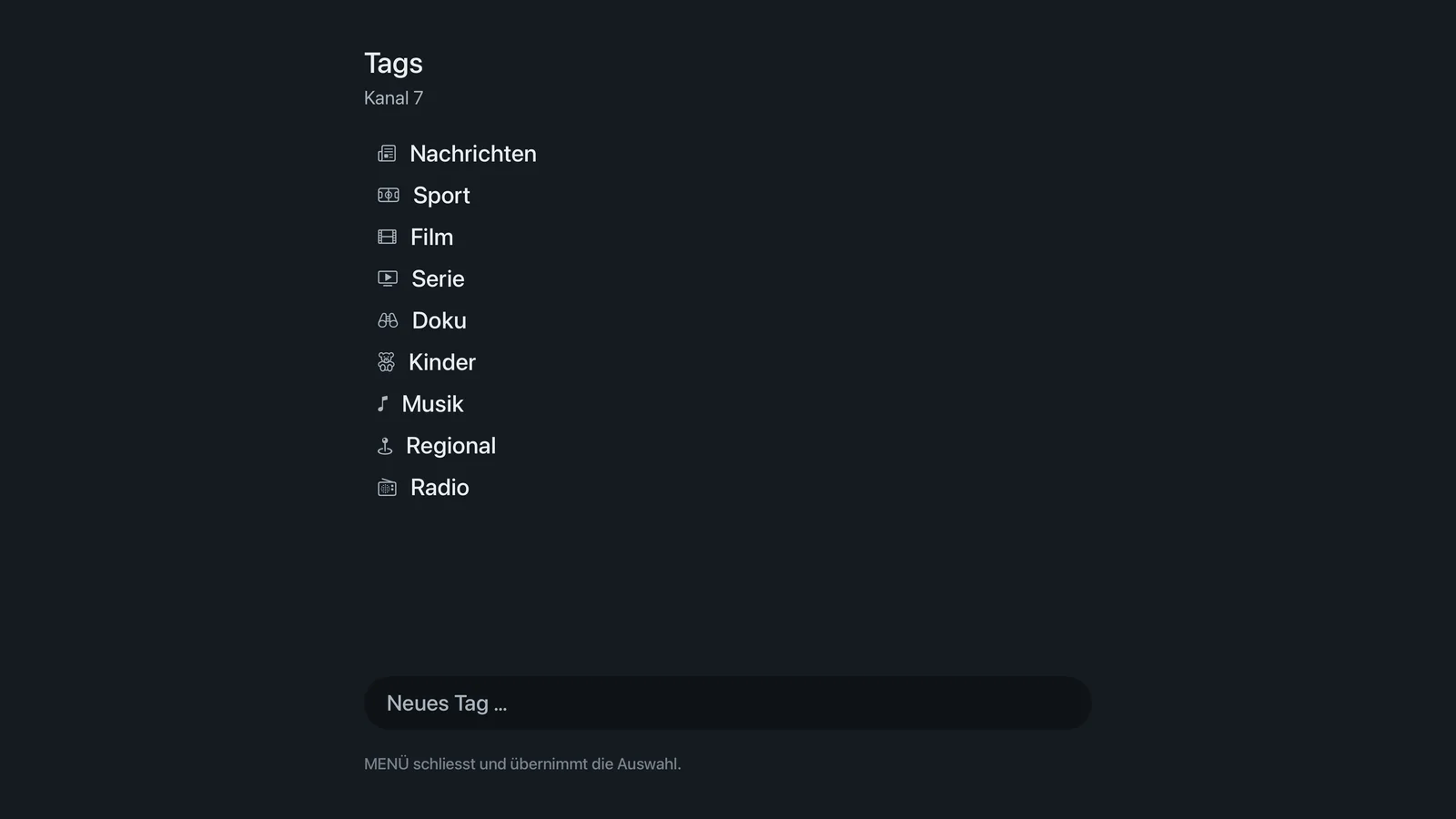
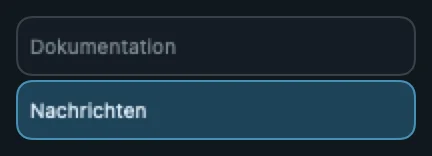
- Tags are your own labels across all providers, for example “Sports” or “Kids”. Included are Documentaries, Kids, Movies, Music, News, Radio, Local, Series, Sports. You assign them in a channel’s context menu (“Tags …”, “New tag …”) and manage them under Settings → Provider → “Manage tags …”. On the Apple TV they are on the left under “My tags”.
Favorites
Adding a channel to the favourites:
- iPhone/iPad: Press and hold the channel → “Add to favorites”.
- Mac: Right-click → “Add to favorites”.
- Apple TV: Press and hold the select button → “Add to favorites”.
Your private iCloud syncs favourites between your devices. When transferring to the Apple TV you can “Include favorites and positions”.
TV Guide (programme guide)
Each row is a channel, each tile a programme. Tap or click a programme for details, recording or playback. The arrows jump three hours back or forward, “Now” takes you to the current programme. Empty rows mean: the provider does not supply programme data for this channel; under Settings → Provider → “EPG mapping …” you assign it by hand.
From the guide: “Play channel”, “Play program” (if the provider offers catch-up), “Record”, “Always record” (series recording). More under Recordings and timeshift.
Movies and series
Separate sections with poster rows, filters and search. See Movies and series.
The player
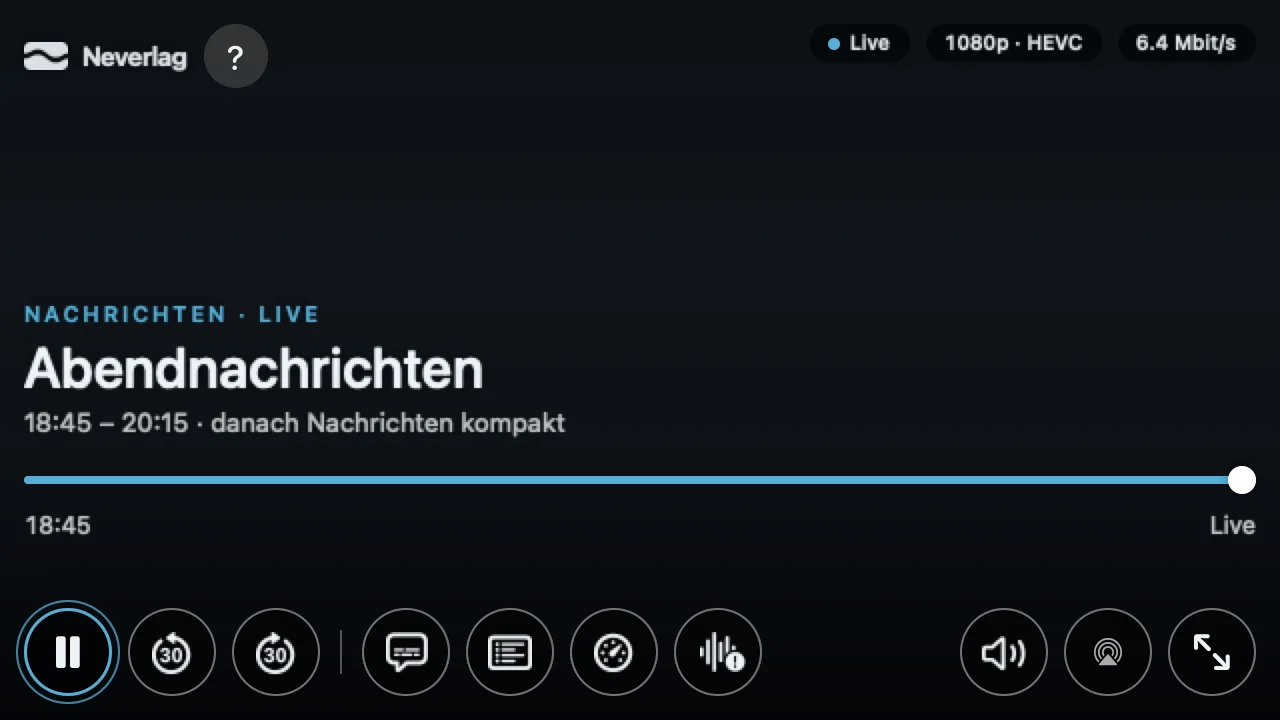
Layout on all devices:
- Top left: Wordmark. Top right: Badges – “Live −18 s” shows the delay behind live; a tap/click/SELECT on it jumps to the live edge (“Back to live”). Next to it, buffer level and stream status. A long press on the badges (iPhone/iPad) opens the diagnostics directly.
- Bottom: Title block (category · Live, programme, time · next · audio track), seek bar with handle and live dot, hint line, control bar.
- Control bar: Play/Pause · Back 30 seconds · Forward 30 seconds · Subtitles · Channels · Quality · “Out of sync?”; on the right Start/Stop recording, Mute/Volume, AirPlay, Picture in Picture, Full screen.
- Loading ring with text in the middle of the picture when the picture stands still (for example “Provider isn’t sending right now – picture will be back shortly”), followed by a hint line (“Picture stood still for 6 s – provider didn’t deliver”). See Troubleshooting.
The bar hides after 3 seconds without input (Apple TV 5 seconds); the hint line alone stays in its place.
Side sheets in the player
- Channels (“On now”): the channels of the current selection with programme and progress; “+ N more channels” opens the full list.
- Quality: the quality window.
- Audio & subtitles: the channel’s audio tracks and subtitles, “Off” for subtitles. If the channel supplies only one track, the sheet says so. More under Picture and sound.
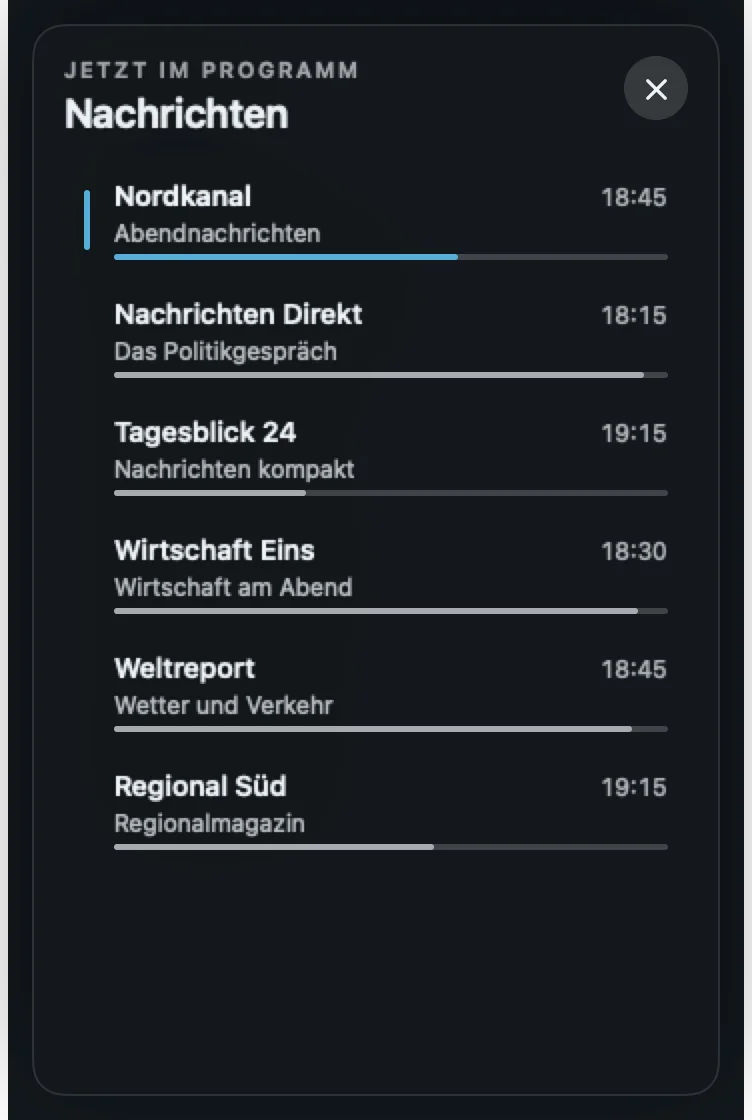
Mac
- Moving the mouse over the picture shows the control bar; buttons have tooltips.
- Keyboard: Space Play/Pause · ↑ next channel · ↓ previous channel · digits 0–9 channel by number · Z back to the previous channel · M mute · ⌃⌘F full screen · ⌥⌘S sidebar on/off · 2 TV Guide · ⌥⌘C compact mode · ⇧⌘R start recording · ⌘0 main window · ⌘K search · ⌘, settings.
- Menu “Window” → “Always on top” keeps the window above others.
- Compact mode: just the picture, without sidebar.
- In full screen the display can switch to the programme’s frame rate (see Picture and sound).
iPhone
- Tabs at the bottom: Live, Movies, Series, TV Guide, Search. Recordings open as a button at the top of the TV Guide tab, Settings in the Search tab.
- A tap on the picture shows or hides the control bar. The first tap shows the bar, the second tap operates it. Each button has its name underneath.
- In portrait the layout is compact: you find “Out of sync?” and device functions under “More”.
- Double tap in full screen switches between “Original” and “Fill screen” (the picture fills the screen, edges are cropped).
- Lock screen: switches off all controls so that nothing is touched by accident; a tap shows “Unlock”.
- In portrait the quality window appears as a sheet from the bottom (half/full, swipe to dismiss), in landscape on the right at full height.
- The app does not dim automatically while you watch.
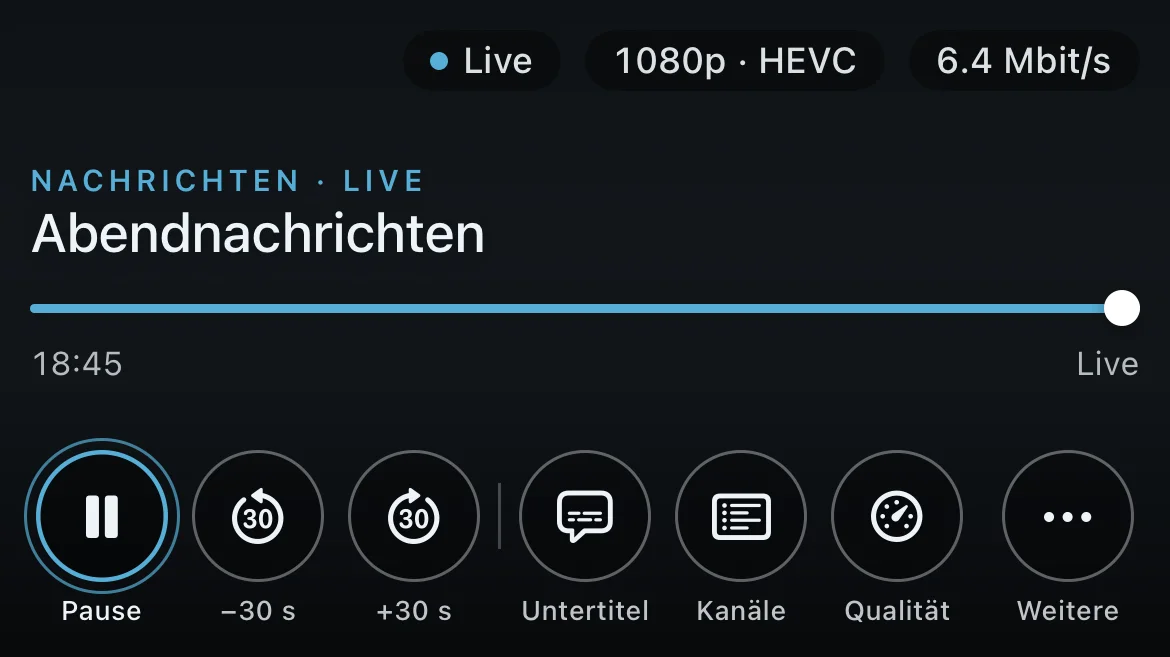
iPad
- Like the Mac with sidebar (smart lists, tag chips, groups), operated by tap as on the iPhone.
- Side sheets around 400 pt wide next to the picture.
- Settings open in full screen with sidebar and section.
Apple TV
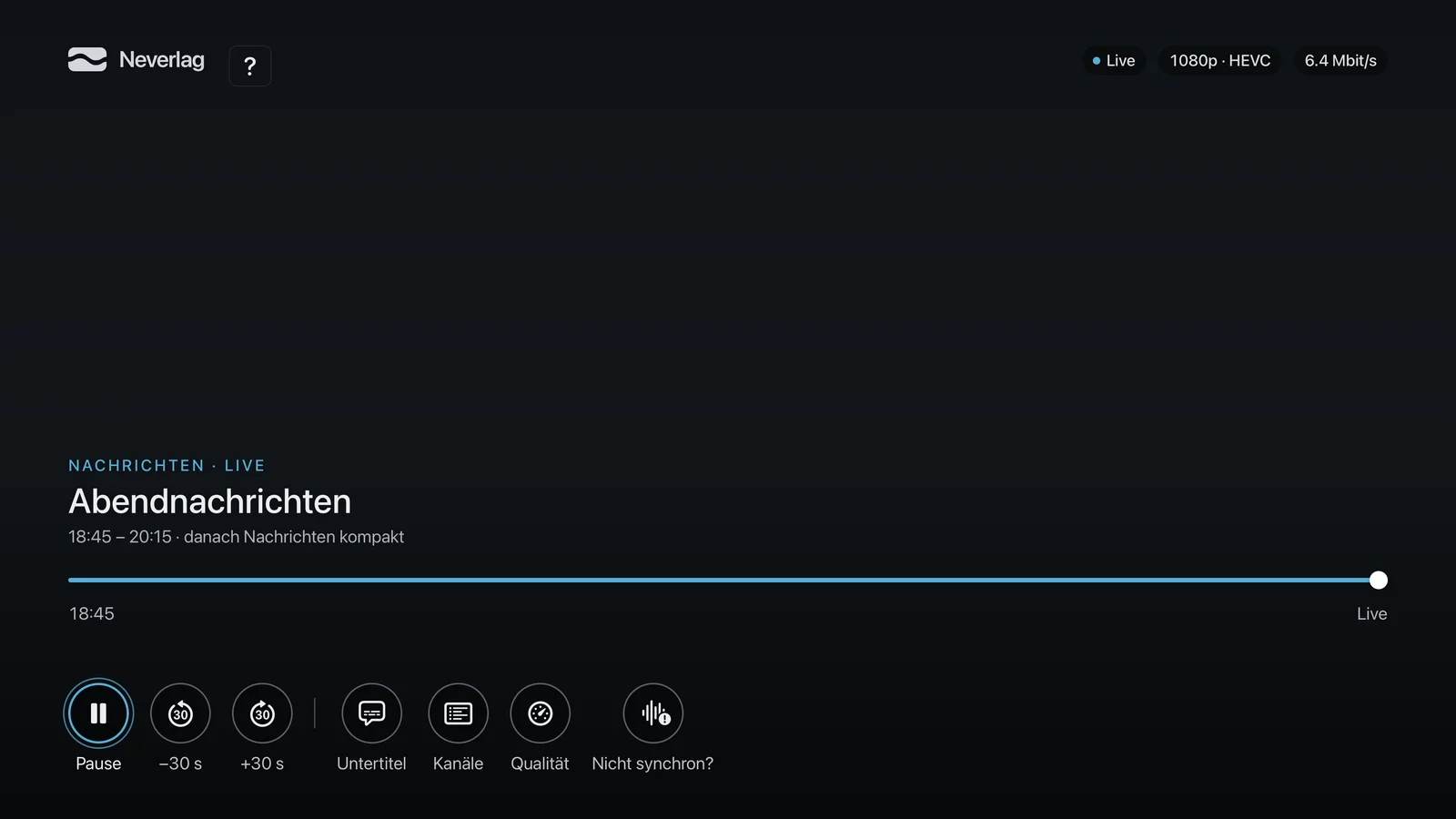
- Pressing the select button shows the control bar; the focus is a bright circle.
- Seek bar focusable: LEFT/RIGHT ±30 s.
- MENU: first closes an open side sheet, then the control bar, then goes to the channel list. The app is never quit in the process.
- Long press of the select button on a channel: context menu with favourite, “Record now”, “Tags …”, “Jump to …”.
- Zap display: When switching, channel, programme and “N min left” appear briefly.
- On the left the sidebar with Channel groups, My tags, country filter and “HD+” (channels from HD upwards only).
- Picture in Picture is available if the video path supports it (standard renderer: yes).
- Settings are two-column like the system settings: sections on the left, content on the right. “SELECT opens the section”.

Android and Fire TV
The Android version is a separate port with the same layout (welcome screen with transfer from iPhone/Mac, Xtream, M3U, demo). You operate Fire TV with the remote like the Apple TV. Not all functions are there yet – see Platform differences.
Full screen, Picture in Picture, AirPlay
- Full screen: Mac ⌃⌘F or the button on the right of the bar; iPhone/iPad rotate or button; Apple TV always runs in full screen.
- Picture in Picture (PiP): Button in the control bar on Mac, iPhone, iPad and Apple TV. The picture carries on as a small window while you do something else.
- AirPlay: Button in the control bar on Mac, iPhone and iPad.
- Aspect ratio: The picture is always fitted appropriately; on the iPhone you can switch to “Fill screen” with a double tap. There is no setting for it.
Finding the settings
- Mac: Menu Neverlag → Settings (⌘,) – separate window with sidebar.
- iPhone: Search tab → Settings (overview page with eight rows, as a sheet).
- iPad: Sidebar → Settings (full screen).
- Apple TV: “Settings” section in the top bar.
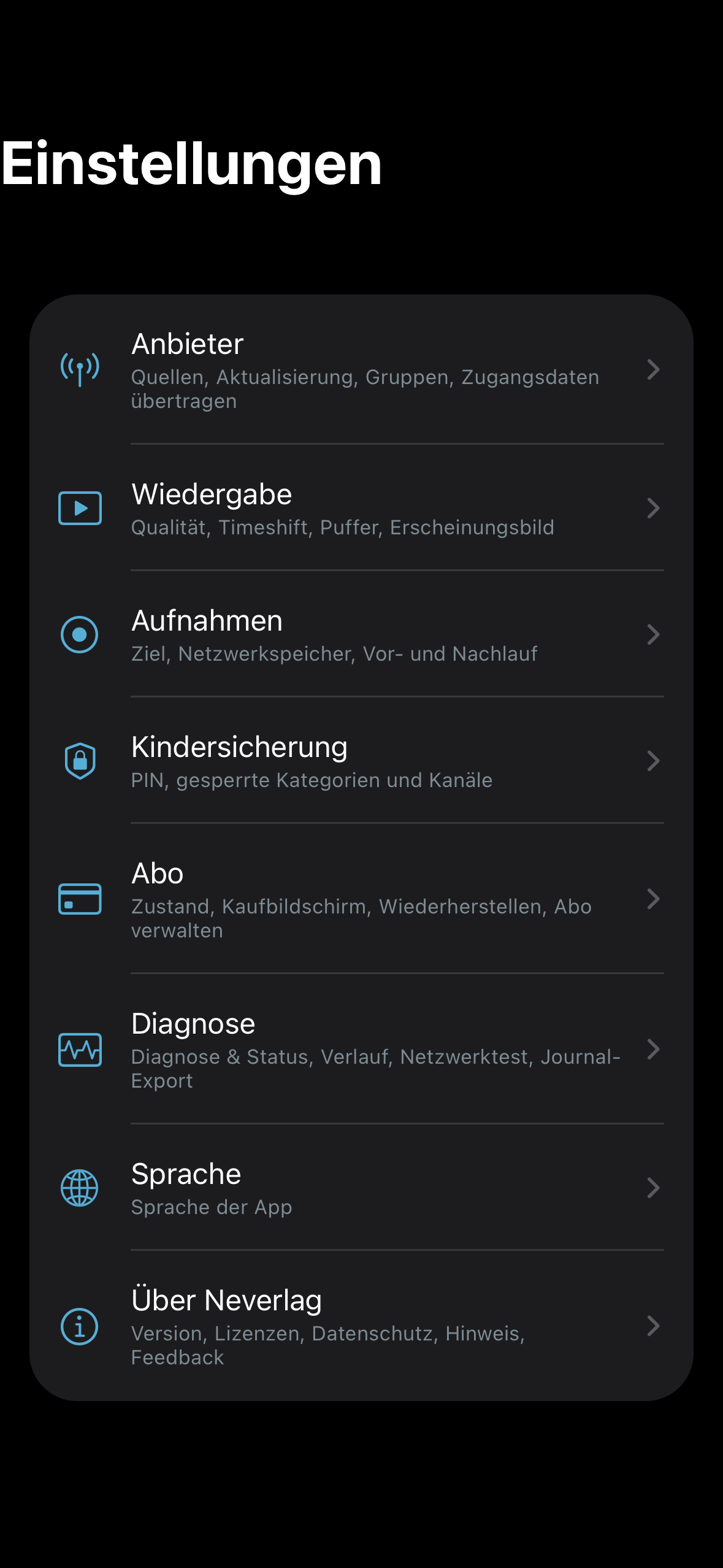
All eight sections are named and filled the same on all devices: Provider, Playback, Recordings, Parental controls, Subscription, Diagnostics, Language, About.