Picture and sound
This page explains why a picture can judder even though the reserve is full – and what Neverlag does about it. Plus audio tracks, subtitles and HDR.
Frame pacing: why 50 frames per second judder at 60 Hz
Television in Europe broadcasts 25 or 50 frames per second. Many displays refresh their picture 60 times per second (60 Hz). 50 does not fit into 60: every fifth frame has to be shown twice. On a pan across a football pitch you see that as a slight stutter. That is not a fault in the line and not an empty reserve, just plain arithmetic between the broadcaster and the display.
The Frame pacing setting determines how Neverlag deals with it:
- Automatic shows every frame sharp and matched to the display. With 50 on 60, the stutter remains.
- Smoothing blends two frames at the transitions. Motion looks more fluid, transitions minimally softer. From the tour: “Juddering during sport? Try ‘Smoothing’.”
- Standard (Mac) chooses by itself depending on the programme: Smoothing for 25/50-frame channels in a window, Automatic for 60.
- Off does nothing – like earlier versions.
Whether the picture is currently running evenly is shown in the Quality window in the “Frame cadence” row: “even” or “uneven (x %)”.
Mac: display at 50 Hz
The best solution is to let the display run in step with the programme. On the Mac, Neverlag does that itself in full screen when Match refresh rate to programme is on (default: on). A channel with 25 or 50 frames takes the display to 50 Hz, a film with 24 frames to 48 Hz. When you leave full screen, stop or quit, the display goes back. The Quality window shows “Display: 50 Hz (matched to programme)”.
If the display cannot do 50 Hz (it reports that to the Mac), the previous rate stays and Smoothing takes over.
A special case are ProMotion displays (MacBook Pro): they grant apps certain rates alone (120, 60, 40, 30, 24 Hz); 50 is not possible there in a window. In full screen Neverlag switches the display to a fixed 50 Hz; in a window, Smoothing helps. You can also set the display permanently to 50 Hz in System Settings.
If the display runs in step with the programme, Neverlag plays at exactly 1.00× and does not top up the reserve at 0.99× – otherwise the rate would fail to line up again. The Quality window then shows “refill paused (display in step with programme)”.
Apple TV: “Match Frame Rate”
The Apple TV has a system setting of its own: Settings → Video and Audio → “Match Frame Rate”. If it is on, the Apple TV switches the television to the rate of the programme. Neverlag does not change anything about that. Switch it on if your television can do 50 Hz; most can.
iPhone and iPad: 120 Hz and motion smoothing
iPhones and iPads with ProMotion can do up to 120 Hz. 120 is a multiple of 24, 30, 40 and 60, but not of 50. That is why there are two settings here:
- 120 Hz for video (default: on) lets playback use the full rate. Off caps it at 60 Hz and saves battery.
- Motion smoothing (default: off) blends two frames at the transitions so that 50 frames do not stutter at 120 Hz. Costs a little processing power and at most one frame of delay (not noticeable).
Both switches appear on devices with ProMotion alone.
Low Power Mode: caps at 60 Hz
If Low Power Mode is on on the iPhone or iPad, the system limits the display to 60 Hz – regardless of what is set in Neverlag. If it suddenly judders, check that first: Control Centre or Settings → Battery. The Quality window shows it in the “Frame cadence” row as “Display 60 Hz (Low Power Mode)”.
Audio tracks and subtitles
If a channel or a film offers several audio tracks or subtitles, you open the selection via the subtitle icon in the player (iPhone: under “More”). From the tour: “The subtitle icon in the player opens the selection of language and subtitles, provided the channel offers more than one. The picture is always fitted to match; you do not need to choose an aspect ratio.”
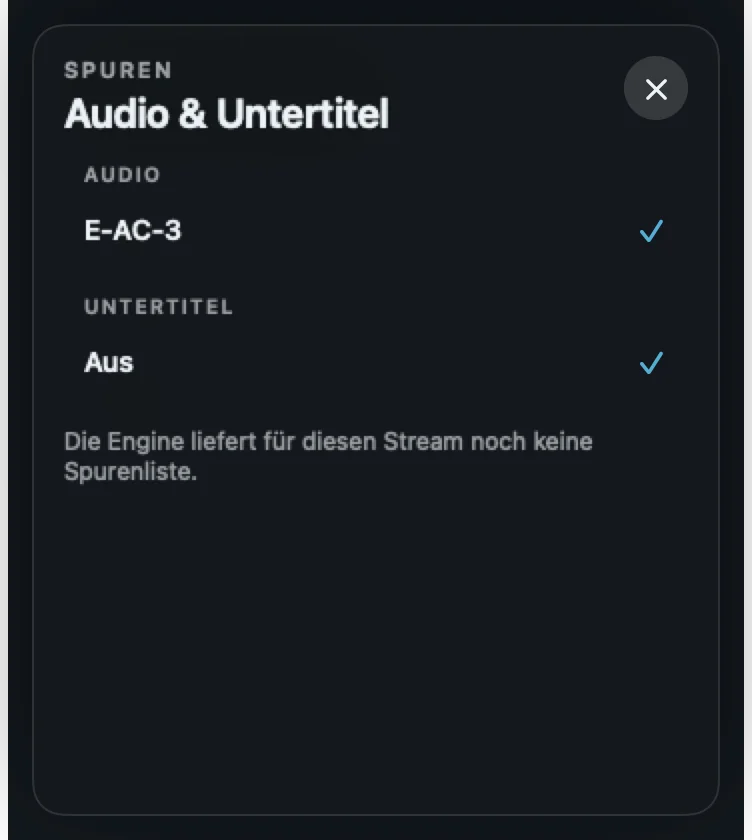
In the Quality window, under “Audio”, you can see which track is playing and how many channels it has (stereo, 5.1). If the playback engine does not provide a track list for a stream yet, it says “The engine does not provide a track list for this stream yet.”
A preset such as “always German” for the audio track does not exist in 1.0.2; the choice applies to the current playback.
Picture and sound out of step
If lips and voice visibly drift apart, tap “Out of sync?” in the player (iPhone: under “More”). Neverlag rebuilds playback; picture and sound start together again and you stay on the channel. In the Quality window, “A/V offset” shows the gap; small values are not noticeable, red means it no longer fits.
HDR
Channels and films in HDR (PQ/HLG) show more contrast and colour – if the device and the playback path can handle it. On the Apple TV there is the New renderer for that (default: on). If a device cannot do tone mapping (the conversion from HDR to the display), diagnostics shows: “HDR stream (PQ/HLG): The playback engine cannot do tone mapping on this device — contrast and colours are reduced. This is a platform limit, not a fault of the channel.”
Further reading
- The Quality window – rows “Frame cadence”, “Display”, “Dropped frames”
- Troubleshooting → Juddering
- Platform differences