Settings → About Neverlag
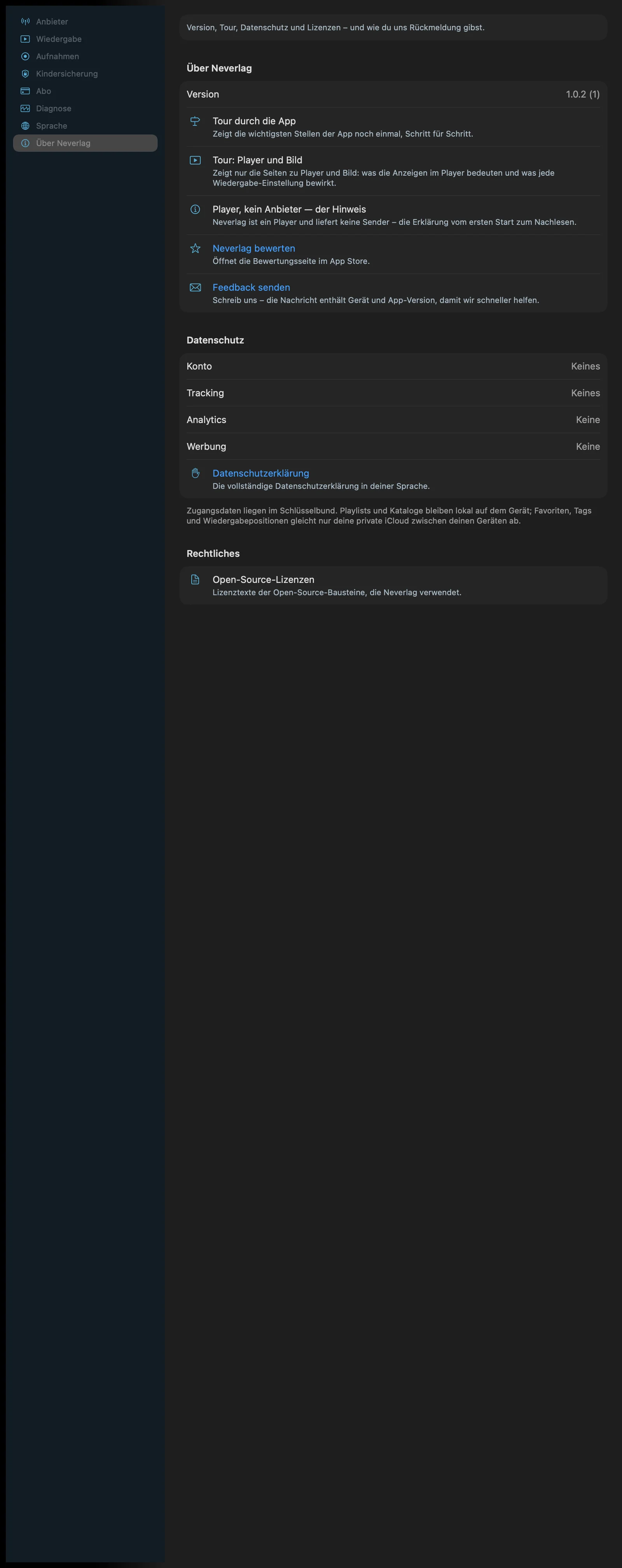
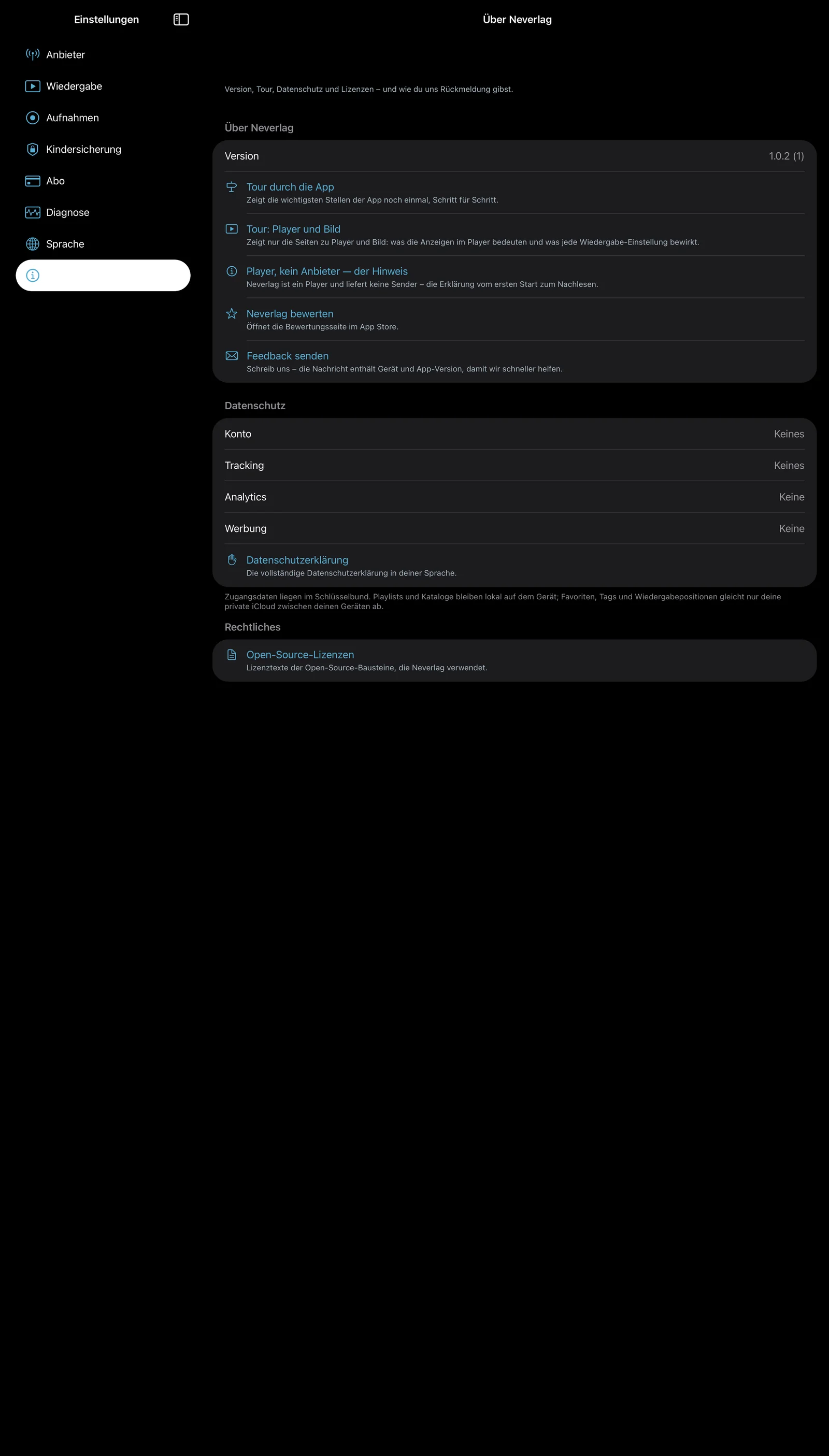
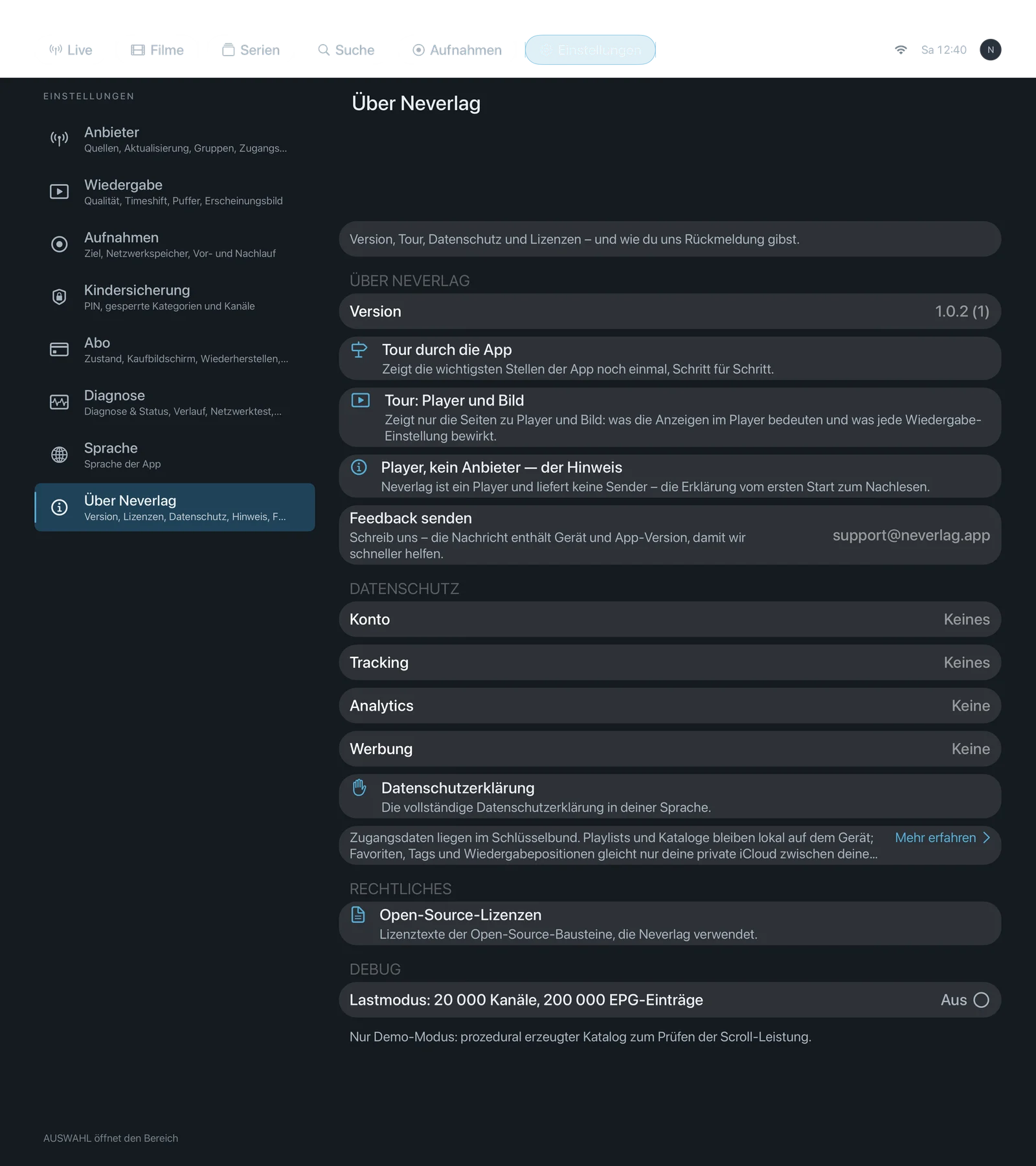
Sentence at the bottom of the area: “‘Rate Neverlag’ opens the review page in the App Store. ‘Send feedback’ opens an email to support@neverlag.app with device details and app version — anyone with a problem reaches us directly that way.”
| iPhone | iPad | Apple TV |
|---|---|---|
 |  |  |
Readouts
At the top is the version of the app. Below it, four privacy rows: Account, Tracking, Analytics, Advertising – each “None”. That is not a setting, just a readout.
Help in the app
Tour of the app
- Where: Settings → About Neverlag · Mac, iPhone, iPad, Apple TV
- What it does: “Shows the app’s key places again, step by step.” The same tour as at first launch: channel list, favourites, TV Guide, playback, settings.
- Default: – (button)
- Options: none
- When to change: If you skipped the tour at first launch or are showing the app to someone.
- What it costs: Nothing.
- Works together with: Getting started → Start tour, Show hints
Show hints
- Where: Settings → About Neverlag · Mac, iPhone, iPad, Apple TV
- What it does: “When you open an area for the first time, short hints appear right at the buttons. With ‘?’ you can see them again at any time.” The hints apply per device; the app remembers locally which areas you have already seen.
- Default: On
- Options:
- On – Advantage: every area explains itself the first time. Drawback: one extra step when opening for the first time.
- Off – Advantage: no overlays. Drawback: “?” still shows the hints, but no longer automatically.
- When to change: Off if you know the app and nobody but you uses the device.
- What it costs: Nothing.
- Works together with: Reset all hints, Getting started → Hints
Reset all hints
- Where: Settings → About Neverlag · Mac, iPhone, iPad, Apple TV
- What it does: “Every area shows its hints again the next time you open it.” Confirmation: “Hints reset”.
- Default: – (button)
- Options: none
- When to change: If you pass the device on to someone who does not know the app yet.
- What it costs: Nothing.
- Works together with: Show hints
Player, not a provider — the notice
- Where: Settings → About Neverlag · Mac, iPhone, iPad, Apple TV
- What it does: “Neverlag is a player and delivers no channels – the explanation from the first launch, to read again.” Shows the notice from the first launch once more.
- Default: – (button)
- Options: none
- When to change: To read it again.
- What it costs: Nothing.
- Works together with: Home, Getting started → First-launch notice
Contact
Rate Neverlag
- Where: Settings → About Neverlag · Mac, iPhone, iPad · not on the Apple TV
- What it does: “Opens the rating page in the App Store.”
- Default: – (link)
- Options: none
- When to change: If you want to write a review.
- What it costs: Nothing.
- Works together with: Send feedback
Send feedback
- Where: Settings → About Neverlag · Mac, iPhone, iPad as a mail link · Apple TV shows the address as text
- What it does: “Write to us – the message includes device and app version so we can help faster.” Opens your mail app with a pre-filled subject and device details; you write the text yourself.
- Default: – (link)
- Options: none
- When to change: For questions or problems. For playback problems, also share the journal.
- What it costs: Nothing.
- Works together with: Troubleshooting → What support needs
Legal
Privacy policy
- Where: Settings → About Neverlag · Mac, iPhone, iPad as a link · Apple TV as a text page
- What it does: “The full privacy policy in your language.” Short version from the app: no account, no tracking, no analytics, no advertising, no server of its own. Credentials in the device’s keychain; favourites, tags and playback positions via your private iCloud; diagnostics and history stay on the device.
- Default: – (reference)
- Options: none
- When to change: To read it again.
- What it costs: Nothing.
- Works together with: Subscription and backup → Privacy, Subscription → Privacy
Open source licenses
- Where: Settings → About Neverlag · Mac, iPhone, iPad, Apple TV
- What it does: “Licence texts of the open-source components Neverlag uses.” For example the playback library with which Neverlag decodes picture and sound.
- Default: – (button)
- Options: none
- When to change: To read it again.
- What it costs: Nothing.
- Works together with: Glossary → Codec