Settings → Playback
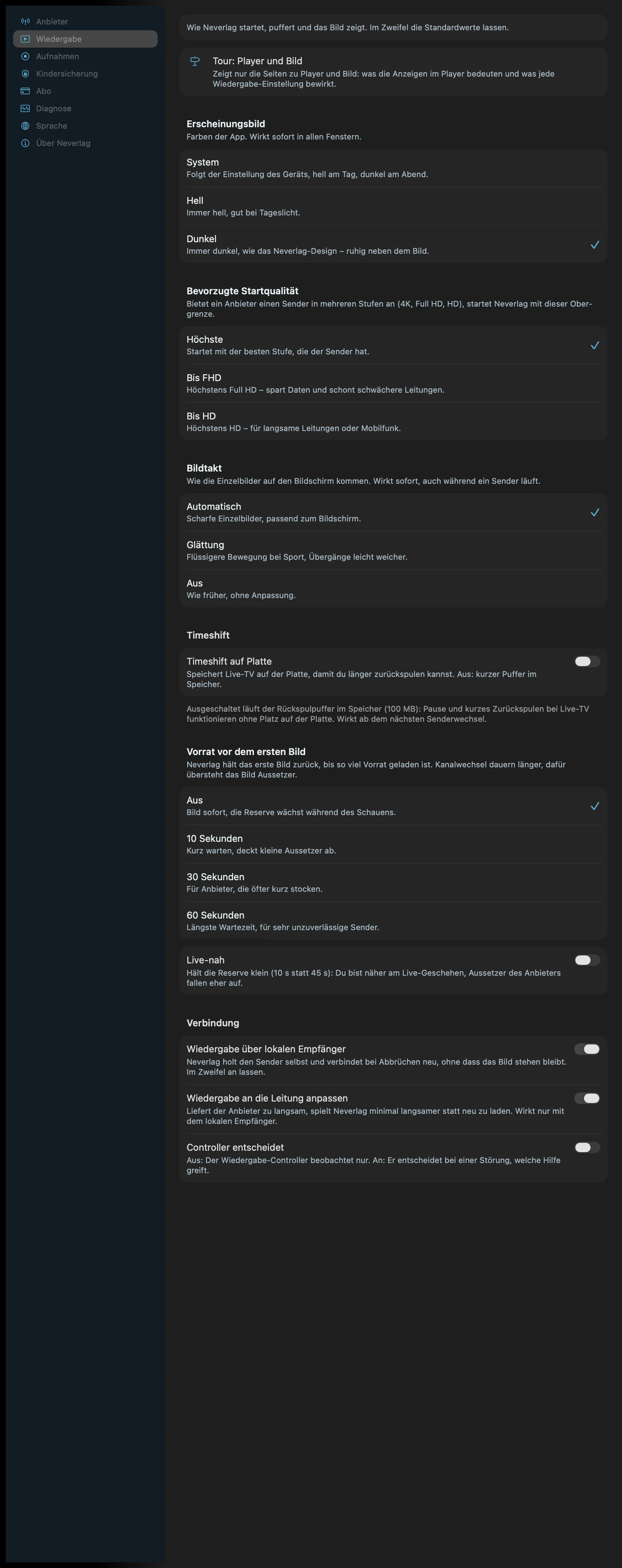
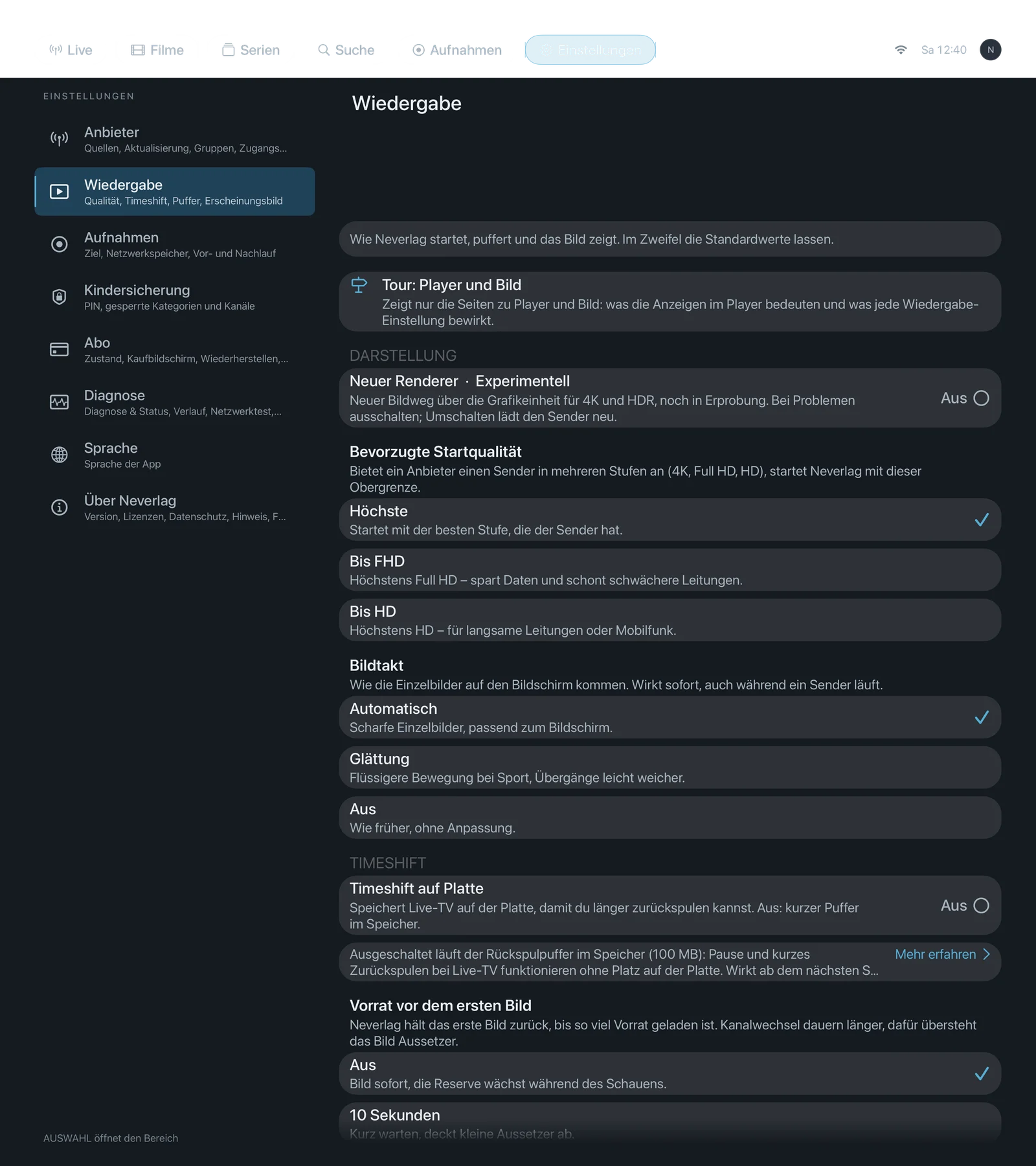
Sentence at the top of the section: “How Neverlag starts, buffers and shows the picture. If in doubt, leave the default values.”
The order on this page follows the app: Appearance, Start (startup quality, buffer), Frame pacing (with refresh rate, 120 Hz, motion smoothing), Timeshift, Reserve, Connection (receiver, connection, controller), Renderer (Apple TV).
| iPhone | iPad | Apple TV |
|---|---|---|
 | 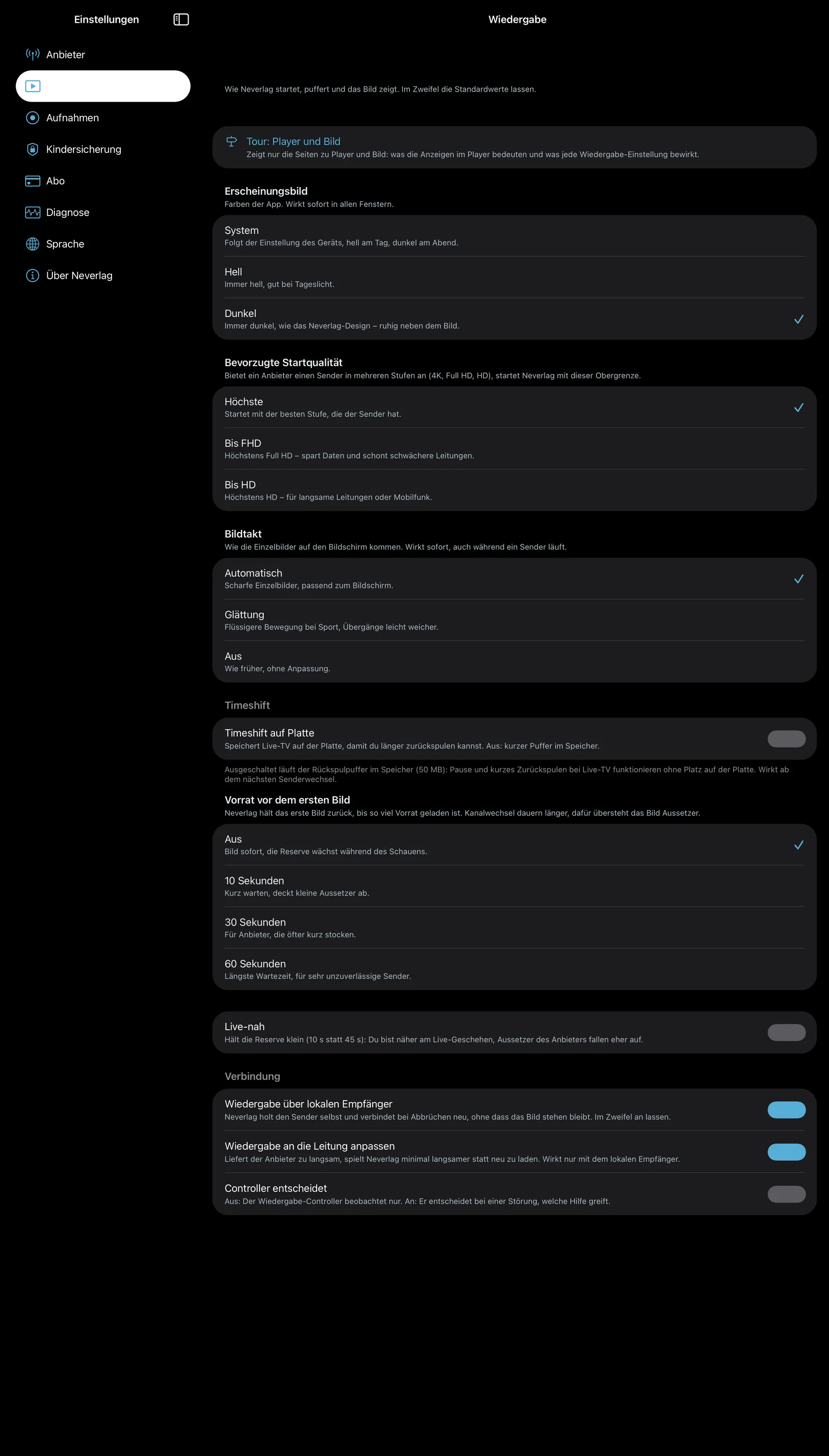 |  |
Appearance
Appearance
- Where: Settings → Playback · Mac, iPhone, iPad (Apple TV is always dark)
- What it does: “The app’s colours. Takes effect immediately in all windows.”
- Default: Dark
- Options:
- System – “Follows the device setting, light by day, dark in the evening.” Advantage: Adapts to the device. Disadvantage: Bright areas next to the picture during the day.
- Light – “Always light, good in daylight.” Advantage: Easy to read in sunlight. Disadvantage: Looks glaring next to a dark film.
- Dark – “Always dark, like the Neverlag design – calm next to the picture.” Advantage: Calm while watching. Disadvantage: Slightly harder to read in bright ambient light.
- When to change: As you prefer; “System” if you like the way iOS/macOS switches.
- What it costs: Nothing.
- Works together with: –
Starting a channel
Preferred startup quality
- Where: Settings → Playback · Mac, iPhone, iPad, Apple TV
- What it does: “If a provider offers a channel in several levels (4K, Full HD, HD), Neverlag starts with this upper limit.” Applies only to channel families with several levels. In the quality window you can switch the level by hand at any time.
- Default: Highest
- Options:
- Highest – “Starts with the best level the channel has.” Advantage: Best picture. Disadvantage: On a weak connection, more frequent stepping down.
- Up to FHD – “Full HD at most – saves data and is easier on weaker connections.” Advantage: Less data, more stable. Disadvantage: No 4K at start.
- Up to HD – “HD at most – for slow connections or mobile data.” Advantage: Runs almost anywhere. Disadvantage: Visibly less sharpness.
- When to change: If 4K channels regularly hang for you, or if you want to save mobile data on the go.
- What it costs: Data volume: 4K needs about four times as much as HD. Battery: higher levels put more strain on the decoder.
- Works together with: The quality window → Levels, How Neverlag stays stable → Stepping down
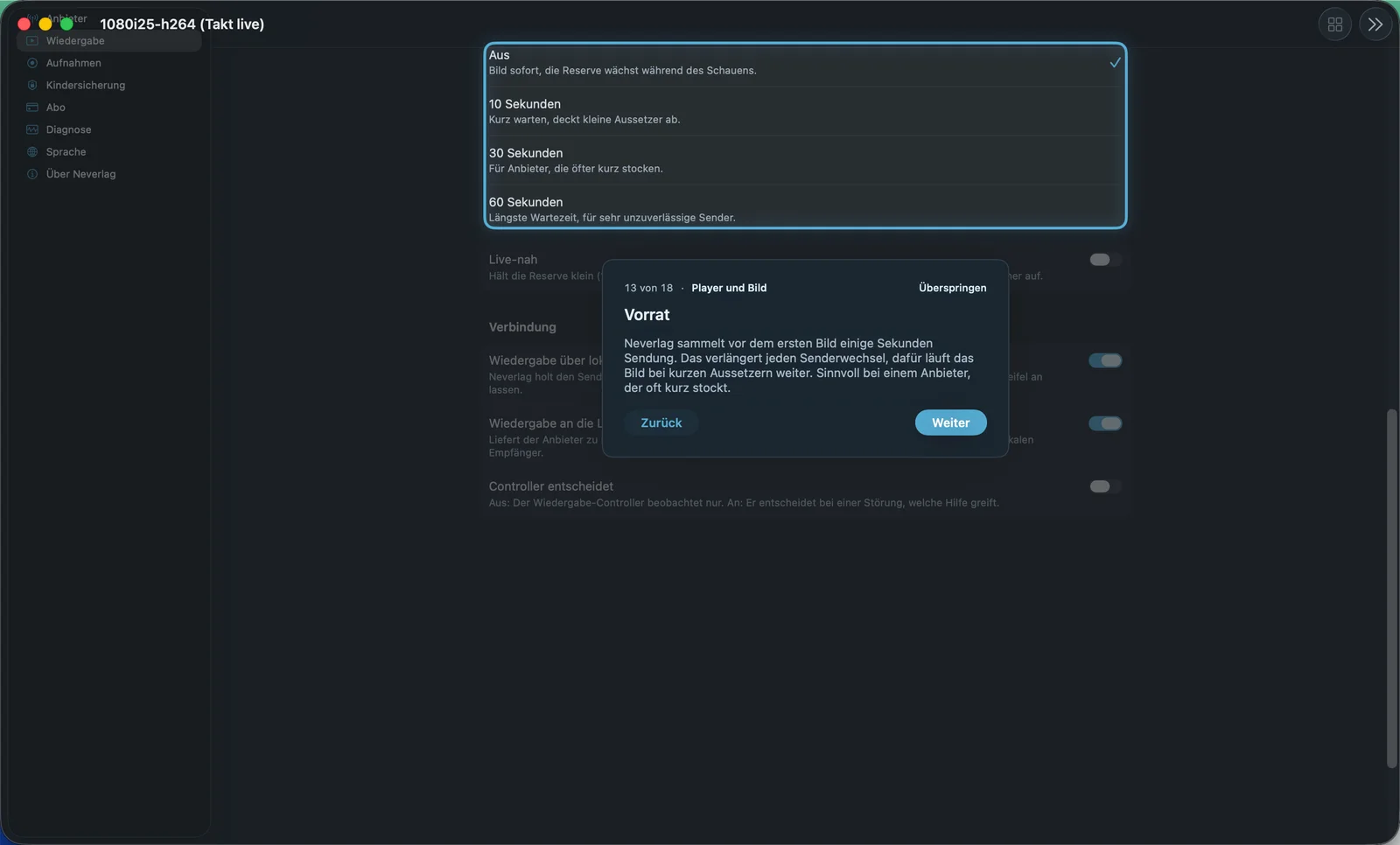
Buffer before first picture
- Where: Settings → Playback · Mac, iPhone, iPad, Apple TV
- What it does: “Neverlag holds back the first picture until this much buffer is loaded. Channel changes take longer, but in return the picture survives dropouts.” While waiting, the player shows “Building up buffer – 12 of 30 seconds”.
- Default: Off
- Options:
- Off – “Picture right away, the reserve grows while you watch.” Advantage: Fast zapping. Disadvantage: In the first seconds there is still little reserve.
- 10 seconds – “A short wait, covers small dropouts.” Advantage: A little protection from the start. Disadvantage: Every channel change takes around 10 s longer.
- 30 seconds – “For providers that often stall briefly.” Advantage: Solid reserve from the first picture. Disadvantage: Half a minute of waiting per change.
- 60 seconds – “Longest wait, for very unreliable channels.” Advantage: Maximum protection. Disadvantage: A minute of waiting; zapping is no fun.
- When to change: Only if a channel regularly stalls in the first seconds after starting. For normal zapping, leave it on “Off”.
- What it costs: Delay on channel change of the chosen length; storage for the buffer (capped according to the device’s memory tier). No additional data volume – the data arrives anyway.
- Works together with: Reserve against dropouts, How Neverlag stays stable
Frame pacing
Frame pacing
- Where: Settings → Playback · Mac, iPhone, iPad, Apple TV · the options differ by device
- What it does: “How the individual frames reach the screen. Takes effect immediately, even while a channel is playing.” Television from Europe mostly runs at 25 or 50 frames per second, many screens at 60 Hz. That does not divide evenly – so frame pacing decides whether Neverlag shows every frame sharply (and in return leaves some frames on screen longer) or smooths the transitions.
- Default: Mac, iPhone, iPad: Standard · Apple TV: Automatic
- Options:
- Standard – Mac, iPhone, iPad – “Recommended. Chooses by itself for each programme: sharp individual frames when the screen runs in step with the programme, otherwise smoothing.” Advantage: You don’t have to decide anything. Disadvantage: The choice can change from channel to channel.
- Automatic – all devices – “Sharp individual frames, matched to your screen.” Advantage: Every frame sharp, crisp for sport. Disadvantage: If the screen does not run in step with the programme, some frames stay on screen slightly longer (pans look jerky).
- Smoothing – all devices – “Smoother motion for sports, transitions slightly softer.” Advantage: Calmer pans even on 60 Hz screens. Disadvantage: Transitions minimally softer.
- Off – Mac, Apple TV – “As before, without adjustment.” Advantage: Behaviour of older versions. Disadvantage: No adjustment to the screen; only choose it if the others bother you.
- When to change: If pans visibly stutter: first check whether Low Power Mode is active (see Picture and sound). Then try “Smoothing”. An earlier choice that no longer exists on the device is replaced by the app with the default, and the app says so beneath the selection.
- What it costs: Smoothing does slightly more computing (battery minimal). No effect on delay or data volume.
- Works together with: Match refresh rate to programme, 120 Hz for video, Motion smoothing, Picture and sound, The quality window → Frame pacing
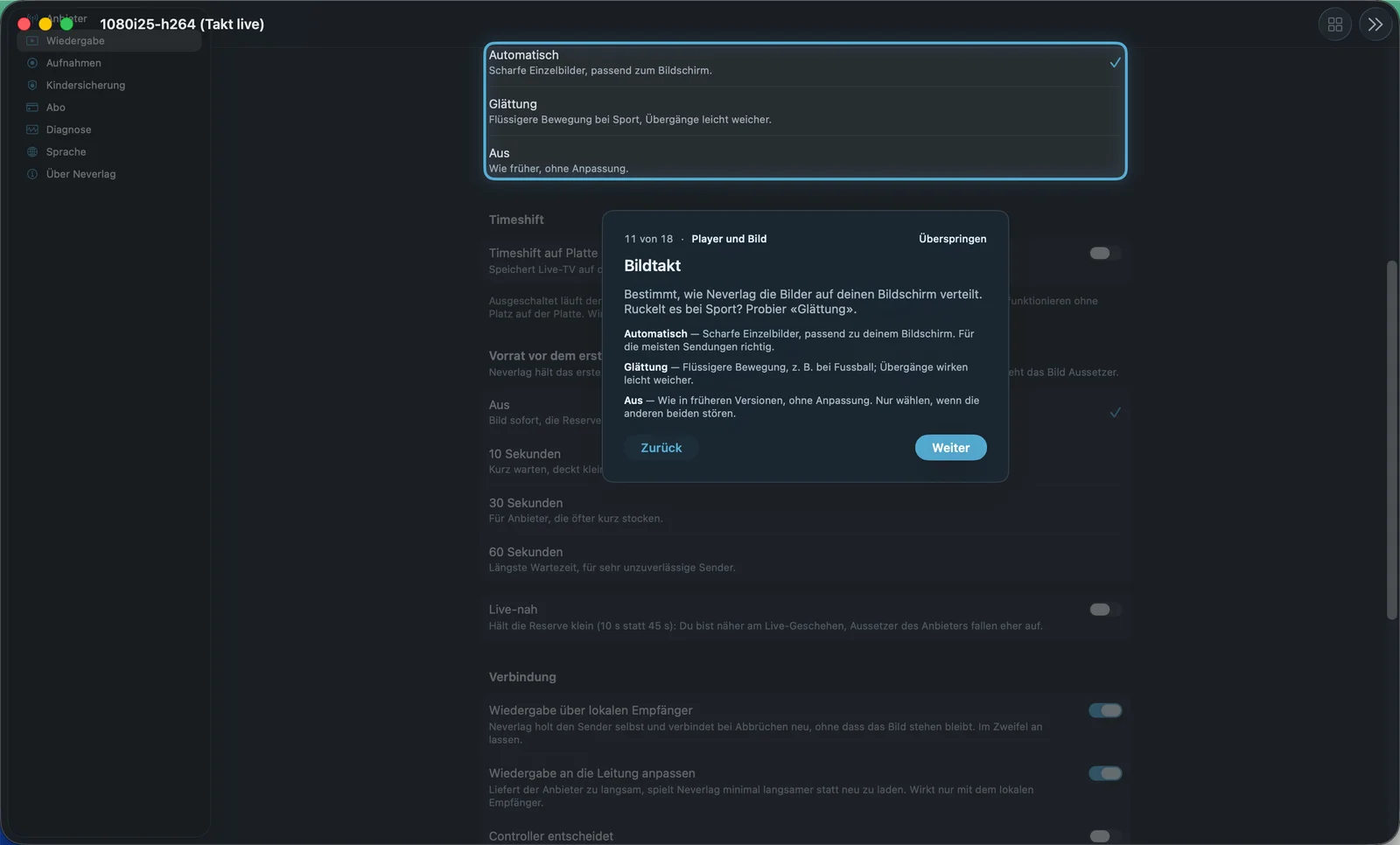
Match refresh rate to programme
- Where: Settings → Playback → Frame pacing · Mac only
- What it does: “Switches the screen in full screen to the programme’s rate so that motion runs smoothly. The screen may briefly go black when switching.” If a programme runs at 25 or 50 frames per second, the Mac switches to 50 Hz in full screen if the screen can do that. When leaving full screen, on stopping or on quitting, the screen switches back.
- Default: On
- Options:
- On – Advantage: Every frame gets the same amount of time, pans run evenly; Neverlag can then play at 1.00×. Disadvantage: Brief black screen when switching; at most one change every 10 seconds.
- Off – Advantage: No switching, no black screen. Disadvantage: On 60 Hz and ProMotion screens, 50 fps remains uneven; “Frame pacing: Standard” then chooses smoothing.
- When to change: Off if the brief black screen when switching bothers you or your monitor handles the mode change poorly.
- What it costs: Nothing in battery or data; brief black screen on the change.
- Works together with: Frame pacing, Picture and sound → Mac 50 Hz, The quality window → Frame pacing (shows “Display: 50 Hz (matched to programme)”)
120 Hz for video
- Where: Settings → Playback → Frame pacing · iPhone, iPad · only visible on devices with ProMotion (more than 60 Hz)
- What it does: “Uses the fast screen rate so that motion runs more evenly. Needs a little more battery.” At 120 Hz the screen can show 24, 30, 40, 60 and 120 frames per second smoothly. Off means: capped at 60 Hz. Neverlag also decides based on the reserve whether it really outputs 120 frames per second or only every second tick. This setting is an experiment in 1.0.2.
- Default: On
- Options:
- On – Advantage: Finer rate, more even motion. Disadvantage: A little more battery; in Low Power Mode the system caps at 60 Hz anyway.
- Off – Advantage: Saves battery. Disadvantage: 50 and 25 fps end up on 60 Hz, where they do not divide evenly.
- When to change: Off if battery matters more to you than the last bit of evenness, or if you see no difference.
- What it costs: Battery: a little more. Delay, data, storage: none.
- Works together with: Frame pacing, Motion smoothing, Picture and sound → iPhone 120 Hz, Picture and sound → Low Power Mode
Motion smoothing
- Where: Settings → Playback → Frame pacing · iPhone, iPad
- What it does: “Blends two frames at the seams so that pans look calmer. Motion becomes minimally softer as a result.” Only takes effect in frame pacing “Automatic” (with “Standard”, the app chooses Automatic on iPhone/iPad). Rests by itself as long as the screen runs at a multiple of the programme (for example 60p on 60 Hz). This setting is an experiment in 1.0.2.
- Default: Off
- Options:
- On – Advantage: Pans look calmer, even when screen and programme do not match. Disadvantage: Picture minimally softer at the seams; one frame of lead.
- Off – Advantage: Every frame stays as it was broadcast. Disadvantage: Uneven pacing remains visible.
- When to change: On if pans in sport look too jerky to you and “Smoothing” in frame pacing is not enough.
- What it costs: Battery: a little more (the graphics unit computes the blend). Delay: one frame. Data, storage: none.
- Works together with: Frame pacing, 120 Hz for video, Picture and sound
Timeshift
Timeshift on disk
- Where: Settings → Playback → Timeshift · Mac, iPhone, iPad, Apple TV
- What it does: “Saves live TV to disk so that you can rewind further. Off: short buffer in memory.” When switched off, the rewind buffer runs in RAM (50 MB on iPhone/iPad, 100 MB on Apple TV and Mac): pause and short rewinds work without space on disk. Takes effect from the next channel change.
- Default: Off
- Options:
- On – Advantage: Rewinding over 30 minutes to 2 hours; whole matches or films. Disadvantage: Temporarily occupies storage space; the buffer is cleared on channel change and on quitting.
- Off – Advantage: No space needed, no writing to disk. Disadvantage: Only short rewinds (a few minutes, depending on the data rate).
- When to change: On if you want to jump back further in live TV – for example the second half from the beginning.
- What it costs: Storage: up to the size of the rewind window (several gigabytes at 4K). Battery: a little more from writing to disk. No effect on delay or data volume.
- Works together with: Rewind window, Recordings and Timeshift
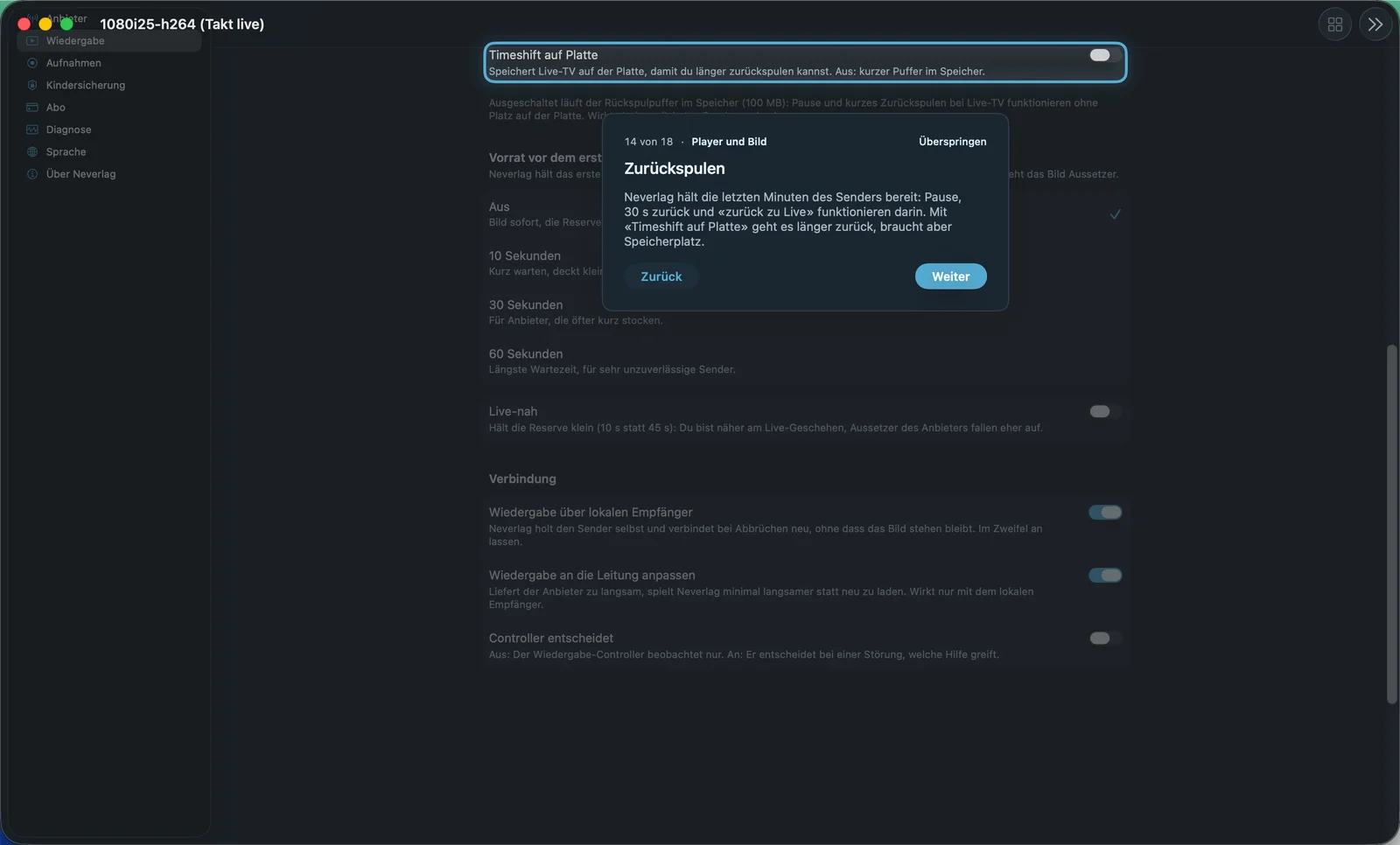
Rewind window
- Where: Settings → Playback → Timeshift · Mac, iPhone, iPad, Apple TV · only with “Timeshift on disk”
- What it does: “How far back you can rewind. Longer windows need more storage.” Live TV is cached up to this duration; pause, 30 s back/forward and “back to live” work within this buffer.
- Default: 30 minutes
- Options:
- 30 minutes – “Half an hour, needs the least space.” Advantage: Little storage. Disadvantage: Not enough for a whole match.
- 1 hour – “One hour, about a football match without half-time.” Advantage: Good compromise. Disadvantage: Twice the space.
- 2 hours – “Two hours, for whole films – needs the most space.” Advantage: Longest window. Disadvantage: Many gigabytes at 4K.
- When to change: Depending on what you typically want to catch up on.
- What it costs: Storage proportional to duration and data rate; the app states the maximum in the explanatory text beneath the setting.
- Works together with: Timeshift on disk
Reserve
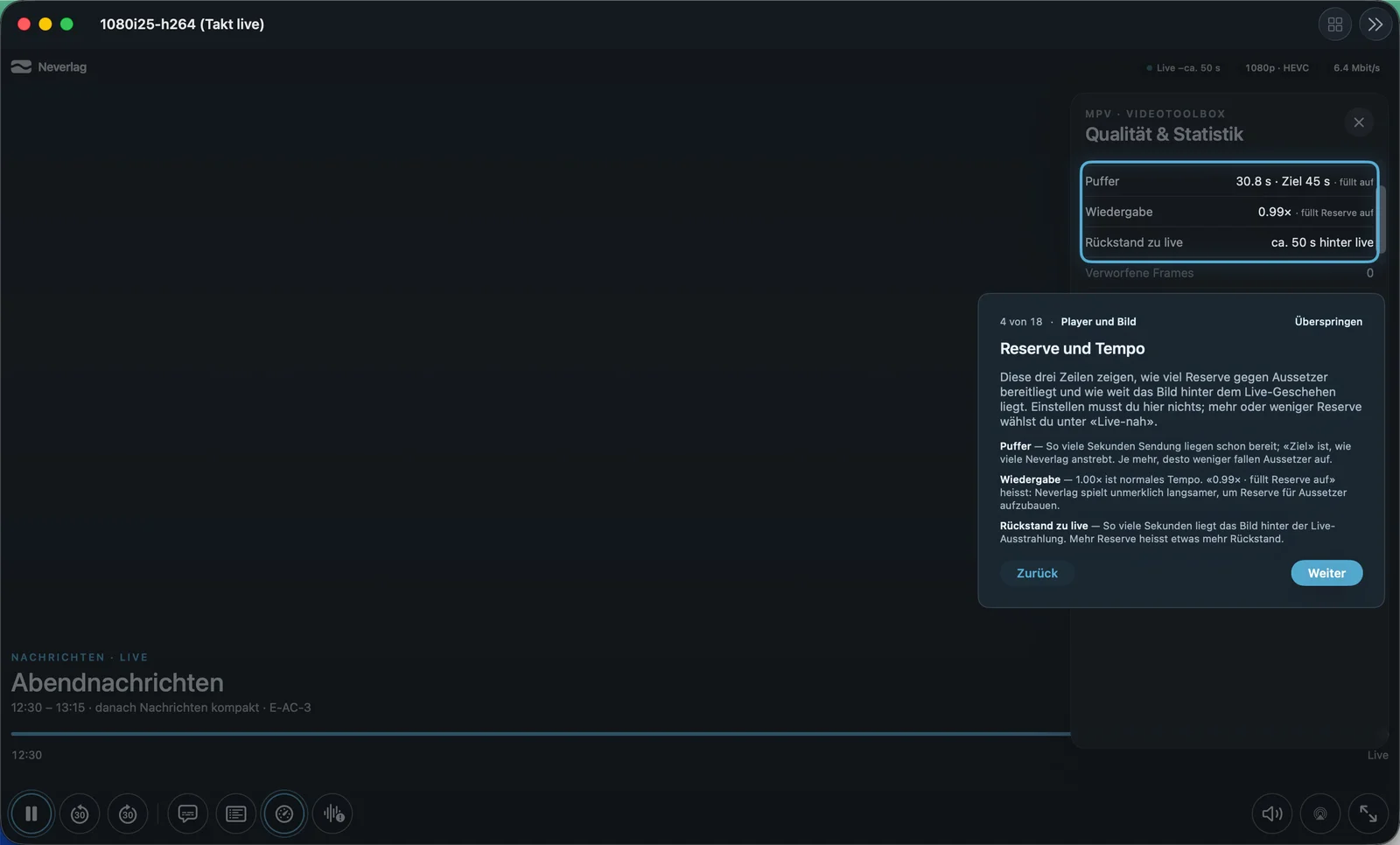
Reserve against dropouts
- Where: Settings → Playback · Mac, iPhone, iPad, Apple TV
- What it does: “Neverlag loads this many seconds in advance to bridge the provider’s dropouts. More reserve means: the picture runs further behind live.” Neverlag fills the reserve imperceptibly by playing at 0.99× until the target is reached. If the device has little memory, the quality window shows “chosen 90 s, at most 85 s on this device”.
- Default: 45 s
- Options:
- Near live – “Only 10 s of reserve: you are closest to the live action, but the provider’s dropouts are more noticeable.” Advantage: Goal celebrations almost at the same time as the neighbours. Disadvantage: Even a 10 s dropout leads to a frozen picture.
- 45 s (default) – “Balanced: bridges the usual dropouts, the picture is around three quarters of a minute behind live.” Advantage: Right for most providers. Disadvantage: Around 45 s behind live.
- 60 s – “More reserve bridges longer dropouts from the provider. In return the picture runs around a minute behind live.” Advantage: Survives minute-long dropouts almost entirely. Disadvantage: A minute behind.
- 90 s – “For very unreliable providers. The picture runs around a minute and a half behind live; with little memory, the reserve stays slightly smaller.” Advantage: Greatest protection. Disadvantage: A minute and a half behind; capped on smaller devices (iPhone, Apple TV 4K: 85 s; Apple TV HD: 60 s).
- When to change: “Near live” for sport, if you don’t want the neighbours’ goal celebrations to get ahead of you. 60 or 90 s if your provider often stalls for longer than half a minute.
- What it costs: Delay behind live of the chosen length. Storage for the reserve (around 3 MB per second at 4K). No additional data volume.
- Works together with: Buffer before first picture, Adapt playback to the connection, How Neverlag stays stable → Reserve and 0.99×, The quality window → Reserve
Connection
Playback through local receiver
- Where: Settings → Playback → Connection · Mac, iPhone, iPad, Apple TV
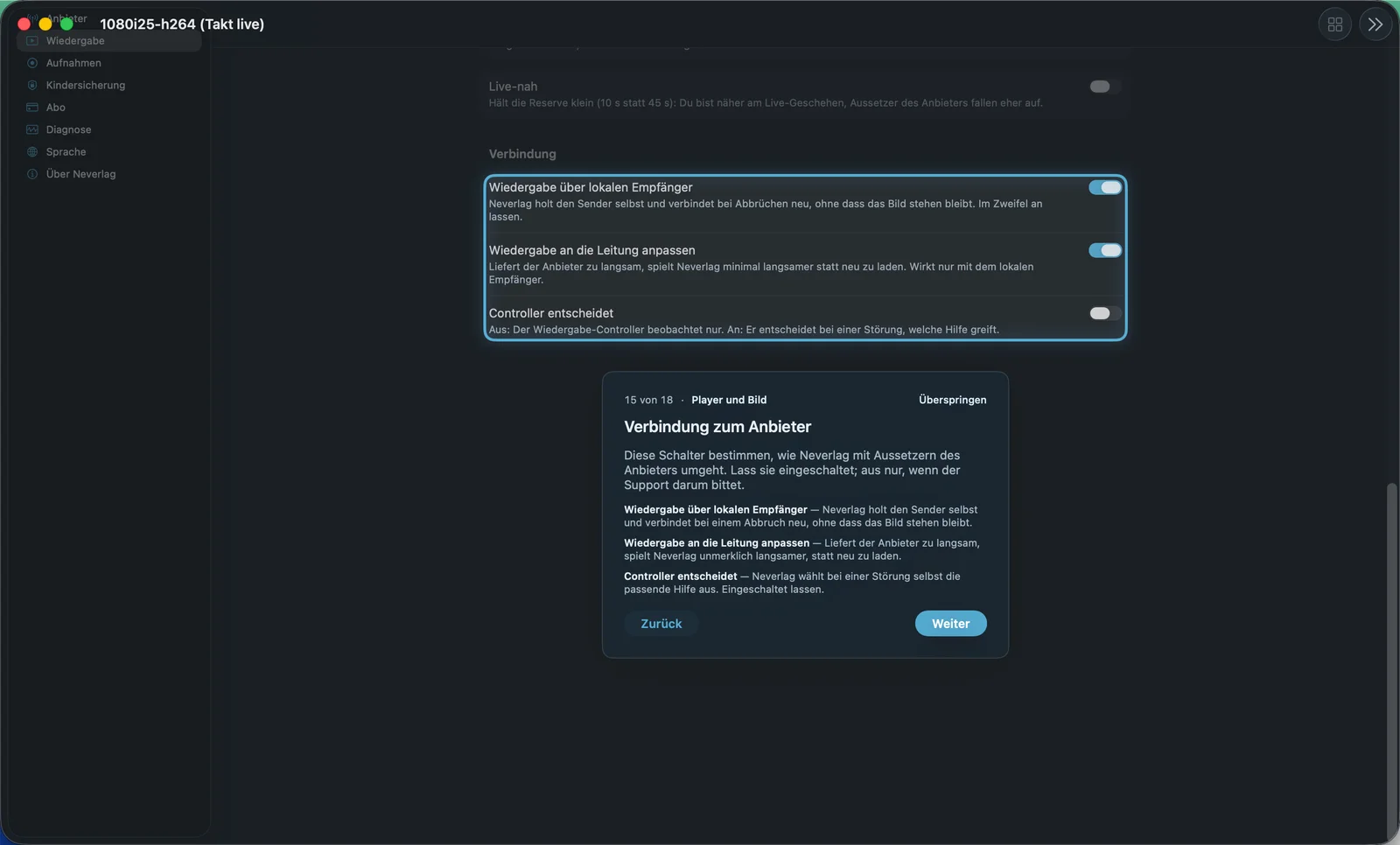
- What it does: “Neverlag fetches the channel itself and reconnects after drops without the picture freezing. If in doubt, leave it on.” The receiver is the part of the app that collects the stream from the provider and passes it on to playback. If the connection drops, it reconnects – playback doesn’t notice, and rewinding remains possible.
- Default: On
- Options:
- On – Advantage: Reconnecting without interruption, reserve is kept, adapting to the connection is possible. Disadvantage: none in normal operation.
- Off – Advantage: Direct path to playback – only useful if support asks for it. Disadvantage: On drops, playback reloads and the reserve is gone.
- When to change: Only at support’s request, to narrow down a fault. Switching takes effect at the next channel change.
- What it costs: Nothing.
- Works together with: Adapt playback to the connection, Controller decides, How Neverlag stays stable → Receiver
Adapt playback to the connection
- Where: Settings → Playback → Connection · Mac, iPhone, iPad, Apple TV · only with “Playback through local receiver”
- What it does: “If the provider delivers too slowly, Neverlag plays minimally slower instead of reloading. Only works with the local receiver.” If slightly less arrives over time than the channel needs, Neverlag lowers the speed slightly instead of reloading again and again. The audio keeps its pitch.
- Default: On
- Options:
- On – Advantage: No frozen pictures on a slightly too slow connection. Disadvantage: The delay behind live grows slowly for as long as the connection is too slow.
- Off – Advantage: Speed always 1.00×. Disadvantage: On a too slow connection, the reserve empties until the picture freezes.
- When to change: Only at support’s request.
- What it costs: Delay: only grows if the connection really is too slow. Otherwise nothing.
- Works together with: Playback through local receiver, Reserve against dropouts, The quality window → Speed
Controller decides
- Where: Settings → Playback → Connection · Mac, iPhone, iPad, Apple TV
- What it does: “Off: the playback controller only observes. On: when something goes wrong, it decides which remedy applies.” The controller is the part of the app that collects the findings when something goes wrong and picks one of the remedies (buffer, renewal, governor, step-down, healing, reconnect). It always observes; the setting determines whether it also acts. Takes effect immediately, without a restart.
- Default: Off
- Options:
- Off – Advantage: The proven behaviour of 1.0.2. Disadvantage: The controller only writes its decisions to the journal.
- On – Advantage: A single decision-maker picks the remedy. Disadvantage: Still intended as a trial in 1.0.2; switch it off again if there are problems.
- When to change: Only at support’s request.
- What it costs: Nothing.
- Works together with: Playback through local receiver, How Neverlag stays stable
Renderer (Apple TV)
New renderer
- Where: Settings → Playback · Apple TV only · in the app with the label “Experimental”
- What it does: “New picture path via the graphics unit for 4K and HDR, still in trial. Switch off if there are problems; switching reloads the channel.” If the new path is not available on the device, the player shows “New renderer unavailable, previous one active”.
- Default: Off
- Options:
- On – Advantage: New path for 4K and HDR. Disadvantage: Trial; flickering or wrong colours are possible.
- Off – Advantage: The proven picture path with Picture in Picture. Disadvantage: HDR display still has limits (see Picture and sound → HDR).
- When to change: Only to try it out; “switch it off if the picture flickers or shows wrong colours”.
- What it costs: Switching reloads the channel (reserve gone).
- Works together with: Picture and sound → HDR