Recordings and Timeshift
Two things that are often confused:
- Timeshift (rewinding) keeps the last few minutes of the current channel ready. Pause, go back, return to live. Nothing is kept when you change channel.
- Recording saves a programme permanently as a file, on the device or on your network storage.
The settings for both are under Settings → Recordings and Settings → Playback → Timeshift.
Timeshift: rewinding live TV
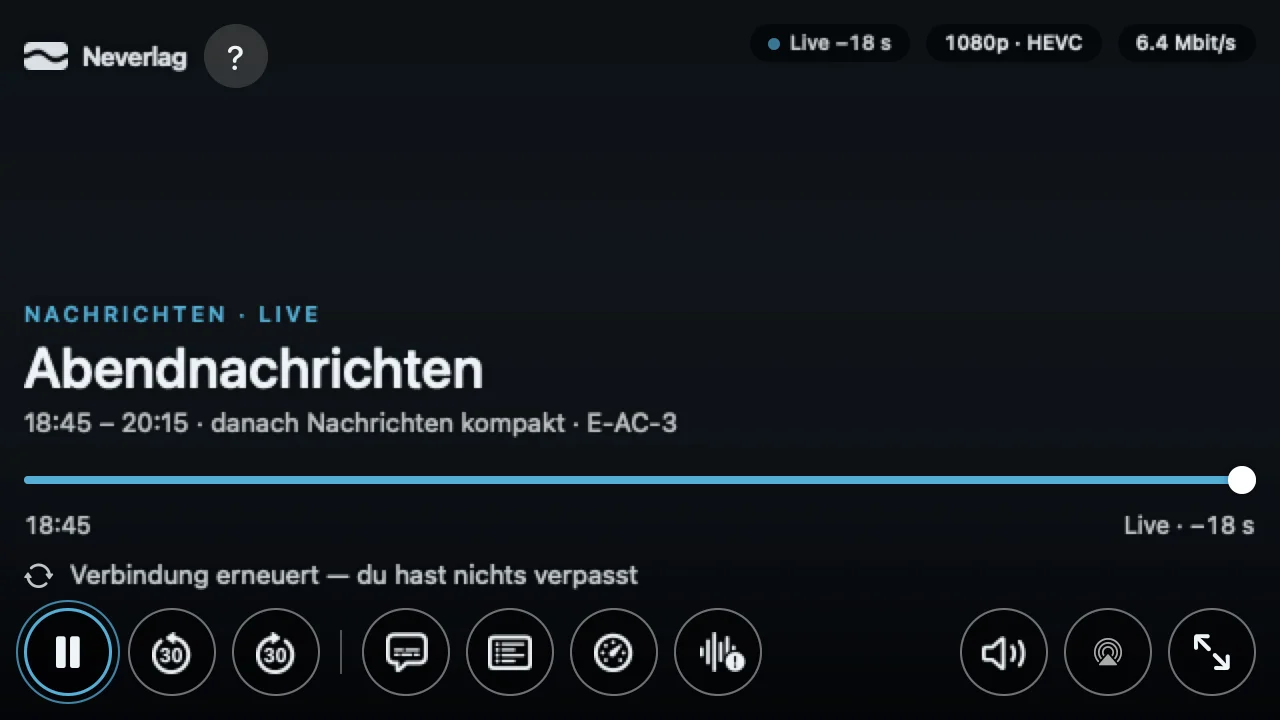
From the tour: “Neverlag keeps the last few minutes of the channel ready: pause, 30 s back and ‘back to live’ work within it. With ‘Timeshift on disk’ you can go back further, but it needs storage space.”
- Default (in memory): A short buffer in working memory, 50 MB on iPhone/iPad, 100 MB on Mac and Apple TV. Depending on the channel’s data rate, that is enough for a few minutes. No space on the disk needed.
- Timeshift on disk: Live TV is written to the disk. You choose the Rewind window: 30 minutes, 1 hour or 2 hours. The buffer is cleared when you change channel and when you quit.
The window grows as long as you stay on the channel and starts afresh when you change channel. If Neverlag fetches a new connection in the background, the reserve is kept; the window is reset by a genuine rebuild alone (“Rebuilt — rewind window restarted”).
How far behind live you currently are is shown in the Quality window.
Catch-up
Some providers offer a catch-up function for past programmes. In the TV Guide you start such a programme with “Play program”. If the provider does not offer it, the app says: “The provider offers no catch-up for this programme.” Neverlag cannot replace that – the archive is held by the provider.
Recordings
Scheduling a recording
You schedule recordings from the TV Guide: select the programme, “Record”. A programme that is already running you record directly in the player. The recording starts earlier by the Pre-roll (default 1 minute) and ends later by the Post-roll (default 5 minutes).
Series recording: “Always record” records every broadcast of this programme on this channel: “Every broadcast of ‘Abendnachrichten’ on Nordkanal is recorded.” Stop it via “Stop series recording” in the TV Guide or in the recordings list.
What is produced
Neverlag copies the provider’s stream unchanged into pieces (segments) and joins them into an MKV file when finished. MKV is a widespread file format that common media servers and players read directly. Nothing is converted; the quality is exactly that of the channel.
The recordings list shows the state: Scheduled, Recording, Parts (finished, not yet merged), Incomplete (ended early) or Error. “Remove recording (file is kept)” takes the entry out of the list without deleting the file.
Where to
- Mac: Neverlag’s default folder, a folder of your choice or a connected network share. “Show in Finder” opens the file.
- iPhone, iPad: In the app’s folder, visible in the Files app under “Neverlag”.
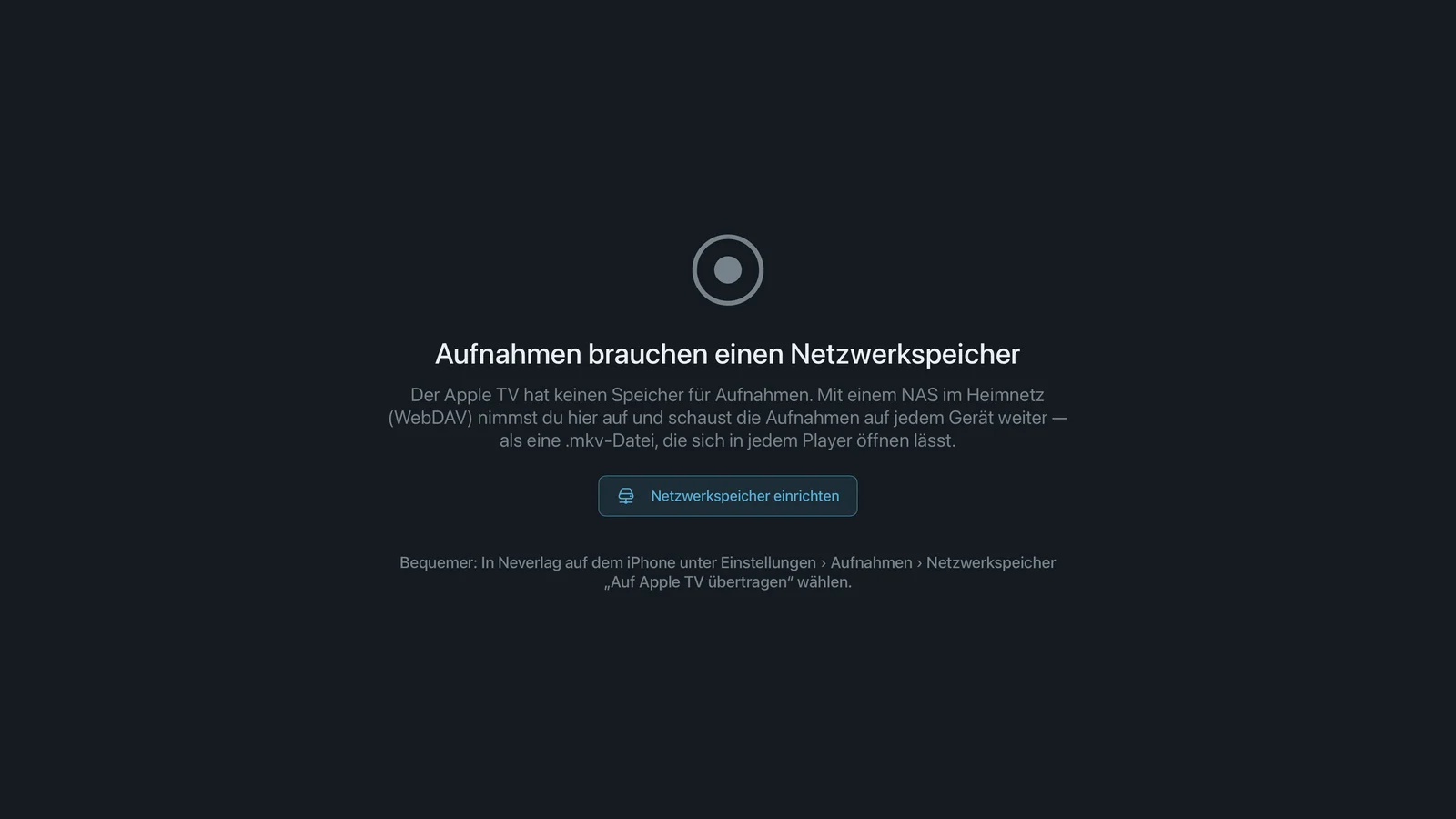
- Apple TV: To network storage alone; the Apple TV has no storage of its own for recordings. Without a NAS set up: “No network storage set up — on Apple TV, recordings only work with a NAS.”
- All: Network storage via WebDAV.
Nothing is uploaded to a cloud.
Network storage (NAS, WebDAV)
A NAS is a small hard drive in your home network. WebDAV is the language Neverlag uses to talk to it; most NAS devices support it, though you often have to switch it on once.
Set up network storage: Neverlag finds the NAS in your home network, or you enter the address, plus username and password (these go into the keychain). Before saving, the app does a write test and shows the free space. For the Apple TV you send the setup from your iPhone or Mac: Send to Apple TV.
On the NAS, recordings are stored as parts at first. “Merge into one file now” turns them into an MKV; this needs as much free local space as the recording, because the device fetches the parts for it. Playable from any device.
Possible messages:
- “Network storage unreachable for 60 s … Recording ended incomplete.” – the NAS was gone for a minute; the minutes up to that point are kept.
- “Spool full: the NAS did not accept the segments fast enough … playback continued.” – the NAS or the Wi‑Fi link to it was too slow.
- “Recording folder on the NAS unreachable – recordings are saved locally for now.” (Mac with a network share as the folder)
Recording and connection limit
A recording counts as a connection at the provider, exactly like a device that is watching. If your account allows just one connection, the following applies:
- Playback and recording of the same channel share one connection.
- If a scheduled recording starts on a different channel, the app asks: “Recording starting” – “Stop playback and record” or “Skip recording”. The TV Guide already warns you when scheduling: “Your provider allows just one connection: at recording time, any running playback will be stopped.”
- If you change channel during a recording: “Changing channel stops the recording of … The minutes recorded so far are kept.”
How many connections your account has is shown under Diagnostics & status → Provider overview. More under Troubleshooting → another device.
Limits per device
A recording runs on the device that started it.
| Device | Recording runs as long as … | Destination |
|---|---|---|
| Mac | the app stays open (disable sleep) | Folder, network share, NAS |
| iPhone, iPad | the app is in the foreground; in the background or when the device locks, it ends | Device (Files app), NAS |
| Apple TV | the app is in the foreground; the screen saver or standby ends it | NAS alone |
| Android, Fire TV | see Platform differences | – |
If the app was not running at broadcast time, the list shows: “Missed — the app was not running at broadcast time”. For scheduled recordings, a Mac with sleep disabled is the most reliable route.