
New in 1.0.2
Neverlag 1.0.2. The biggest update since launch.
Your iPhone becomes the remote for Apple TV, everyone at home gets a profile of their own, and when a channel jams at the provider, Neverlag moves to the next source instead of reloading. Here is what that means when you sit down to watch.
In the App Store since 18 October 2026 – for iPhone, iPad and Apple TV. The Mac app follows shortly, same purchase.
Reserve, not reload
Other players reload. Neverlag planned ahead.
Neverlag keeps a store of the show you are watching – up to 45 seconds by default. When your provider’s stream stalls for a moment, Neverlag simply plays on from that store, and the picture keeps running.
You choose how much under “Reserve against dropouts”: “Near live” for sport, when the neighbours’ goal cheer bothers you, or 45, 60 and 90 seconds for more calm. The store builds up as you watch, at a barely noticeable slower pace.
If the connection does drop, Neverlag carries on from the last frame it showed instead of restarting the player. How often that happened, and for how long, is written in the app’s journal. Measured, not promised.
Source chain
Channel down? Neverlag takes the next source instead of reloading.
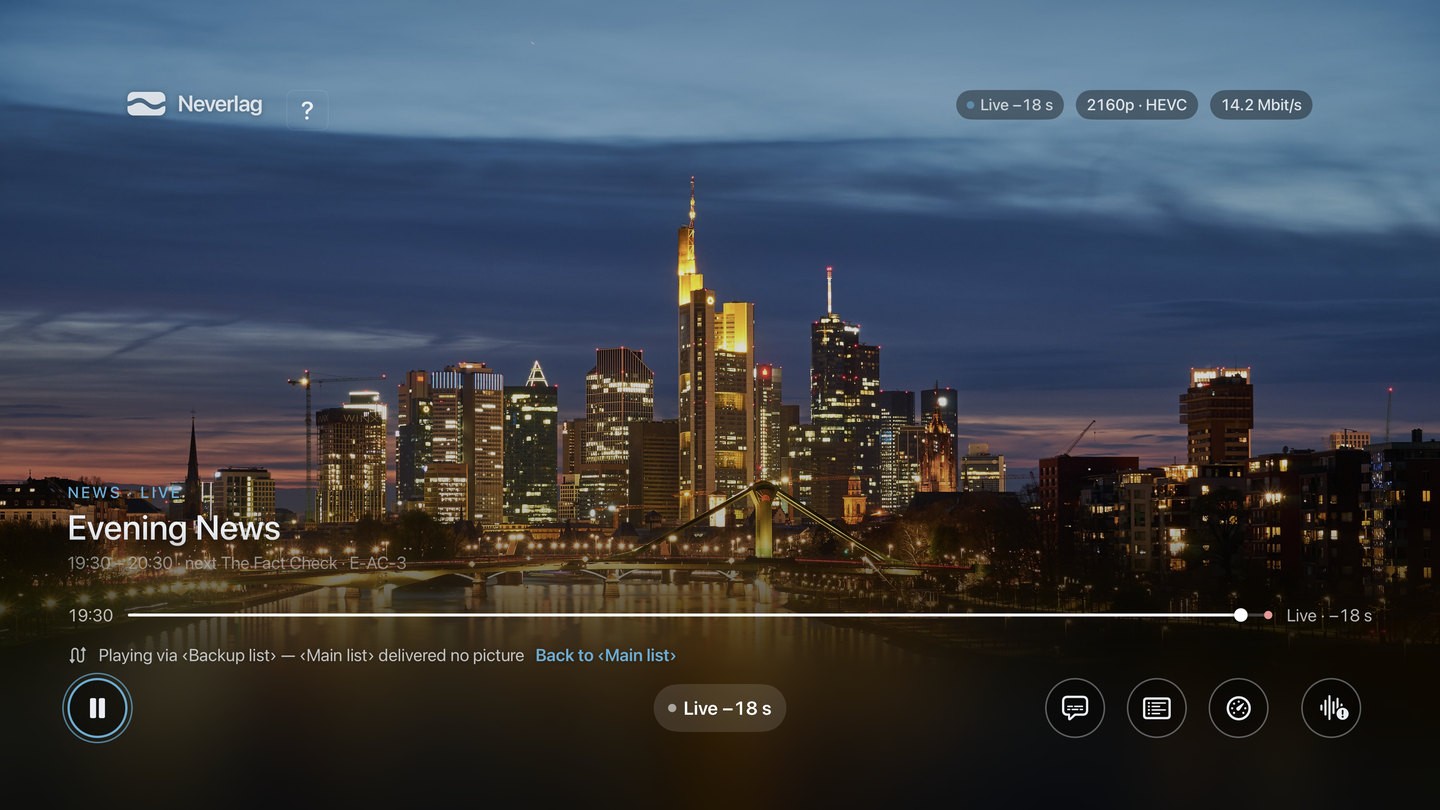
Sometimes the provider keeps sending data but no new picture. Or a channel drops out at their end altogether. Neverlag spots the frozen picture, restarts it gently after five seconds and moves to another source of the same channel after ten. If you have a second list set up, Neverlag fetches the channel from there – and comes back later.
What is happening appears in a line above the picture, exactly as the app shows it:
-
“Picture frozen – alternate route: …”
The picture has stopped although data is arriving. Neverlag tries another route to the same channel.
-
“Channel disrupted at the provider — alternate route: …”
The channel is stuck at the provider. Neverlag switches to another source.
-
“Playing via ‹Backup list› — ‹Main list› delivered no picture” “Back to ‹Main list›”
The same channel now comes from your second list. One tap takes you back; otherwise Neverlag tries again later on its own.
-
“Your provider is not delivering a programme right now — Neverlag is trying another route.”
Instead of the show, the provider sends a placeholder. Neverlag doesn’t fall for it and keeps looking.
-
“‹Channel› is disrupted at the provider — all 3 sources checked, none delivers a picture” “Try again”
When nothing works, Neverlag says so plainly – and that it’s the provider, not you.
It only switches when there is somewhere to go: several versions of the channel, or a second list. And not forever – switches per channel are capped, and sources that failed are remembered.
Remote
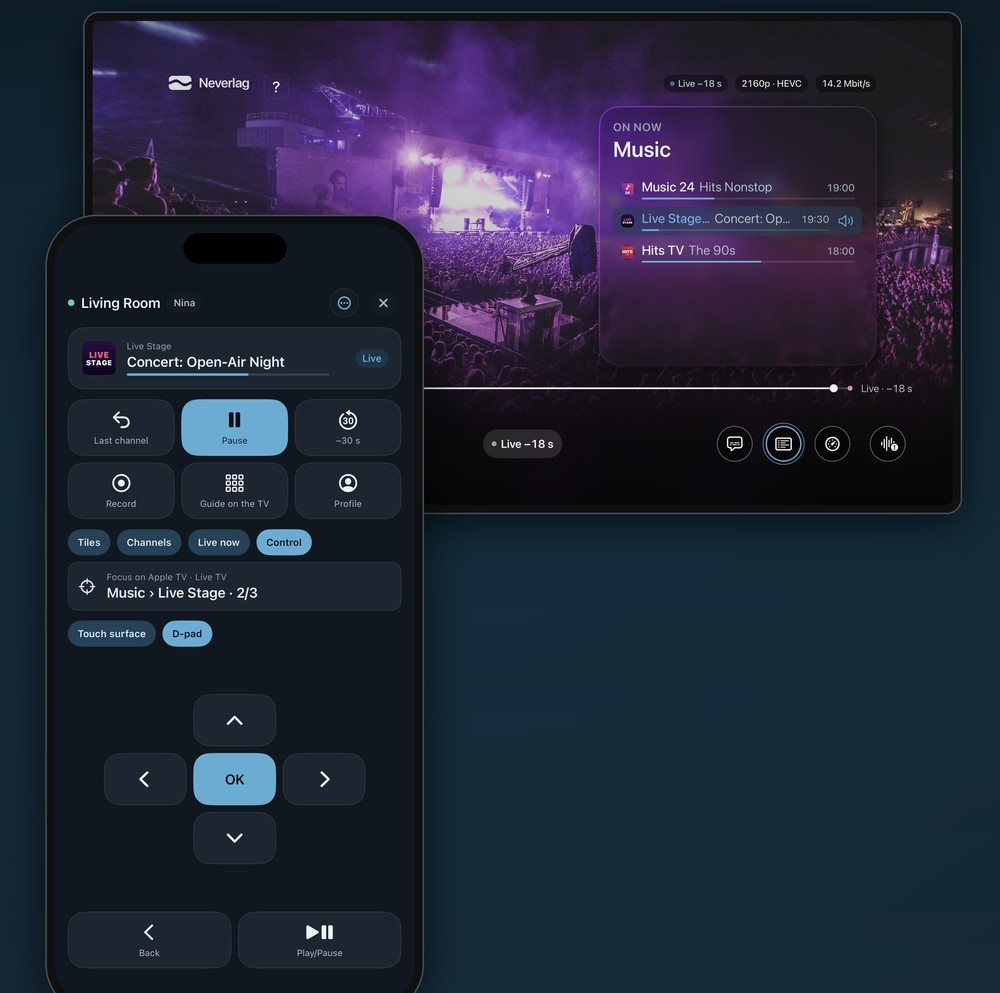
Your iPhone runs the Apple TV. Like the Siri Remote – but you can see what you’re doing.
With Neverlag on iPhone or iPad you control Neverlag on Apple TV: tiles for your favourite channels, the channel list by group, Live now, profile choice and the programme guide on the big screen.
New is the Control area. Pick a touch surface or a classic D-pad; your choice is remembered. Hold an arrow and the selection keeps moving after half a second, eight steps per second. Above it, the mirror line shows what is selected on the Apple TV, so you never have to look up.
Pause/live, 30 seconds back and last channel work without opening the app: as controls in Control Centre, on the Lock Screen or on the Action button. Siri and Shortcuts understand the same commands – “Pause in Neverlag”, “Last channel in Neverlag” – and a long press on the app icon opens the remote straight away.
You pair once, with the code the Apple TV shows. Several Apple TVs each get a name – “Living room”, “Office” – and Neverlag connects to the one you used last without asking. When it is on the network, the app shows a “Control Apple TV” button. For your own shortcuts, the link neverlag://remote opens the remote directly.
Try the remote
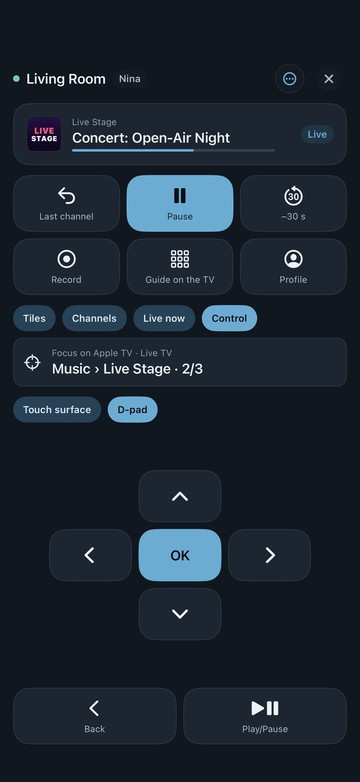
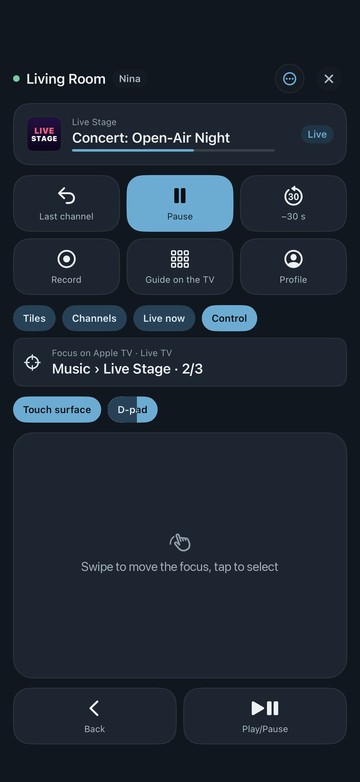
Hover over a number or tap it.
-
The top line tells you which Apple TV you are controlling. Paired more than one? Neverlag connects to the last one you used, and one tap switches.
-
Last channel, pause, 30 seconds back, record, guide on the TV, profile – one tap and the Apple TV responds.
-
Tiles for your favourite channels, the channel list by group, Live now – and Control, with the D-pad and the touch surface.
-
Shows what is selected on the Apple TV right now. No need to look at the TV to know where you are.
-
Touch surface or D-pad – you pick, Neverlag remembers.
-
Arrows and OK, like the Siri Remote; hold an arrow and after half a second it keeps going at eight steps per second. On the touch surface, swipe to move the selection and tap to choose.
-
Back goes up one level – out of full screen into the group, onto the channel that was playing. Play/Pause works like the play button on the Siri Remote.
Categories
Football, US sports, news: Neverlag sorts the schedule for you.
While it reads the programme guide, Neverlag looks at every show and files it under one of 17 categories: Football, Ice hockey, Tennis, Basketball, Handball, US sports, Motorsport, Cycling, Winter sports, Golf, Combat sports, News, Film, Series, Documentary, Kids and Music. It recognises them in eleven languages.
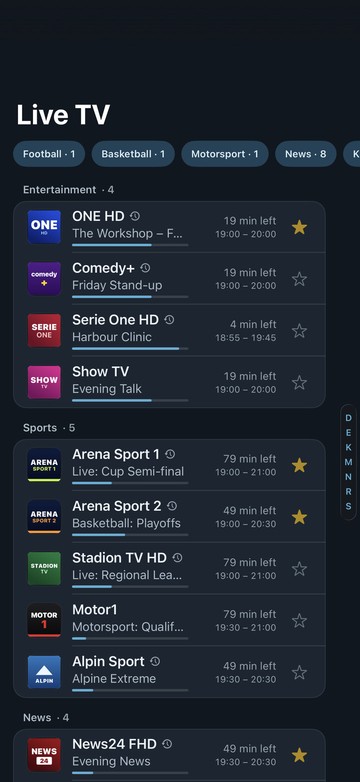
At the top of the channel list they form a filter row, each with a number: “News · 8” means news is on eight channels right now. One tap and the list shows only those. The same filters are in the guide and in catch-up; at the very top, Live now shows what is on, and Coming up what starts within two hours.
Your provider’s groups are yours to arrange under “Manage categories”: pin to the top, hide, move, or sort alphabetically. And the jump bar at the edge takes you through groups and letters – under a tenth of a second, even with 13,500 channels.
How well the sorting works depends on your provider’s programme data: what isn’t in there, Neverlag can’t find.
Programme guide
The whole schedule at a glance – filtered to what you care about.
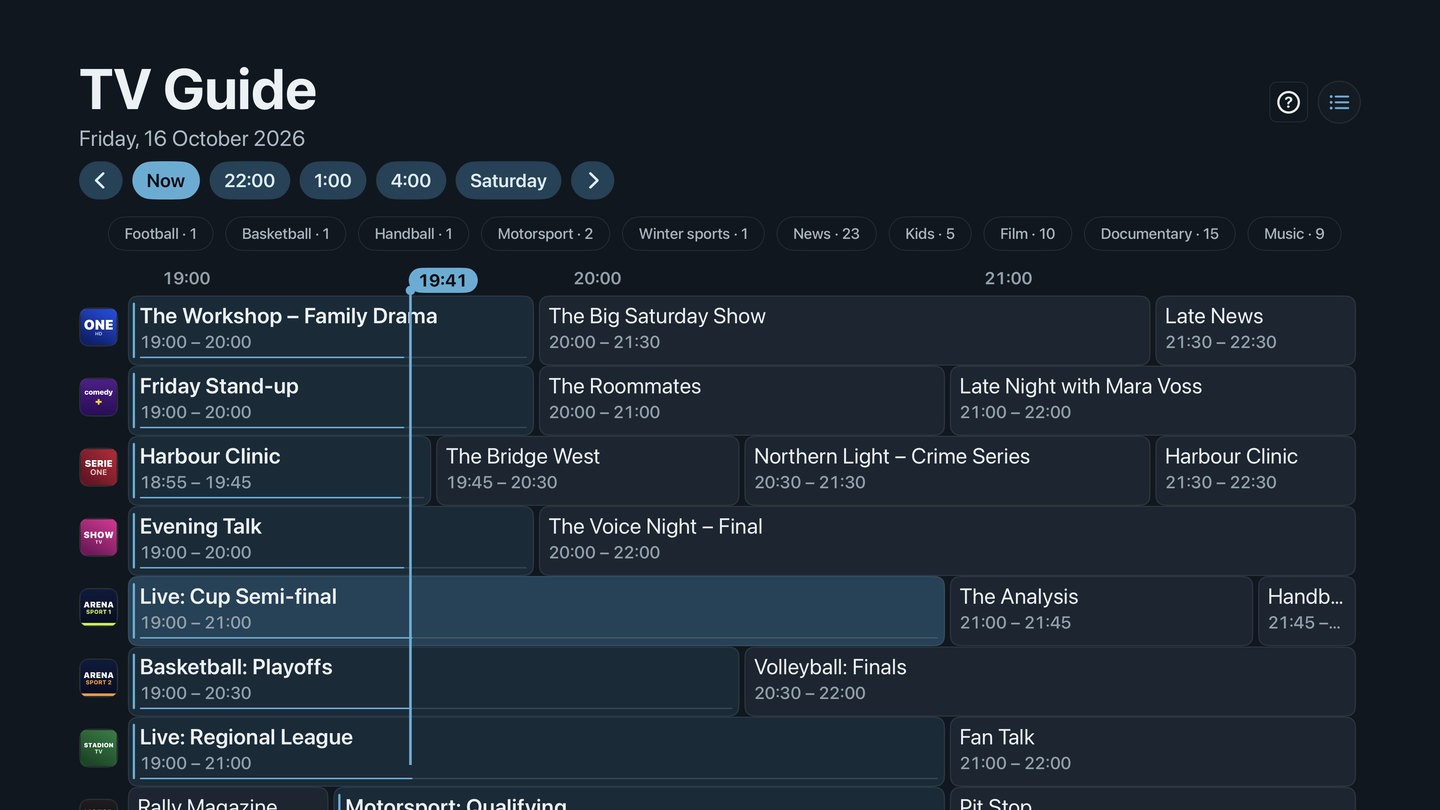
The TV guide lays your channels out on a timeline. Jump to Now, to a time or to another day at the top; below, a row of filters narrows it to topics like football, news or kids.
From the iPhone you can put the guide straight onto the TV (“Guide on the TV”). And whatever your provider keeps, you can start after the fact from the guide as well.
Catch-up
Missed it? Start from the top.
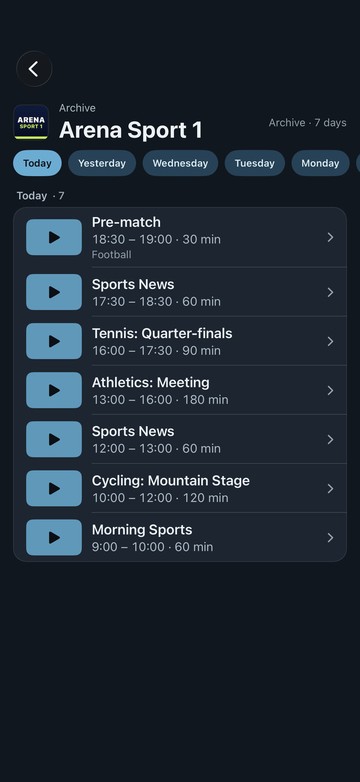
If your provider keeps a few days of programmes for some channels, you can catch up on what you missed – with pause, skip and resume, just like a film.
Catch-up has its own area, Archive: “By programme”, like a library, with a tile per show and its episodes, or “By channel” with day and time. It follows the group you picked in the channel list.
Neverlag plays only what the provider really keeps, and checks before it starts. How far back you can go is up to the provider – and not every provider offers it.
Profiles
Everyone gets their own TV. The admin keeps the keys.
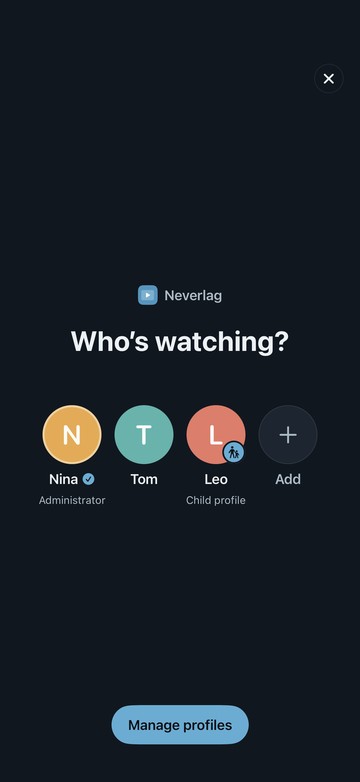
Each profile has its own favourites, history and resume points. Once there are two, Neverlag asks “Who’s watching?” at launch; switch any time from the avatar.
One profile is the admin. Only the admin adds providers, manages profiles, changes PINs and restores backups. Switching into an admin or PIN profile asks for the PIN.
You set what each profile may see per provider, separately for live, films and series. Adult profiles see everything except what you untick. A child profile sees only the categories you approve – new ones your provider adds later stay hidden. On top of that, you can hide single channels.
Profiles stay on the device. They reach a second device through the backup, or when you pair an Apple TV.
Design 2.0
Tidy, right down to the last setting.
Neverlag has a new look on all four devices: glass from iOS, macOS and tvOS 26, calm solid surfaces on older systems.
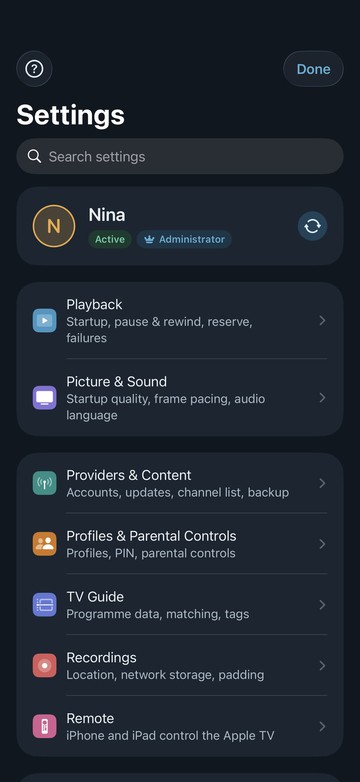
Settings are reorganised into three groups – Playback, Content, System – with search at the top and one sentence under every option that says what it does.
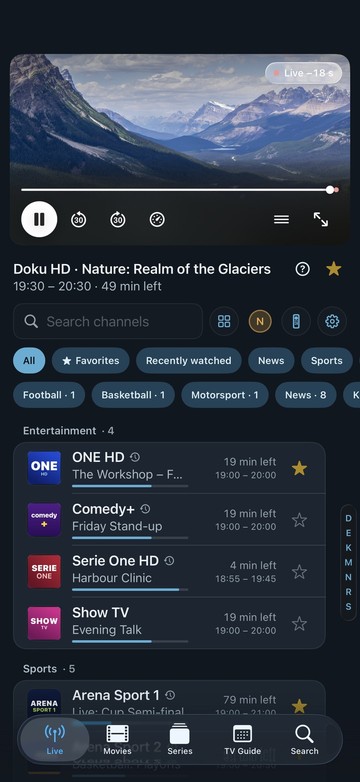
The iPhone home screen shows what is playing at the top and the channel list by group below – every row with the show, time left and a progress bar.
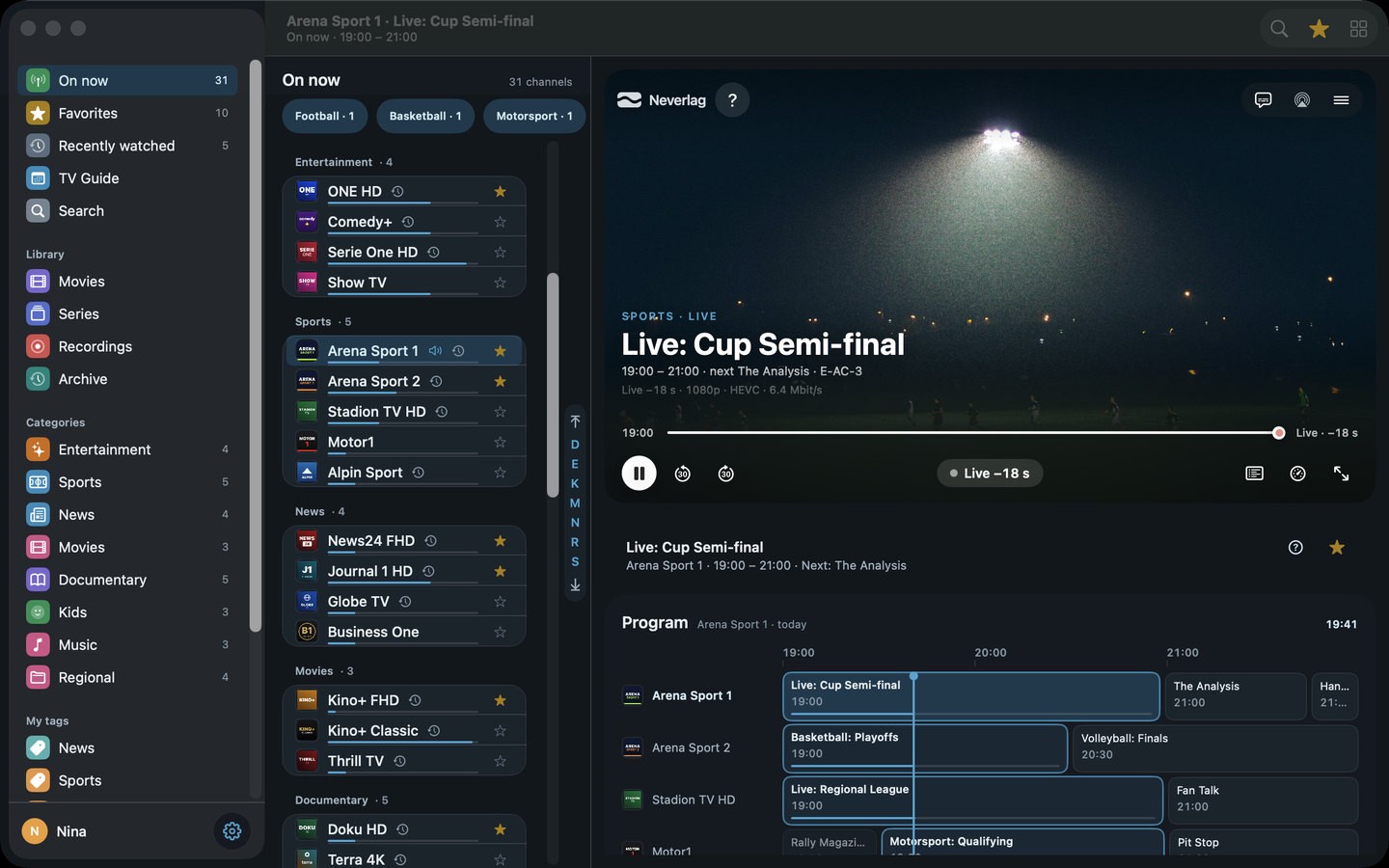
On the Mac, everything starts in the sidebar: On now, Favourites, Recently watched, TV Guide, Search, Library and Categories.
Player, picture and sound
The speedometer tells you how the picture is doing.
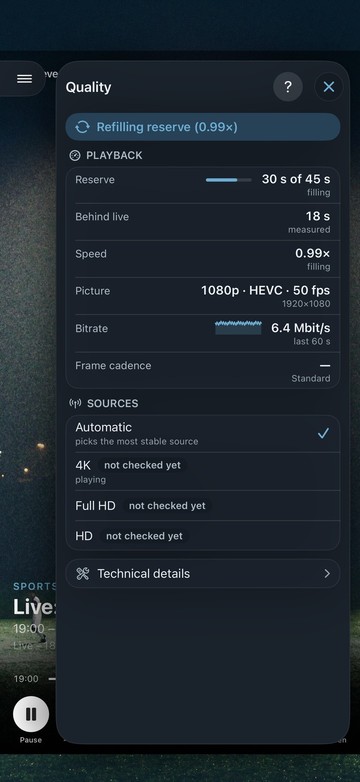
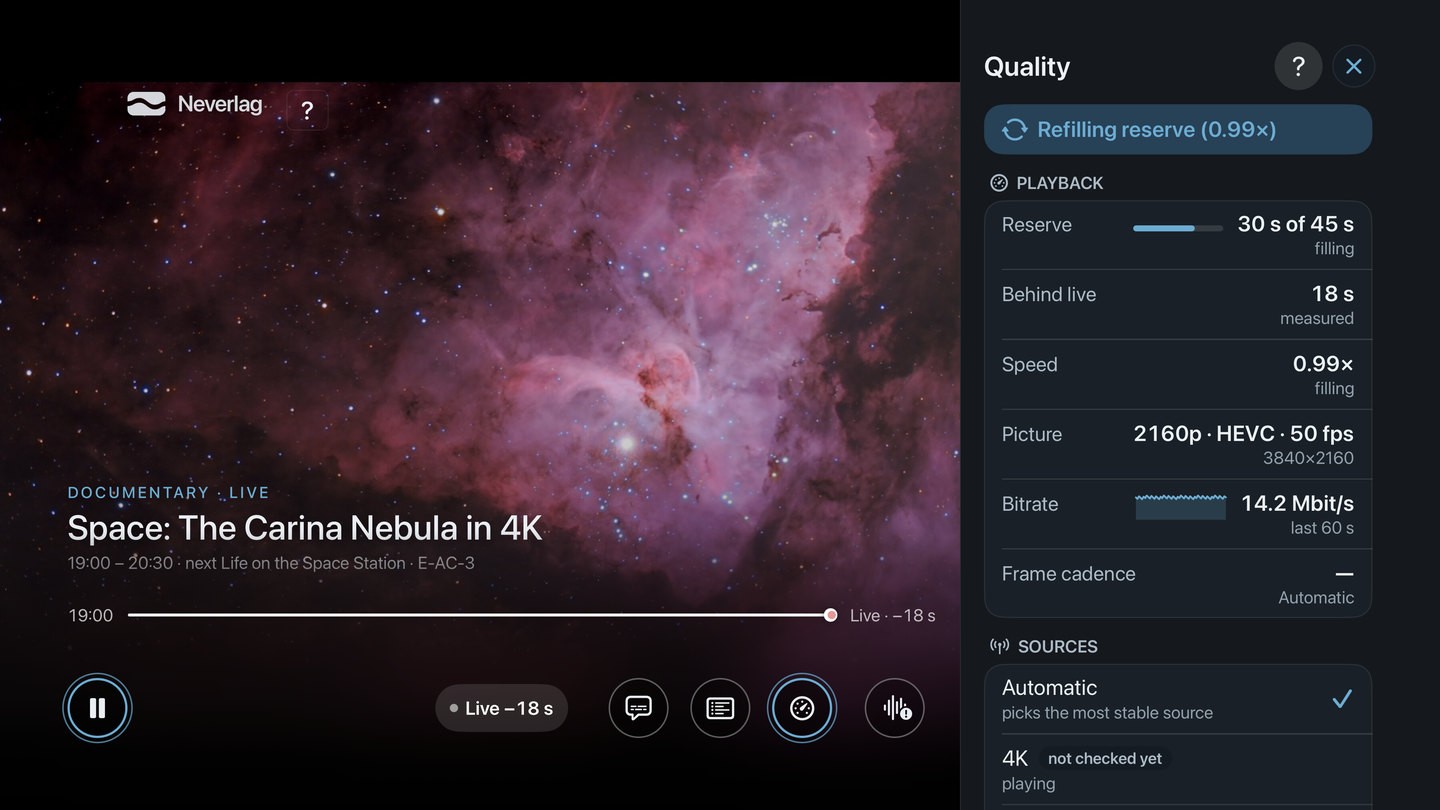
The player bar is new: flat, translucent, with a speedometer. Tap it and the quality window opens. At the top, one sentence says what is going on – “Refilling reserve”, for instance – then reserve, distance behind live, pace, picture, data rate and frame timing, and the channel’s sources at the bottom.
Picture at the broadcast rate: in full screen the Mac switches the display to 50 Hz when the show runs at 25 or 50 frames, and back again afterwards. Measured: every frame stays exactly 20.0 milliseconds. iPhones with ProMotion show video at 120 Hz; motion smoothing is there to try out.
Sound that arrives: Neverlag mixes multichannel audio (5.1) down to two speakers properly, and the dialogue stays audible. If a film carries it in the wrong channel, Neverlag brings it back for that file – where common players drop it in the mix.
Trial
Try it for 7 days – with your own list.
On first launch, a short tour of six steps walks you through Neverlag: first the language – German, English, French or Italian, regardless of the device – then five stops right at the real buttons. If you know your way around, skip it.
The app itself is free. To watch, you start the trial – in the setup tour, on the purchase screen or under Settings → Subscription. Nothing is charged.
For seven days everything works with your own list: live TV, guide, films, series, catch-up, recordings, Apple TV. After that you carry on with a subscription, monthly or yearly – one subscription for all four devices.
The trial belongs to your Apple ID; reinstalling doesn’t reset it. Without a trial or subscription, setup, channel list, guide and settings stay open; only playback is locked. There is no demo mode any more.
Also in 1.0.2
- Back from full screen lands in the group, on the channel that was playing – even after the app restarts.
- The next episode of a series starts by itself, with a countdown card – you can switch it off.
- When your list refreshes in the background, the channel list stays where it is, and every tap on a channel takes effect at once.
- The app speaks German, English, French and Italian – whatever language your device is set to.
- The first Mac version in the App Store – same purchase as iPhone, iPad and Apple TV.
Every change in the release notes → How to use the remote, in the help centre →
Neverlag 1.0.2 is in the App Store.
For iPhone, iPad and Apple TV; the Mac app follows shortly, same purchase. Your list, your provider — try it free for 7 days, then you decide.
Neverlag is a player. You need your own M3U playlist or credentials from an IPTV provider. Neverlag does not contain, deliver or broker any content.