
Remote
New in 1.0.2. iPhone and iPad control Neverlag on the Apple TV: switch channels, pause, rewind, record, open the TV Guide, change profile – and use the D-pad to operate the whole interface, just like with the Siri Remote. The TV picture stays clear; nothing appears over the player on the Apple TV.
Devices: the remote is the iPhone or iPad. What it controls is the Apple TV. The Mac is not a remote; the section does not appear in its settings.
What you need
- Neverlag on the Apple TV, open (in the foreground or only just left).
- iPhone or iPad on the same network as the Apple TV. Over a VPN or Tailscale, the search will not find the Apple TV.
- Permission for the local network, given once (iOS asks the first time).
- A pairing. Only an administrator profile may pair; after that, any profile may use the remote.
Pairing
Once per device and Apple TV. After that, the remote connects on its own.
| iPhone | Apple TV |
|---|---|
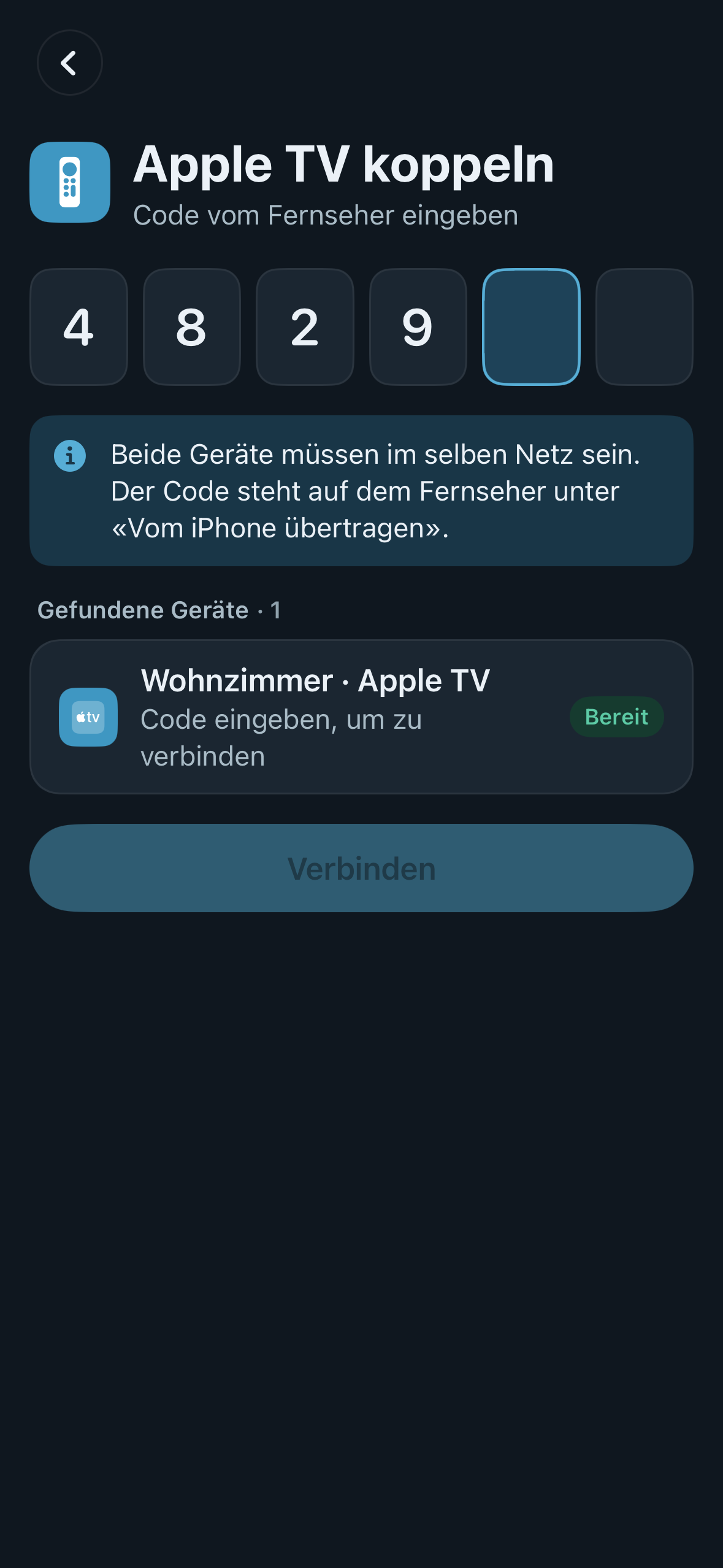 | 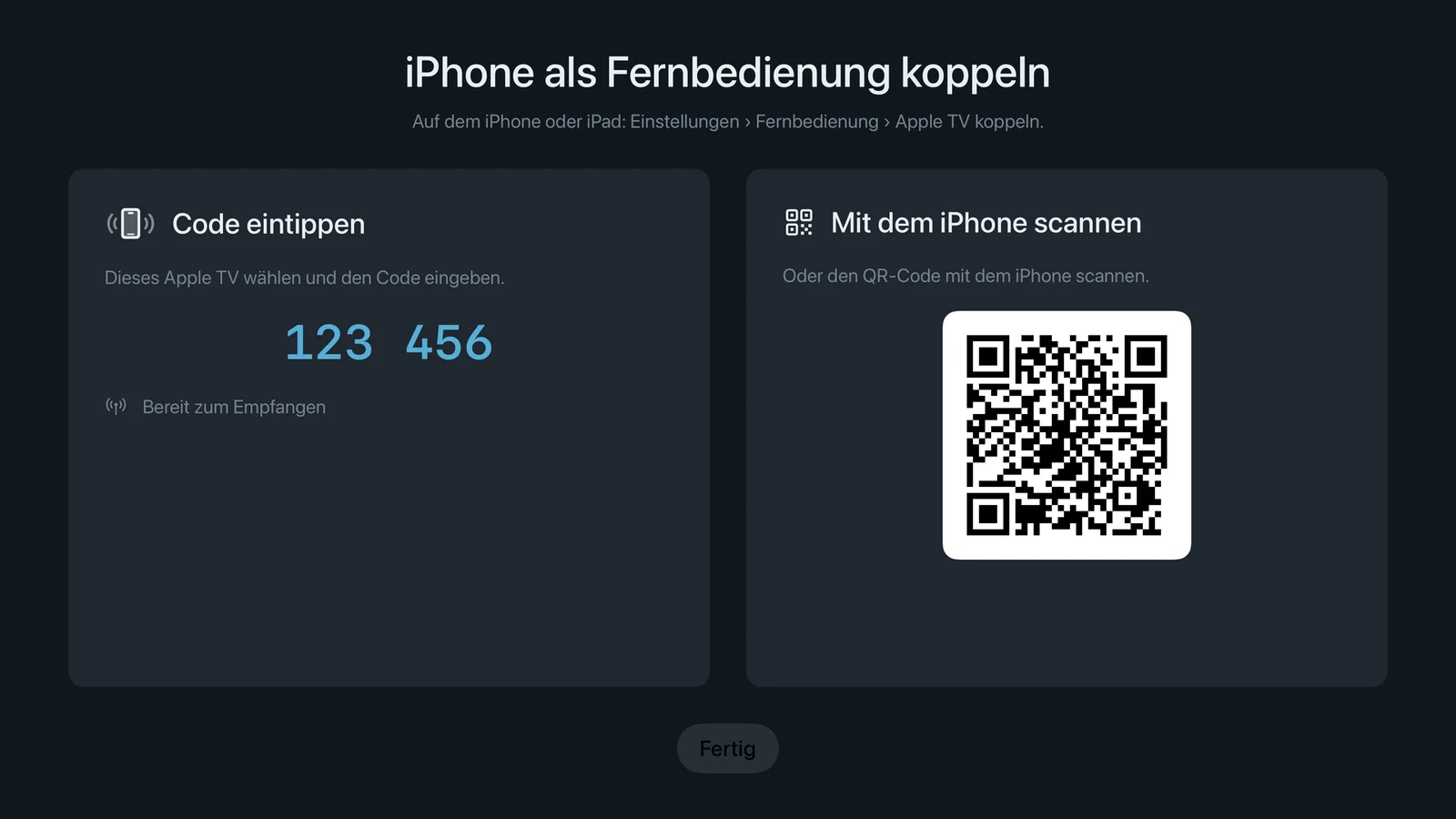 |
- Apple TV: Settings → Remote → Pair iPhone. The Apple TV shows a six-digit code and a QR code.
- iPhone or iPad: Settings → Remote → Pair Apple TV. Under “Found devices” the Apple TV appears with “Ready”.
- Type in the code and tap Connect – or scan the QR code with the camera.
- Done. The Apple TV briefly shows “Remote ‹iPhone› connected” in the overview, never over the running picture.
One pairing covers everything: if you have already paired with Send to Apple TV, you can use the remote straight away, including the D-pad. The pairing also covers “Share journal”. Pairing does not transfer any provider or password; it only creates a shared key in the keychain of both devices.
Without a pairing, the remote shows “No Apple TV paired” with the Pair Apple TV button. A profile without administrator rights sees this instead: “An administrator profile pairs the Apple TV. After that, any profile can use the remote.”
Opening the remote
Six ways, all leading to the same view:
- “Control Apple TV” button – appears in the app as soon as a paired Apple TV is on the network: on the iPhone under “On now”, on the iPad above the search in the channel column. Below it you read “Living room is on the network”. If there is no Apple TV, there is no button and no gap.
- Settings → Remote → Open remote.
- Control Centre, Lock Screen, Action button – the “Neverlag Remote” control (see below).
- Press and hold the app icon → “Remote”. Works even when the app is closed.
- Siri and Shortcuts – “Open Neverlag remote” (see below).
- Link
neverlag://fernbedienungorneverlag://remote, for example from Notes or a shortcut.
Every button explained
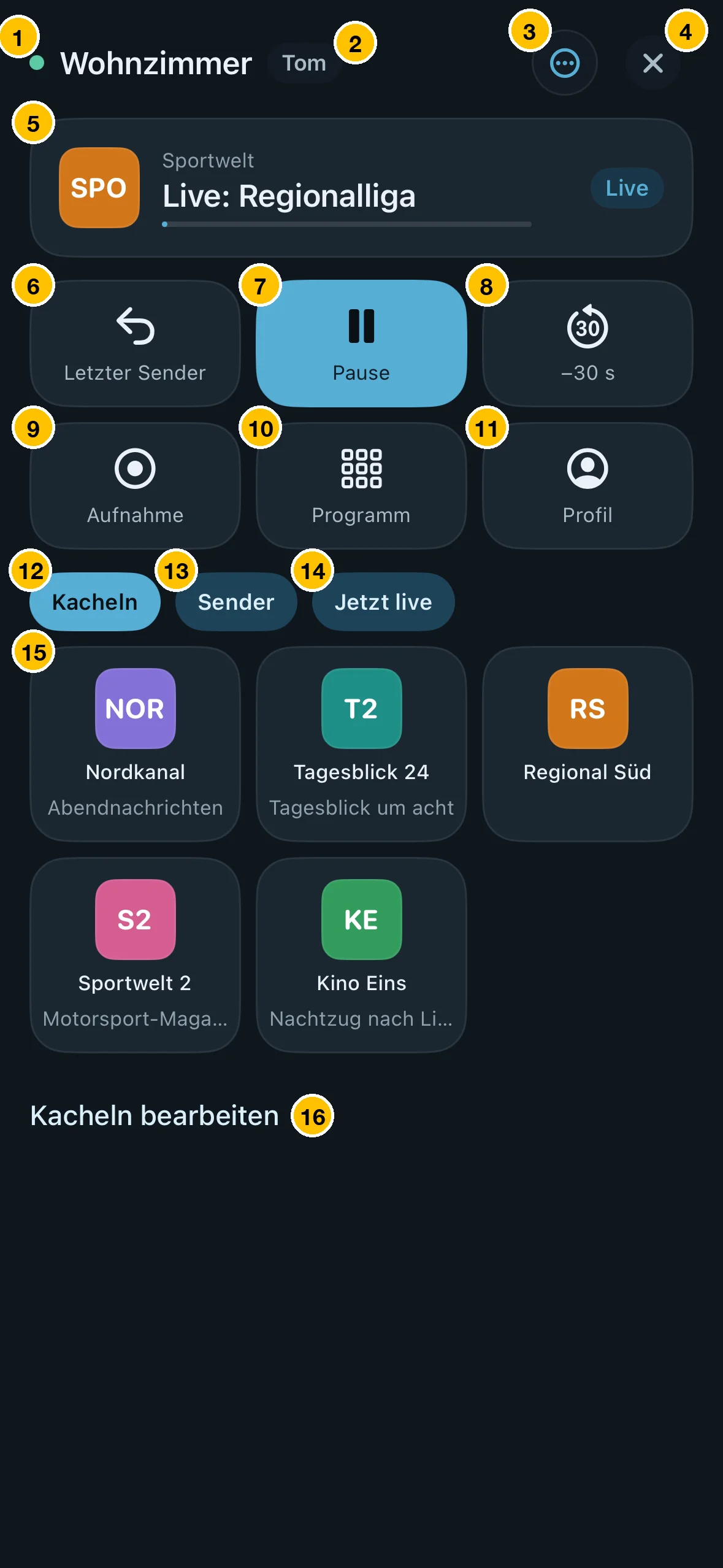
| No. | Element | What it does |
|---|---|---|
| 1 | Status dot | Green: connected. Orange: searching or connecting (“Looking for Living room …”, “Connecting to Living room …”). Red: connection failed, with the reason next to it. Grey: not connected. Next to it, the name of the Apple TV – your own label, otherwise the device name. |
| 2 | Active profile | Which profile is currently watching on the Apple TV. Only appears when there is more than one profile. |
| 3 | “More” menu | With several paired Apple TVs: choose the target (tick next to the current one). Plus Pair Apple TV (administrator only) and Reload channel list (fetches the channel list fresh from the Apple TV). |
| 4 | Close | Closes the remote. The Apple TV keeps playing. |
| 5 | What’s on | Channel, programme and a line showing the programme’s progress. On the right, the state: “Live”, “Paused” or the delay, such as “−12 s”. If nothing is on: “Nothing playing”. |
| 6 | Last channel | Jumps back to the channel you watched before, and back again. Greyed out as long as there is no previous channel yet. |
| 7 | Pause / Resume | Freezes the picture and resumes playback. The button is highlighted; when paused, it reads “Resume”. |
| 8 | −30 s / Live | Jumps back 30 seconds. If you are behind live, it turns into Live (in the accent colour) and jumps back to the live picture. Greyed out if the channel does not allow rewinding. |
| 9 | Record | Starts recording the current channel on the Apple TV. Red while recording, with “Stop recording”. Without a storage target: “Cannot record – no storage target” (see Settings → Recordings). |
| 10 | Guide on the TV | Opens and closes the TV Guide on the television. While it is open, the button lights up. The picture still shows the earlier label “Programme”. |
| 11 | Profile | List of the Apple TV’s profiles: tick next to the active one, padlock for PIN protection, shield for the administrator. A protected profile asks for the PIN on the iPhone (“The profile ‹Nina› is protected by a PIN”). If there is only one profile, the button is greyed out. |
| 12 | Tiles | Your favourite channels as large tiles. A tap switches the channel on the Apple TV. |
| 13 | Channels | The profile’s full channel list on the Apple TV, with search (“Channel or number”) and the “All groups · 923 ▾” button, which picks a group. Groups and counts are the same as on the television. |
| 14 | Live now | What is on right now, sorted by automatic tags (sport, news, movies …). The tags come from the Apple TV’s TV Guide. |
| 15 | Tile | Channel with logo and the programme currently on. Tapping it switches channel. If the Apple TV is recording, the remote asks first: “Recording in progress – switching channels stops it”, with “Switch anyway”. |
| 16 | Edit tiles | Arrange tiles (drag), remove them (swipe), add them; “Use favourites” fills the tiles with your favourites. In the channel list, “Add tile” turns any channel into a tile. The order stays on this device. |
To the right of “Live now” there is a fourth section, Control, with a D-pad and touch surface. It is not yet on the numbered picture; it is explained in the next section.
iPad
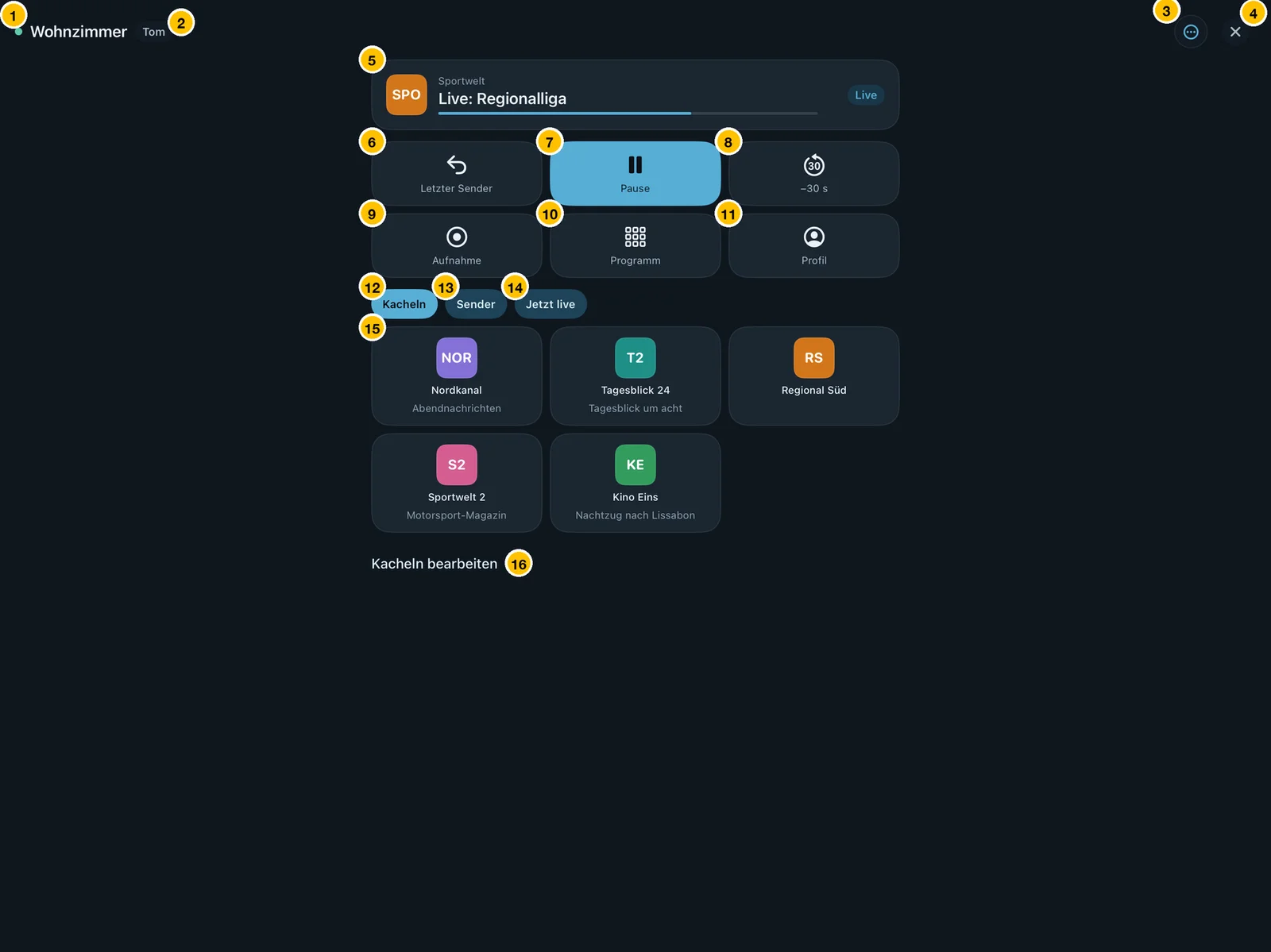
The same elements with the same numbers as on the iPhone, centred with more room. The legend above applies unchanged.
Tiles, groups, connecting
| Edit tiles | Choose group | “Looking for Apple TV …” |
|---|---|---|
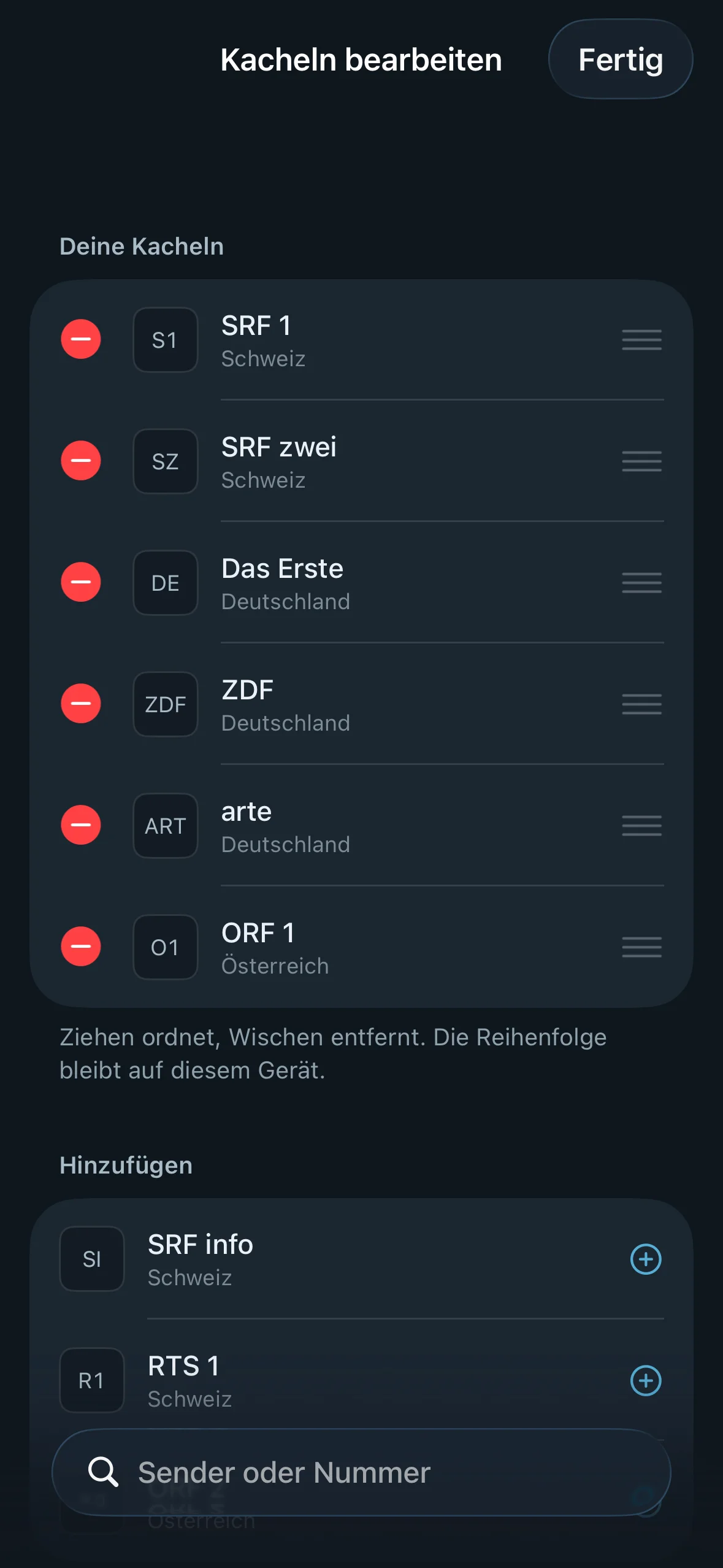 | 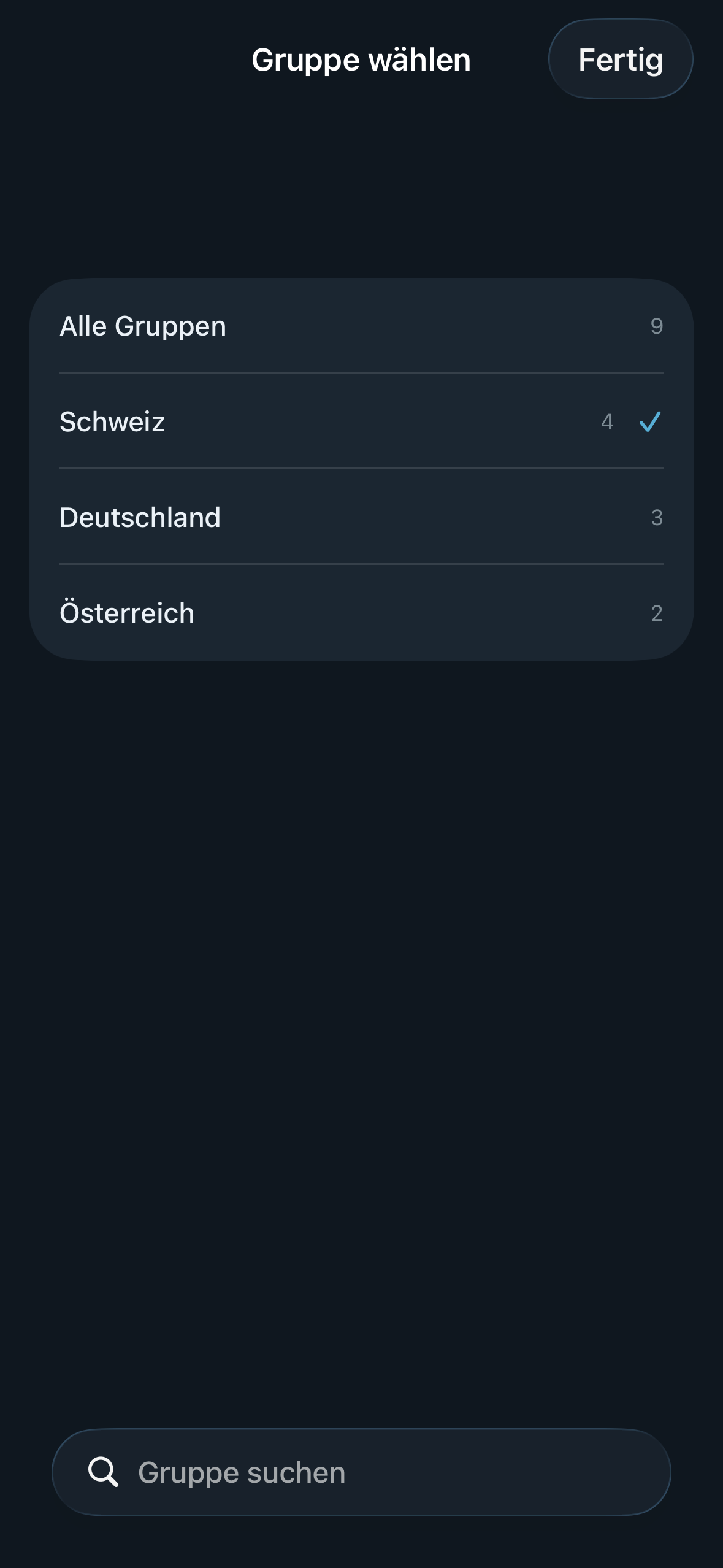 | 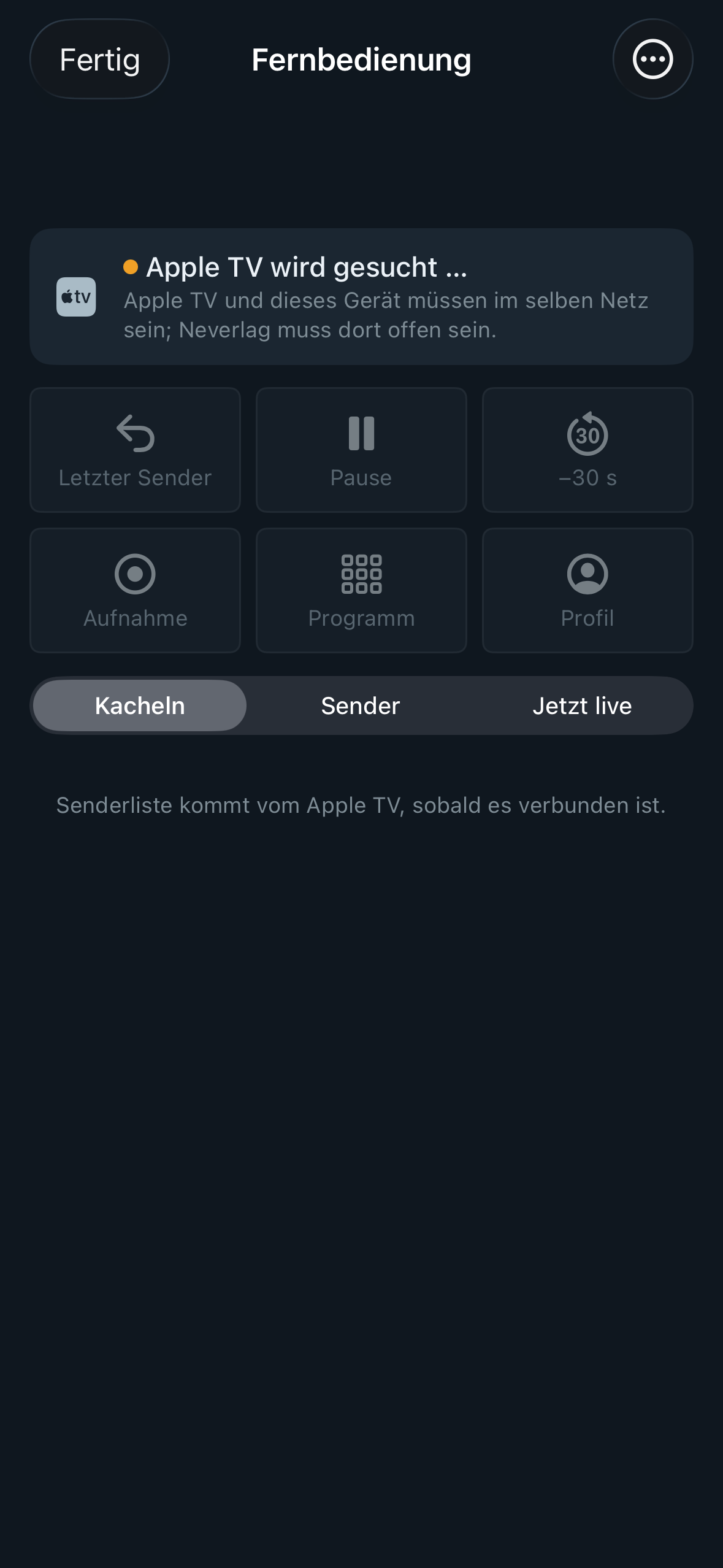 |
Until the connection is up, the buttons are greyed out, and below the sections you read “The channel list arrives from the Apple TV once connected.”
Control: D-pad and touch surface
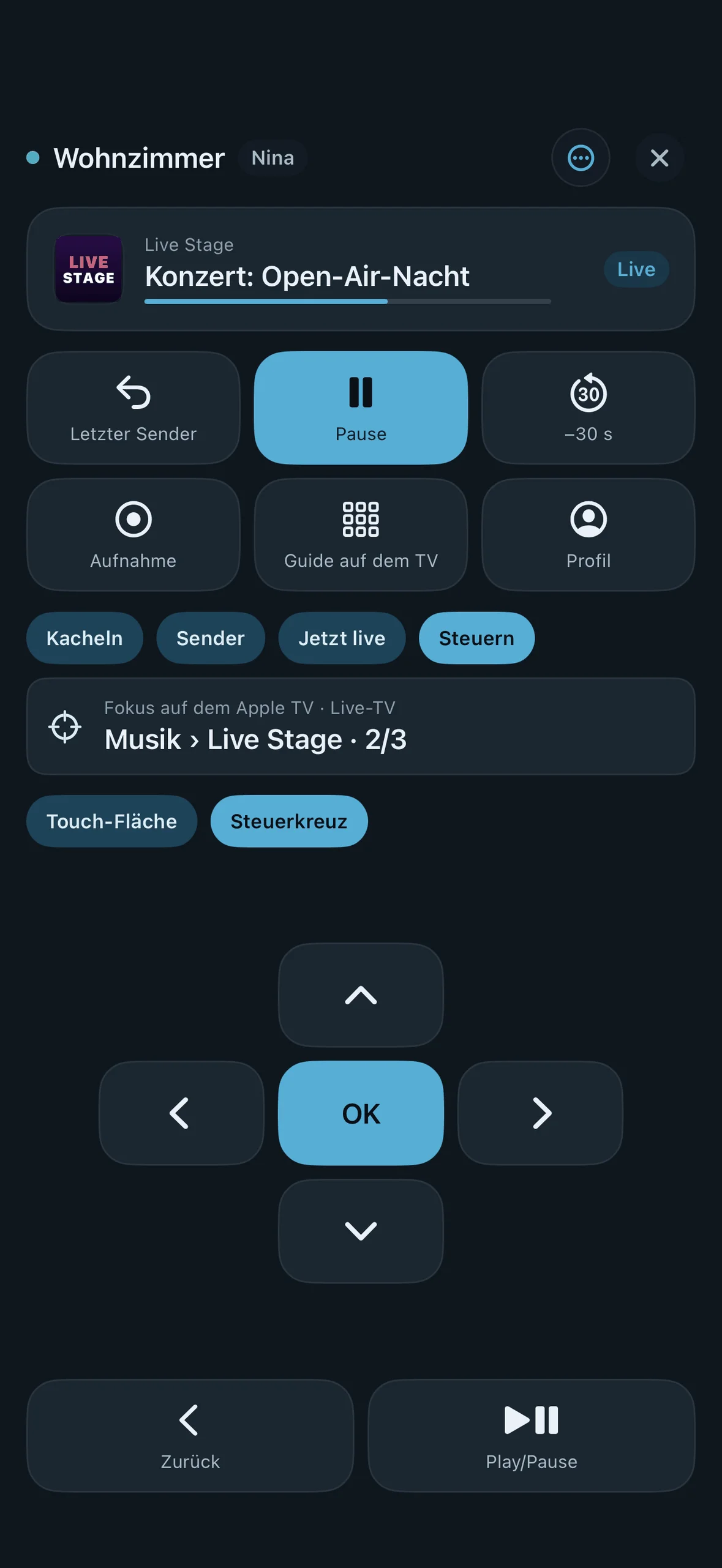
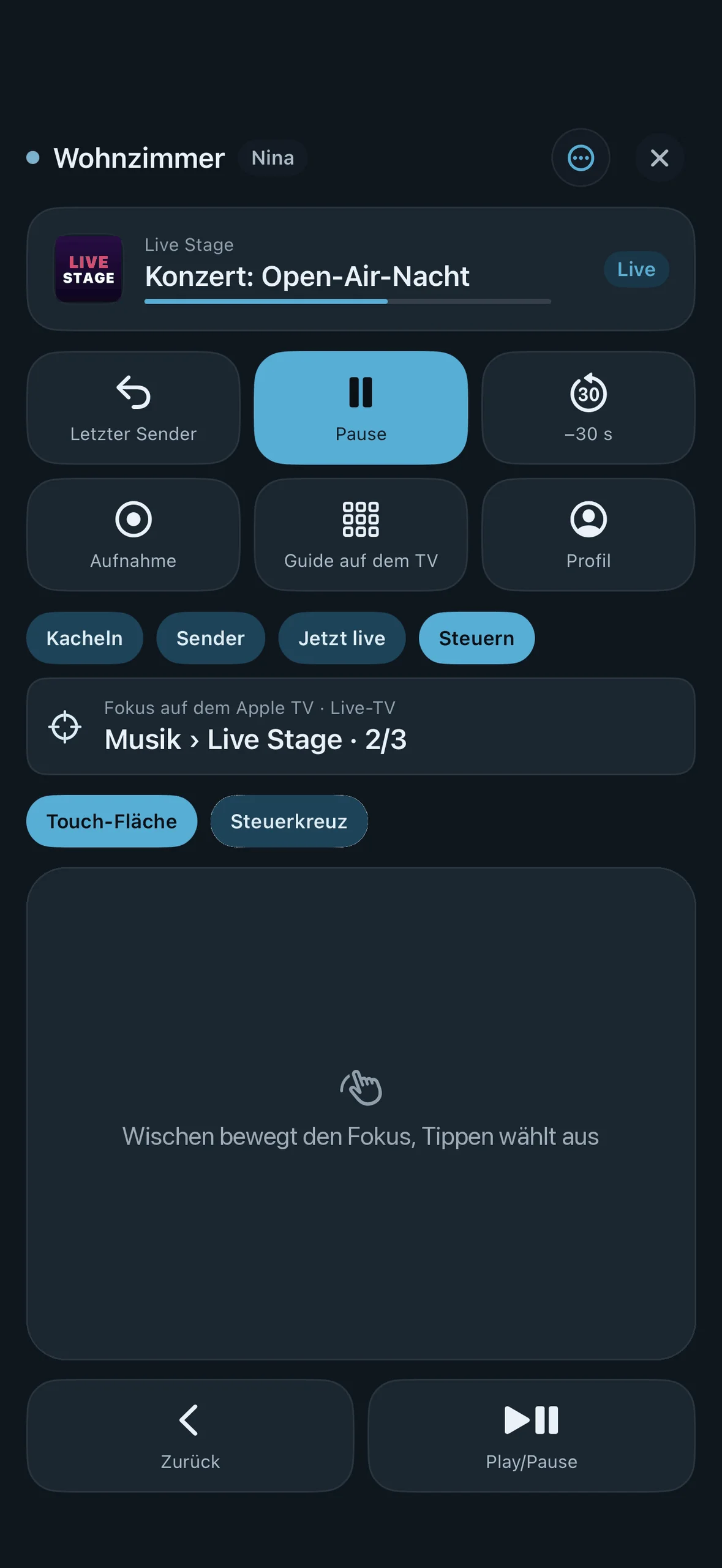
In the Control section you operate Neverlag on the Apple TV just as you would with the Siri Remote: move the selection, select, go back, Play/Pause. Sidebar, channel list, TV Guide, settings and player – all from the iPhone or iPad, without reaching for the Siri Remote. You do not need a new pairing for this.
How to get there: open the remote → tap Control below the large buttons (next to “Tiles”, “Channels”, “Live now”).
| D-pad | Touch surface |
|---|---|
 |  |
| Element | What it does |
|---|---|
| Mirror line | The “Focus on Apple TV” line shows what is currently selected there, for example “Musik › Live Stage · 2/3”: group, channel, position in the group. In the player it reads “Full screen”. This way you can operate it without looking at the television. If you move the selection with the Siri Remote, the line on the iPhone follows. |
| Switch | “Touch surface” or “D-pad” – two ways of operating, the same commands. Your choice is saved, even when you close the remote. |
| D-pad | Four arrows, “OK” in the middle. An arrow moves the selection by one step, “OK” selects. |
| Touch surface | The surface reads “Swipe to move the focus, tap to select”. A swipe up, down, left or right moves the selection by one step; a short tap selects. If you leave your finger on the surface after swiping, it keeps moving in the same direction. |
| Back | Like the “Back” button on the Siri Remote. |
| Play/Pause | Like the play button on the Siri Remote: it acts on whichever view is currently in front on the Apple TV. The large “Pause” button at the top, on the other hand, always pauses playback directly. |
Holding repeats. If you hold an arrow down, after half a second the selection keeps moving at eight steps per second until you let go. That gets you through long channel lists too. Every command gives a short vibration.
What the Apple TV does with it
- An arrow moves the selection wherever you are: in the sidebar, the channel list, the TV Guide or the settings. Where a view has no order of its own, the selection jumps to the next element in the direction of the arrow.
- “OK” acts like pressing the Siri Remote, “Back” like its “Back” button.
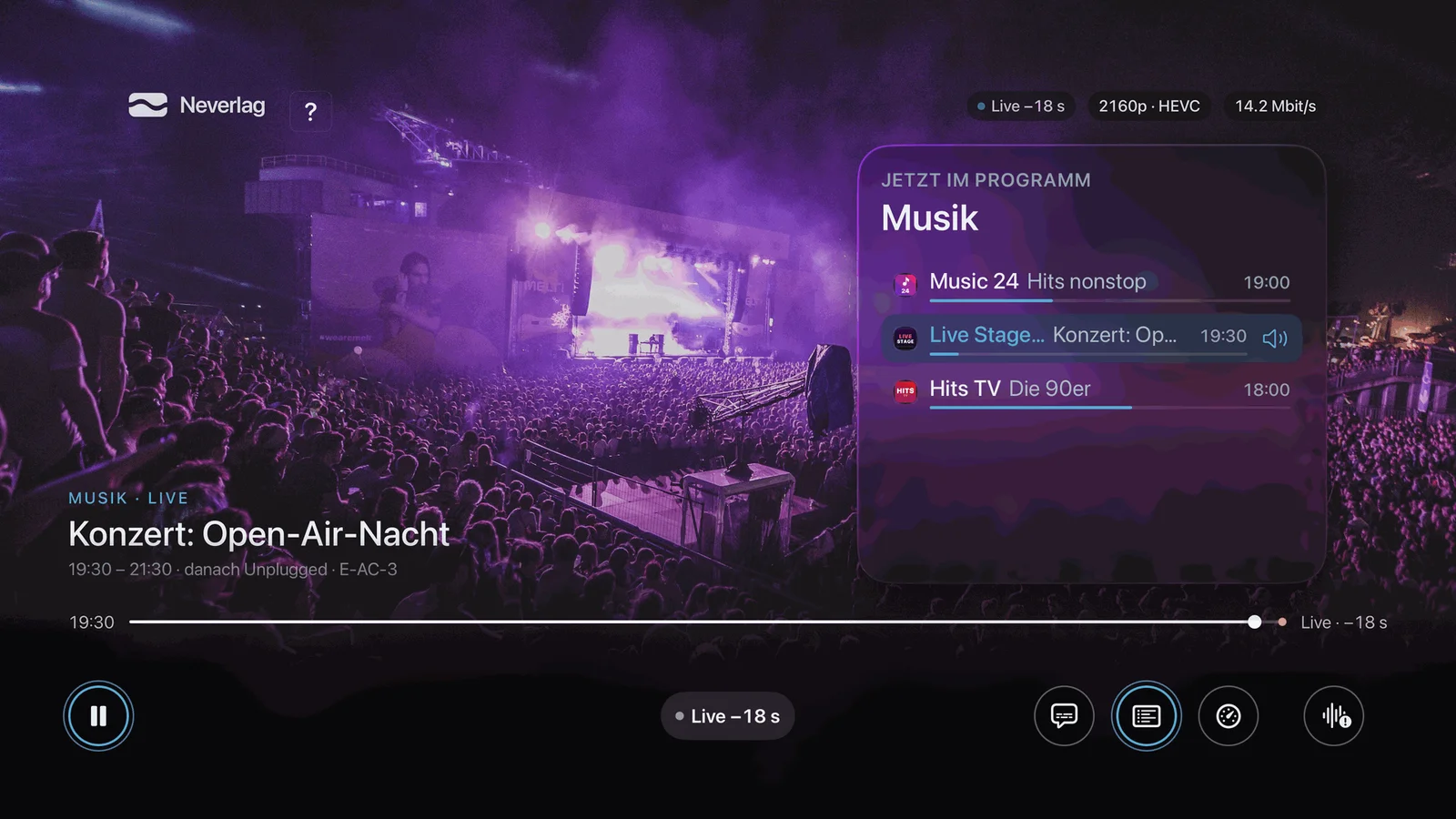
- In full screen, just like with the Siri Remote: arrow up or down changes channel, left or right rewinds or skips forward (where the channel allows rewinding), “OK” shows the bar, “Back” hides it.
- Back from full screen lands you in the group, on the channel that was playing last – even if you zapped before.
Older Apple TV
If the Apple TV is still running a Neverlag version without the D-pad, the section is greyed out. Above it you see “Update Apple TV” with the sentence “To control, Apple TV needs the new Neverlag version. All other keys keep working.” After updating the Apple TV, it works without a new pairing.
Several Apple TVs
At home and in the office, living room and bedroom: you can pair as many Apple TVs as you like. A new one never pushes out an existing one; if you pair the same Apple TV again, only its key is renewed.
- Label: Settings → Remote → Paired Apple TVs → tap the device → “Rename”, for example “Living room” or “Office”. Helpful when all the devices are called “Apple TV”.
- List: each row shows “last connected 3 min ago” or “paired on 12 Oct 2025”, and on the right “On the network” or “Not reachable”. When you open the list, Neverlag briefly searches again.
- Connect automatically: when it opens, the remote looks for the paired Apple TVs. If exactly one is on the network, it connects without asking. If there are several, it takes the one connected last and shows a switch at the top with all Apple TVs on the network. If there is none, after three seconds you see “No Apple TV on the network” with the list of paired devices.
- Background: if you briefly switch to another app, the connection stays as long as iOS allows. Back in Neverlag, the app checks it and quietly reconnects, without a dialogue.
- Remove: tap the device → “Remove pairing”. This only affects that one pairing. You can also remove an iPhone on the Apple TV; an open connection then ends immediately.
The backup carries all pairings. When you restore it, missing ones are added; existing ones stay, and an old backup never replaces a fresher key.
Control Centre, Lock Screen, Action button
From iOS 18. Neverlag comes with four controls. You add them in Control Centre: open Control Centre → press and hold or “+” → “Add a Control” → search for “Neverlag”. The same works on the Lock Screen (Customise → Controls) and on the Action button (Settings → Action Button → Controls).
| Control | What it does | Does the app open? |
|---|---|---|
| Neverlag Remote | Opens Neverlag directly on the remote, even if the settings are open at the time. | yes |
| Neverlag Pause / Live | Pauses the Apple TV; if it is paused or behind live, it jumps to live. | no |
| Neverlag −30 s | Jumps back 30 seconds on the Apple TV. | no |
| Neverlag Last Channel | Switches the Apple TV to the channel you watched last. | no |
The three buttons that do not open the app send a single command to the Apple TV on the network that was connected last, usually within three seconds. If that fails, a short message appears: “No Apple TV on the network.”, “No Apple TV paired.” or “Living room is not reachable.” On iOS 17 the controls are not available; nothing else changes.
Siri and Shortcuts
Neverlag registers these phrases with Siri. You can also find them in the Shortcuts app under Neverlag.
| Say | Effect |
|---|---|
| “Open Neverlag remote” · “Open the Neverlag remote” · “Open remote in Neverlag” · “Control the TV with Neverlag” | Opens the remote. |
| “Pause in Neverlag” · “Neverlag pause” · “Pause the TV with Neverlag” | Pause / Live on the Apple TV, without the app. |
| “Back 30 seconds in Neverlag” · “Neverlag back 30 seconds” | −30 s on the Apple TV, without the app. |
| “Last channel in Neverlag” · “Neverlag last channel” | Last channel on the Apple TV, without the app. |
The word “Apple” does not appear in any phrase: Apple does not allow it in Siri phrases.
Limits
- Control only works on the same network. You cannot switch an Apple TV from elsewhere.
- The remote shows the channel list of the profile that is active on the Apple TV. A channel this profile cannot see cannot be started (“Channel not in this profile’s list”).
- The remote cannot type text, such as a provider’s login details or a search term. You move through the settings with Control, just like with the Siri Remote.
- What you control is Neverlag on the Apple TV, not the Apple TV as a whole: other apps and the Apple TV’s system settings stay with the Siri Remote. There is no volume button.
- If the Apple TV no longer knows a pairing (removed there), the remote reports “This pairing is no longer known on the Apple TV”. Then pair again.
Settings
All rows of this section are under Settings → Remote.