
Settings → Advanced
Sentence at the top of the area: “For troubleshooting and for internals you don’t need day to day. When in doubt, change nothing.”
In the System block. Replaces the “Diagnostics” area from 1.0.1 and takes in the technical switches that used to be under “Playback”. Only an administrator profile sees this area; for other profiles it is missing from the overview and from search.
What to do when something goes wrong, and what support needs, is explained under Troubleshooting.
| iPhone | Mac | Apple TV |
|---|---|---|
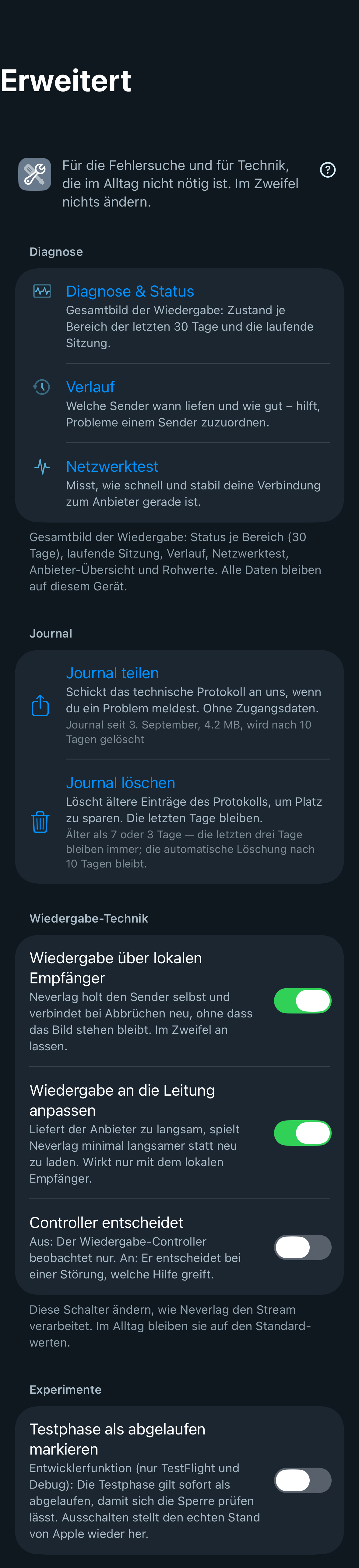 | 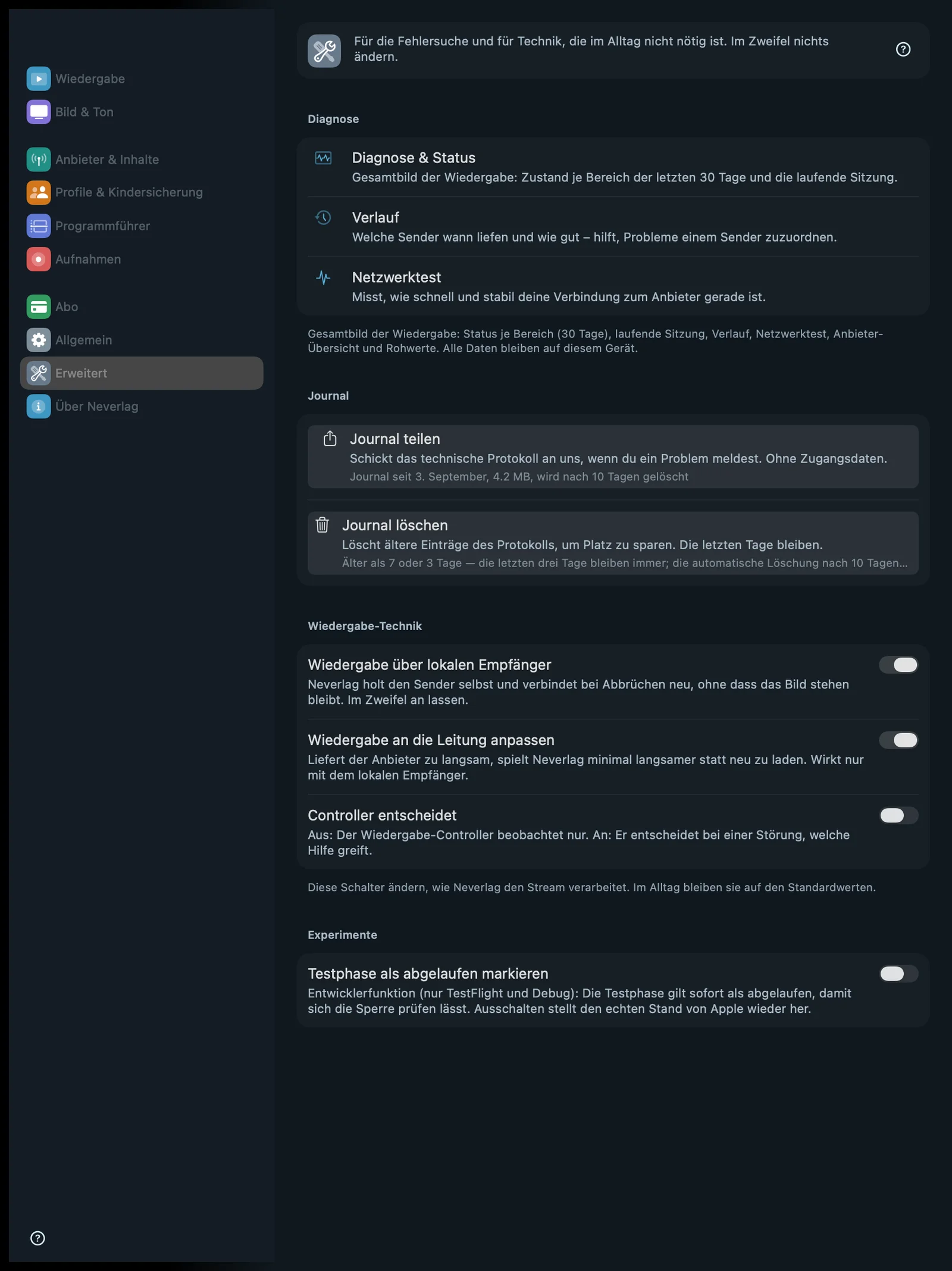 | 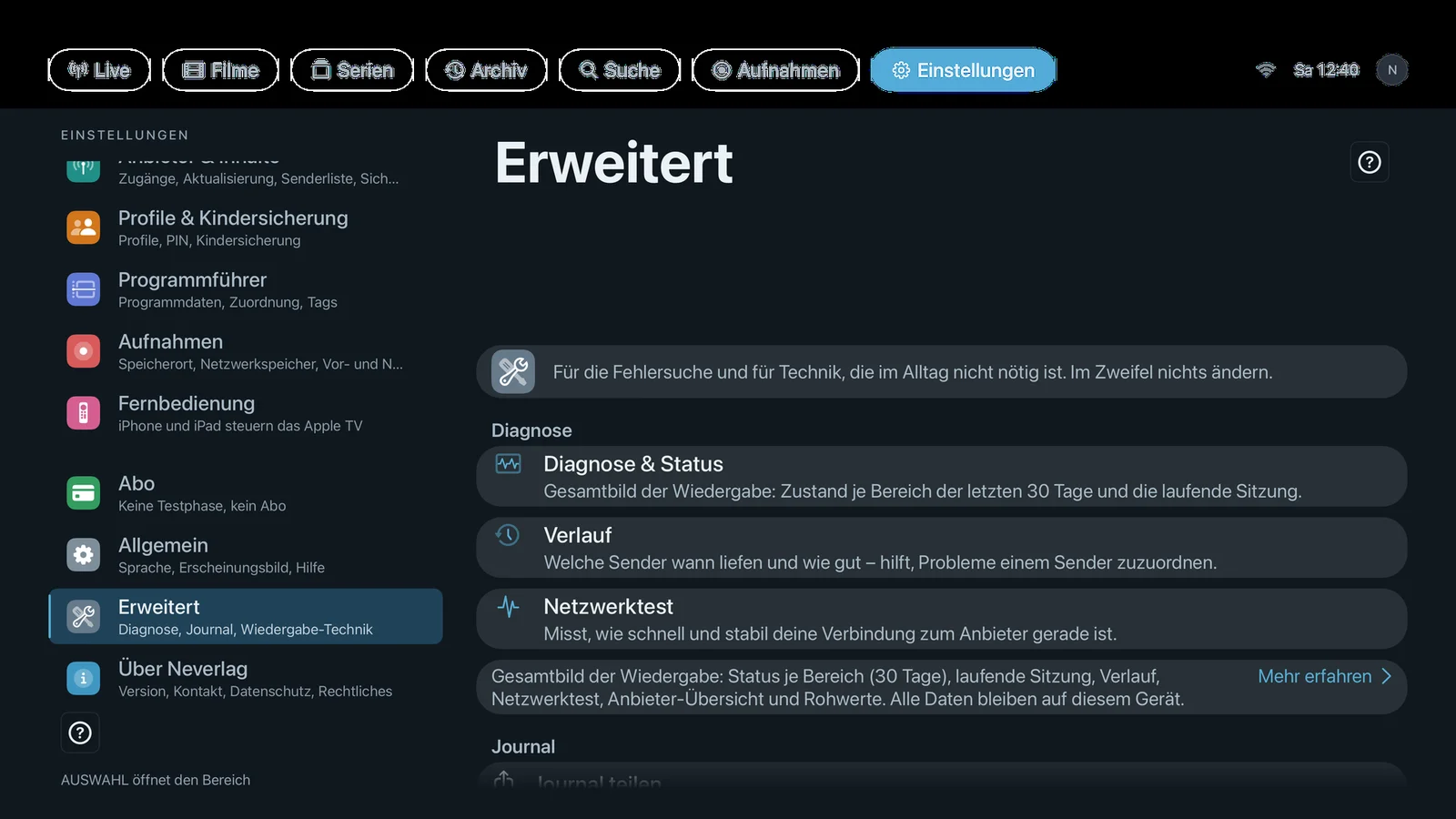 |
Sections: Diagnostics, Journal, Playback Internals, Experiments (Experiments only on the Apple TV and in test versions).
What the journal is
Neverlag keeps a technical log of playback: when a channel started, how full the reserve was, when the app reconnected, when the picture stalled. This is called the journal. It stays on the device and is deleted automatically after 10 days. Nobody sees it unless you share it.
Diagnostics
Footnote: “Overall playback picture: status per area (30 days), current session, history, network test, provider overview, and raw values. All data stays on this device.”
Diagnostics & status
- Where: Settings → Advanced → Diagnostics · Mac, iPhone, iPad, Apple TV
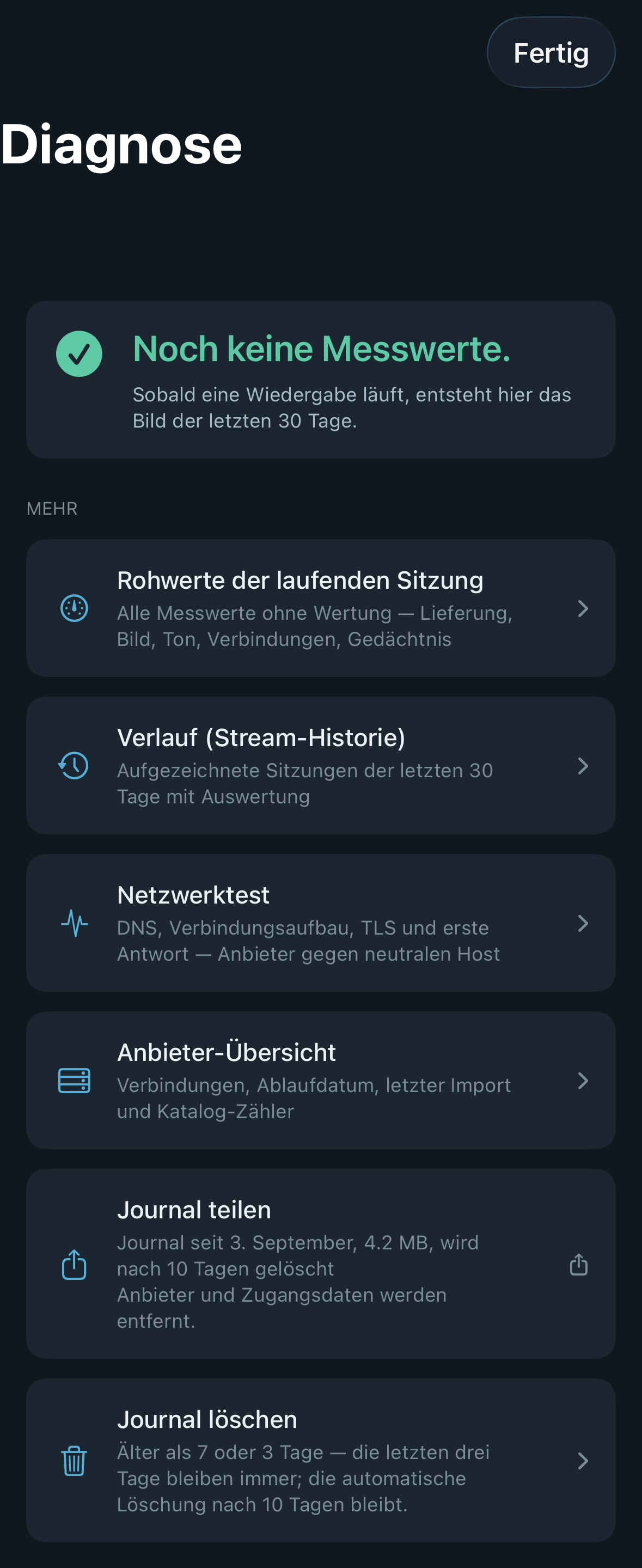
- What it does: “Overall picture of playback: status per area over the last 30 days and the current session.” A page of its own with a traffic light per area (Delivery, Picture, Audio, Connection) and the current session, plus the sub-pages “Provider overview” (connections, expiry date, last import, catalogue counts) and “Raw values of the current session” (all measurements without any assessment).
- Default: – (button)
- Options: none
- When to change: When you want to know whether a problem lies with the channel, the provider or your network.
- What it costs: Nothing.
- Works together with: The quality window, History
History
- Where: Settings → Advanced → Diagnostics · Mac, iPhone, iPad, Apple TV
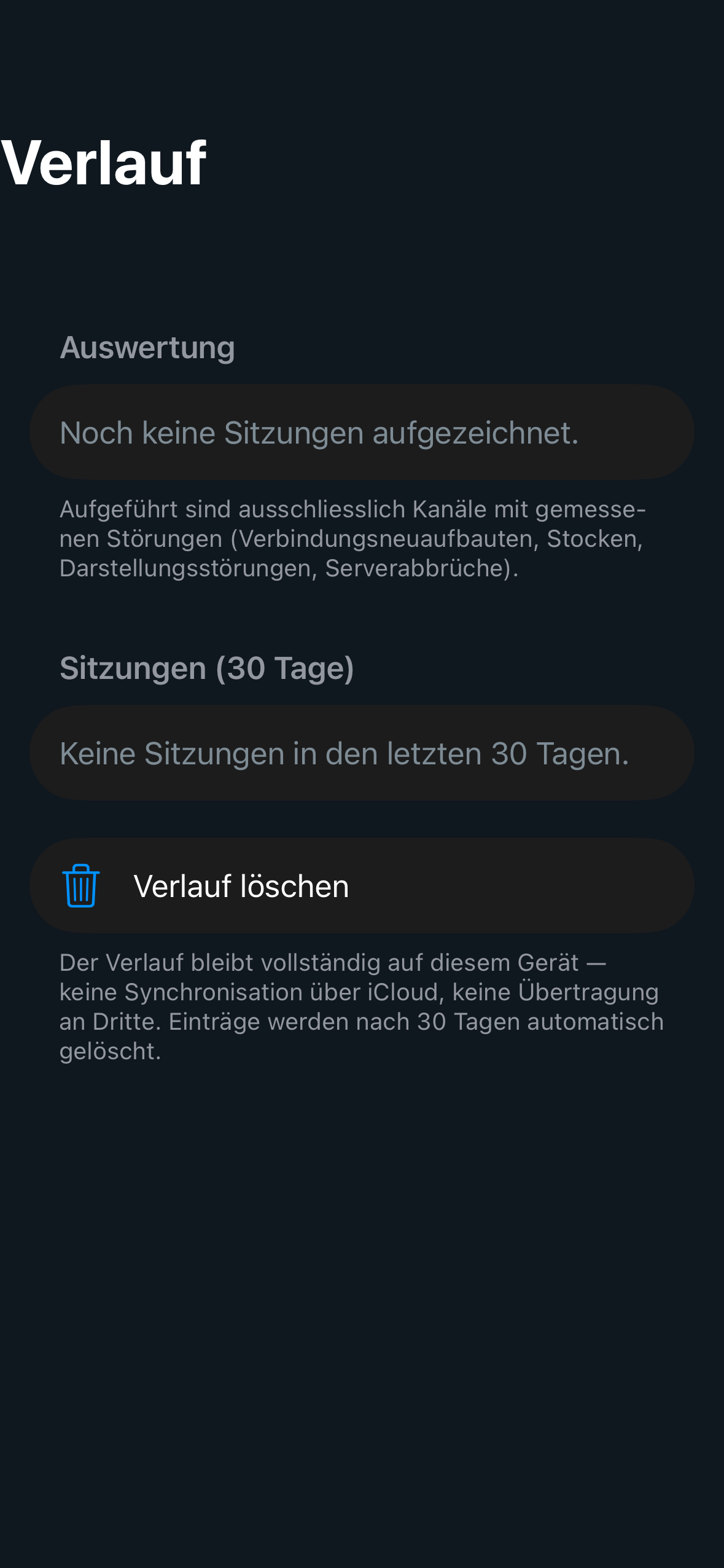
- What it does: “Which channels played when and how well – helps link problems to a channel.” A list of the sessions from the last 30 days with an analysis for each session.
- Default: – (button)
- Options: none
- When to change: When a problem only occurs on certain channels or at certain times.
- What it costs: Nothing.
- Works together with: Diagnostics & status, Troubleshooting → What support needs
Network test
- Where: Settings → Advanced → Diagnostics · Mac, iPhone, iPad, Apple TV
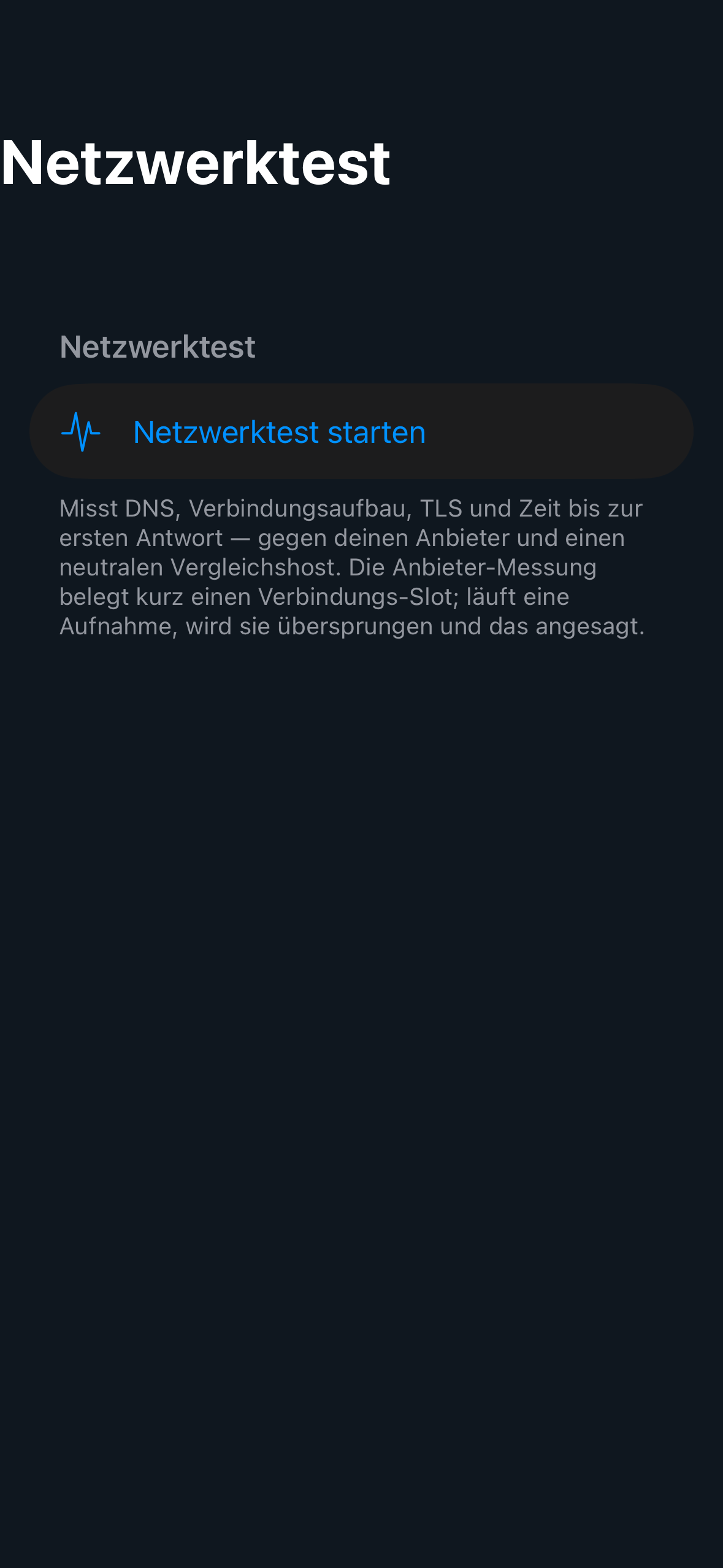
- What it does: “Measures how fast and stable your connection to the provider is right now.” Checks name resolution, connection setup, encryption and first response one after another – once against your provider, once against a neutral reference (an Apple page). No data is transmitted in the process.
- Default: – (button)
- Options: none
- When to change: When channels don’t start or keep reloading and you want to know whether your network or the provider is the problem.
- What it costs: A few kilobytes of data per run.
- Works together with: Troubleshooting, How Neverlag stays stable
Journal
Share journal
- Where: Settings → Advanced → Journal · Mac, iPhone, iPad, Apple TV
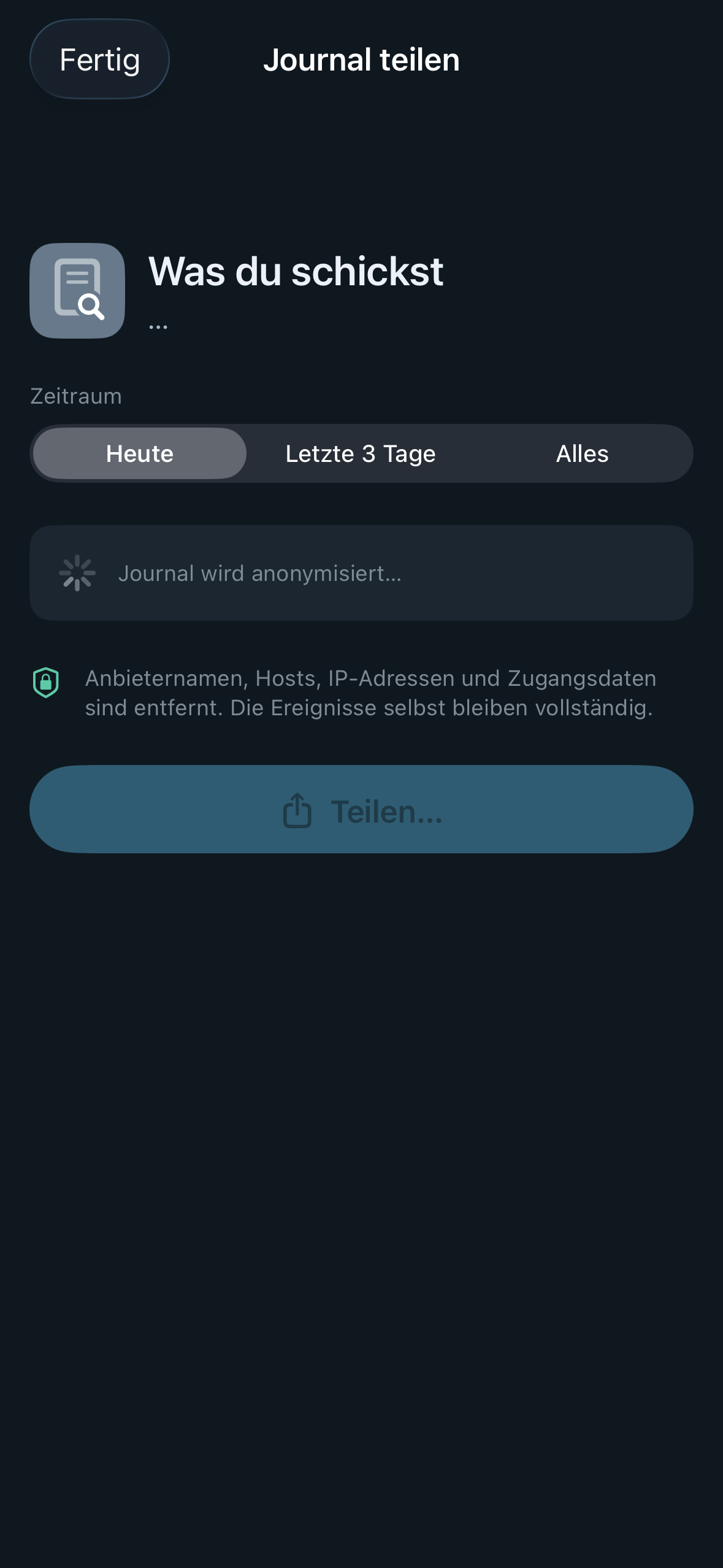
- What it does: “Sends the technical log to us when you report a problem. Without logins.” Under the row you see when the journal starts, its size and when it is deleted, for example “Journal since 3 September, 4.2 MB, deleted after 10 days”. You choose the period (Today, Last 3 days, Everything); the app anonymises it first: “Provider names, hosts, IP addresses and credentials are removed. The events themselves stay complete.” Then the share sheet opens (Mail, AirDrop, Files). On the Mac there is also “Save…”. On the Apple TV, the journal goes encrypted to your paired iPhone or your Mac on the home network; if neither can be reached, a QR code appears that is valid for 30 seconds – the phone downloads the file directly from the Apple TV.
- Default: – (button)
- Options: Period “Today”, “Last 3 days”, “Everything” – shorter means smaller, longer shows more of what happened before.
- When to change: When you report a problem; ideally shortly after it happened.
- What it costs: A file of a few hundred kilobytes up to a few megabytes.
- Works together with: Send feedback, Troubleshooting → Sharing the journal, Remote (the same pairing)
Delete journal
- Where: Settings → Advanced → Journal · Mac, iPhone, iPad, Apple TV
- What it does: “Deletes older log entries to save space. The last few days are kept.” You choose “Delete older than 7 days” or “Delete older than 3 days”, then you are asked to confirm. “The last three days always stay; automatic deletion after 10 days stays in place.”
- Default: – (button)
- Options:
- Older than 7 days – Advantage: A week of history remains. Disadvantage: Saves less space.
- Older than 3 days – Advantage: The smallest journal. Disadvantage: A problem from four days ago is gone.
- When to change: Rarely needed; the automatic deletion after 10 days is usually enough.
- What it costs: Nothing; it frees up storage.
- Works together with: Share journal
Playback Internals
Footnote: “These switches change how Neverlag processes the stream. Day to day they stay at their defaults.” Up to 1.0.1 they were under “Playback → Connection”.
Playback through local receiver
- Where: Settings → Advanced → Playback Internals · Mac, iPhone, iPad, Apple TV
- What it does: “Neverlag fetches the channel itself and reconnects after dropouts without the picture stopping. If in doubt, leave it on.” The receiver is the part of the app that collects the stream from the provider and hands it on to playback. If the connection drops, it reconnects – playback doesn’t notice, and rewinding stays possible.
- Default: On
- Options:
- On – Advantage: Reconnecting without interruption, the reserve is kept, and playback can adapt to the connection. Disadvantage: None in normal use.
- Off – Advantage: A direct path to playback – only useful if support asks for it. Disadvantage: After a dropout, playback reloads and the reserve is gone.
- When to change: Only if support asks you to, to narrow down a fault. Switching takes effect immediately on the channel that is playing.
- What it costs: Nothing.
- Works together with: Adapt playback to the connection, Controller decides, How Neverlag stays stable → Receiver
Adapt playback to the connection
- Where: Settings → Advanced → Playback Internals · Mac, iPhone, iPad, Apple TV · only with “Playback through local receiver”
- What it does: “If the provider delivers too slowly, Neverlag plays very slightly slower instead of reloading. Works only with the local receiver.” If a little less keeps arriving than the channel needs, Neverlag lowers the speed slightly instead of reloading again and again. The sound keeps its pitch.
- Default: On
- Options:
- On – Advantage: No frozen pictures when the connection is slightly too slow. Disadvantage: The delay behind live grows slowly for as long as the connection is too slow.
- Off – Advantage: Speed always 1.00×. Disadvantage: With a connection that is too slow, the reserve drains until the picture freezes.
- When to change: Only if support asks you to.
- What it costs: Delay: only grows when the connection really is too slow. Otherwise nothing.
- Works together with: Playback through local receiver, Playback → Reserve against dropouts, The quality window → Speed
Controller decides
- Where: Settings → Advanced → Playback Internals · Mac, iPhone, iPad, Apple TV
- What it does: “Off: the playback controller only observes. On: it decides which remedy applies when something goes wrong.” The controller is the part of the app that gathers the findings when something goes wrong and picks one of the remedies (buffer, refresh, governor, descent, healing, reload). It always observes; this setting decides whether it also acts. Takes effect immediately, without a restart.
- Default: Off
- Options:
- Off – Advantage: The proven behaviour. Disadvantage: The controller only writes its decisions to the journal.
- On – Advantage: A single decision-maker picks the remedy. Disadvantage: In 1.0.2 still intended as a trial; switch it off again if problems occur.
- When to change: Only if support asks you to.
- What it costs: Nothing.
- Works together with: Playback through local receiver, How Neverlag stays stable
Experiments
Always appears on the Apple TV; on Mac, iPhone and iPad only in test versions (TestFlight). In the store build for Mac, iPhone and iPad the section is missing.
New renderer
- Where: Settings → Advanced → Experiments · Apple TV only · marked “Experimental” in the app
- What it does: “New picture path via the graphics unit for 4K and HDR, still being tested. Turn it off if you see problems; switching reloads the channel.” If the new path is not available on the device, the player shows “New renderer unavailable, previous one active”.
- Default: Off
- Options:
- On – Advantage: A new path for 4K and HDR. Disadvantage: Still being tested; flickering or wrong colours are possible.
- Off – Advantage: The proven picture path, with picture in picture. Disadvantage: HDR display still has limits (see Picture and sound → HDR).
- When to change: Only to try it out; switch it off if the picture flickers or shows wrong colours.
- What it costs: Switching reloads the channel (the reserve is lost).
- Works together with: Picture and sound → HDR
Mark trial as expired
No setting row of its own in the app’s catalogue; only in test versions.
“Developer function (TestFlight and debug only): the trial counts as expired right away so the lock can be checked. Switching it off restores Apple’s real status.” Default: Off. The switch doesn’t exist in the App Store version.