
Settings → Remote
Sentence at the top of the area: “Use your iPhone or iPad to switch channels on the Apple TV without covering the picture.”
New in 1.0.2, in the Content block. On iPhone, iPad and Apple TV; the Mac doesn’t have this area. How the remote itself works, every button with its number, is explained under Remote.
| iPhone | Apple TV |
|---|---|
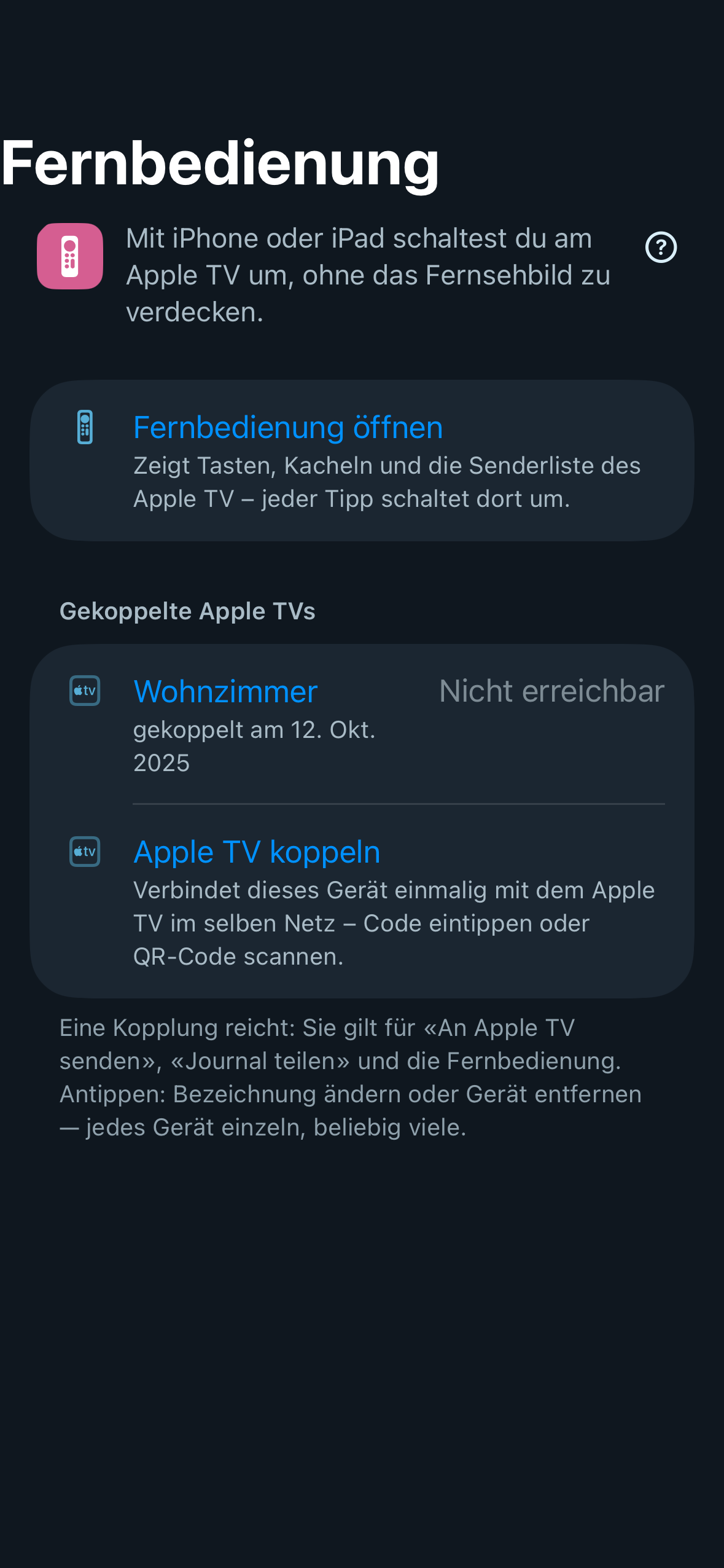 | 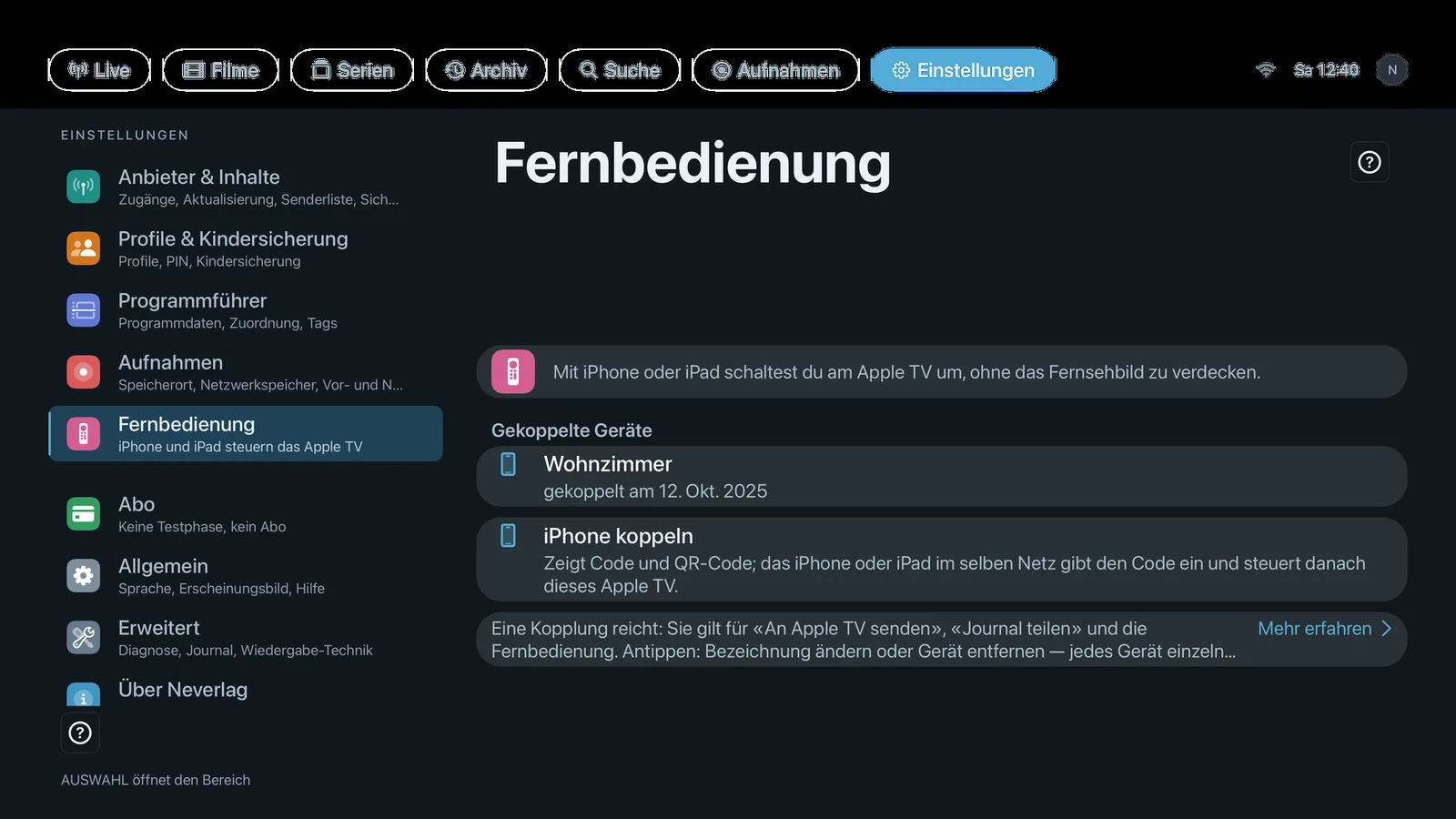 |
Footnote under the list: “One pairing is enough: it covers ‘Send to Apple TV’, ‘Share journal’ and the remote. Tap: rename or remove a device — each one individually, as many as you like.”
Open remote
- Where: Settings → Remote · iPhone, iPad
- What it does: “Shows keys, tiles and the Apple TV’s channel list – every tap switches channels there.” Without a pairing, the row takes you to pairing.
- Default: – (button)
- Options: none
- When to change: Whenever you want to control the Apple TV from your iPhone. It is quicker via the “Control Apple TV” button, Control Centre or Siri.
- What it costs: A connection on your home network for as long as the remote is open. No data volume with your provider.
- Works together with: Remote → Opening the remote, Remote → Every button explained
Pair Apple TV
- Where: Settings → Remote → Paired Apple TVs · iPhone, iPad · administrator profile only
- What it does: “Links this device to the Apple TV on the same network once – enter the code or scan the QR code.” The Apple TVs on your network are listed under “Found devices”; the code appears on the TV.
- Default: – (button)
- Options: none
- When to change: Once per Apple TV. Again if the remote reports that the Apple TV no longer recognises the pairing.
- What it costs: Local network permission once, and camera access once for the QR code. No provider and no password is transferred.
- Works together with: Pair iPhone, Remote → Pairing, Profiles and admin
Pair iPhone
- Where: Settings → Remote → Paired devices · Apple TV only · administrator profile only
- What it does: “Shows a code and QR code; the iPhone or iPad on the same network enters it and can then control this Apple TV.” The page is called “Pair iPhone as remote” and shows the six-digit code on the left and the QR code on the right.
- Default: – (button)
- Options: none
- When to change: For every iPhone or iPad that should control this Apple TV.
- What it costs: Nothing.
- Works together with: Pair Apple TV, Remote → Pairing
Paired devices
- Where: Settings → Remote · iPhone, iPad (“Paired Apple TVs”), Apple TV (“Paired devices”) · only an administrator profile can make changes
- What it does: “Each pairing covers the remote and ‘Send to Apple TV’ – tap to remove it.” One row per device with its name or your own label, “last connected” or “paired on …” and, on iPhone and iPad, “On the network” or “Not reachable” on the right. Tapping it opens “Rename” and “Remove pairing”.
- Default: Empty until you pair
- Options:
- Rename – Advantage: “Living room” and “Office” instead of “Apple TV” twice. Disadvantage: none.
- Remove pairing – Advantage: A sold device, or someone else’s, can no longer control anything. Disadvantage: You have to pair again for the remote and “Send to Apple TV”.
- When to change: For a new, sold or renamed device.
- What it costs: Nothing. As many devices as you like; a new one never pushes out an existing one.
- Works together with: Remote → Several Apple TVs, Providers & Content → Backup (the backup carries all pairings)