
Player messages
Neverlag tells you what is going on instead of silently showing a frozen picture. Most messages ask nothing of you: they explain what the app is already doing. Where you can step in, there is a button next to the message.
The texts on this page are taken word for word from the app. Anything in ‹angle brackets› is filled in by the app (channel name, source, list, seconds).
Three kinds of message
| Loading indicator | Notice | Error |
|---|---|---|
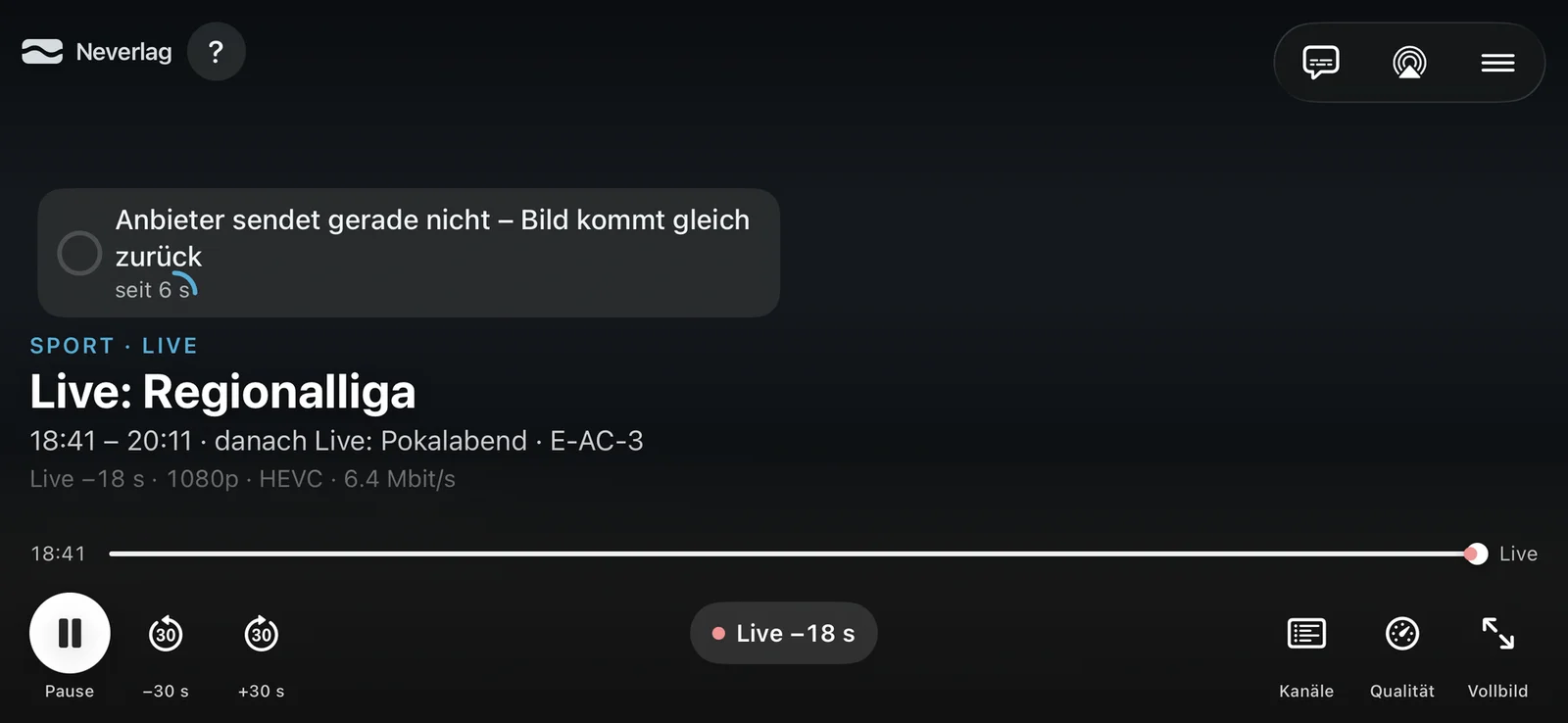 |  |  |
- Loading indicator – a circle at the top left with a sentence and a seconds counter (“for 6 s”), shown while the picture is frozen or the channel is starting. It names the cause and disappears as soon as the picture is moving.
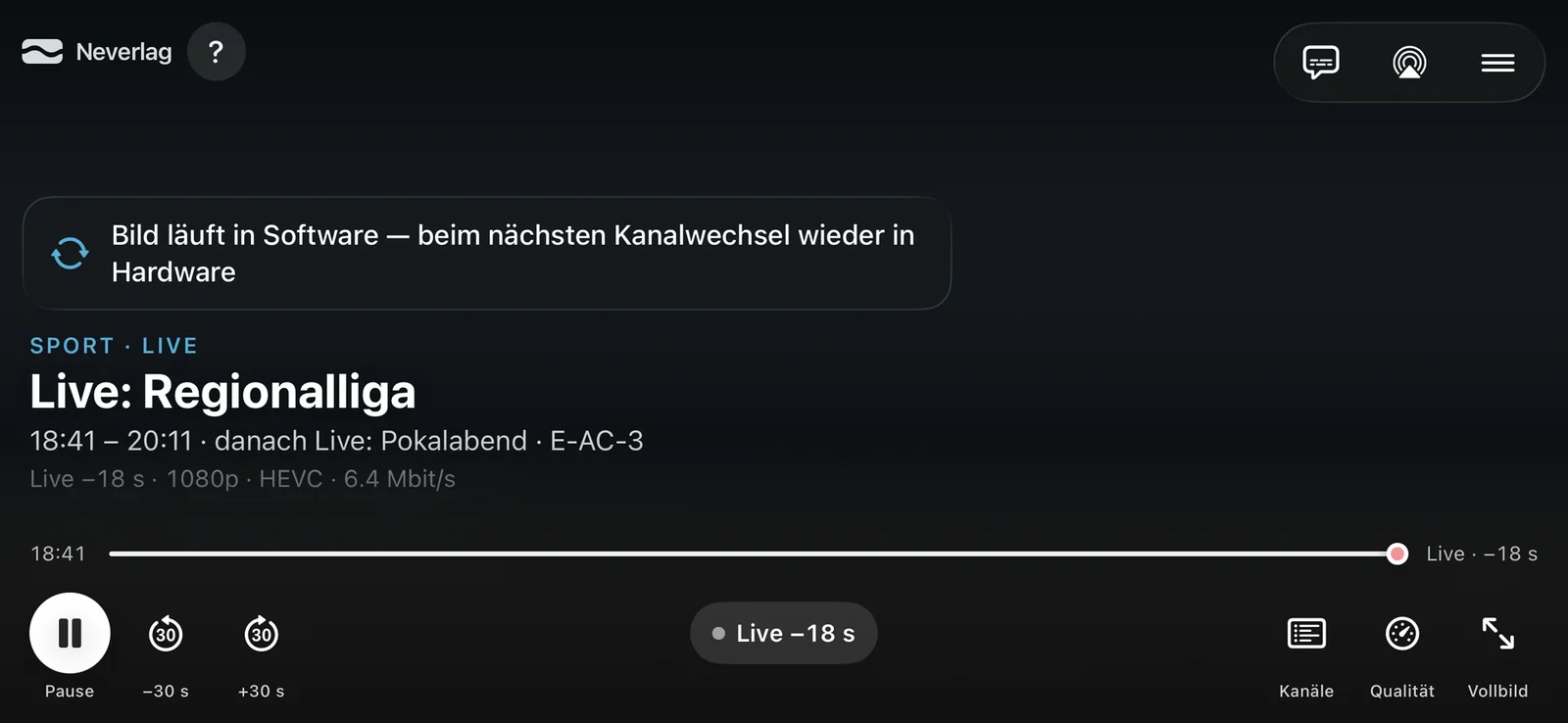
- Notice – a glass card at the top left, often with a button on the right (“Back to 4K”, “Back”, “Try again”). Notices tell you what Neverlag has just done. They disappear after a few seconds; those with a button stay until you tap or the reason goes away.
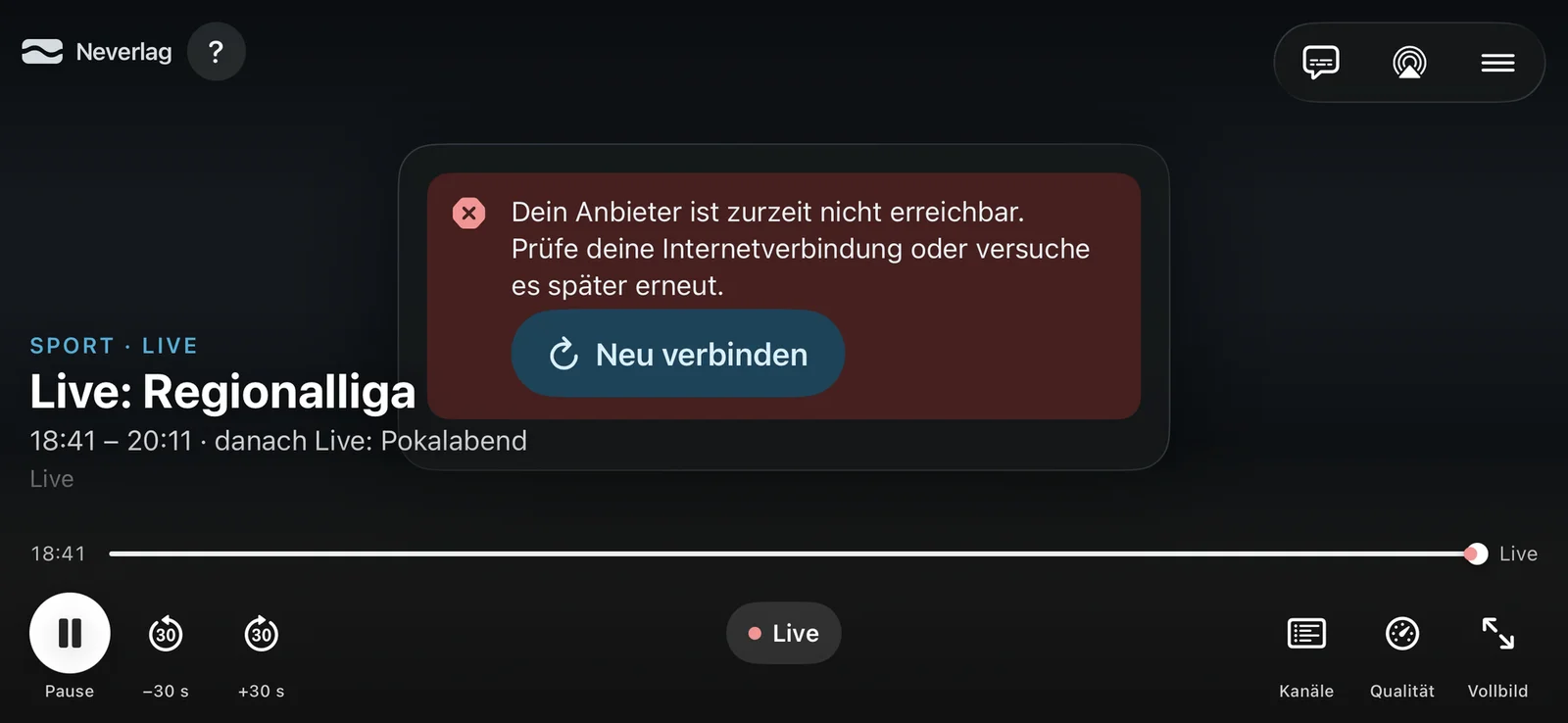
- Error – a red card in the middle with the Reconnect button (if the provider has refused: Try again). Beneath it, if known, are the provider’s error code with the time and a countdown to the next automatic attempt.
On the Apple TV the same texts appear in the same place; you reach the buttons with the remote.
Picture frozen or starting
The loading indicator names the cause as precisely as Neverlag can measure it:
| Message | Meaning | What you can do |
|---|---|---|
| Starting channel – one moment | The channel is loading. | Nothing. |
| Provider is slow to respond – channel starts shortly | The provider’s server takes a long time to give its first answer. | Nothing; if it happens often on one channel, the provider is the cause. |
| Device needs a moment – channel starts shortly | The device is busy decoding, for example with 4K. | Close other apps; on older devices set Startup quality to “Up to FHD”. |
| Provider isn’t sending right now – picture will be back shortly | No data is arriving from the provider. The reserve is used up. | Nothing. Neverlag reconnects and switches source after ten seconds (see Source switching). |
| Network interrupted – reconnecting / Wi‑Fi interrupted – reconnecting | Your own connection has gone. | Check your Wi‑Fi or router. |
| Device is catching up – picture will be back shortly | The device cannot decode fast enough. | Close other apps, turn off Low Power Mode. |
| Picture will be back shortly | The cause is not clear yet. | Nothing. |
Once the picture is moving again, a short line stays on screen saying how long it took and why: Picture stood still for 6 s – provider didn’t deliver (or “network was interrupted”, “Wi‑Fi was interrupted”, “device couldn’t keep up”). After a slow start it says Start took 8 s – provider was slow to respond. If this happens often on one channel, the provider is usually the cause, not your device.
Building up buffer
If you have chosen 10, 30 or 60 seconds under Buffer before first picture, the player shows Building up buffer with “12 of 30 seconds” before the first picture. That is intended: Neverlag builds up a reserve first so that nothing stutters afterwards.
Source switching
Many providers carry a channel several times: in 4K, Full HD and HD, often with several equivalent sources as well. Neverlag groups them into a channel family. If the picture freezes, Neverlag proceeds like this:
- After 5 seconds it restarts the decoder on the spot – without a new connection, and the reserve stays. Often that brings the picture straight back.
- After 10 seconds it switches source: first to an equivalent source, then to one from another list (if you have several providers), then to a lower level. Each source gets a ten-second trial, with no waiting in between.
- Only when every source fails does it report “Channel disrupted at the provider”.
At most two automatic switches per channel in 30 minutes; after that, Neverlag asks instead of switching again. Neverlag remembers a source that held up for 30 minutes – if you start the channel again within that time, it begins there. After that, it tries the original source again.
| Message | Meaning | Button |
|---|---|---|
| Channel disrupted at the provider — alternate route: ‹source› | The source is delivering no picture; Neverlag is trying the next one. | – |
| ‹source› delivered no picture – switched to ‹variant› (‹list›) | The switch worked; the channel is playing via another source. | Back to the original source |
| Source failed at the provider — alternate route: ‹source› | The source has gone completely at the provider (the connection drops after every restart). | – |
| Switched to ‹source› — measured stable in this session | Neverlag has switched to a source that has already played well today. | Back |
| Different source chosen — ‹reason›: ‹finding› | Switch because of a finding, such as “restarts every 5 min”. | Back |
| 30 minutes are up – back on the original source ‹source› | The memory period is over; Neverlag tries the first choice again. | – |
| Your provider is delivering this channel unstably right now — try ‹source›? | The source keeps stalling and another one is available. Neverlag asks because the automatic switches are used up or turned off. | Try it |
| ‹source› delivers no picture – try ‹variant›? | As above, after a frozen picture. | Try ‹variant› |
| ‹source› delivers no picture – no other source available | The channel has only this one source. | – |
In the Quality window you also see the status “Picture frozen – switching source” or “Switched to a substitute source”, and in the source list the new source is marked “Substitute source”.
If you do not want automatic switches, turn off Switch to another source automatically on failure. Neverlag then asks every time, with a button. If you pick a fixed source in the Quality window, Neverlag does not switch for that session either.
“Channel disrupted at the provider” and “Try again”
‹channel› is disrupted at the provider — all 4 sources checked, none delivers a picture · button Try again
This message only appears once Neverlag has tried every stored source for the channel and none delivers a picture. The channel is then disrupted at the provider – not in your network and not in Neverlag. Other channels almost always play normally.
- Try again forgets which sources failed and starts the chain over from the first source. That is worth doing after a few minutes, once the provider may have fixed the fault.
- Neverlag remembers failed sources for ten minutes and tries them last during that time. If you start the channel again later, the chain begins with the first source again.
- If it still does not help after a longer while: check whether the channel plays at the provider itself (web player, another app), and report it to the provider.
The source keeps restarting
Some sources start over every few seconds: the picture plays briefly, freezes, and the channel rebuilds. Since 1.0.2 Neverlag recognises this restart loop: after the second rebuild in a row that does not lead to a picture, it switches to another source by itself. In the Quality window the source is marked “disrupted · restarts every 30 s” or “restarts every 5 min”.
Neverlag treats a source the same way if its data stream drops below a tenth of the session peak and stays there for fifteen seconds: instead of reloading endlessly, it switches source.
Provider delivers only a fragment
Sometimes, instead of television, a provider keeps sending the same short file – a few minutes of picture that break off after a second. Neverlag recognises this file fragment and switches source without waiting.
The provider closes the connection immediately — Neverlag switches the source
Neverlag used to report this as “another device is using this provider”. Since 1.0.2 that message only appears when the provider confirms it (see the next section).
Another device is using the provider
Another device is using this provider right now — Neverlag waits instead of displacing it. Retrying in 30 s
With Xtream providers, Neverlag first asks the provider how many connections are allowed and how many are in use. This message only appears if they really are all in use. With M3U lists there is no way to ask; there the message appears as before.
What you can do: stop playback on the other device or stop a recording that is running. More under Troubleshooting. Related error cards:
- Your provider allows 1 concurrent connections, 2 are currently active. Stop a running recording or close the app on another device.
- Your network just changed, and your previous connection is still lingering at the provider — it still counts as in use. This usually clears itself within a minute. Wait a moment, then reconnect.
- Your provider refuses the connection: the line’s connection limit is in use. Often the previous connection still counts for a short while after a network change – or another device is streaming right now.
Another list as a stand-in
If you have set up several providers, Neverlag can fetch a channel through another list when the first one refuses or does not deliver:
| Message | Meaning | Button |
|---|---|---|
| Playing via ‹list B› — ‹list A› is not delivering (or “is not responding”, “delivered no picture”, “refuses (403)”) | The channel is now playing via the other list. | Back to ‹list A› |
| Back to ‹list A› … / Back on ‹list A› | Neverlag is checking the first list again, or is back on it. | – |
| None of your 2 other lists delivers ‹channel› — ‹list A› is not delivering | The other lists do not have the channel in a usable form either. | – |
| ‹channel› not found in your other lists — ‹list A› is not delivering | The other lists do not carry this channel. | – |
How Neverlag recognises channels across lists is explained under How Neverlag stays stable.
Quality and connection
| Message | Meaning | Button |
|---|---|---|
| Playing in Full HD instead of 4K — quality lowered automatically | Your connection or the provider cannot carry 4K at the moment; Neverlag has gone down one level. | Back to 4K |
| Switched to HD — ‹reason› | Level change with a reason, such as “Provider delivers too slowly for this quality”. | – |
| Back to 4K: Full HD also arrived at only 0.85× — the server is the problem, not the tier | The lower level was no better; Neverlag goes back to the higher one. | – |
| Connection refreshed — you missed nothing | The connection to the provider was re-established without a gap in the picture. | – |
| Rebuilt — rewind window restarted | The stream was rebuilt; what you can rewind now starts afresh. | – |
| Your provider is not responding right now — Neverlag keeps listening and reconnects as soon as it is back | The provider has gone silent; the picture keeps playing from the reserve for as long as it lasts. | – |
| Your provider is not delivering a programme right now — Neverlag is trying another route. | The provider is sending a still image or a loop instead of the programme. | – |
| This channel is currently unavailable at the provider — retrying in 30 s | The provider reports the channel as unavailable. | – |
| Your provider is unreachable right now — Neverlag keeps trying. Retrying in 30 s | Maintenance or overload at the provider. | – |
With a fixed level in the Quality window, Neverlag does not step down. More under Troubleshooting → HD instead of 4K.
Decoder and playback route
| Message | Meaning |
|---|---|
| Picture runs in software — back to hardware at the next channel change | The hardware decoder had an error; the picture keeps playing but uses more battery. See Hardware decoder and healing. |
| Hardware decoder back | Back to normal. |
| Switched to HLS — the TS route did not deliver | Neverlag fetches the channel via another transmission route from the same provider. Button Back to TS. |
| Back to TS — the HLS route did not deliver (or “delivered no picture”, “showed timestamp errors”) | The other route was worse; Neverlag goes back. |
| New renderer unavailable, previous one active | Apple TV only, with the New renderer experiment: it could not be started, so the proven one is running. |
Error cards
These messages appear in the red card with Reconnect:
| Message | What you can do |
|---|---|
| Your provider is currently unreachable. Check your internet connection or try again later. | Check your internet; if everything else works, the provider is the cause. |
| Your provider is currently delivering no picture for this channel. This is a server problem, not a Neverlag error. | Choose another channel and try again later. |
| Your provider is unreachable right now — maintenance or overload on their side (HTTP 503). This is not a Neverlag error; it usually works again in a few minutes. | Wait; beneath it the countdown “Neverlag keeps trying — retrying in 30 s” runs. |
| The provider is not responding. The connection is being re-established automatically. | Nothing. |
| This channel is currently not available from the provider. | Choose another channel. |
| Signing in to the provider failed. Check username and password in Settings. | Check your login under Providers & Content. |
| Your access with this provider expired on ‹date›. | Renew your access with the provider. See Troubleshooting. |
| Your provider refuses the connection — most likely another device is active on this account. | Stop other devices using the same login. The button here: Try again. |
| Your provider has limited the bandwidth for your account. / Too many requests — your provider is slowing things down. | Wait a few minutes. |
| Your provider responds with error ‹code›. | Note the code and report it to the provider. |
| This stream uses a format that cannot be played. | Choose another source in the Quality window. |
| A decoding error occurred during playback. The channel is being reloaded. | Nothing. |
| The timeshift buffer could not be created. Pause and rewind are temporarily unavailable — playback continues normally. | Free up storage; see Troubleshooting. |
For programmes from the archive there are also The provider offers no catch-up for this programme. and The provider doesn’t deliver an archive for this programme (‹reason›). Before starting, Neverlag checks whether the programme is really there, rather than playing you the current broadcast instead.
When a message keeps coming back
- Open the Quality window and see which source is marked “disrupted”.
- Check whether other channels from the same provider play. If they do, that one channel is disrupted; if not, it is the provider or your connection.
- Share the journal with support: Troubleshooting → Share journal. Every message is listed there with its time and reason.
Further reading
- The player – every button explained
- How Neverlag stays stable – reserve, receiver, source switching in the background
- Troubleshooting – symptom by symptom