
Settings → Profiles & Parental Controls
Sentence at the top of the area: “Each profile sees its own channels, movies and series – with its own favorites and history. Child profiles show only what is allowed; a PIN protects adult profiles and the settings.”
In the Content block. Replaces the “Parental controls” area from 1.0.1. How profiles, the administrator and allowed content work together is explained under Profiles and admin; this page is about the individual rows.
| iPhone | Mac | Apple TV |
|---|---|---|
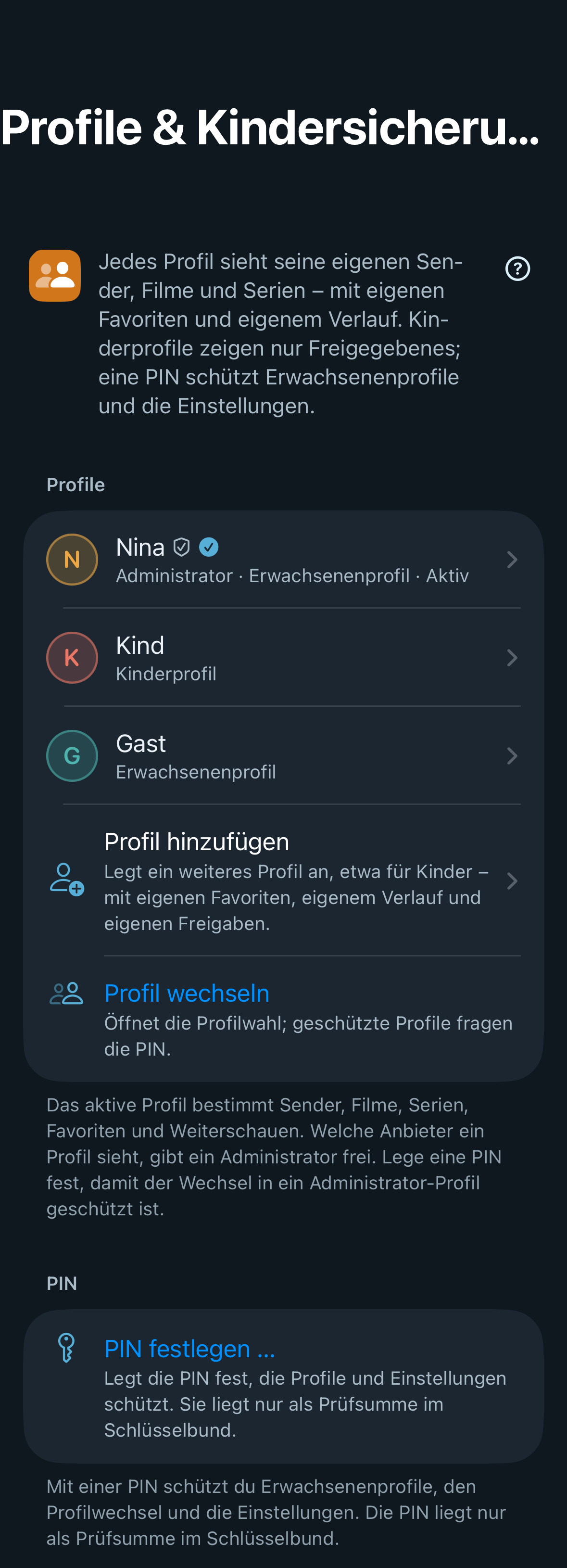 | 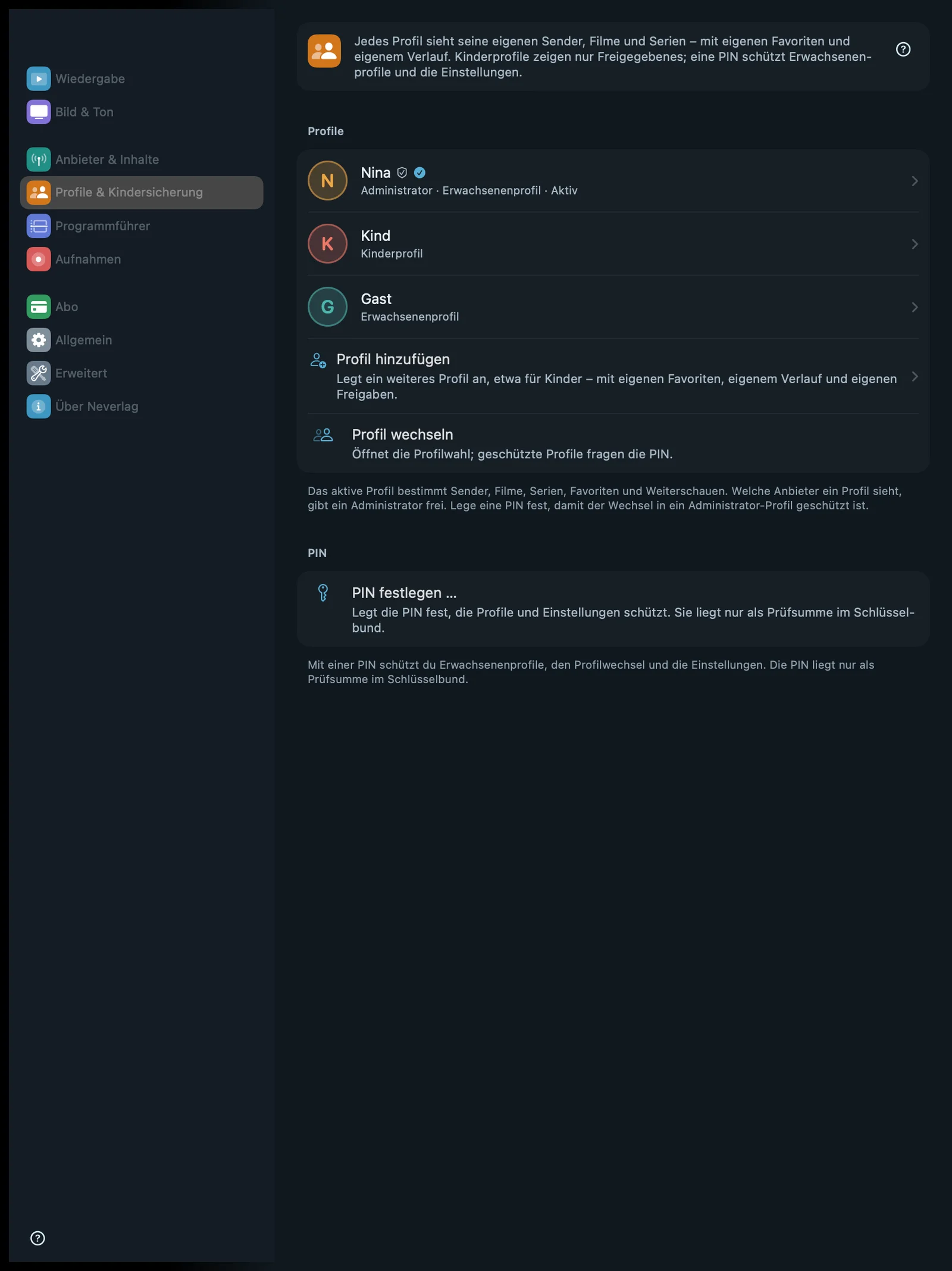 | 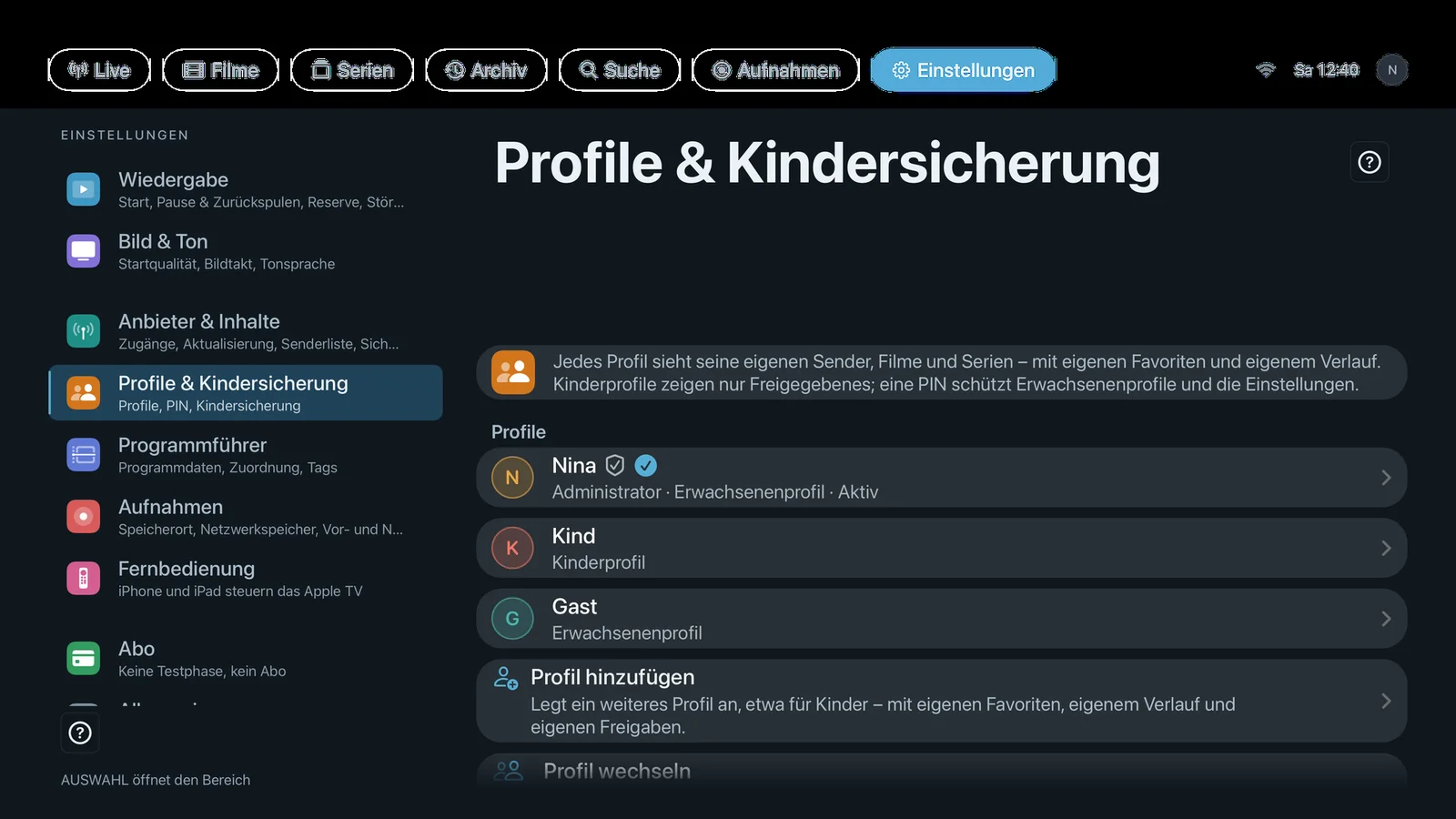 |
Layout: Profiles (a list with badges – a shield for administrator, a tick for active, a lock for PIN –, “Add profile”, “Switch profile”) and PIN. Tapping a profile opens its page with the sections Profile, Rights, Allowed providers, Content for this profile and Delete profile.
Footnote under the list: “The active profile determines channels, movies, series, favorites and continue watching. An administrator decides which providers each profile sees.” A profile without administrator rights sees only its own row as available, the others greyed out, and no PIN section apart from “Lock again now”.
Profiles
Add profile
- Where: Settings → Profiles & Parental Controls → Profiles · Mac, iPhone, iPad, Apple TV · administrator profile only
- What it does: “Creates another profile, for example for children – with its own favorites, history and allowances.” Name, colour, symbol and, if you like, “Child profile”. All providers are preselected.
- Default: – (button; one profile after the first start)
- Options: none
- When to change: As soon as more than one person uses the device.
- What it costs: Nothing. From two profiles on, Neverlag asks “Who’s watching?” at start-up.
- Works together with: Profiles and admin → Allowed providers, Child profile
Switch profile
- Where: Settings → Profiles & Parental Controls → Profiles · Mac, iPhone, iPad, Apple TV · only with more than one profile
- What it does: “Opens the profile picker; protected profiles ask for the PIN.” Administrator profiles ask for the PIN too, as soon as one is set.
- Default: – (button)
- Options: none
- When to change: When someone else is watching. It is quicker via the profile circle in the bar or the “Profile” button on the remote.
- What it costs: Nothing.
- Works together with: Profiles and admin → Switching profiles
Profile (a profile’s page)
Child profile
- Where: A profile’s page → Profile · Mac, iPhone, iPad, Apple TV · administrator profile only
- What it does: “A child profile sees only allowed categories and channels.” New groups from the provider stay hidden until you select them. New providers are not allowed automatically. A child profile cannot be an administrator.
- Default: Off
- Options:
- On – Advantage: Only what you have explicitly allowed is visible. Disadvantage: A brand-new child profile shows nothing until you select groups.
- Off – Advantage: The profile sees everything except what is deselected. Disadvantage: New groups from the provider appear without being asked for.
- When to change: For every profile a child uses.
- What it costs: Nothing.
- Works together with: Parental controls, Live categories
Protect with PIN
- Where: A profile’s page → Profile · Mac, iPhone, iPad, Apple TV · administrator profile only · only after “Set PIN…”
- What it does: “Switching to this profile requires the PIN.” Without a PIN, the row reads: “Set a PIN first to protect profiles.”
- Default: Off
- Options:
- On – Advantage: Children can’t get into an adult profile. Disadvantage: The PIN at every switch.
- Off – Advantage: Switching without a prompt. Disadvantage: Anyone can pick this profile.
- When to change: For adult profiles, as soon as children share the device. Administrator profiles don’t need the switch; once a PIN is set they ask for it anyway.
- What it costs: Nothing.
- Works together with: Set PIN…
Administrator
No setting row of its own in the app’s catalogue; a switch on a profile’s page.
- Where: A profile’s page → Rights · Mac, iPhone, iPad, Apple TV · visible to administrators only
- What it does: “Manages providers, profiles, permissions, PIN, backup and Advanced. With a PIN set, switching to this profile is protected.” Footnote: “Administrators see all providers and manage the app for all profiles.”
- Default: On for the first profile, off for all others
- Options:
- On – Advantage: The profile may do everything. Disadvantage: Whoever uses it can remove providers and delete profiles – so protect it with a PIN.
- Off – Advantage: The profile can’t break anything. Disadvantage: Providers, profiles, PIN, backup and Advanced are missing.
- When to change: When a second adult should help manage the app. For the last administrator the switch is locked (“The last administrator profile keeps its rights. Make another profile an administrator first.”), and the same goes for child profiles.
- What it costs: Nothing.
- Works together with: Profiles and admin → Who may do what
Allowed providers
No setting row of its own in the app’s catalogue; a list on a profile’s page.
- Where: A profile’s page → Allowed providers · Mac, iPhone, iPad, Apple TV · only an administrator profile can change it, others can read it
- What it does: “Which providers this profile sees — in the channel list, guide, movies, series and when falling back to another list.” One tick per provider. For administrator profiles, the list is replaced by: “Administrators see all providers.”
- Default: All providers when the profile is created; a new provider goes to all adult profiles, not to child profiles
- Options: A tick per provider – Advantage: A profile sees only what it needs. Disadvantage: Without a tick, the provider is missing everywhere, including when switching sources.
- When to change: When a profile should not see a provider, or to allow a new provider for a child profile.
- What it costs: Nothing.
- Works together with: Profiles and admin → Allowed providers
Content for this profile
Live categories
- Where: A profile’s page → Content for this profile · per allowed provider · Mac, iPhone, iPad, Apple TV
- What it does: “Which live categories this profile sees from this provider. Adults deselect (new ones appear), children select (new ones stay hidden).” The row shows “n of m”. The list contains all of the provider’s groups, including those deselected during import, marked “not loaded yet”; a tick loads them in the background, without a restart.
- Default: Adult profile: all · Child profile: none
- Options: A switch per group, plus “Select all” and “Deselect all” – Advantage: Each person sees only their own groups. Disadvantage: If the provider renames a group, you have to adjust the selection.
- When to change: After creating a profile, and when a profile wants an extra group.
- What it costs: A group that isn’t loaded yet costs one provider refresh in the background (10–60 seconds for large providers).
- Works together with: Profiles and admin → Changing content later, Providers & Content → Manage categories
Movie categories
- Where: A profile’s page → Content for this profile · per allowed provider · Mac, iPhone, iPad, Apple TV
- What it does: “Which movie categories this profile sees from this provider — same reading as for live categories.” Since 1.0.2, movie groups deselected during import can also be added later.
- Default: Adult profile: all · Child profile: none
- Options: A switch per group – as for live categories.
- When to change: As for live categories.
- What it costs: As for live categories.
- Works together with: Movies and series, Live categories
Series categories
- Where: A profile’s page → Content for this profile · per allowed provider · Mac, iPhone, iPad, Apple TV
- What it does: “Which series categories this profile sees from this provider — same reading as for live categories.”
- Default: Adult profile: all · Child profile: none
- Options: A switch per group – as for live categories.
- When to change: As for live categories.
- What it costs: As for live categories.
- Works together with: Movies and series, Live categories
Hidden channels
- Where: A profile’s page → Content for this profile · Mac, iPhone, iPad, Apple TV
- What it does: “Find individual channels via search and hide them in this profile — even if their category is selected. Also available from the channel list’s context menu.” In the context menu it reads “Hide in this profile” or “Show in this profile”.
- Default: No channel hidden
- Options: Hide or show per search result – Advantage: Picks out single channels in an otherwise suitable group. Disadvantage: Tedious with many channels; in that case, deselect the group instead.
- When to change: For individual channels that sit in an otherwise harmless group.
- What it costs: Nothing.
- Works together with: Show all channels again, Interface → Channel list
Show all channels again
- Where: A profile’s page → Content for this profile · Mac, iPhone, iPad, Apple TV · only visible when channels are hidden
- What it does: “Shows all hidden channels of this profile again.” The group selection stays as it is.
- Default: – (button)
- Options: none
- When to change: When you want to start afresh without touching the groups.
- What it costs: Nothing.
- Works together with: Hidden channels
Unlock content
- Where: The page of a child profile or a PIN-protected profile → Content for this profile · Mac, iPhone, iPad, Apple TV
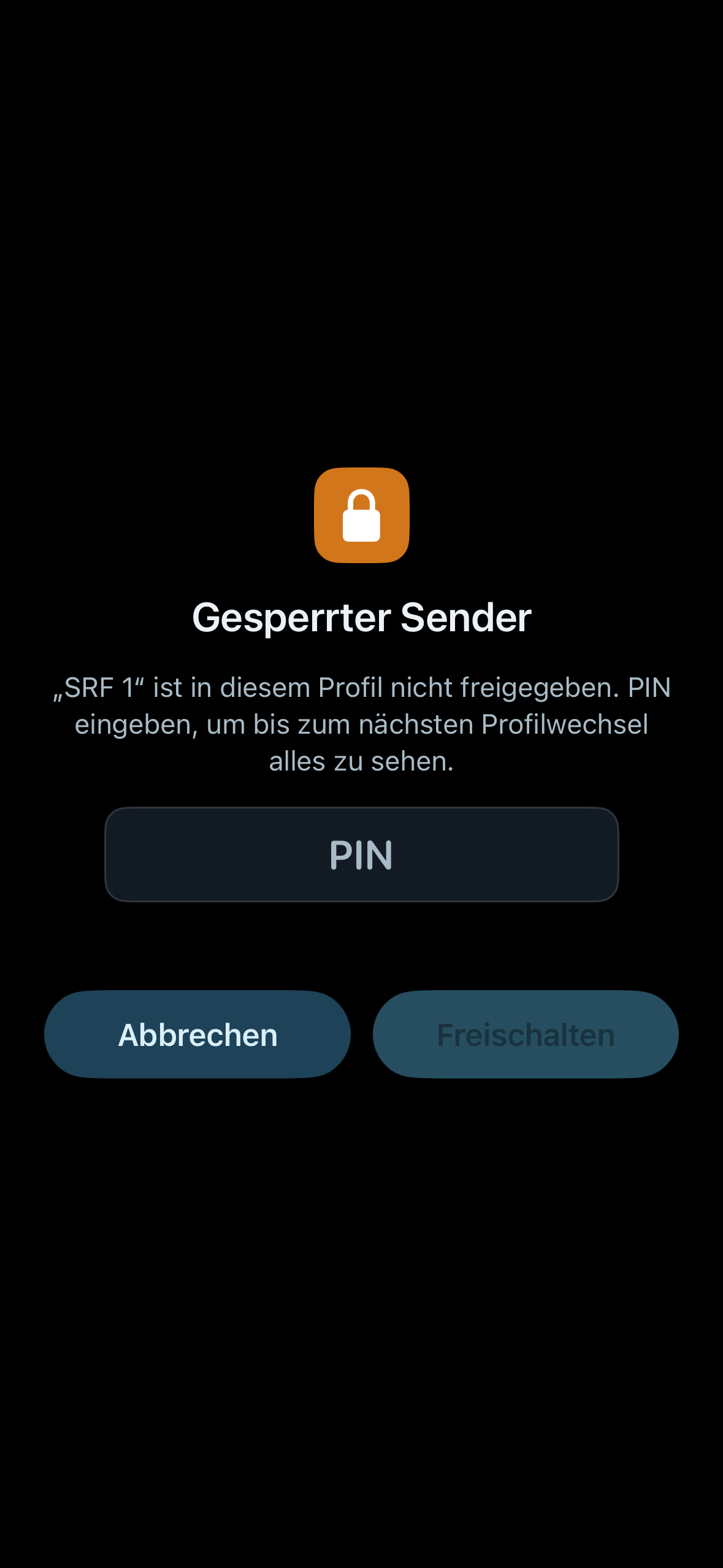
- What it does: “The content of this profile is protected by the main PIN. After entering it, changes are possible until you lock the session or restart.” Dialog “Change content”: “Enter the main PIN to change the content of this profile.” A profile you have only just created doesn’t ask.
- Default: Locked
- Options: none
- When to change: When you want to allow something for a child profile.
- What it costs: Nothing.
- Works together with: Lock again now, Parental controls
Delete profile…
- Where: A profile’s page, at the very bottom · Mac, iPhone, iPad, Apple TV · administrator profile only · not for the device’s first profile
- What it does: “Removes the profile including favorites, history and continue watching.” Asks for confirmation.
- Default: – (button with confirmation)
- Options: none
- When to change: When someone no longer uses the device.
- What it costs: This profile’s favourites, history and continue watching are gone. Back them up first if you want to keep them.
- Works together with: Providers & Content → Export backup
PIN
Footnote: “A PIN protects adult profiles, profile switching and the settings. The PIN is stored only as a checksum in the keychain.” Only an administrator sees this section; other profiles see only “Lock again now”.
Set PIN…
- Where: Settings → Profiles & Parental Controls → PIN · Mac, iPhone, iPad, Apple TV · administrator profile only · only while no PIN is set
- What it does: “Sets the PIN that protects profiles and settings. It is stored only as a checksum in the keychain.” At least four digits, entered twice. Checksum means that the app doesn’t store the PIN itself, only a value it can use to check what you type.
- Default: No PIN
- Options: none
- When to change: As soon as there is a child profile or more than one profile. From then on, switching to the administrator profile is protected too.
- What it costs: Nothing. The PIN applies per device and is not synced via iCloud.
- Works together with: Protect with PIN, Protect settings with PIN
Change PIN…
- Where: Settings → Profiles & Parental Controls → PIN · Mac, iPhone, iPad, Apple TV · administrator profile only · only with a PIN
- What it does: “Set a new PIN; you need the current one for this.” The dialog also offers “Forgot PIN?”: the PIN is deleted, PIN protection is off, and profiles and allowances are kept.
- Default: – (button)
- Options: none
- When to change: When someone else has found out the PIN.
- What it costs: Nothing.
- Works together with: Remove PIN
Remove PIN
- Where: Settings → Profiles & Parental Controls → PIN · Mac, iPhone, iPad, Apple TV · administrator profile only · only with a PIN
- What it does: “Removes the PIN; protected profiles are then reachable without a prompt.” Asks for the current PIN.
- Default: – (button)
- Options: none
- When to change: When children no longer watch along.
- What it costs: Afterwards, all profiles – administrator profiles included – can be reached without a PIN.
- Works together with: Set PIN…
Protect settings with PIN
- Where: Settings → Profiles & Parental Controls → PIN · Mac, iPhone, iPad, Apple TV · administrator profile only · only with a PIN
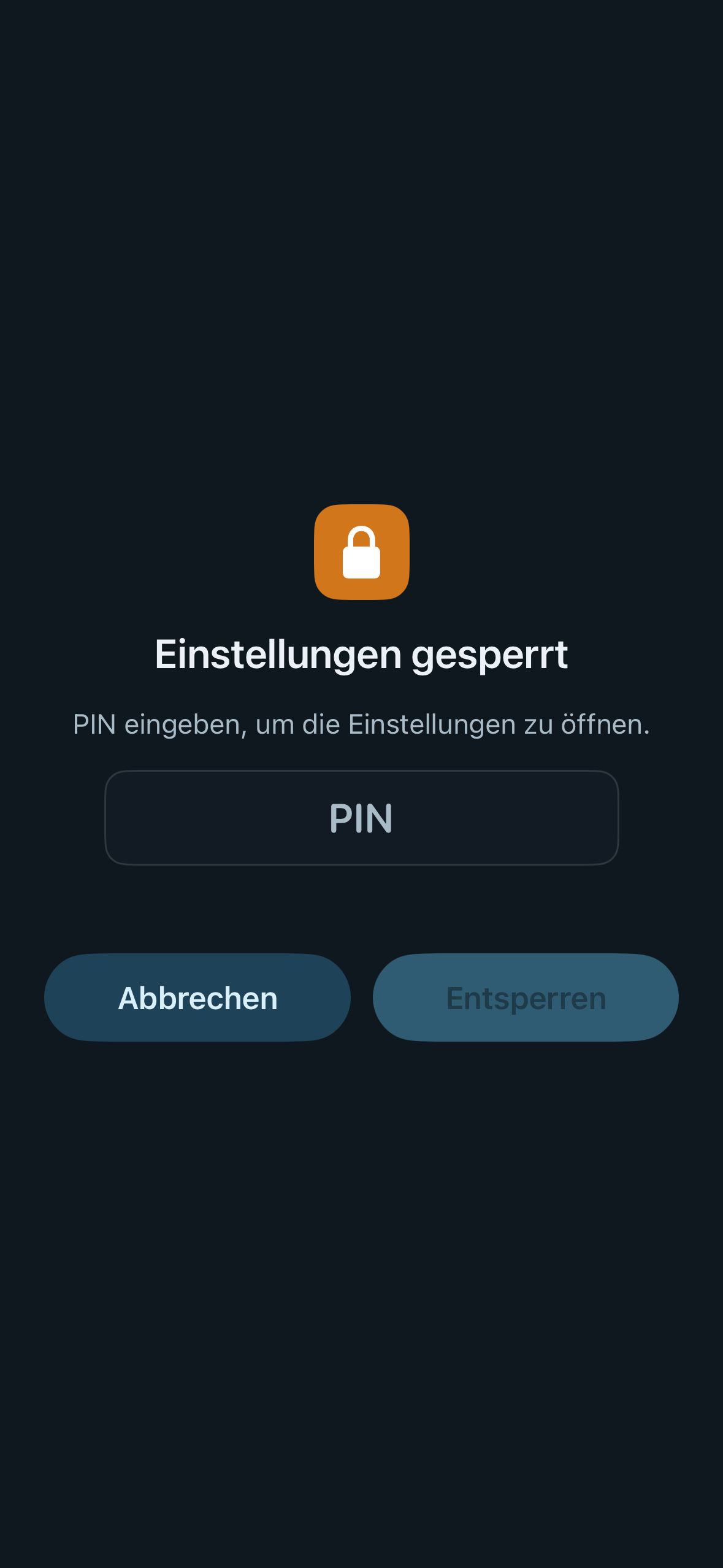
- What it does: “The settings open only after entering the PIN.”
- Default: Off
- Options:
- On – Advantage: No child gets at allowed content, profiles or playback settings. Disadvantage: You type the PIN every time too.
- Off – Advantage: No hurdle. Disadvantage: Anyone in the child profile can open the settings every profile is allowed to use (Playback, Picture & Sound, General).
- When to change: On, as soon as a child uses the device alone.
- What it costs: Nothing.
- Works together with: Parental controls
Lock again now
- Where: Settings → Profiles & Parental Controls → PIN · Mac, iPhone, iPad, Apple TV · every profile · only visible while something is unlocked
- What it does: “Locks unlocked content again immediately, not just at the next app launch.”
- Default: – (button)
- Options: none
- When to change: When you have unlocked something and are now handing the device to someone else.
- What it costs: Nothing.
- Works together with: Unlock content