
Settings → Picture & Sound
Sentence at the top of the area: “How the picture is built and which audio track Neverlag prefers.”
New in 1.0.2 as an area of its own in the Playback block. Up to 1.0.1 these settings were under “Playback”. Why motion can judder and what the screen has to do with it is explained on the page Picture and sound.
| Mac | iPhone | Apple TV |
|---|---|---|
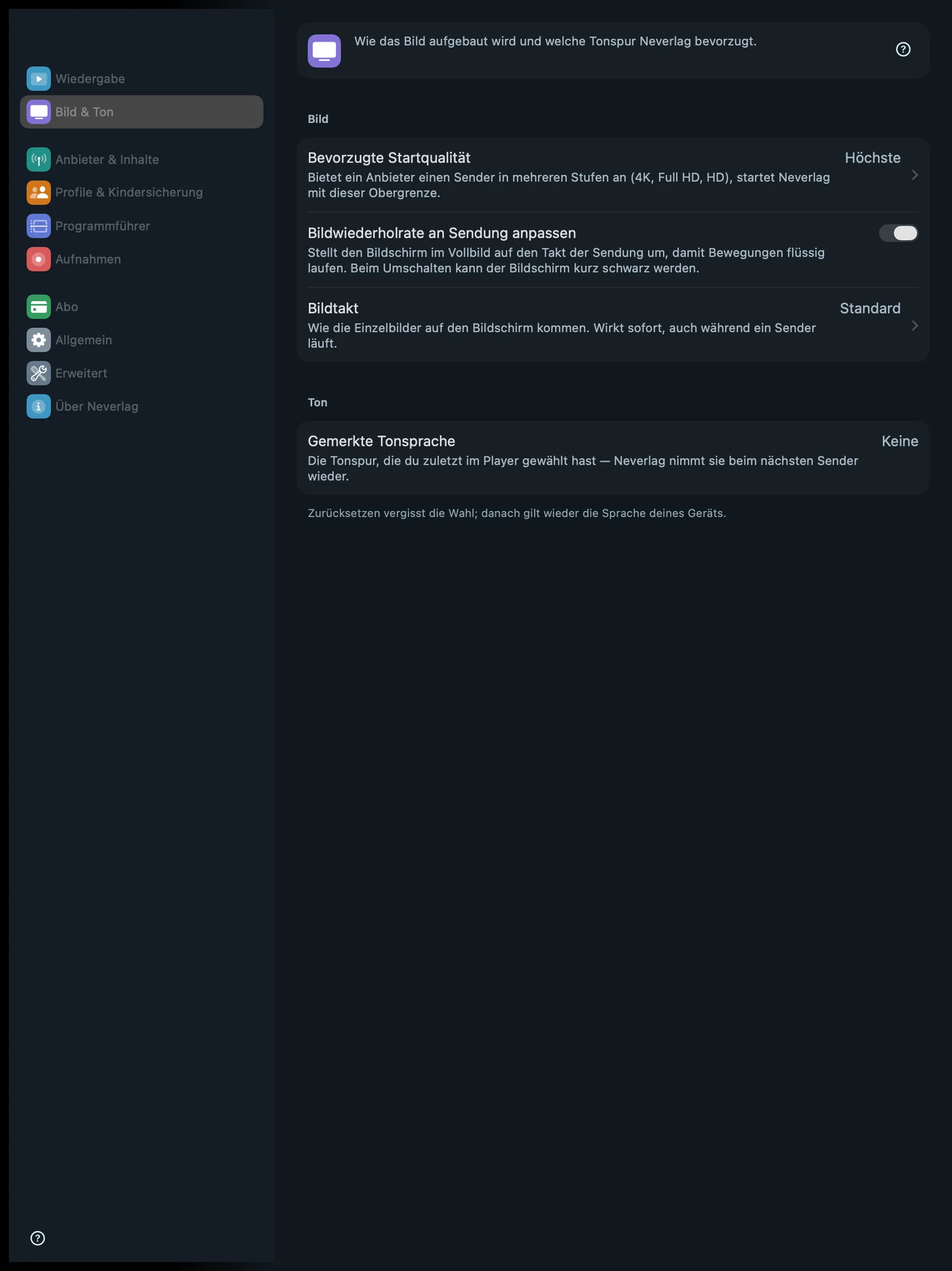 | 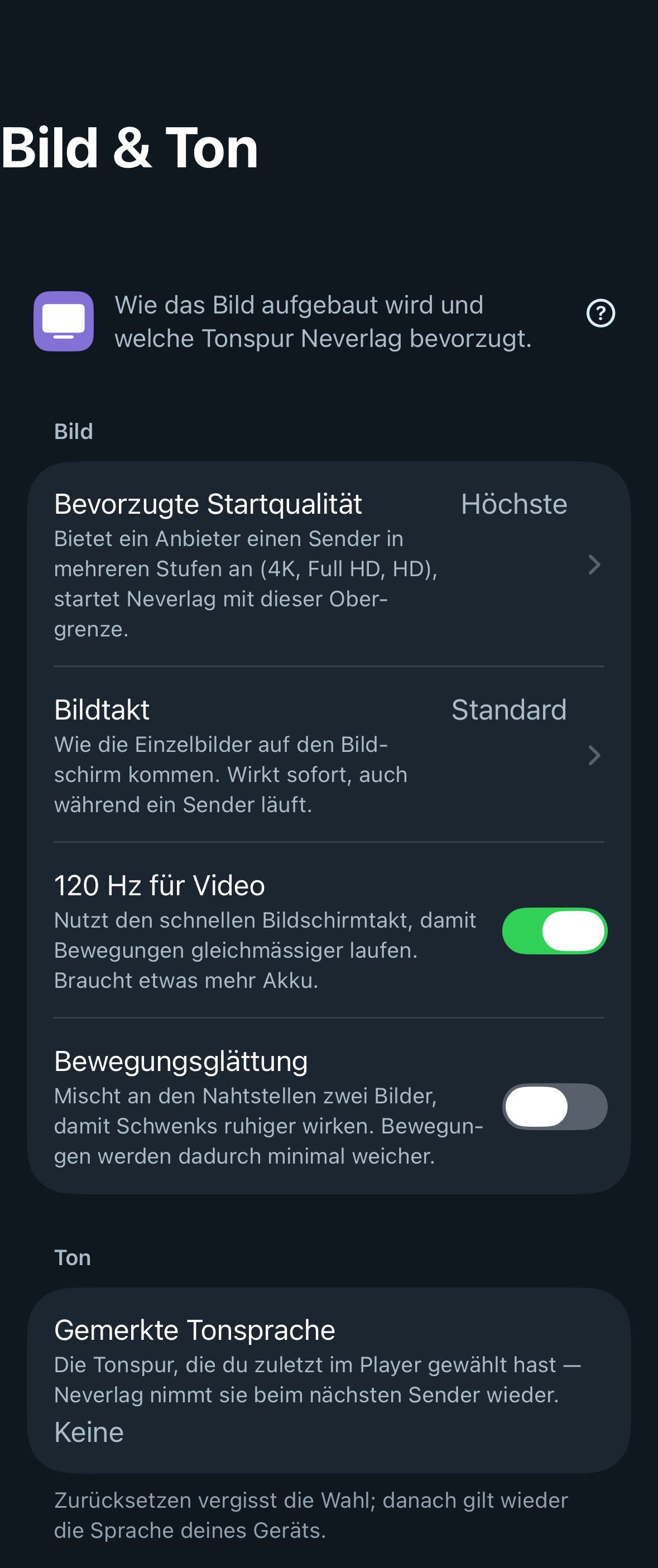 | 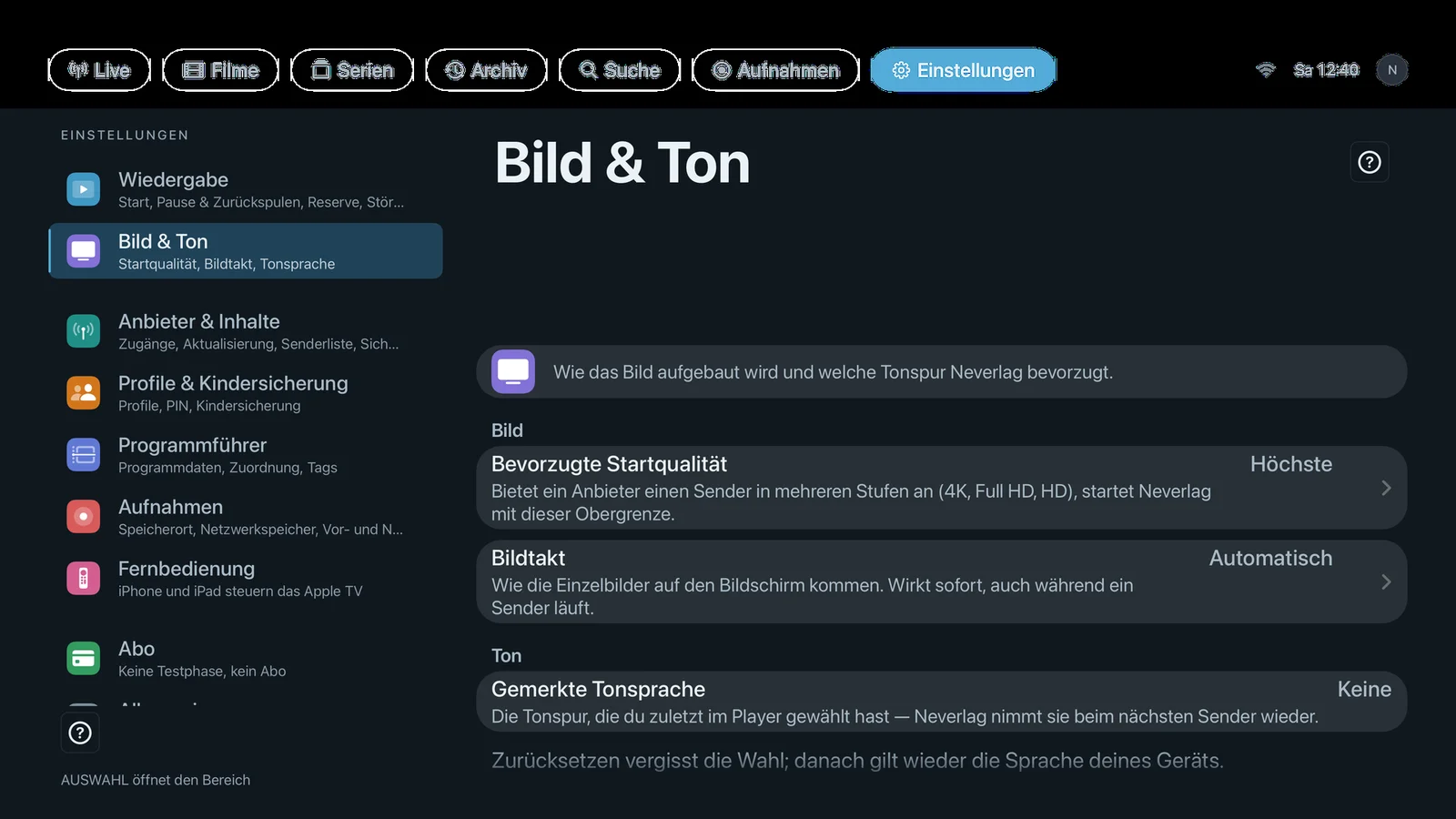 |
Which rows appear depends on the device: the Mac shows “Match refresh rate to programme”, iPhone and iPad show “120 Hz for video” (only with ProMotion) and “Motion smoothing”.
Picture
Preferred startup quality
- Where: Settings → Picture & Sound → Picture · Mac, iPhone, iPad, Apple TV · value on the right of the row, options on a separate page
- What it does: “If a provider offers a channel in several levels (4K, Full HD, HD), Neverlag starts with this upper limit.” Only applies to channel families with several levels. In the quality window you can change the level by hand at any time.
- Default: Highest
- Options:
- Highest – “Starts with the best level the channel has.” Advantage: the best picture. Disadvantage: on a weak connection it steps down more often.
- Up to FHD – “Full HD at most – saves data and is easier on weaker connections.” Advantage: less data, more stable. Disadvantage: no 4K at startup.
- Up to HD – “HD at most – for slow connections or mobile data.” Advantage: runs almost anywhere. Disadvantage: visibly less sharp.
- When to change: If 4K channels regularly hang for you, or if you want to save mobile data on the go.
- What it costs: Data volume: 4K needs roughly four times as much as HD. Battery: higher levels work the decoder harder.
- Works together with: The quality window → Sources, How Neverlag stays stable → Stepping down
Match refresh rate to programme
- Where: Settings → Picture & Sound → Picture · Mac only
- What it does: “Switches the screen to the programme’s rhythm in full screen so motion runs smoothly. The screen may go black briefly when it switches.” If a programme runs at 25 or 50 frames per second, the Mac switches to 50 Hz in full screen, provided the screen supports it. When you leave full screen, stop or quit, the screen switches back.
- Default: On
- Options:
- On – Advantage: every frame gets the same amount of time, pans run evenly; Neverlag can then play at 1.00×. Disadvantage: a brief black screen when switching; at most one change every 10 seconds.
- Off – Advantage: no switching, no black screen. Disadvantage: on 60 Hz and ProMotion screens, 50 fps stays uneven; “Frame pacing: Standard” then chooses smoothing.
- When to change: Off if the brief black screen when switching bothers you, or if your monitor copes badly with the mode change.
- What it costs: Nothing in battery or data; a brief black screen on each change.
- Works together with: Frame pacing, Picture and sound → Mac at 50 Hz, The quality window → Frame cadence
Frame pacing
- Where: Settings → Picture & Sound → Picture · Mac, iPhone, iPad, Apple TV · the options differ by device
- What it does: “How the frames reach the screen. Takes effect immediately, even while a channel is playing.” Television from Europe mostly runs at 25 or 50 frames per second, many screens at 60 Hz. That doesn’t divide evenly – so frame pacing decides whether Neverlag shows every frame sharply (and in return leaves some frames on screen longer) or smooths the transitions.
- Default: Mac, iPhone, iPad: Standard · Apple TV: Automatic
- Options:
- Standard – Mac, iPhone, iPad – “Recommended. Chooses for each programme: sharp individual frames when the screen runs in step with the programme, smoothing otherwise.” Advantage: you don’t have to decide anything. Disadvantage: the choice can change from channel to channel.
- Automatic – all devices – “Sharp individual frames, matched to your screen.” Advantage: every frame sharp, crisp for sport. Disadvantage: if the screen doesn’t run in step with the programme, some frames stay on screen a little longer (pans look jerky).
- Smoothing – all devices – “Smoother motion for sports, transitions slightly softer.” Advantage: calmer pans, even on 60 Hz screens. Disadvantage: transitions very slightly softer.
- Off – Mac, Apple TV – “As before, without adjustment.” Advantage: the behaviour of older versions. Disadvantage: no adjustment to the screen; only choose it if the others bother you.
- When to change: If pans visibly judder: first check whether Low Power Mode is on (see Picture and sound). Then try “Smoothing”. If an earlier choice no longer exists on the device, the app replaces it with the default and says so under the selection.
- What it costs: Smoothing does slightly more computing (minimal battery impact). No effect on delay or data volume.
- Works together with: Match refresh rate to programme, 120 Hz for video, Motion smoothing, Picture and sound, The quality window → Frame cadence
120 Hz for video
- Where: Settings → Picture & Sound → Picture · iPhone, iPad · only visible on devices with ProMotion (more than 60 Hz)
- What it does: “Uses the fast screen refresh so motion runs more evenly. Uses a little more battery.” At 120 Hz the screen can show 24, 30, 40, 60 and 120 frames per second smoothly. Off means: capped at 60 Hz. Neverlag also decides, based on the reserve, whether it really outputs 120 frames per second or only every second tick.
- Default: On
- Options:
- On – Advantage: a finer rhythm, more even motion. Disadvantage: a little more battery; in Low Power Mode the system caps at 60 Hz anyway.
- Off – Advantage: saves battery. Disadvantage: 50 and 25 fps end up on 60 Hz, where they don’t divide evenly.
- When to change: Off if battery matters more to you than the last bit of smoothness, or if you can’t see a difference.
- What it costs: Battery: a little more. Delay, data, storage: none.
- Works together with: Frame pacing, Motion smoothing, Picture and sound → iPhone 120 Hz, Picture and sound → Low Power Mode
Motion smoothing
- Where: Settings → Picture & Sound → Picture · iPhone, iPad
- What it does: “Blends two frames at the seams so pans look steadier. Motion becomes very slightly softer.” Only takes effect with frame pacing set to “Automatic” (with “Standard”, the app chooses Automatic on iPhone/iPad). It rests by itself as long as the screen runs at a multiple of the programme’s rate (for example 60p on 60 Hz).
- Default: Off
- Options:
- On – Advantage: pans look calmer, even when screen and programme don’t match. Disadvantage: the picture is very slightly softer at the seams; one frame of lead.
- Off – Advantage: every frame stays exactly as it was broadcast. Disadvantage: uneven pacing remains visible.
- When to change: On if pans in sport look too jerky to you and “Smoothing” in frame pacing isn’t enough.
- What it costs: Battery: a little more (the graphics unit computes the blend). Delay: one frame. Data, storage: none.
- Works together with: Frame pacing, 120 Hz for video, Picture and sound
Sound
Remembered Audio Language
- Where: Settings → Picture & Sound → Sound · Mac, iPhone, iPad, Apple TV
- What it does: “The audio track you last chose in the player — Neverlag picks it again on the next channel.” The row shows the remembered language, for example “German” or “None”. If a channel doesn’t offer that language, Neverlag takes the device language, and failing that the track the channel marks as its default. Neverlag never picks audio description or music-and-effects-only tracks by itself as long as there is a normal track.
- Default: None (the device language applies)
- Options:
- Reset – “Reset forgets the choice; your device language applies again.” Advantage: Neverlag follows the device again. Disadvantage: you have to pick the language you want again in the player.
- When to change: You change the language in the player via the audio tracks; here you only reset it – for example if a channel now only plays in English because you once chose English.
- What it costs: Nothing.
- Works together with: The player → Audio track and subtitles, Audio rescue