
Settings → General
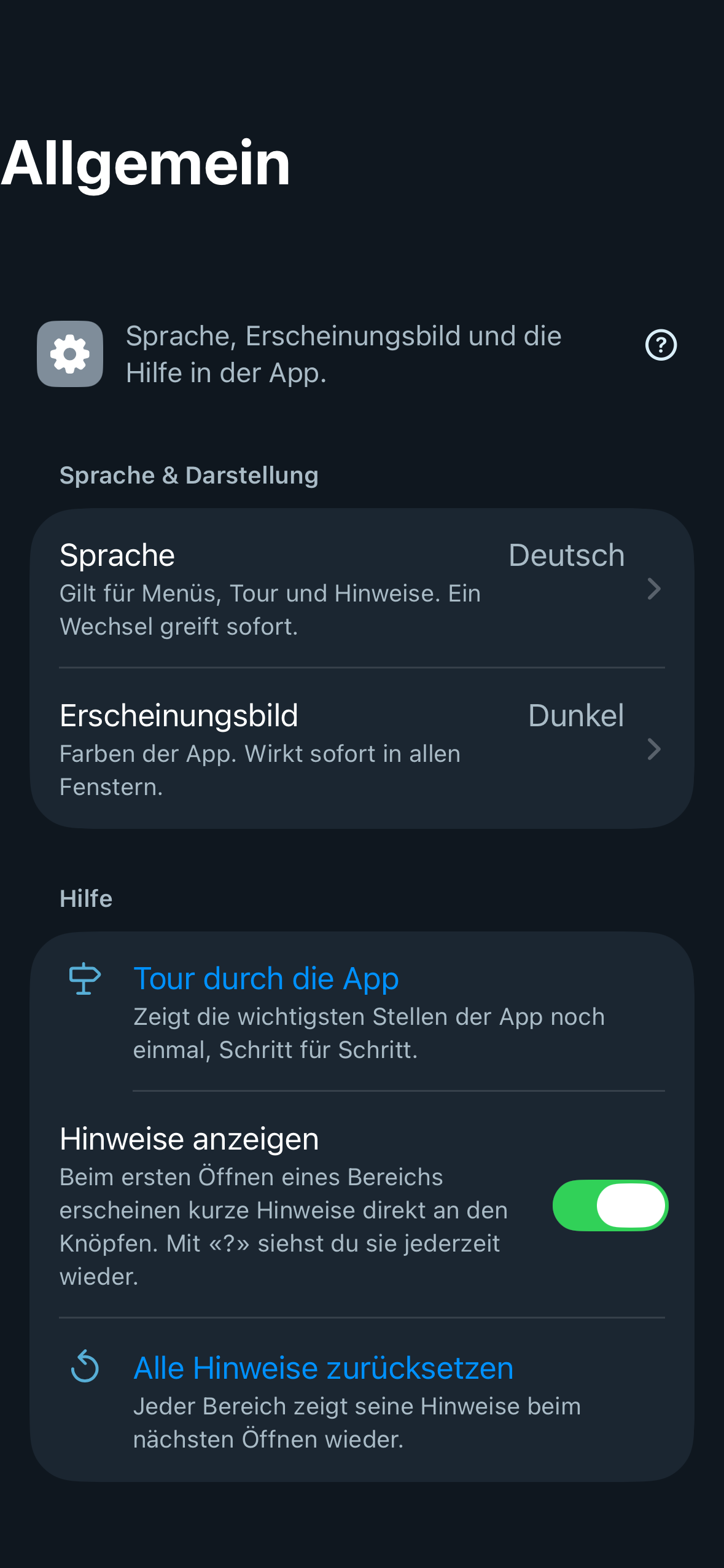
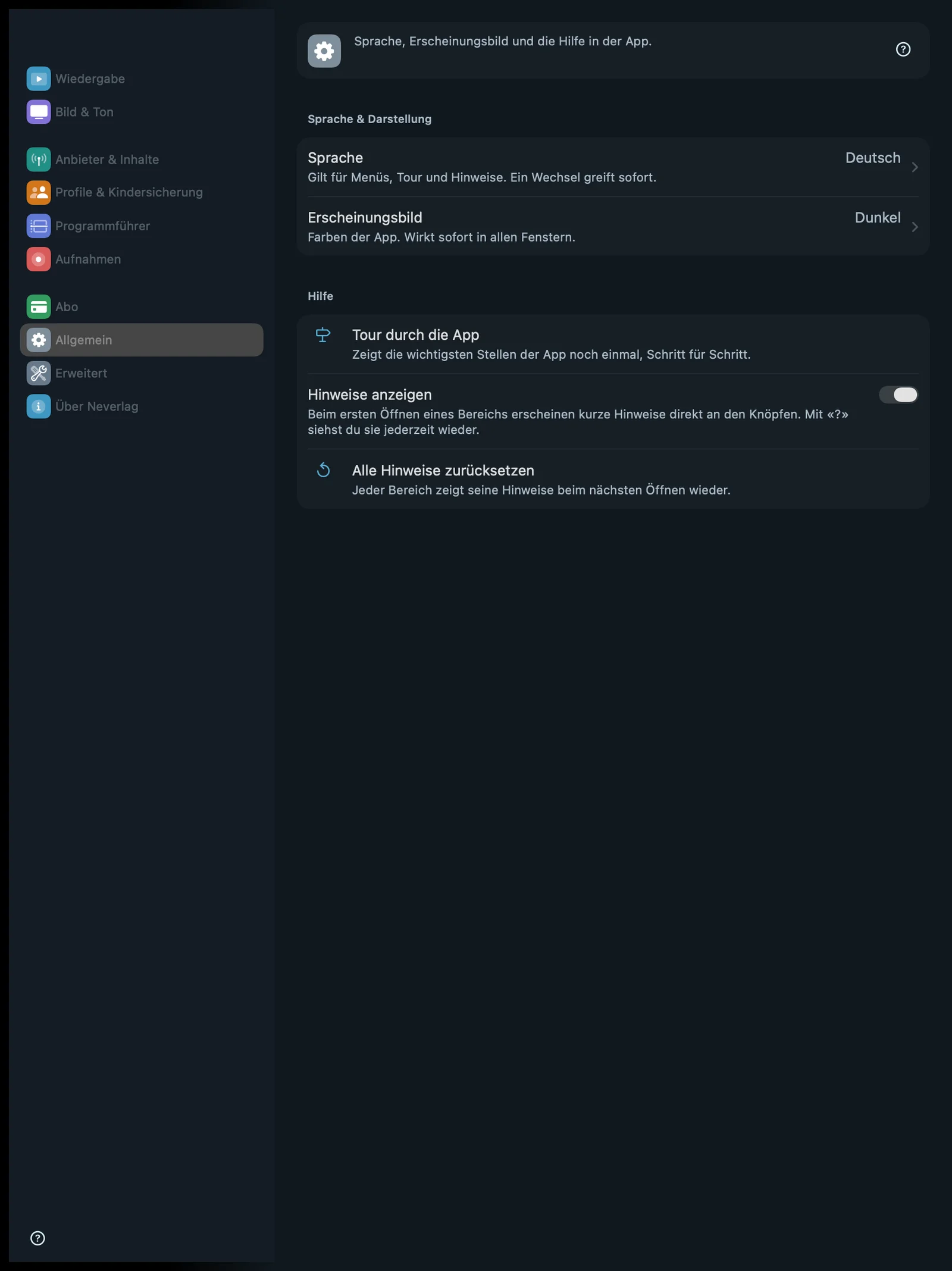
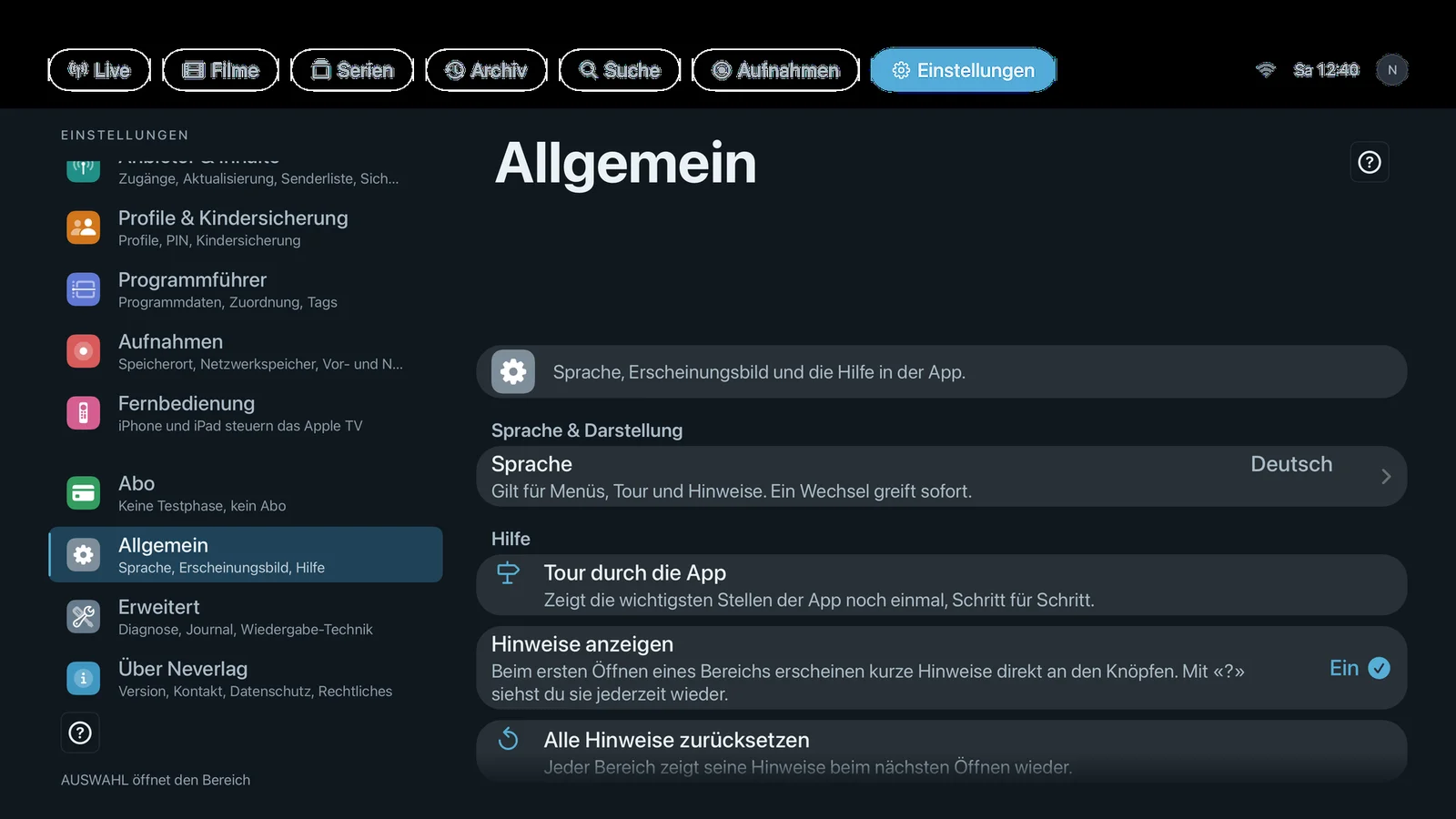
Sentence at the top of the area: “Language, appearance and the in-app help.”
In the System block. Replaces the “Language” area from 1.0.1 and takes in the appearance (formerly under “Playback”) as well as the tour and hints (formerly under “About Neverlag”).
| iPhone | Mac | Apple TV |
|---|---|---|
 |  |  |
Language & Appearance
Language
-
Where: Settings → General → Language & Appearance · Mac, iPhone, iPad, Apple TV · also the very first screen at first start · the current value is shown on the right of the row, the options on a page of their own
-
What it does: “Applies to menus, tour and hints. A change takes effect immediately.” The language of the channels and the TV Guide comes from your provider and does not change with it.
-
Default: Your device’s system language, if it is one of the four; otherwise English.
-
Options:
- Deutsch – “Menüs und Tour auf Deutsch.”
- English – “Menus and tour in English.”
- Français – “Menus et visite en français.”
- Italiano – “Menu e tour in italiano.”
There is no advantage or disadvantage here; choose the language you read best. The language names look the same whichever language the app is in.
-
When to change: If the app suggested the wrong language at first start.
-
What it costs: Nothing.
-
Works together with: Getting started → Language, Tour of the app
Appearance
- Where: Settings → General → Language & Appearance · Mac, iPhone, iPad (the Apple TV is always dark)
- What it does: “The app’s colours. Takes effect immediately in all windows.”
- Default: Dark
- Options:
- System – “Follows the device setting, light by day, dark in the evening.” Advantage: Adapts to the device. Disadvantage: Bright areas next to the picture during the day.
- Light – “Always light, good in daylight.” Advantage: Easy to read in sunlight. Disadvantage: Looks glaring next to a dark film.
- Dark – “Always dark, like the Neverlag design – calm next to the picture.” Advantage: Calm while watching. Disadvantage: Slightly harder to read in bright surroundings.
- When to change: As you prefer; “System” if you like the way iOS and macOS switch.
- What it costs: Nothing.
- Works together with: Interface
Help
Tour of the app
- Where: Settings → General → Help · Mac, iPhone, iPad, Apple TV
- What it does: “Shows the app’s key places again, step by step.” The same tour as at first start.
- Default: – (button)
- Options: none
- When to change: If you skipped the tour at first start or are showing the app to someone.
- What it costs: Nothing.
- Works together with: Getting started → Start tour, Show hints
Show hints
- Where: Settings → General → Help · Mac, iPhone, iPad, Apple TV
- What it does: “The first time you open an area, short hints appear right next to its buttons. ‘?’ shows them again at any time.” The hints apply per device; the app remembers locally which areas you have already seen. Every settings area also has its own “?” at the top right.
- Default: On
- Options:
- On – Advantage: Every area explains itself the first time. Disadvantage: One extra step when you first open it.
- Off – Advantage: No overlays. Disadvantage: “?” still shows the hints, but no longer automatically.
- When to change: Off, if you know the app and nobody but you uses the device.
- What it costs: Nothing.
- Works together with: Reset all hints, Getting started → Hints
Reset all hints
- Where: Settings → General → Help · Mac, iPhone, iPad, Apple TV
- What it does: “Every area shows its hints again the next time you open it.” Confirmation: “Hints reset”.
- Default: – (button)
- Options: none
- When to change: If you pass the device on to someone who doesn’t know the app yet.
- What it costs: Nothing.
- Works together with: Show hints