
The player
Since 1.0.2 the player has a new control bar: a flat, translucent surface without a box, a row of buttons along the bottom and the live indicator in the middle. On iPhone and iPad the names sit beneath the buttons; on Mac and Apple TV they only appear when you point at a button or select it with the remote. The bar fades out after a few seconds; a tap on the picture, a mouse movement or a click on the Siri Remote brings it back.
Every button explained
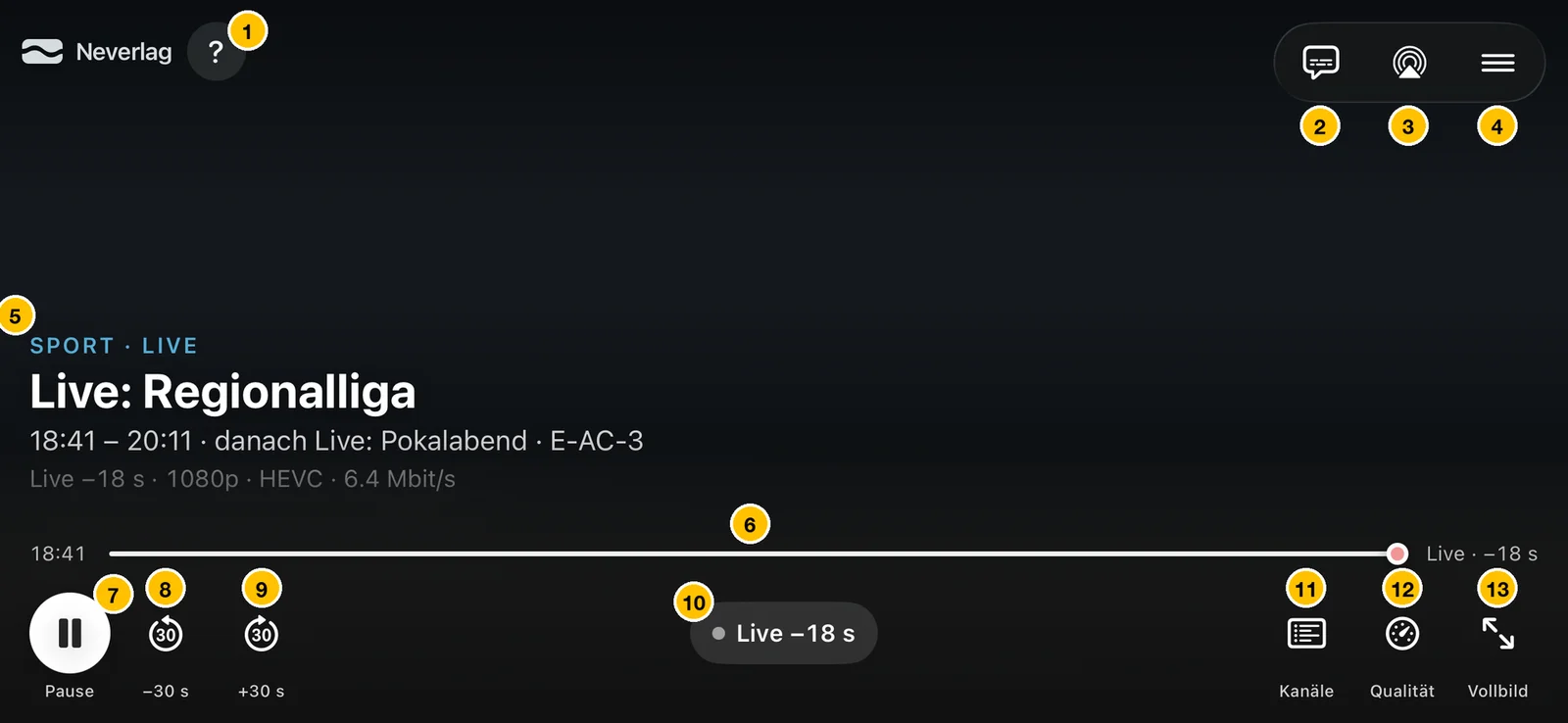
| No. | Element | What it does |
|---|---|---|
| 1 | ? (Help) | Shows the player tips again, step by step over the running picture. |
| 2 | Subtitles | Opens the “Audio & subtitles” sheet with the channel’s audio tracks and subtitles. See Audio and subtitles. |
| 3 | AirPlay | Sends picture and sound to an Apple TV or an AirPlay speaker. |
| 4 | Menu (three lines) | More functions: Picture in Picture, “Out of sync?”, starting or stopping a recording, and Mute on the Mac. See The menu. |
| 5 | Title block | At the top the category and “LIVE”, below it the programme in large type, then the time, the next programme and the audio track (such as “E-AC-3”), and right at the bottom the delay, resolution, codec and data rate. Without programme data, the channel name appears here instead. |
| 6 | Timeline | On the left the start of the rewind buffer, on the right the live edge with the delay (“Live · −18 s”). Dragging moves you around within the buffer. |
| 7 | Pause / Play | Freezes the picture and carries on playing. With live TV the programme keeps running into the rewind buffer, so afterwards you watch it time-shifted. |
| 8 | −30 s | Back 30 seconds. Appears when there is a rewind buffer or the channel has an archive. |
| 9 | +30 s | Forward 30 seconds, but no further than the live edge. |
| 10 | Live pill | Shows “Live” or the delay (“Live −18 s”). Tapping it jumps to the live edge. |
| 11 | Channels | Opens “On now” with the channels of the current group. See Changing channels. |
| 12 | Quality (speedometer) | Opens the Quality window with buffer, speed, frame cadence and level choice. |
| 13 | Full screen | Turns full screen on and off. Always has a button of its own, even when space is tight. |
The button of an open sheet is highlighted (a ring in the accent colour), so you can see where a second tap will take you back to.
On the other devices
| Mac | Apple TV |
|---|---|
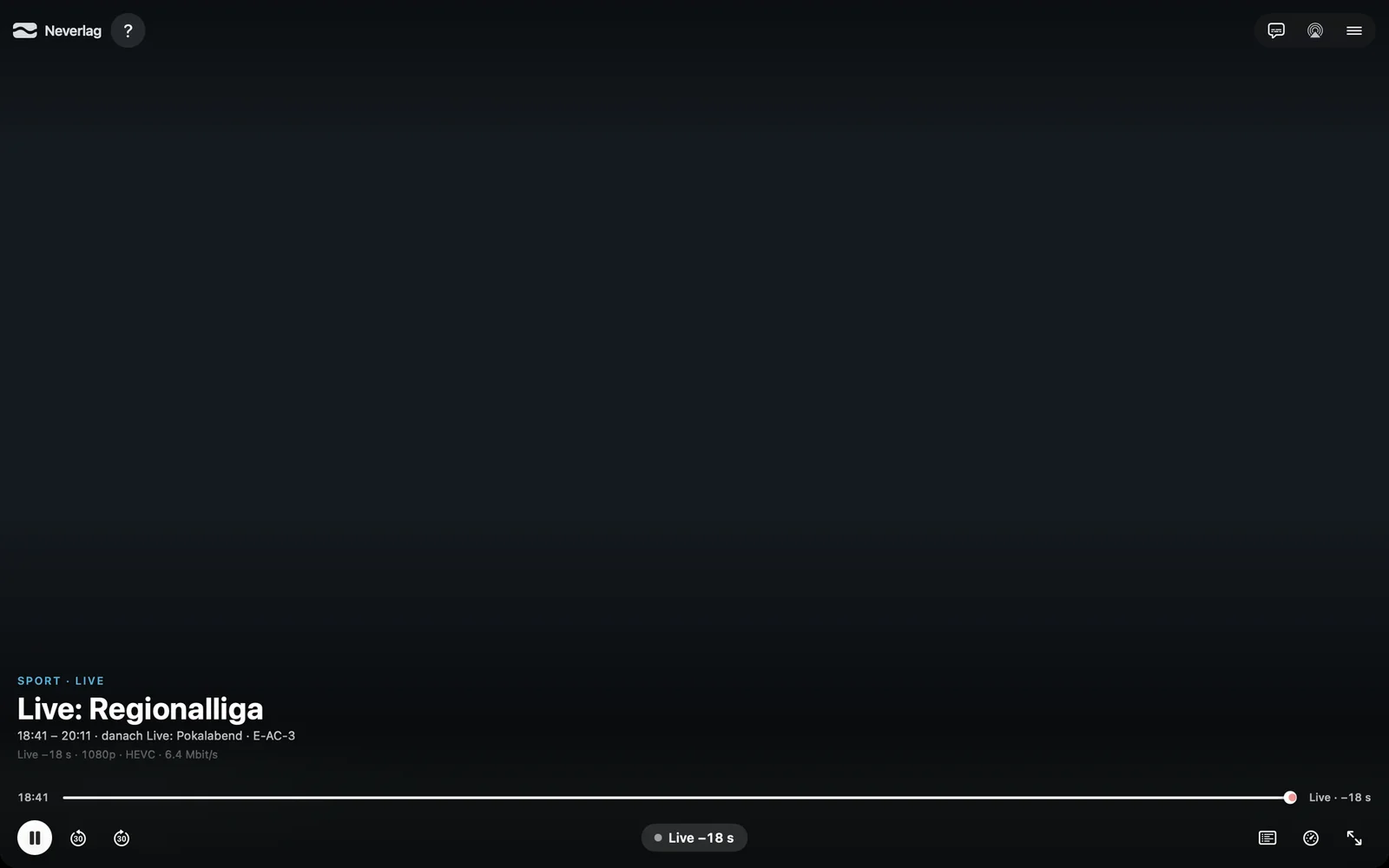 |  |
- Mac – the same layout as on the iPhone, without labels; the name appears as a tooltip when you point at a button. The window title shows the channel and the programme.
- iPad – like the iPhone in landscape; in portrait and in Split View the bar moves closer together.
- iPhone in portrait – the picture sits at the top with the channel list below it. The bar shows Pause, the skip buttons, Quality, Menu and Full screen; “Out of sync?” and the device functions are in the menu, and the live indicator is at the top right of the picture. On a very narrow phone, −30 s and +30 s move into the menu as well.
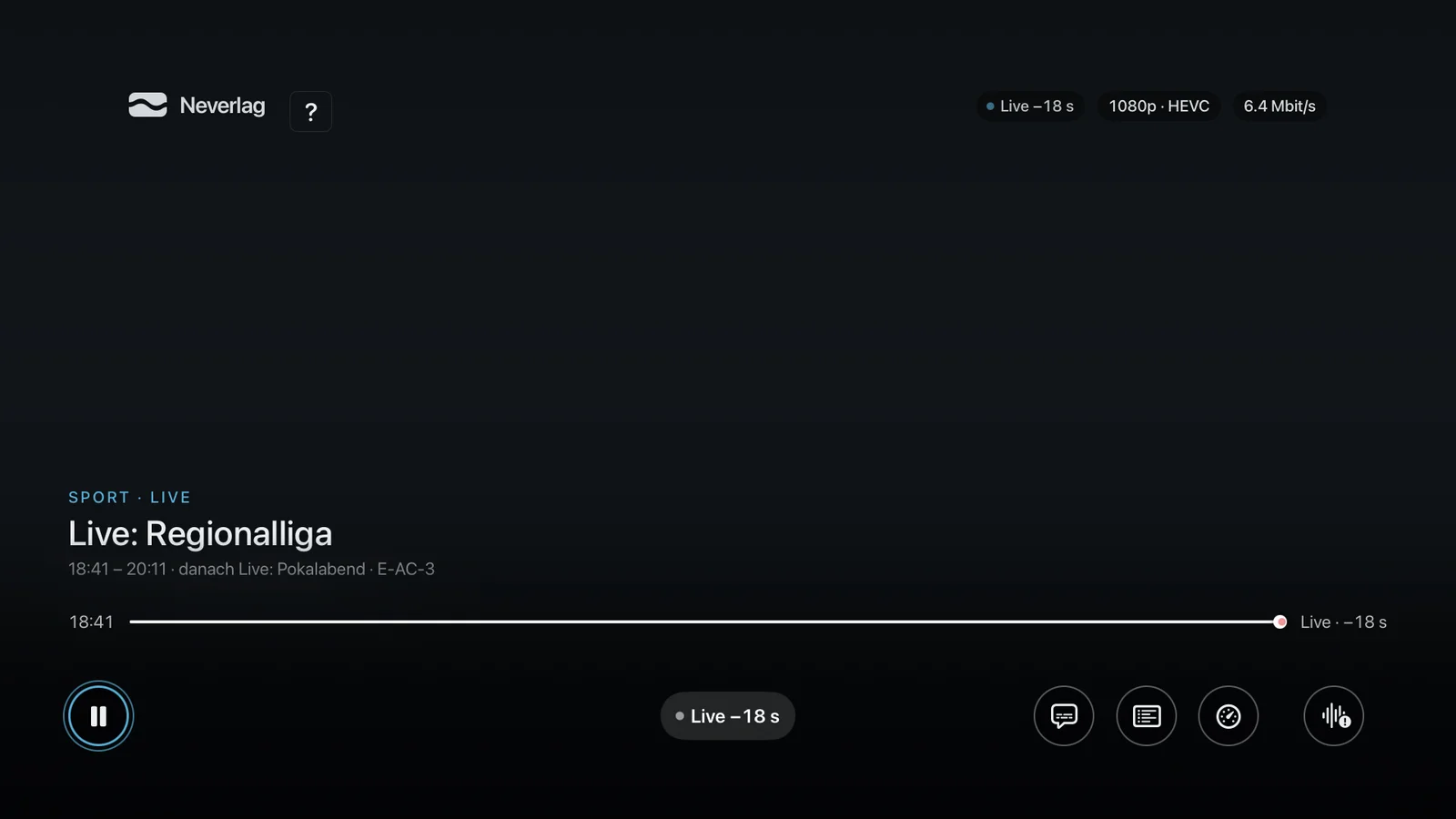
- Apple TV – at the top right, the delay, the resolution with codec and the data rate as small badges. At the bottom left Pause, in the middle the live pill, on the right Subtitles, Channels, Quality and Out of sync? (wave symbol). Recording is in the context menu (press and hold Select) and only appears once network storage is set up; a recording in progress shows a permanent REC badge.
Changing channels
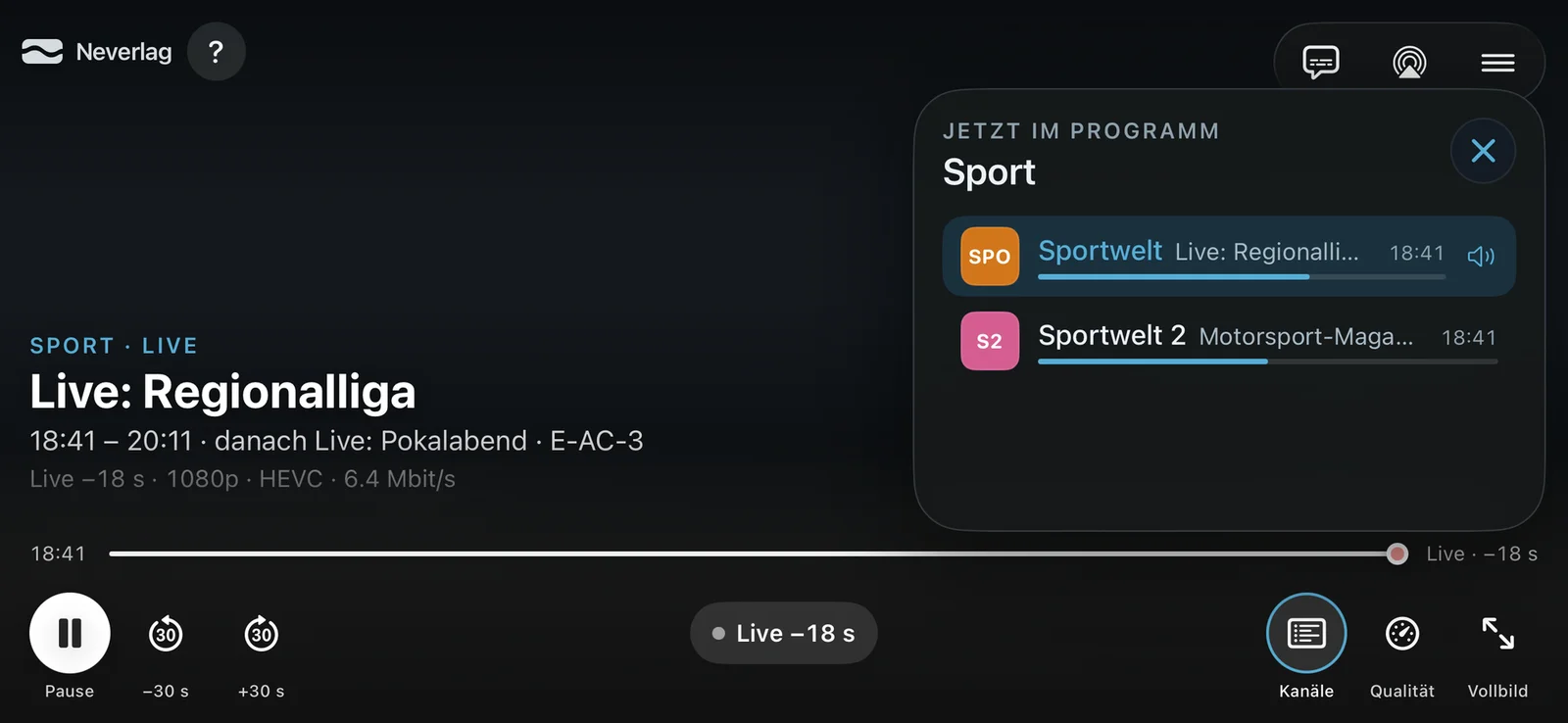
Channels opens “On now” with all channels in the group you are watching: logo, name, current programme, start time and a progress bar. The channel that is playing is highlighted and carries a speaker symbol. One tap switches, and the sheet stays open until you close it with ×.
Other ways:
- Apple TV – clicking up / down on the Siri Remote switches to the next or previous channel, with an overlay for three seconds. A swipe deliberately does not zap, so you do not switch by accident. MENU first closes an open sheet, then the bar, and then shows the channel list – the picture keeps running.
- Mac – arrow up / down, digits for the channel number (as on a television, shown in large type), ⌘Z back to the previous channel.
- Apple TV from the iPhone – the remote switches via tiles, the full channel list (with search by name or number) and “Last channel”.
Audio and subtitles
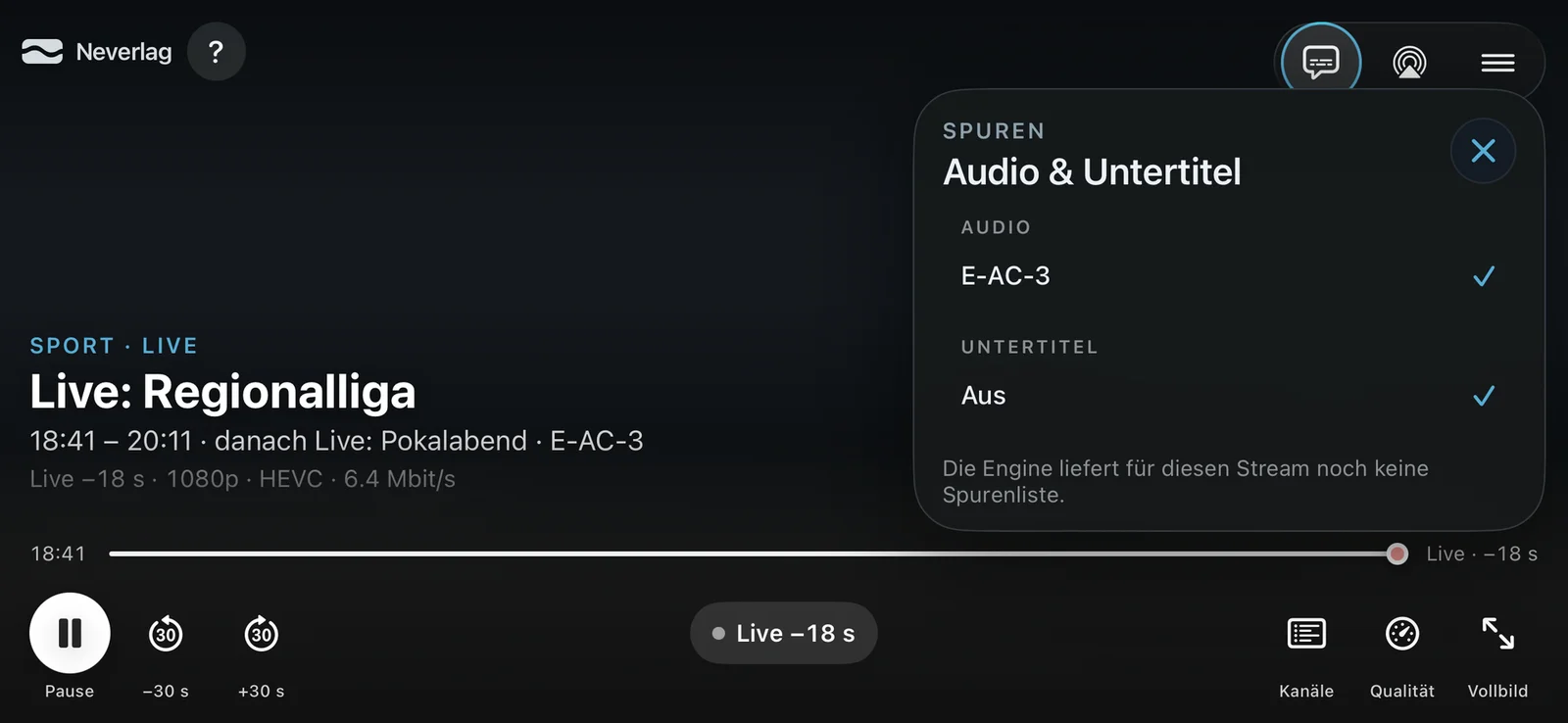
The “Audio & subtitles” sheet lists the audio tracks and subtitles the channel sends along; the active one has a tick. Neverlag remembers the audio language you chose and picks it again on the next channel if that channel has it. Which language is remembered is shown under Picture & Sound → Remembered Audio Language, where you can also reset it.
If the channel arrives without a track list, the bottom of the sheet reads “The engine does not provide a track list for this stream yet.” With many IPTV channels that is the case for the first few seconds, and with some it stays that way – then there is just the one audio track. You never need to choose an aspect ratio: Neverlag always fits the picture.
The menu
Behind the three lines at the top right (iPhone in portrait: “More” in the bar):
- Picture in Picture – the picture keeps floating while you use other apps (iPhone, iPad, Mac). If the entry is missing, the renderer currently in use cannot do Picture in Picture.
- Out of sync? – asks for confirmation and rebuilds picture and sound (“Resync now”) when lips and sound drift apart. When that helps is explained under Picture and sound.
- Start recording / Stop recording – records the current channel; while a recording is running, the entry turns red. Where it goes is explained under Settings → Recordings. Without a provider, the entry is missing.
- Mute – on the Mac only; on iPhone and iPad the volume buttons control the sound.
Rewinding and pausing
With live TV, Neverlag keeps a rewind buffer: in memory by default, and with Timeshift on disk up to two hours. −30 s, +30 s and the timeline move within this buffer; the live pill shows how far behind live you are. On the Apple TV, clicking left / right and a horizontal swipe each skip 30 seconds; at the live edge, “Live” flashes briefly.
If the channel has an archive, you can go back further than the buffer reaches – see Archive: catching up on programmes.
Notices in the picture
Short notices appear above the title block as a glass card, such as “Playing in Full HD instead of 4K” with the Back to 4K button, or after a freeze “Picture stood still for 6 s – provider didn’t deliver”. What each message means and what you can do is explained under Player messages.
Keyboard control (Mac)
| Key | Effect |
|---|---|
| Space bar | Pause / Play |
| Arrow up / down | Next / previous channel |
| 0–9 | Channel by number |
| ⌘Z | Back to the previous channel |
| M | Mute (not while the channel list has focus – there, M jumps to that letter) |
| ⌃⌘F | Full screen |
| ⇧⌘R | Start recording |
| ⌥⌘S | Sidebar on / off |
| ⌥⌘C | Compact mode |
| ⌘2 | TV Guide |
In the Window menu, “Always on top” keeps the player in front of everything else on the screen.
Siri Remote control (Apple TV)
| Button | Effect |
|---|---|
| Click up / down | Next / previous channel |
| Click left / right, swipe horizontally | 30 seconds back / forward |
| Select | Control bar on |
| Select, held | Context menu (recording, tags, Diagnostics & status) |
| Play/Pause | Pause / Play |
| MENU | Close sheet → bar off → channel list |
When you open a sheet (quality, tracks, programme), the focus jumps into it – onto the active level, the active audio track or the channel that is playing. MENU closes it and puts the focus back on the button that opened it.
Further reading
- The Quality window – what the figures mean
- Player messages – what each message says and what you can do
- Remote – controlling the Apple TV from the iPhone
- Settings → Playback and Picture & Sound