
Profiles and admin
From version 1.0.2. Each person has their own profile with their own world of channels. An administrator profile manages the app for everyone: providers, profiles, permissions, PIN and backup. A child profile sees only what is allowed, and a PIN protects the rest. The related settings are under Settings → Profiles & Parental Controls.
| Profile picker (iPhone) | Profile picker (Apple TV) |
|---|---|
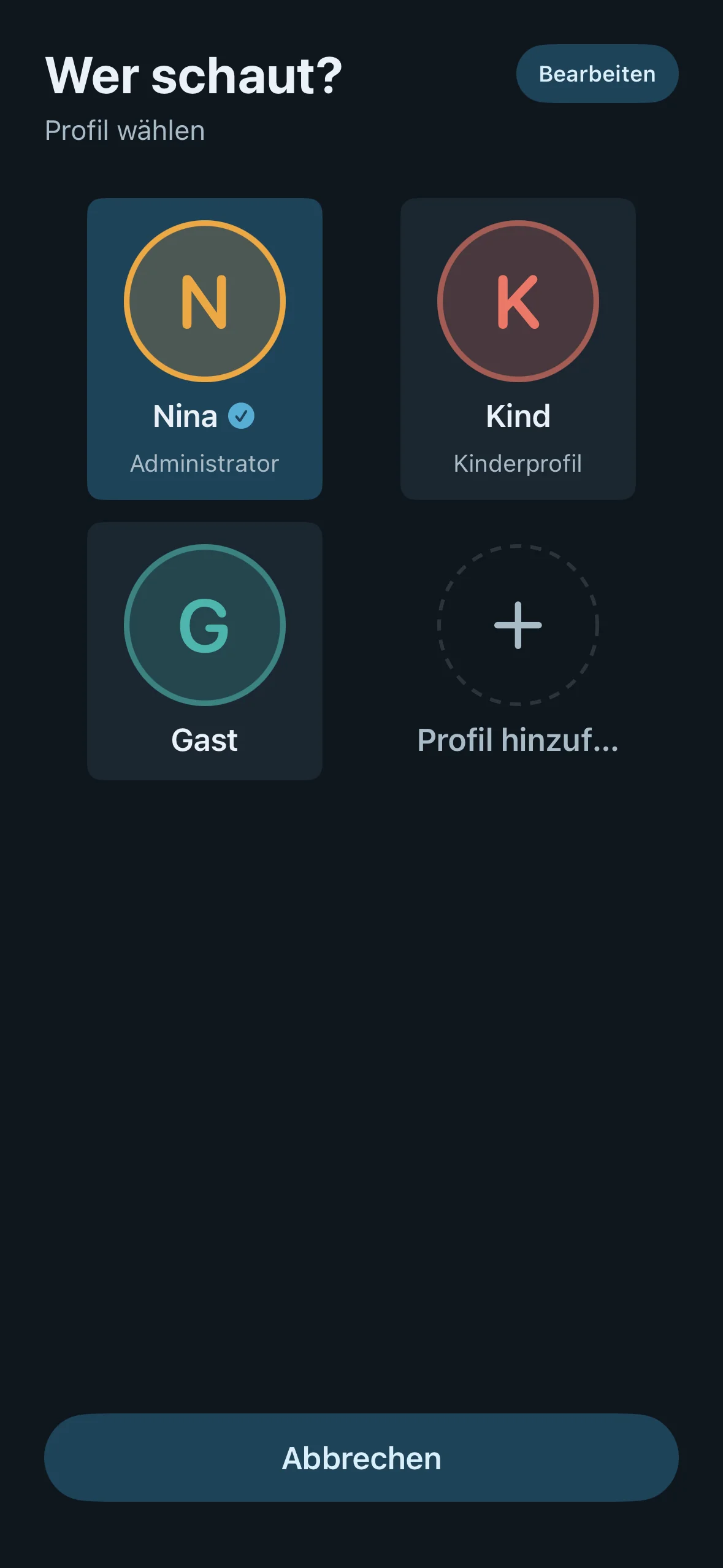 | 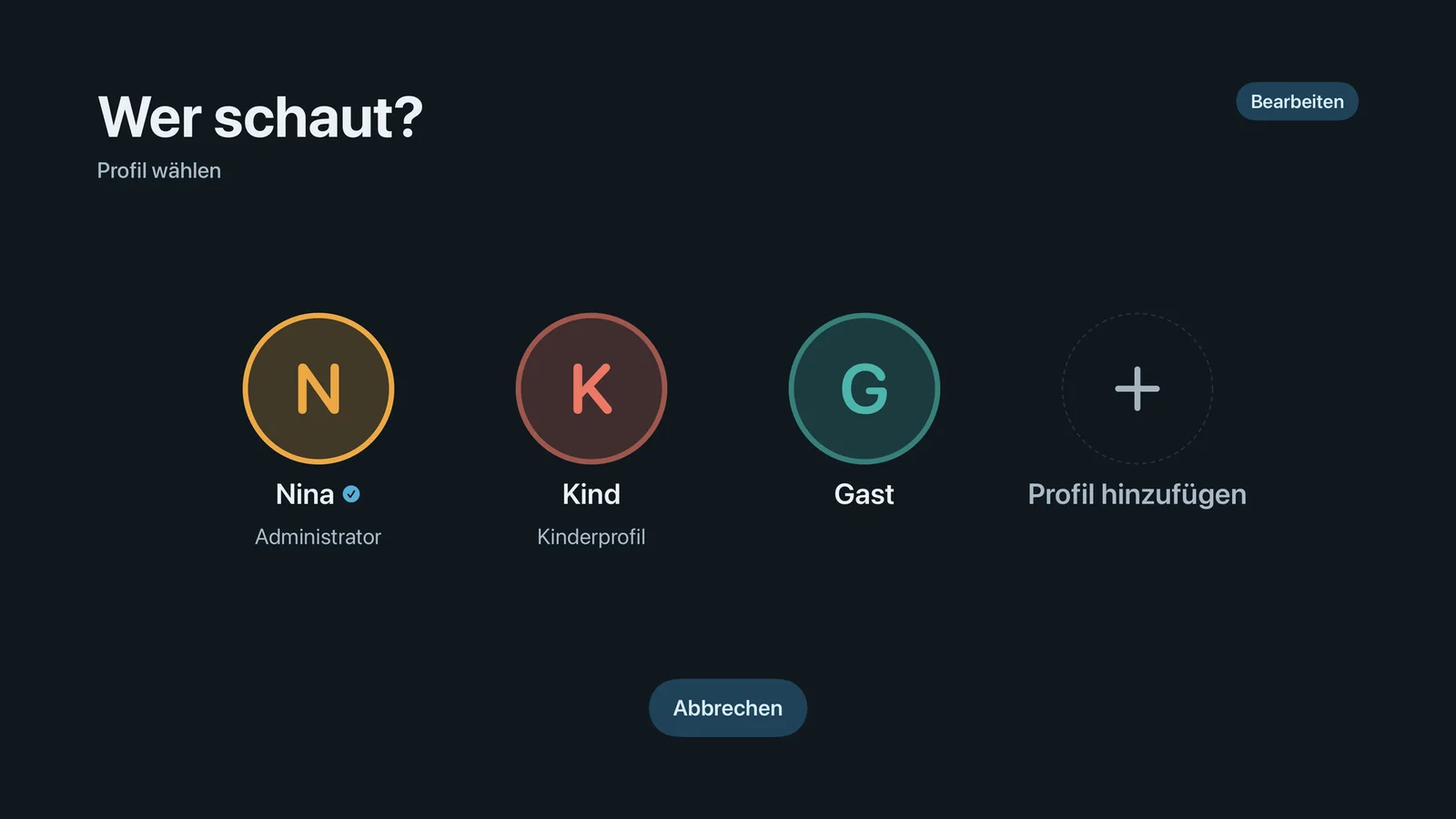 |
What it is
Neverlag keeps several profiles on one device, for example one for the parents and one for each child. Each profile has its own favourites, its own history, its own “Continue watching” and its own selection of groups and channels.
You set up the providers (Xtream account, M3U playlist) once for the whole device. Which profile sees which provider is decided by the administrator.
There are no ready-made profiles. On first launch you create your first profile yourself: name, colour, symbol, with a PIN if you like. This first profile is automatically the administrator. Everything that was already there (favourites, history, continue watching) then belongs to it.
The administrator profile
New in 1.0.2. The principle: anything that changes the whole device or other profiles is the administrator’s business. Anything that only affects your own viewing, every profile may do.
- There is always at least one administrator. The last administrator profile keeps its rights: “Make another profile an administrator first.”
- A child profile cannot be an administrator.
- An administrator always sees all providers (“Administrators see all providers.”) and so cannot lock themselves out.
- After the update to 1.0.2, the oldest adult profile automatically becomes the administrator. Otherwise nothing changes for existing profiles; they keep seeing the same channels.
- In the profile list, the administrator has a shield and the label “Administrator · Adult profile · Active”.
Switching to an administrator profile requires the PIN as soon as a PIN is set – even if the profile is not specifically “PIN protected”. Without a PIN, the app shows below the profile list: “Set a PIN so that switching to an administrator profile is protected.” This is the only visible change for existing users: if you have a PIN and use several profiles, you will be asked for it when switching to the administrator profile.
Who may do what
| Action | Administrator | Other profiles |
|---|---|---|
| Add providers (Xtream, M3U, QR code), change, refresh, remove them | yes | no – they see their allowed providers read-only |
| Allow providers per profile | yes | no |
| Grant or withdraw administrator rights (never the last one) | yes | no |
| Create, delete profiles | yes | no |
| Child profile switch, PIN protection of a profile | yes | no |
| Own profile: name, colour, symbol | yes | yes |
| Own content (groups, hidden channels) – adult profile | yes | yes, from the allowed providers |
| Content of a child profile or of someone else’s profile | yes (child profile with PIN) | no |
| Set, change, remove the PIN; protect settings with PIN | yes | no |
| “Lock again now” | yes | yes |
| Switch profile | yes | yes – to an administrator or PIN profile only with the PIN |
| Advanced section (diagnostics, journal, internals) | yes | no – the section is missing |
| Export, import backup | yes | no – the section is missing |
| Set up network storage, transfer it to Apple TV | yes | no |
| Start and schedule recordings, padding | yes | yes |
| Send to Apple TV, pair the remote, remove paired devices | yes | no – using the remote: yes |
| Playback, Picture & Sound, TV Guide, General, Subscription, About Neverlag | yes | yes |
Whatever a profile may not do, the app hides, and says why in one sentence. A profile without administrator rights reads below the profile list: “Profiles, providers and the PIN are managed by an administrator profile. You can edit your own profile: name, color, symbol and content.” Under “Providers & Content”: “Providers are managed by an administrator profile. You see the ones allowed for you.”
Allowed providers
On a profile’s page, under “Rights”, there is the Allowed providers list, with a tick per provider. Only an administrator can change it; any other profile sees it read-only (“Providers are allowed by an administrator profile.”).
- New profile: all providers are preselected and can be deselected. An empty profile would look broken.
- New provider: adult profiles see it immediately. Child profiles only see it once you allow it there explicitly: “A new provider is not automatically allowed for child profiles — allow it here explicitly.”
- Provider removed: it disappears from all lists.
A provider that is not allowed for a profile is missing everywhere in that profile: in the channel list, the provider chips, the TV Guide, movies and series, search and the archive. Even automatic source switching only falls back to lists the profile is allowed to see.
Content for this profile
Below the allowances, there are three rows for each allowed provider: Live categories, Movie categories, Series categories, each with “n of m”. Tapping opens the list with a switch per group. Plus Hidden channels: individual channels that stay invisible even though their group is selected.
The difference between the profile types:
- Adult profile: “This profile sees everything except what is deselected. New categories appear automatically.”
- Child profile: “It only sees the selected categories. New categories stay hidden until they are selected here.”
On the go it is quicker: in the channel list, press and hold (iPhone, iPad), right-click (Mac) or hold the select button (Apple TV) → Hide in this profile or Show in this profile.
Whatever a profile has not selected is missing everywhere: channel list, categories, favourites, history, search, TV Guide, movies, series and archive. If someone starts such a channel by entering its number, “Locked channel” appears with a PIN prompt: “‹Sportwelt› is not allowed in this profile. Enter the PIN to see everything until the next profile switch.”
Changing content later
New in 1.0.2: groups you deselected when setting up the provider can be added later per profile – without repeating the setup and without a restart.
- Open the profile → “Content for this profile” → for example “Movie categories”.
- The list shows all of the provider’s groups. Those deselected during import carry the note “not loaded yet”, such as “212 items · not loaded yet”.
- Tick the box. Neverlag queues the group and loads its content in the background through a refresh of the provider. At the top it says “Loading groups…”.
- The content then appears in this profile, without you restarting the app.
The list’s footnote: “Groups marked ‘not loaded yet’ were deselected during import. Checking one queues it; the content arrives in the background through the provider refresh — no restart needed.”
This works the same for live channels, movies and series. A large provider needs between ten seconds and a minute. If you remove a tick, only this profile changes; the group stays loaded for other profiles. To take a group off the device entirely, use Manage groups & reload as administrator.
Child profile
A child profile only sees what you allow, and the provider’s new groups stay hidden there. Its content can only be changed with the PIN (“The content of this profile is protected. Enter the main PIN to make changes.”). A child cannot unlock anything for themselves when “Protect settings with PIN” is on. More in Parental controls.
PIN
Settings → Profiles & Parental Controls → Set PIN… (at least four digits). The PIN is stored only as a checksum in the keychain. After that you can
- switch on Protect with PIN in the profile: switching to this profile asks for the PIN.
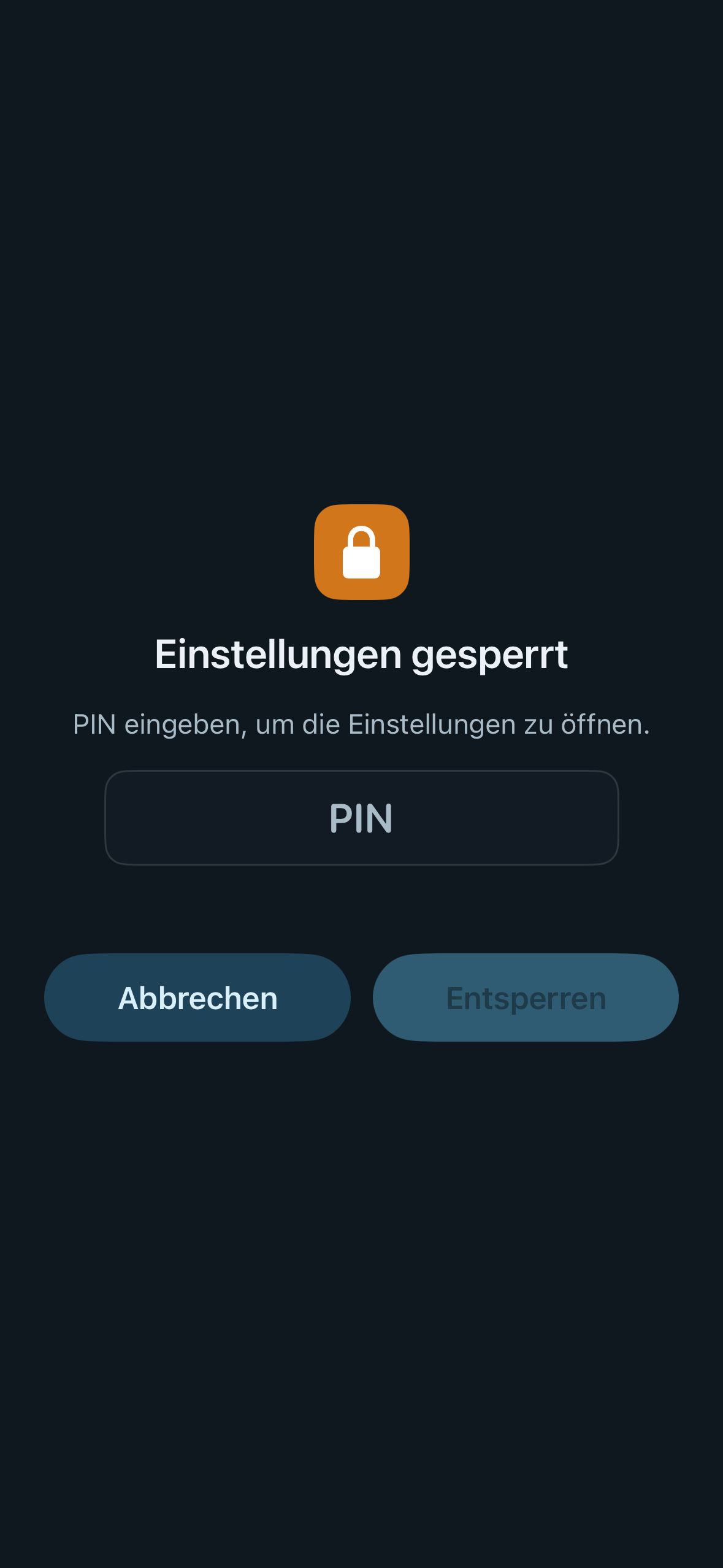
- switch on Protect settings with PIN: the settings only open after the PIN has been entered.
Administrator profiles ask for the PIN when switching anyway. The unlock lasts until “Lock again now”, until you switch to a child profile or until the next app launch.
On the Apple TV you enter the PIN on a number pad with the remote; on iPhone, iPad and Mac in an input field. From the remote, the iPhone asks for the PIN.
| Set PIN (iPhone) | Enter PIN (Apple TV) | Settings locked (iPhone) |
|---|---|---|
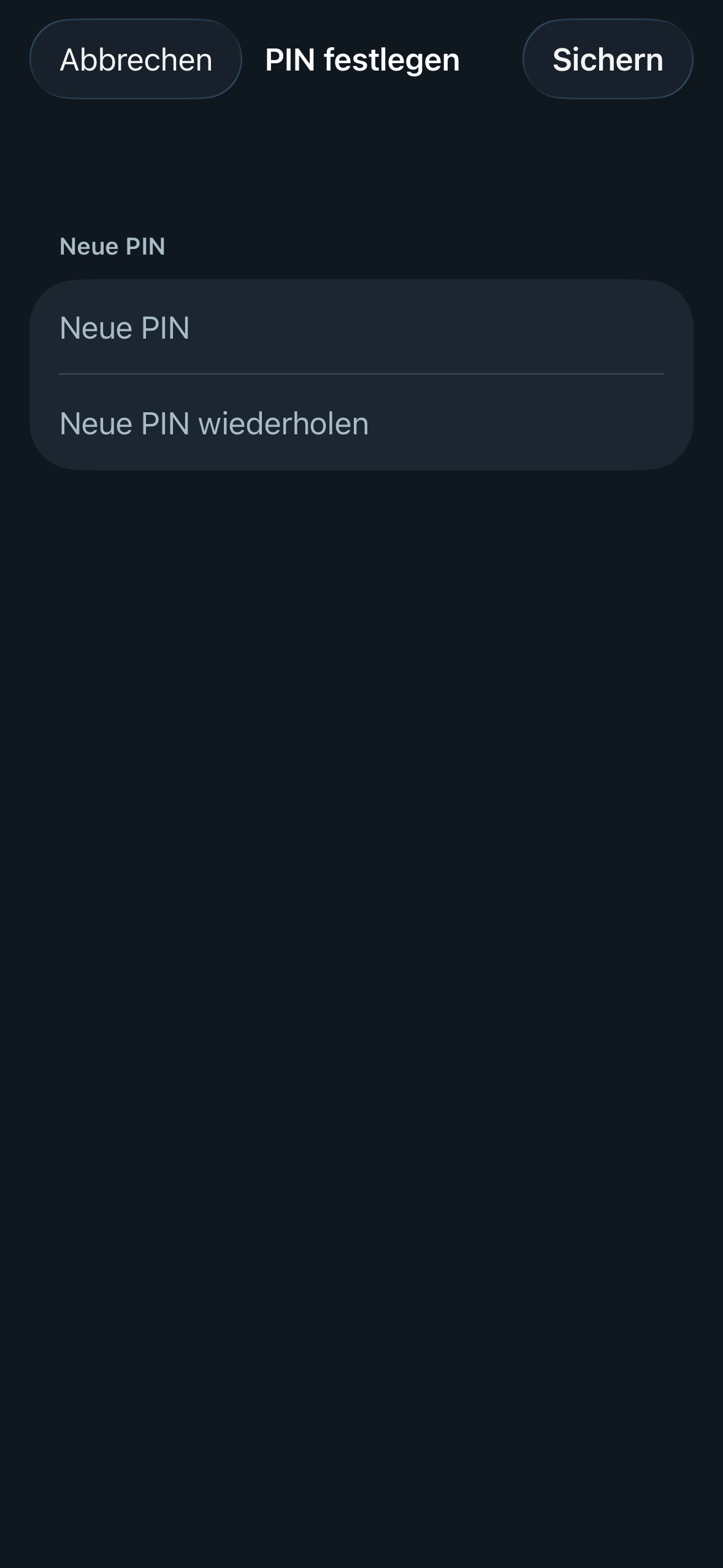 | 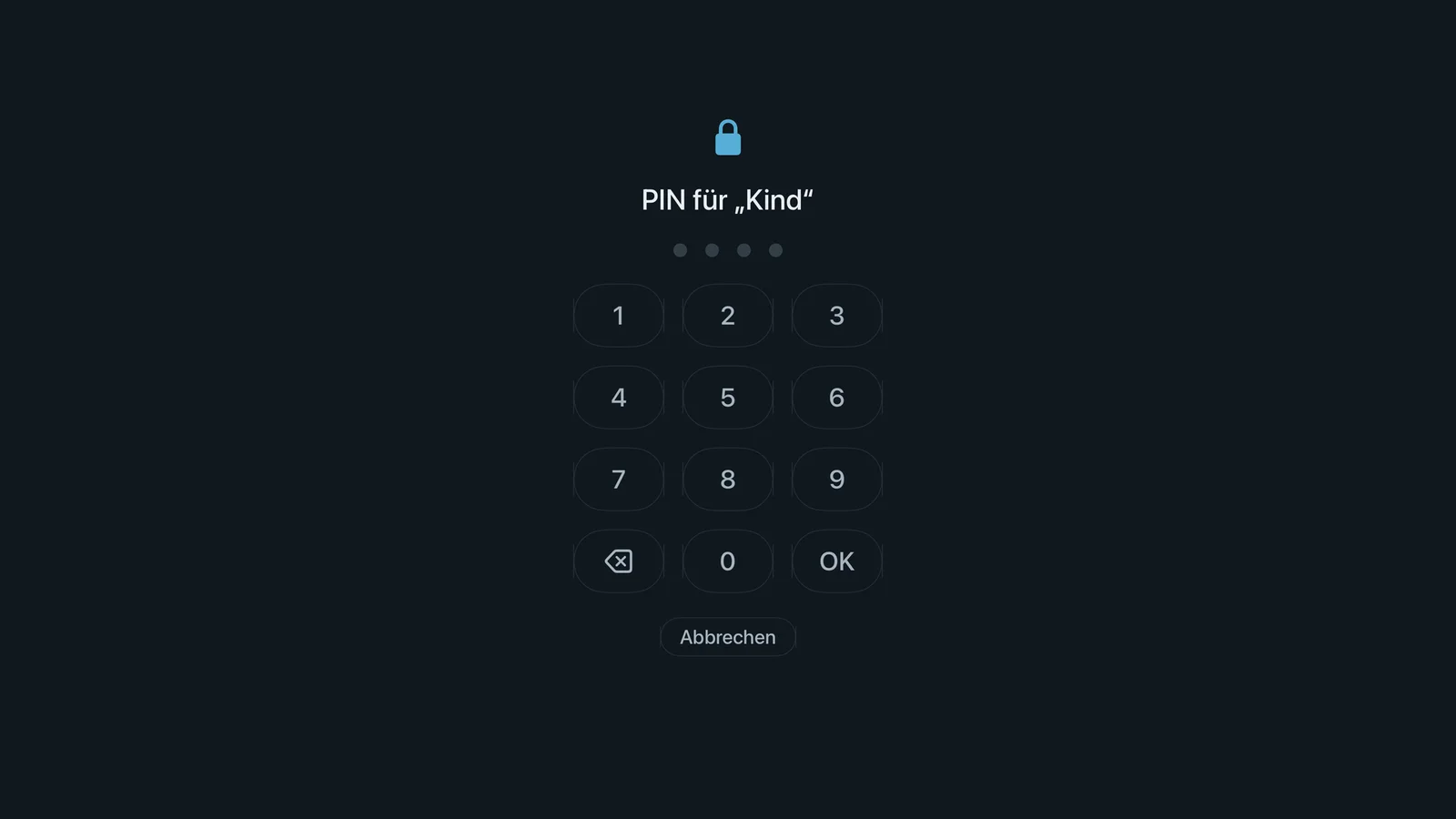 |  |
Forgot your PIN? In the PIN dialogue → “Forgot PIN?” → “Reset”: “The PIN will be deleted; PIN protection for profiles and settings is then off. Profiles and allowances are kept.” Then set a new PIN.
Switching profiles
- At launch: once there are two profiles, Neverlag asks “Who’s watching?” and only starts after you have chosen. So no channel starts playing before the right profile is active. “Manage profiles” opens a profile for editing. With Escape (Mac) or “Back” (Apple TV) you carry on with the current profile.
- On the go: the active profile appears as a coloured circle in the bar (Mac: sidebar; iPhone and iPad: at the top; Apple TV: header). Tapping it opens the profile picker. You can also use Settings → Profiles & Parental Controls → “Switch profile”.
- From the remote: the “Profile” button on the iPhone or iPad.
- Protected profiles and administrator profiles ask for the PIN; a child profile can be reached without a PIN.
Editing and deleting a profile
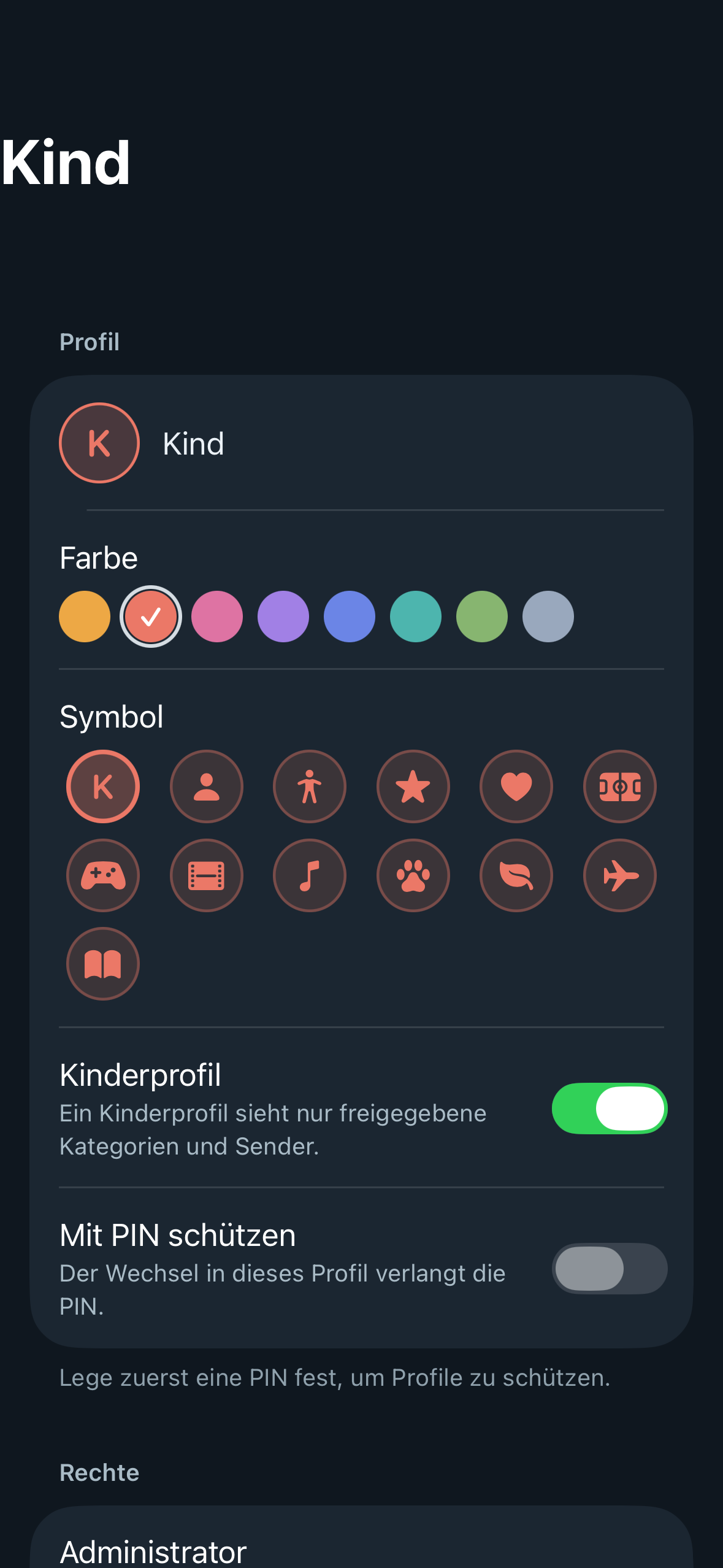
A profile’s page has these sections: Profile (name, colour, symbol; child profile and PIN protection for the administrator only), Rights (the “Administrator” switch, visible to the administrator only), Allowed providers, Content for this profile and, at the very bottom, Delete profile… (administrator only). The device’s first profile cannot be deleted. Deleting takes that profile’s favourites, history and continue watching with it.
Backup
Profiles travel with the backup (Settings → Providers & Content → Backup, administrator only). Since 1.0.2 (format 4) it contains all profiles with their content, favourites and playback positions, the administrator flag, the provider allowances, the PIN as a checksum and all Apple TV pairings. When you restore it, pairings are added rather than overwriting existing ones. Older backups can still be read; if one has no administrator, the oldest adult profile becomes the administrator.
When pairing an Apple TV (transferring a provider from the iPhone or Mac), the Apple TV takes over your active profile’s selection for that provider. Only an administrator profile on the Apple TV can accept it.
Limits
- Profiles live on the device. Only the main profile syncs via iCloud (favourites, history); other profiles only reach a second device through the backup.
- There is one PIN per device, not one per profile.
- Content applies per group of your provider. If the provider renames a group, you have to adjust the selection once.
- Without “Protect settings with PIN”, the settings are open – on purpose, so that a device without children has no hurdle. What only the administrator may do stays locked regardless.
- Recordings are not per profile; they belong to the device.
Further reading
- Settings → Profiles & Parental Controls – every row with its default value
- Parental controls – the child profile in everyday use
- Archive: watching past programmes – the archive follows the profile too
- Subscription and backup – exporting and importing the backup