
Automatic tags in the TV Guide
From version 1.0.2. As it reads in the TV Guide, Neverlag works out what each programme is about and turns that into filters and the “Live now” section. In a test guide with 73,130 programmes, 16.6 % carried at least one of the 17 keywords.
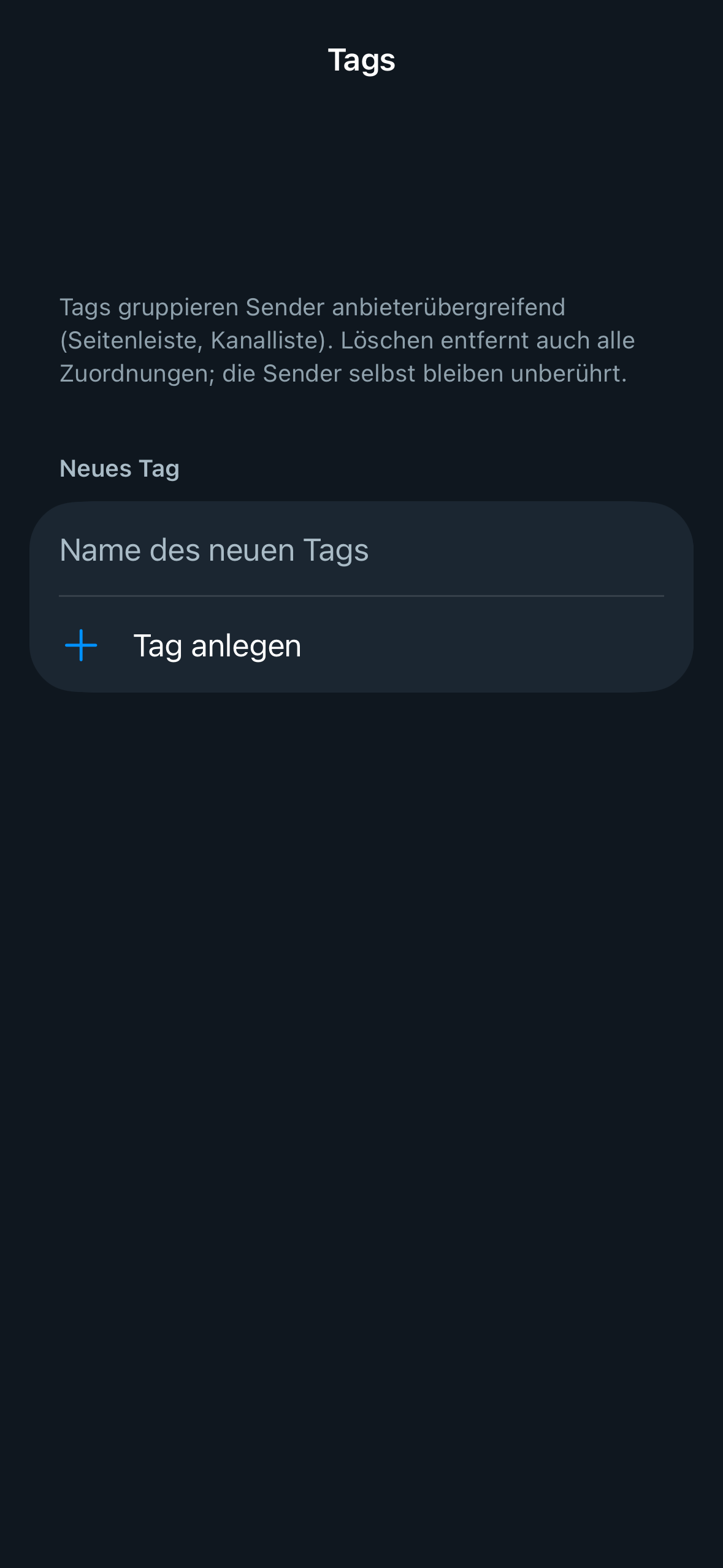
Not to be confused with My tags: those are your own labels for channels, which you assign yourself and manage under TV Guide → Manage tags. Automatic tags belong to programmes and appear on their own.
What it is
As it reads in the TV Guide, Neverlag goes through every programme and automatically gives it tags – short keywords that say what it is about. There are two kinds:
- Sports: Football, Ice hockey, Tennis, Basketball, Handball, Motorsport, Cycling, Combat sports, Winter sports, Golf, US sports (American football, baseball).
- Programme types: News, Kids, Film, Series, Documentary, Music – as long as the provider includes them in its guide or they are obvious from the title.
The tags appear as filter chips in the TV Guide, in the channel list and in the archive, and they feed the “Live now” section at the top of the live list. There is nothing to switch on; there is no toggle and no setting for it.
A programme can carry several tags (“Sportschau” on a Saturday: Football and Winter sports). The tags are the same for every profile, but the filters only ever show what the active profile is allowed to see.
How to use it
Filters in the TV Guide
Above the grid or the “On now” list is a row of chips – only the tags that actually occur in the visible time span (three hours), each with the number of programmes. Tap “Football” and only channels with a matching game in that span remain, showing only the matching programmes in their row. When you page through time with the arrows or the time chips, the chip row adjusts to the new span. “✕” clears the filter.
Filters in the channel list
The same chip row sits above the channel list and refers to what is on right now. “Football” then shows only the channels where a game is on at the moment – as a single list, “Football · on now”. Your group and favourites selection still applies: you only see channels from the selected group.
“Live now” and “Coming up”
At the very top of the live list – only when there is something to show – the Live now section appears. For each sport it lists what is on right now: channel, title and time remaining (“38 min left”). Below it, Coming up shows what starts in a sport within the next two hours, with the start time. Tap an entry to switch to the channel.
The section respects the selected group and the active profile: a child profile only sees the channels it has been given access to. If a tag filter is active, “Live now” only shows “Coming up”, because what is on now is already in the list below.
Programme types (News, Kids …) don’t appear in “Live now” – that is what the filter chips are for.
Filters in the archive
In the Archive section the chip row works on both views: under “By programme” the tiles of matching programmes remain, under “By channel” the matching programmes of the selected day. “Football” therefore shows every game across the archive days at a glance.
Apple TV
Every chip row can be reached with the remote: swipe up to the chip row, left or right to the tag you want, and click to select it; “✕” or the same chip again clears the filter.
Languages
Detection understands the languages found in the guides of common providers: German, English, French, Italian, Turkish, Bosnian/Croatian/Serbian (Latin and Cyrillic), Spanish, Portuguese, Dutch, Polish and Hungarian. The tag names themselves appear in the app’s language (German, English, French, Italian).
How it works (in brief)
- First comes the category the provider sends with the guide (in
XMLTV format,
<category>): “Soccer”, “Calcio”, “News”, “Kids” and so on are assigned directly. - Then Neverlag searches the title, subtitle and category for words from a dictionary – competitions (“Bundesliga”, “Champions League”, “Süper Lig”, “Premijer liga”, “NHL”, “ATP”), sports in every language (“Fussball”, “calcio”, “fudbal”, “nogomet”, “futbol”) and programme names (“Sportschau”, “Tagesschau”, “Dnevnik”). For sports it also searches the description.
- Only whole words count: “Golf” matches, “Golfstrom” doesn’t; “DEL” (ice hockey) only counts in capitals, not the Italian “del”. Words from a language only count if the programme is recognisably in that language – “Football” means association football in English and French, but not in German.
- Exceptions prevent false matches: “Football Factory” is a film, and a documentary about how tennis rackets are made gets no tag.
- Tagging happens while the guide is read in, in the background, not when it is displayed – so the app stays smooth. Programmes read in before the update are tagged once, later, while the app is idle.
- The keyword dictionary can be extended without changing the app: add words per tag and language, and that’s it.
Limits
- The tags are only as good as the provider’s guide. If a programme is just called “Live” or “Sport” with no further detail, it gets no tag.
- Programme types (Film, Series, Documentary …) mostly come from the provider’s category. If it doesn’t supply one, only unambiguous titles are tagged (“Tagesschau”, “Spiegel TV”).
- “Live now” only shows sports; programme types can be found via the filter chips.
- A filter hides everything else – including channels that have no matching programme right now. Tap “✕” for the full list.
- The tag names are translated into the four app languages; detection covers the eleven languages above. Further languages need additions to the dictionary.
Further reading
- Archive: catching up on programmes
- Interface – TV Guide and channel list
- Profiles and admin – filters only show what the profile is allowed to see
- Settings → TV Guide – programme data, matching, your own tags